Category: Grub

How to fix and prevent the /dev/sda1: recovering journal On Ubuntu 16.04 Gnome

As I was booting my computer up one morning I saw this awful error message rather than the Ubuntu Gnome boot logo, it turned out to be a common error and can be fixed easily, let’s get to the details!
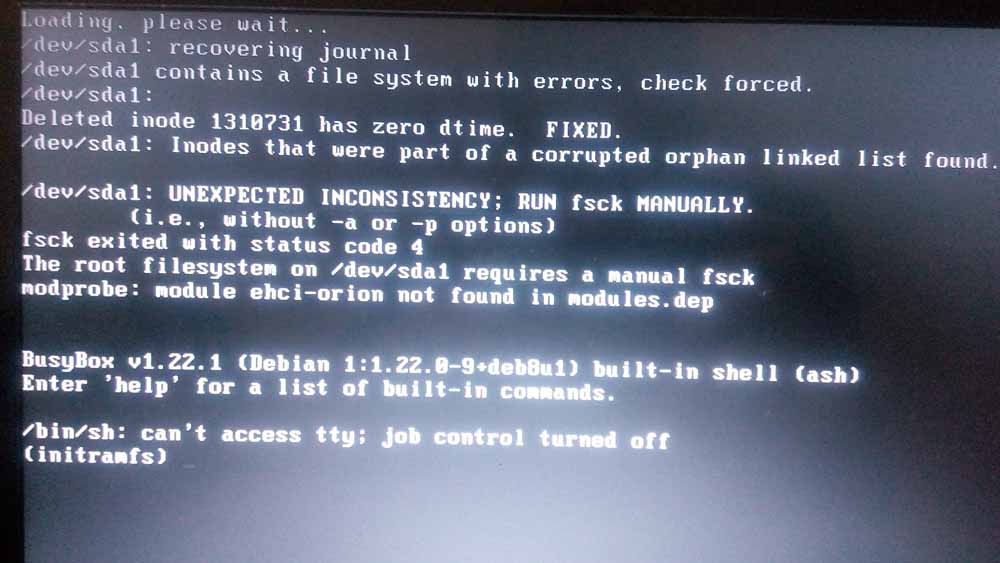
/dev/sda1: recovering journal

Cause of the issue

The problem occurs when the computer isn’t shut off properly or when electrical failure happens, some data on the SSD

isn’t stored properly and the boot process is halted.

In my case it’s the power issues that ruined my laptop battery and is making it’s way to my data stored on the SSD. 

How to fix it

The screen itself suggests a terminal command to fix the drive which was useless in my case, my easy fix was using a live Linux installation from a USB -I used Linux mint- and used Gparted to fix the damaged drive (please note that using Gparted can be very risky and cause data loss). 

Using Gparted from a live distro

We are using Gparted to fix the partition, it depends on how you did your disk but it’s the same way.
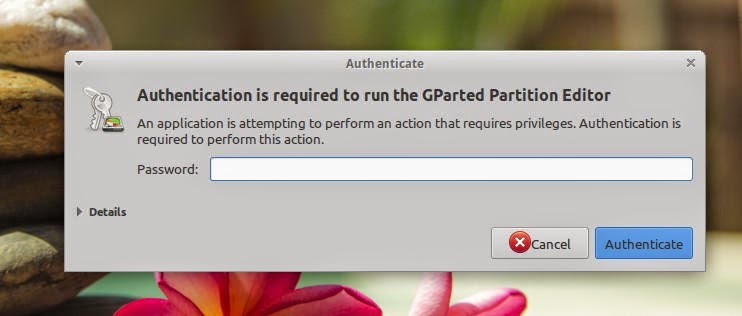
Entering the password to run Gparted.
Opening Gparted


  Viewing a list of disks on your computer.
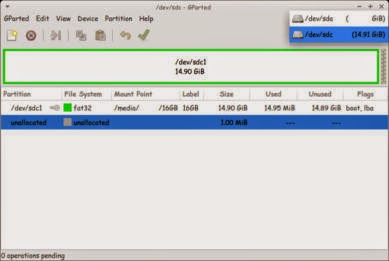
View disks with Gparted


 Checking the drive for errors with the right click menu.
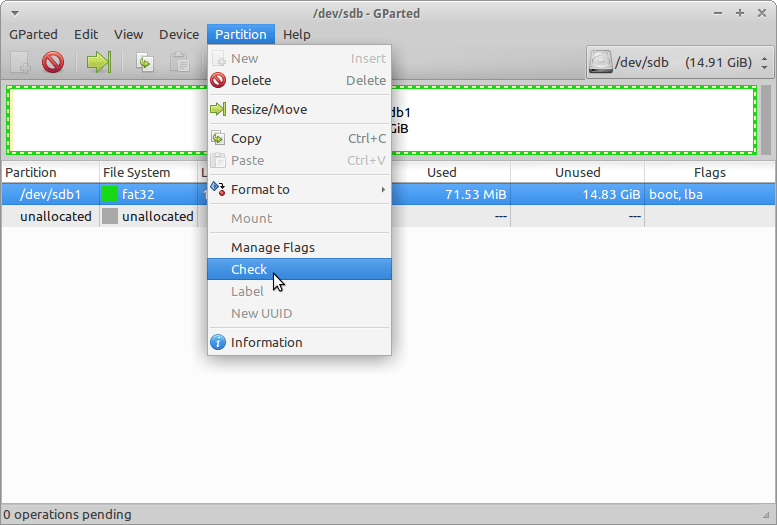
Checking the disk for errors using Gparted

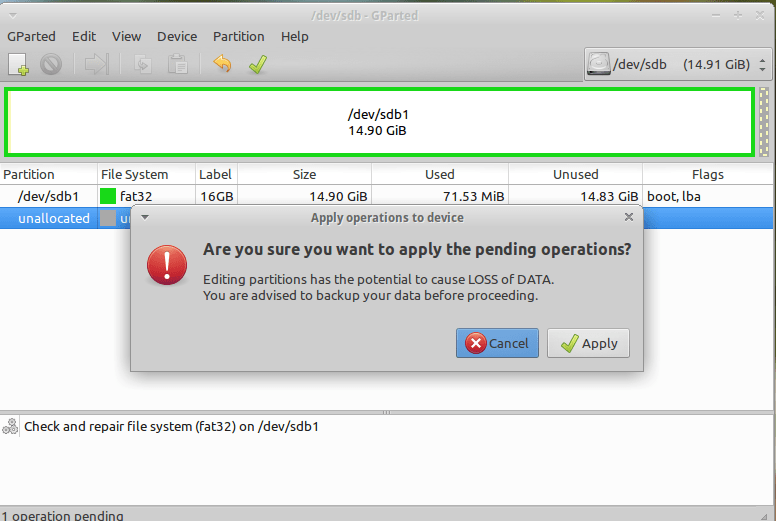
We now click Apply changes.

Applying changes using Gparted
After applying changes we can safely reboot, the fix is done!

Making sure damage didn’t happen

ِAfter rebooting the computer will open as usual, but we want to make sure that the drive wasn’t damaged, to do that we will install a small command line tool called Smartmontools 6.5 and it can be downloaded from this link.

Installing Smartmintools-6.5

Samrtmontools is a terminal utility
to check and monitor disk performance. 

To install Smartmontools we need to un-compress the tarball and we do this from the terminal

  tar zxvf smartmontools-6.5.tar.gz

The previous step created a directory called smartmontools-6.5 containing the code. Then we go to that directory, build, and install:

 cd smartmontools-6.5

  ./configure
  make
  sudo make install
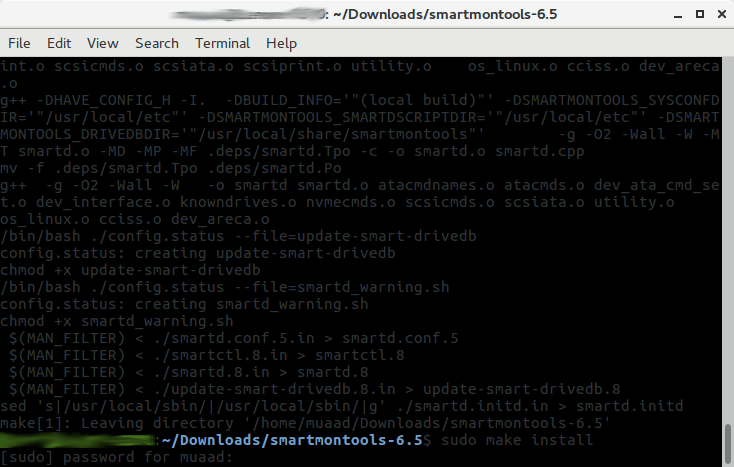
After running these steps we managed to install Smartmintools-6.5 tarball from the terminal.

Running Smartmintools-6.5

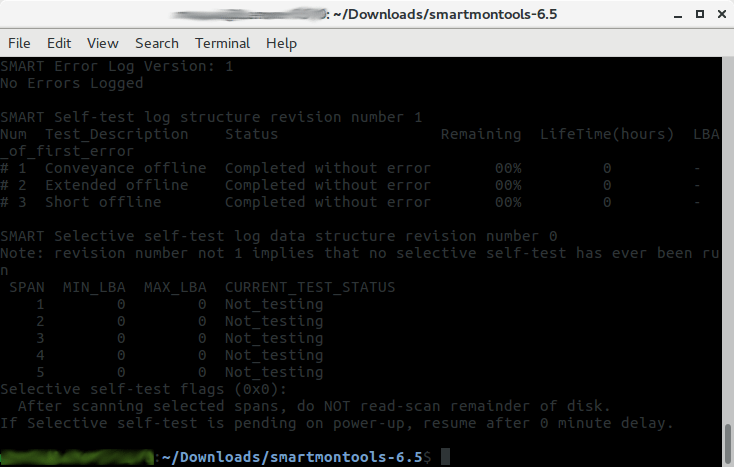
Run the command:  sudo smartctl -a /dev/sda. And if the results are like the the screenshot your drive is safe, as it says clearly: No errors logged.


How to make the fix automatic on every boot

Instead of performing the fix every time the issue happens, it’s easier to set the config autofsck to run at every boot. 


Edit the file etc/default/rcS and change the FSCKFIX from no to yes by using this terminal command:


gksu gedit /etc/default/rcS
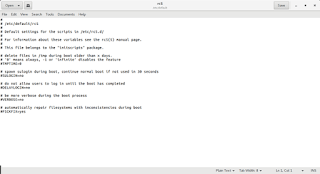
Here it opens a gedit windows, navigate to the last line.
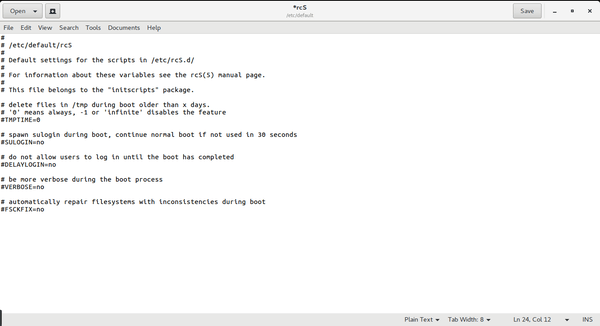
Editing /etc/default/rcS

Change the FSCKFIX from no to Yes and save to finish.
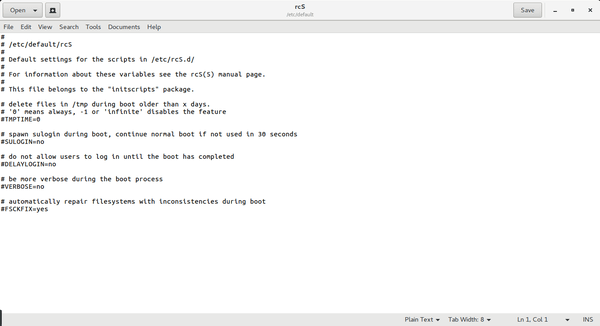
Editing /etc/default/rcS

This way every time the issue occurs the system will automatically fix it and continue booting normally. 

This is how to fix and prevent the /dev/sda1: recovering journal on Linux Ubuntu Gnome 16.04 and similar distros, it’s really easy to fix but it can be scary and ruin a day for you if you don’t know what to do.
And I highly advise you to backup whenever possible

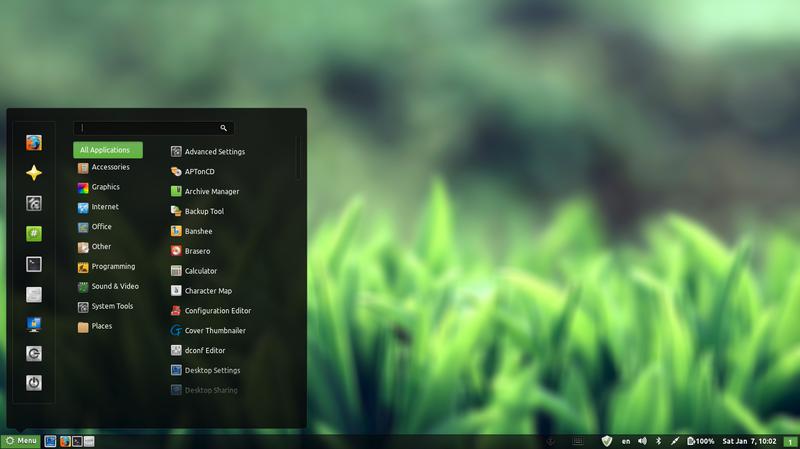
Time for a change installing Cinammon on Xubuntu 14.04

Last week I posted about wanting some change by changing the interface, and took a look at several interfaces, this post is the second part, where I actually chose an interface and got down to business.

I decided to go with Cinnamon, it’s visually appealing and the download size is relatively small (51.4 MB). My only concern was reading online that it’s buggy and has many problems. But I was willing to take a chance!

At first I installed Cinnamon using these commands
This command is to add the repository to my system.
sudo add-apt-repository ppa:lestcape/cinnamon
This command is to update and install.
sudo apt-get update && sudo apt-get install cinnamon.

After the first reboot I had Cinnamon as an option on the login screen, which still looked like it was in XFCE and I had to enter my password twice! (it’s a common bug actually!)


I figured that deleting Xubuntu will fix my problem, so I began deleting Xubuntu, once and for all!

I used several commands to make sure the interface went away, like:

sudo apt-get -f install
sudo apt-get clean
sudo apt-get autoclean
sudo apt-get update
sudo apt-get purge xfce4

The second command is probably the longest I ever used, thank god for copy and paste!!

sudo apt-get remove abiword abiword-common abiword-plugin-grammar abiword-plugin-mathview bison blueman brltty-x11 catfish elementary-icon-theme exo-utils flex gigolo gimp gimp-data gmusicbrowser gnome-icon-theme-full gnome-system-tools gnome-time-admin gnumeric gnumeric-common gnumeric-doc gstreamer0.10-gnomevfs gthumb gthumb-data gtk2-engines-pixbuf gtk2-engines-xfce indicator-application-gtk2 indicator-messages-gtk2 indicator-sound-gtk2 indicator-status-provider-pidgin leafpad libabiword-2.8 libaiksaurus-1.2-0c2a libaiksaurus-1.2-data libaiksaurusgtk-1.2-0c2a libao-common libao4 libaudio-scrobbler-perl libbabl-0.0-0 libclutter-1.0-0 libclutter-1.0-common libclutter-gtk-1.0-0 libcogl-common libcogl5 libconfig-inifiles-perl libencode-locale-perl libept1 libexo-1-0 libexo-common libfile-listing-perl libfont-afm-perl libgarcon-1-0 libgarcon-common libgdome2-0 libgdome2-cpp-smart0c2a libgegl-0.0-0 libgimp2.0 libglade2-0 libgnomevfs2-extra libgoffice-0.8-8 libgoffice-0.8-8-common libgsf-1-114 libgsf-1-common libgstreamer-perl libgtk2-notify-perl libgtk2-trayicon-perl libgtkmathview0c2a libhtml-form-perl libhtml-format-perl libhtml-parser-perl libhtml-tagset-perl libhtml-tree-perl libhttp-cookies-perl libhttp-daemon-perl libhttp-date-perl libhttp-message-perl libhttp-negotiate-perl libid3tag0 libido-0.1-0 libilmbase6 libio-socket-ssl-perl libjpeg-progs libkeybinder0 liblink-grammar4 libloudmouth1-0 liblwp-mediatypes-perl liblwp-protocol-https-perl libmad0 libmailtools-perl libnet-dbus-perl libnet-http-perl libnet-ssleay-perl liboobs-1-5 libopenexr6 libotr2 libots0 libpolkit-gtk-1-0 libsexy2 libtagc0 libthunarx-2-0 libtie-ixhash-perl libtimedate-perl libtumbler-1-0 liburi-perl libwv-1.2-3 libwww-perl libwww-robotrules-perl libxfce4ui-1-0 libxfce4util-bin libxfce4util-common libxfce4util4 libxfcegui4-4 libxfconf-0-2 libxml-parser-perl libxml-twig-perl libxml-xpath-perl libxss1 lightdm-gtk-greeter link-grammar-dictionaries-en m4 mpg321 murrine-themes orage parole pastebinit pidgin pidgin-data pidgin-libnotify pidgin-microblog pidgin-otr plymouth-theme-xubuntu-logo plymouth-theme-xubuntu-text python-configobj python-glade2 quadrapassel ristretto screensaver-default-images synaptic system-tools-backends tango-icon-theme tango-icon-theme-common tcl8.5 thunar thunar-archive-plugin thunar-data thunar-media-tags-plugin thunar-volman ttf-droid ttf-lyx tumbler tumbler-common xchat xchat-common xfburn xfce-keyboard-shortcuts xfce4-appfinder xfce4-cpugraph-plugin xfce4-dict xfce4-fsguard-plugin xfce4-indicator-plugin xfce4-mailwatch-plugin xfce4-mixer xfce4-mount-plugin xfce4-netload-plugin xfce4-notes xfce4-notes-plugin xfce4-notifyd xfce4-panel xfce4-places-plugin xfce4-power-manager xfce4-power-manager-data xfce4-quicklauncher-plugin xfce4-screenshooter xfce4-session xfce4-settings xfce4-smartbookmark-plugin xfce4-systemload-plugin xfce4-taskmanager xfce4-terminal xfce4-utils xfce4-verve-plugin xfce4-volumed xfce4-weather-plugin xfconf xfdesktop4 xfdesktop4-data xfwm4 xfwm4-themes xscreensaver xscreensaver-data xscreensaver-gl xubuntu-artwork xubuntu-default-settings xubuntu-desktop xubuntu-docs xubuntu-icon-theme xubuntu-wallpapers


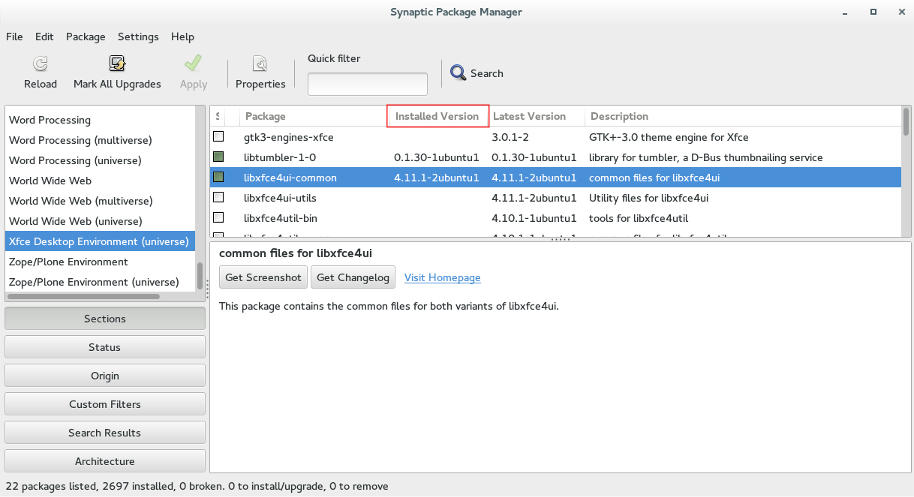
Finally I used Synaptic to make sure nothing titled XFCE was there, I used the custom filters Sections XFCE desktop environment universe to wipe anything that was left.

Using Synaptic to make sure all of XFCE's packages are gone.

Now I was running Cinnamon alone on my computer, and immediately I notice why it was dubbed as “Buggy”..

It was true, Cinnamon was buggy! I noticed several issues right off the bat!

A minor video issue was resolved in one of the reboots (no fix for that sadly).
The power manager is acting up, either this fixed my battery somehow or it’s just not reading it right!
I had to fix Docky like I did after the partial upgrade. This time locked all parts of it.
I rearranged the Grub menu items, now Ubuntu is top, I Also renamed it from Xubutnu to Ubuntu on the boot menut using Grub Customizer.

I was left with a buggy but pretty interface, and the login was messed up! Next week I’ll post what I did next, stay tuned!

Restoring Linux boot (Dual Boot Saga)

After I installed Windows. I have lost Linux in the boot menu, in fact there wasn’t a boot menu at all!
As soon I boot the computer Windows would come up and take the boot from there?!

I wanted to have Windows, not for Windows to be all I have!!
I had to restore booting to Linux, not only I liked it so much, my data and programs were there (Windows can’t “see” the Linux partition).
At first I tried installing BCD Boot to create a boot menu, it failed on a daily biases for me!
I had to try a better solution, and what better solution that the Linux terminal? <3
I booted to Linux from a live disk (you can create one by following the steps in here).
After it boots go into the terminal and enter the following command:


sudo fdisk -l

This command will show you all the partitions on your HDD, you have to know which partition your Linux distro is installed on (Gparted can be a great help in that).

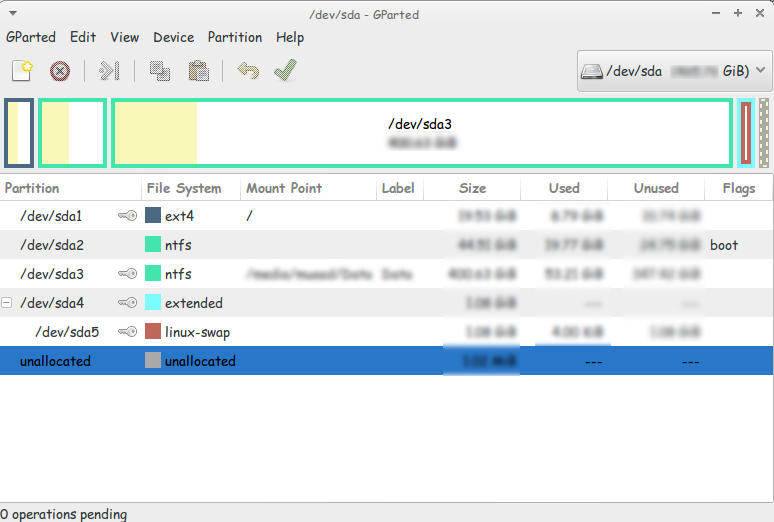
Use gparted to see where is Linux installed

and enter this command:


sudo mount /dev/sda1 /mnt

then this command:


sudo mount --bind /dev /mnt/dev

then this command


sudo chroot /mnt

then this command


 grub-install /dev/sda 


then this command

update-grub 

If the computer boots directly into Ubuntu (or whatever Linux distro you have)
go to the terminal and enter:


sudo update-grub

Finally reboot and you will have the grub menu with Both Linux and Windows!

If you have an issue mounting you should use this command

Sudo touch /cow

The purpose of these commands is to install Grub (The boot manager) so you can dual boot easily from the menu.
If you want to customize grub for example the names of the systems and the list order you need to download Grub Customizer. I think I’ll post about it sometime later 🙂