
Day: August 15, 2012

Gimp 2.8 RC VS Gimp 2.8.0

Well So far, not much..!
Compatibility issue with office 2003 fixed.
Starts much faster as described below on my PC Specs here:

 

Specs as follow

———————————
Windows XP Professional Service Pack 3
Intel(R) Pentium(R) 4 CPU 3.20GHz
Memory: 992MB RAM
Chipset: SiS 661FX
———————————

Start times:

First start of the program, right after install, no brushes, etc added.
01 Min 02 Sec
Second start, right after the first (Without restart).
10 Sec

After Restart :

24 Sec
Edit image, right after the restart (Without restart).
10 sec

Note

I may have to note that I have a tweak that clears the ram form .dll files after closing the program, maybe it’s part of the thing, you can find it in this thread, works even on Windows 7 starter, and may work on others two.
P.S: I read somewhere on the web that brushes add 05 Sec to the startup pf the program.
 

Speed up Windows XP with AlwaysUnloadDll

I only added this tweak for reference in a another post about gimp 2.8 which you can check from here.


“Users that still has and using Windows operating system prior to Windows 2000, such as Windows NT, Windows Me, Windows 98 and Windows 95, there is a trick to free up memory without using any third-party software utility. The trick is to force Windows to unload and free cached DLLs from memory.

These are the steps to do this tweak

   1. In system prior to Windows Vista, user can force Windows unload the unused DLL to free up the occupied memory by using “AlwaysUnloadDLL” setting in the registry.

   2. Run Registry Editor and navigate to the following registry key:

   3. [HKEY_LOCAL_MACHINESOFTWAREMicrosoftWindowsCurr entVersionExplorer]

   4. Create a new sub-key named AlwaysUnloadDLL and set the default value to 1 to disable Windows caching the DLL in memory.

   5. Restart Windows for the change to take effect.

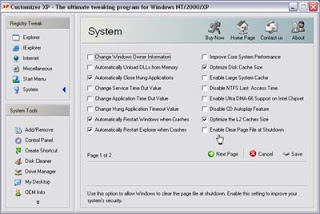
If you use Customizer XP, it has this tweak among many others. But the shareware is free for 30 uses only.