Category: English Post (Page 61 of 97)

Tech news digest July 2015 (Firefox focus mode and flash zero day vulnerabilities).

Hey guys. This is what’s been going on the last few days, since it was too much to catch up I decided to make a digest of news.



  • Firefox’s latest update added the “Enter view mode” which is great to eliminate all the distractions and focus on reading without all the pop-ups and ads!
  • If you noticed that flash doesn’t work on your browser anymore, that’s because of the “Zero-Day Vulnerabilities” discovered on Windows Explorer. Which might explain why I got a ton of security updates for it although I never use it!
  •  Windows has finally chosen the build for the release with a clever name 10240 for the slow and fast ring. {Source}
  • Microsoft suspends Windows 10 Insider updates in preparation for RTM {Source}

How did you like the tech news segment? Is it a keeper?

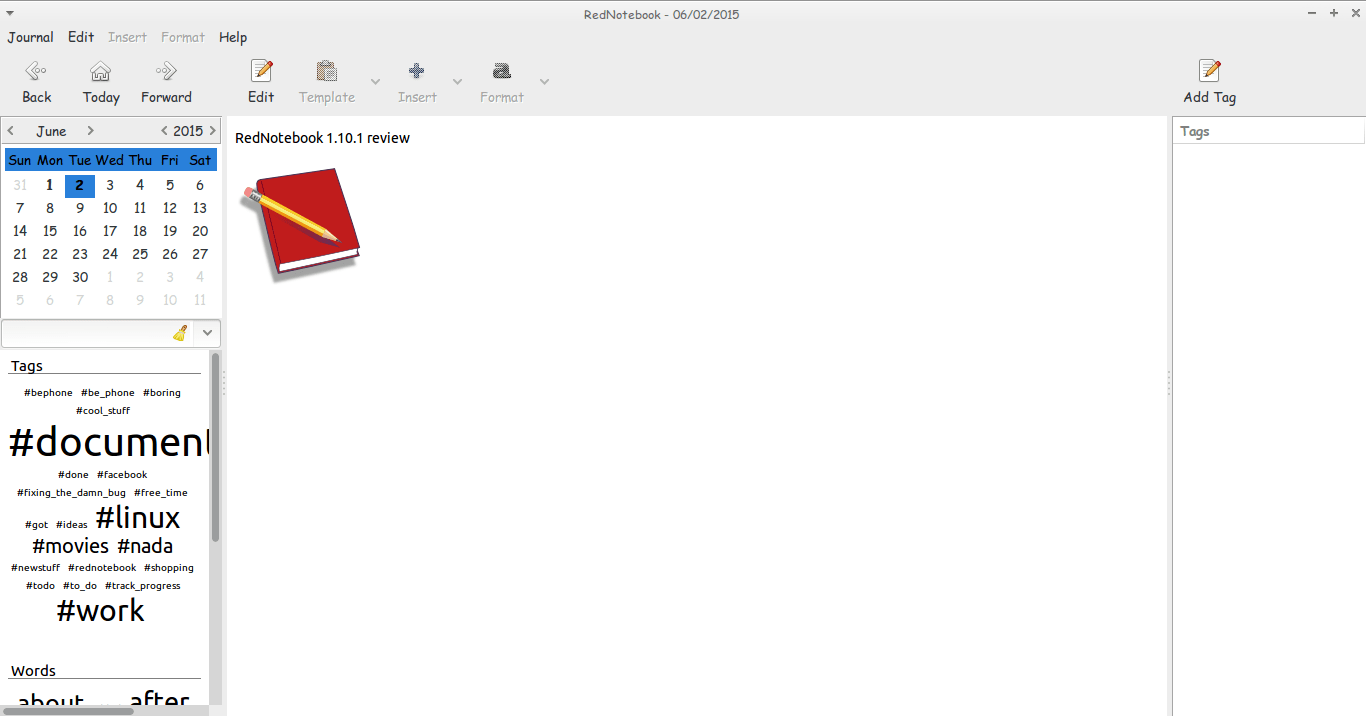
RedNotebook 1.10.1 review

Hey guys.
I hope you are having an awesome day =)

Today I’m looking at RedNotebook 1.10.1 which is the latest version of the cross-platform diary and journal .

The latest version brings many improvements and bug fixes. Feel free to check those in detail from RedNotebook’s website under the section news

I haven’t tried any version since the 1.5.0 which I reviewed in this post and I had a brief run with version 1.8.0 which failed on Ubuntu 13.04 for some reason. So it’s kind of a big jump for me.
I’m pleasantly surprised to see you can tag notes by simply using a hashtag “#” become a tag you can search and access all the notes tagged with #RedNotebook for example.
Also clicking the last day of a past month doesn’t crash the program losing all the notes you entered in that session! Ouch!!

The program is coming together nicely and it became irreplaceable to me!

If you haven’t downloaded and installed it yet I urge you to download it from the developer site. It’s definitely worth your time! !

And while you at it you have a look at my backup and restore guide. It’s a must have for RedNotebook users..!

I hope you liked this post, please comment below and let me know what’s on your mind!

ClipGrab. Your all media download solution for Ubuntu

Hey there you guys. How are youdoing? I hope you are doing good!
If you are in town looking for the easiest way to download videos from the Internet. Then this post is for you! Read on!


I must warn you to the check copyrights of videos before proceeding to download.

ClipGrab is very useful when downloading videos from sites such as YouTube and Facebook (some of my best friends are still addicted to it!) very easily. Much like YTD which I reviewed here. It supports some sites officially but can download from thousands of sites (According to the site!).

All you have to do is to visit the site and download the proper version for your OS. I’m using Ubuntu for this tutorial.

Next extract it to a directory of your choosing. And double click for it to run.

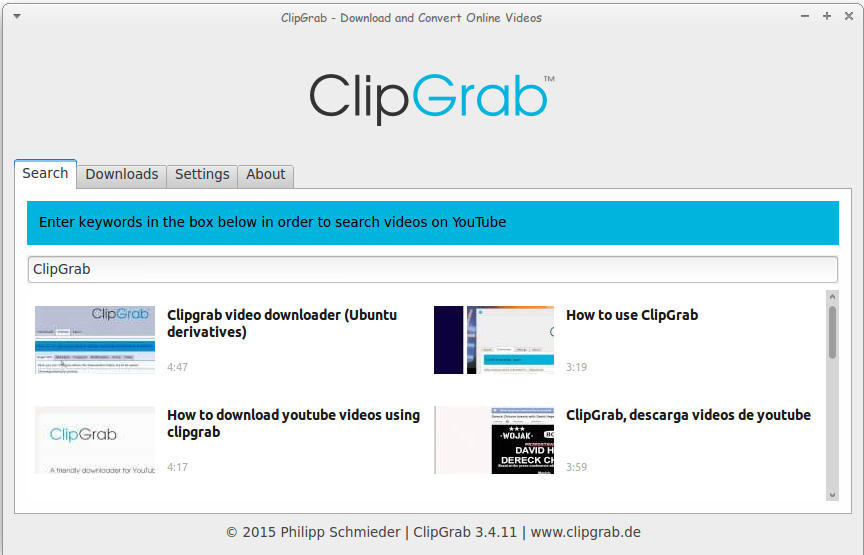
Main interface of ClickGrab
It’s divided into tabs, the first is Search. Which I used to find videos about ClipGrab!

How to download

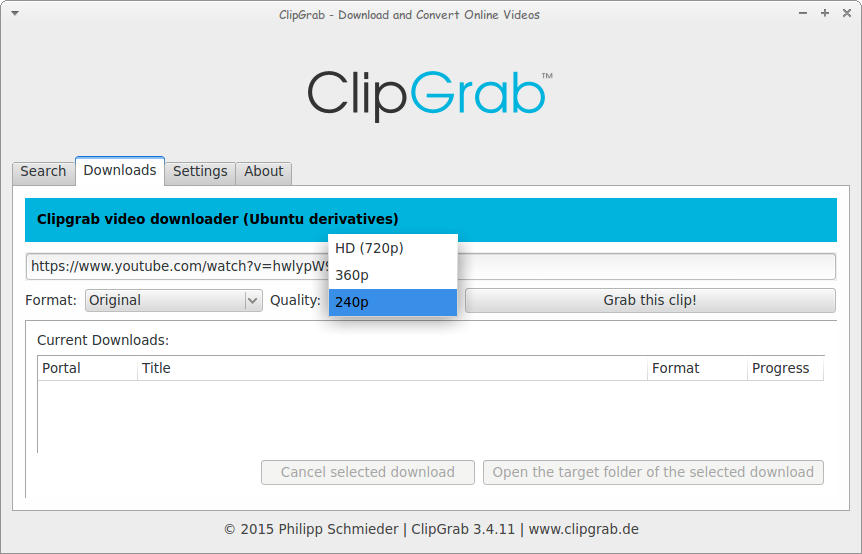
The second is Downloads. Paste the video link and choose the quality. I’m using a video from the search results, and wait for it to end!
Downloading a file using ClickGrab

As simple as that!

The only drawback it can’t download some Facebook videos. But the rest is as smooth as milk!

Convert 

You can also use it to convert videos as long as you download ffmpg package, which also enables you to download videos with 1080 quality.

After download you can choose the format. And ClipGrab will download it in that format! I’ve saw this in YTD Pro! 

Feel free to donate to support the program! And click here to download for Linux.

Ubuntu 16.04 Gnome won’t launch + Fix

When upgrading to Ubuntu Gnome 16.04I was surprised that ClipGrab stopped working, it won’t even launch! Luckily the good people at ClipGrab gave me the easy fix. And that was to download and install the dependencies libqtgui4 and libqtwebkit4.
After downloading

libqtwebkit4 ClipGrab worked without a problem!

I hope you liked this post. Let me know what you think in the comments section to below.

How to add LibreOffice to PPA in Ubuntu, Latest version install

I once advocated Apache OpenOffice in favor of LibreOffice, I even had this tutorial where you can remove LibreOffice all together and install Apache OpenOffice to your computer. If you like doing so, that’s a personal choice.


I had to study both softwares and make a decision that will affect me for a very long time. I chose brains over heart and here we are with LibreOffice 4.4.4 waiting for the 5.0 milestone, again not saying that Apache OpenOffice is bad, read more about my choice from here.
Now we come to an important part, Adding LibreOffice to Ubuntu again

Since we used the command purge to remove LibreOffice, we have to install it all over again adding PPAs ( Personal Package Archives) to the system.

We can simply do that by opening a terminal window Ctrl + Alt + T and entering the following command

sudo add-apt-repository ppa:libreoffice/libreoffice-4-4

Update

And there is the GUI way for users who don’t feel comfortable around the terminal!

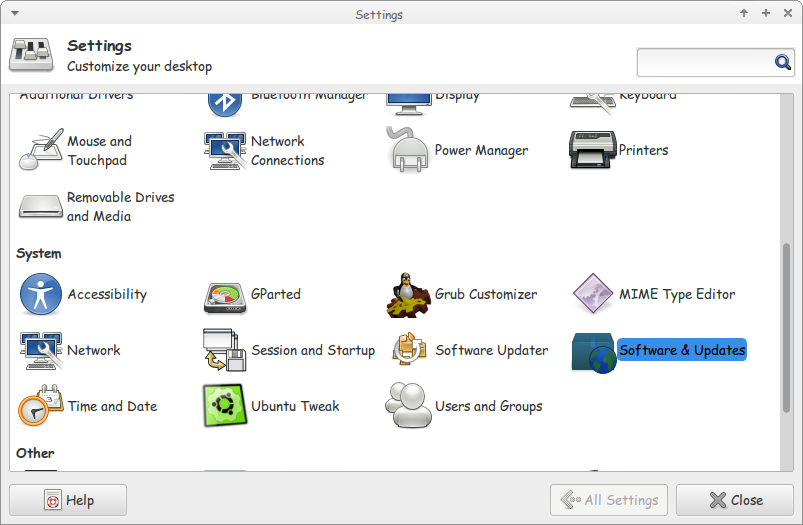
Go to Settings Software and Updates


Settings menu

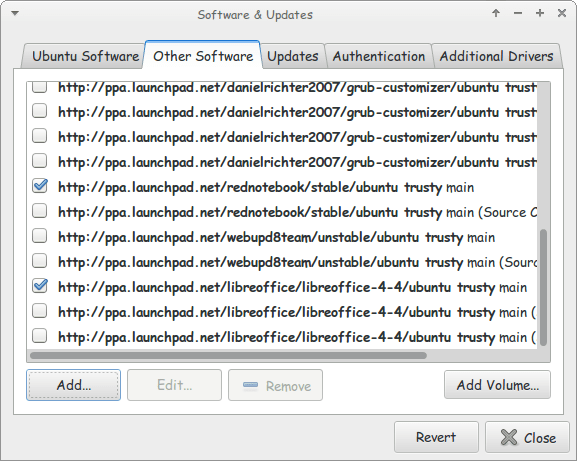
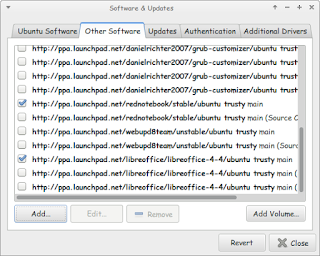
Go to Other Software and click add


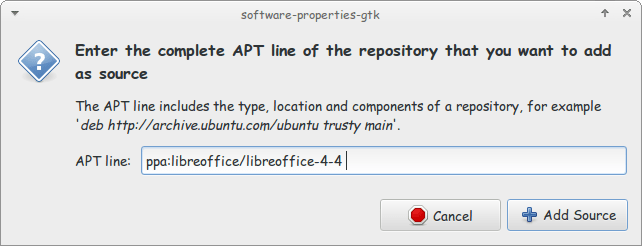
Enter the PPA name in the field and click add source (Copy and paste)

Adding the PPA

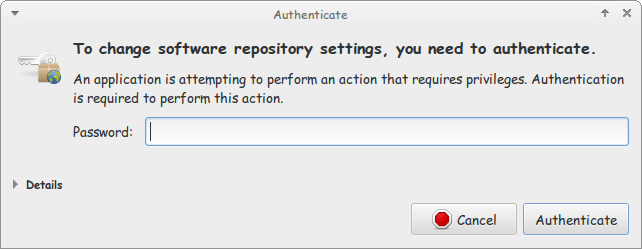
Enter password to confirm

You need the password to confirm

You will see that the source is added (In my case I took both screenshots after adding).


The PPA has been added!

This way we added the LibreOffice PPA to the software sources so the system can fetch automatic updates (we don’t have to update manually every time)

After we added LibreOffice PPA, Let’s install the latest version!

Use the command sudo apt-get purge libreoffice-* and confirm with y to remove the current version (if it’s really old).

Now we continue by downloading LibreOffice from the site and extracting it to the desktop, please note that the tar.gz file is just an archive and doesn’t need any compiling, just extract with your default archive manager!

Extract the folder DEBS to your desktop

In terminal enter cd Desktop

Then write cd DEBS (Hint: If you have the option Right click and choose Open Terminal Here).

Write the command sudo dpkg -i *.deb to install all the debs in the folder (Batch install).

After it’s done. You have LibreOffice fully running!

Finally

The first step I’m not really sure it’s necessary. I’ll have to wait till the next update to confirm that installing a new one removes the old (Can anyone confirm this to me?).

That was how to add LibreOffice PPA and install it to keep it always updated. Have a good one!

« Older posts Newer posts »