Category: Ubuntu (Page 17 of 24)

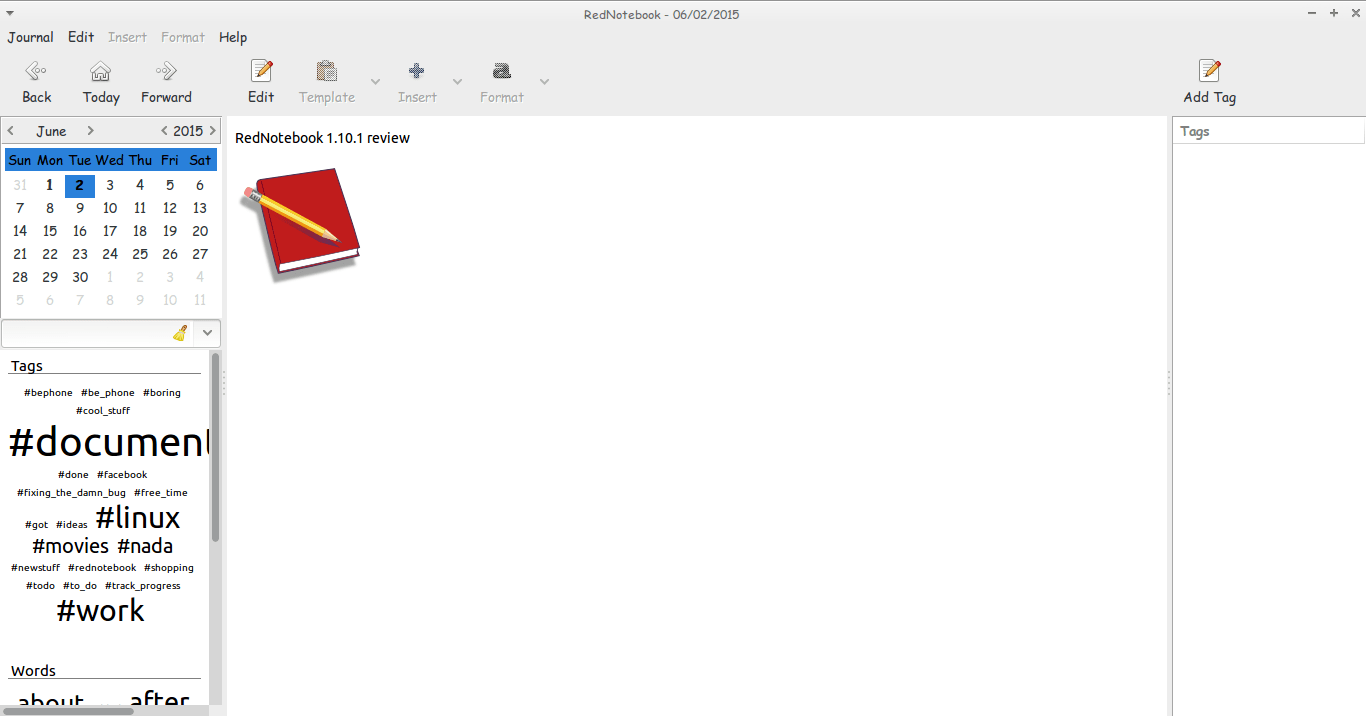
RedNotebook 1.10.1 review

Hey guys.
I hope you are having an awesome day =)

Today I’m looking at RedNotebook 1.10.1 which is the latest version of the cross-platform diary and journal .

The latest version brings many improvements and bug fixes. Feel free to check those in detail from RedNotebook’s website under the section news
I haven’t tried any version since the 1.5.0 which I reviewed in this post and I had a brief run with version 1.8.0 which failed on Ubuntu 13.04 for some reason. So it’s kind of a big jump for me.
I’m pleasantly surprised to see you can tag notes by simply using a hashtag “#” become a tag you can search and access all the notes tagged with #RedNotebook for example.
Also clicking the last day of a past month doesn’t crash the program losing all the notes you entered in that session! Ouch!!

The program is coming together nicely and it became irreplaceable to me!

If you haven’t downloaded and installed it yet I urge you to download it from the developer site. It’s definitely worth your time! !

And while you at it you have a look at my backup and restore guide. It’s a must have for RedNotebook users..!

I hope you liked this post, please comment below and let me know what’s on your mind!
ClipGrab. Your all media download solution for Ubuntu

Hey there you guys. How are youdoing? I hope you are doing good!
If you are in town looking for the easiest way to download videos from the Internet. Then this post is for you! Read on!


I must warn you to the check copyrights of videos before proceeding to download.

ClipGrab is very useful when downloading videos from sites such as YouTube and Facebook (some of my best friends are still addicted to it!) very easily. Much like YTD which I reviewed here. It supports some sites officially but can download from thousands of sites (According to the site!).

All you have to do is to visit the site and download the proper version for your OS. I’m using Ubuntu for this tutorial.

Next extract it to a directory of your choosing. And double click for it to run.

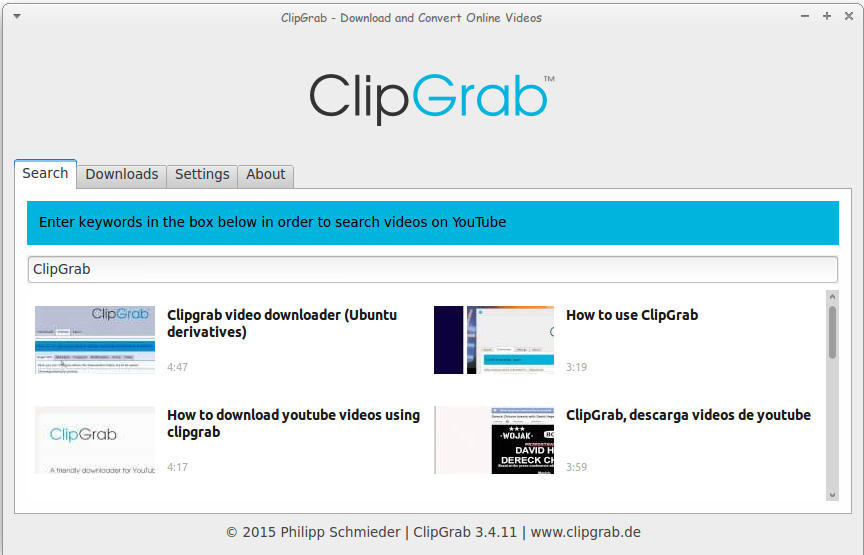
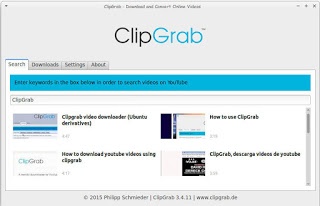
Main interface of ClickGrab
It’s divided into tabs, the first is Search. Which I used to find videos about ClipGrab!

How to download

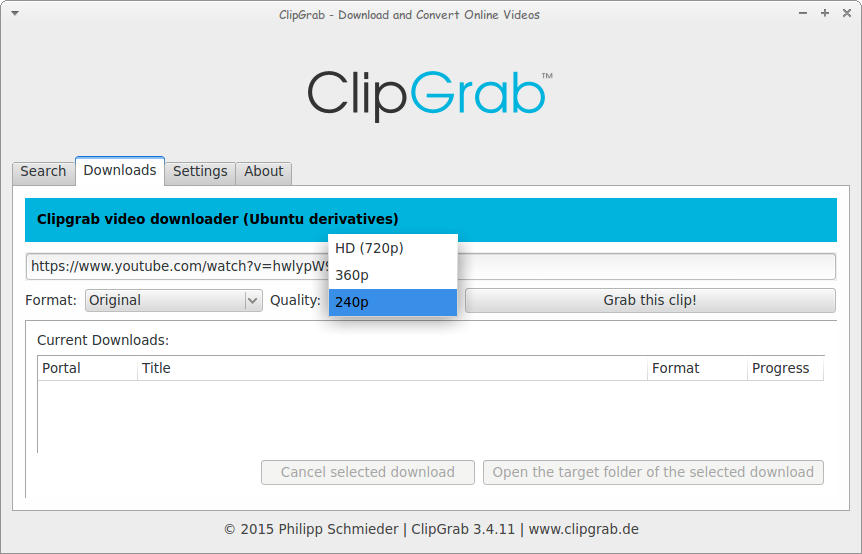
The second is Downloads. Paste the video link and choose the quality. I’m using a video from the search results, and wait for it to end!
Downloading a file using ClickGrab

As simple as that!

The only drawback it can’t download some Facebook videos. But the rest is as smooth as milk!

Convert 

You can also use it to convert videos as long as you download ffmpg package, which also enables you to download videos with 1080 quality.

After download you can choose the format. And ClipGrab will download it in that format! I’ve saw this in YTD Pro! 

Feel free to donate to support the program! And click here to download for Linux.

Ubuntu 16.04 Gnome won’t launch + Fix

When upgrading to Ubuntu Gnome 16.04I was surprised that ClipGrab stopped working, it won’t even launch! Luckily the good people at ClipGrab gave me the easy fix. And that was to download and install the dependencies libqtgui4 and libqtwebkit4.
After downloading

libqtwebkit4 ClipGrab worked without a problem!

I hope you liked this post. Let me know what you think in the comments section to below.

How to add LibreOffice to PPA in Ubuntu, Latest version install

I once advocated Apache OpenOffice in favor of LibreOffice, I even had this tutorial where you can remove LibreOffice all together and install Apache OpenOffice to your computer. If you like doing so, that’s a personal choice.


I had to study both softwares and make a decision that will affect me for a very long time. I chose brains over heart and here we are with LibreOffice 4.4.4 waiting for the 5.0 milestone, again not saying that Apache OpenOffice is bad, read more about my choice from here.
Now we come to an important part, Adding LibreOffice to Ubuntu again

Since we used the command purge to remove LibreOffice, we have to install it all over again adding PPAs ( Personal Package Archives) to the system.

We can simply do that by opening a terminal window Ctrl + Alt + T and entering the following command

sudo add-apt-repository ppa:libreoffice/libreoffice-4-4

Update

And there is the GUI way for users who don’t feel comfortable around the terminal!

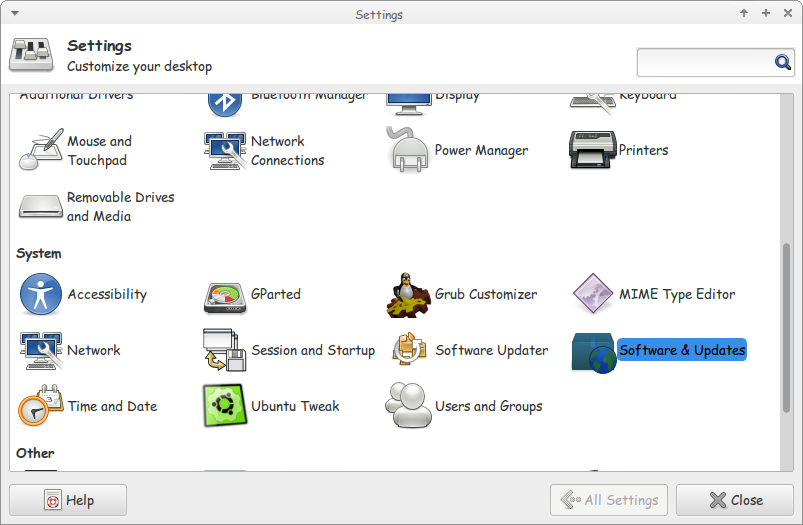
Go to Settings Software and Updates


Settings menu

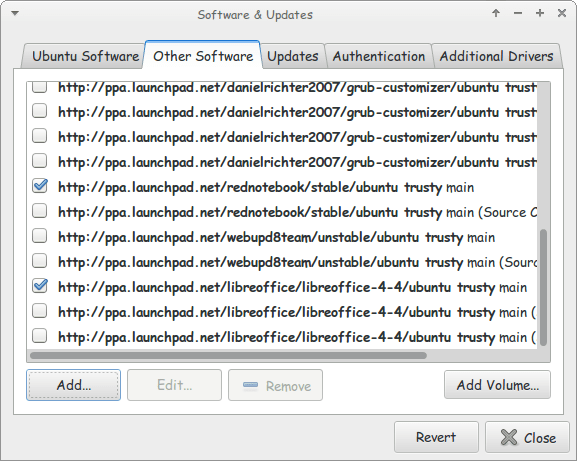
Go to Other Software and click add


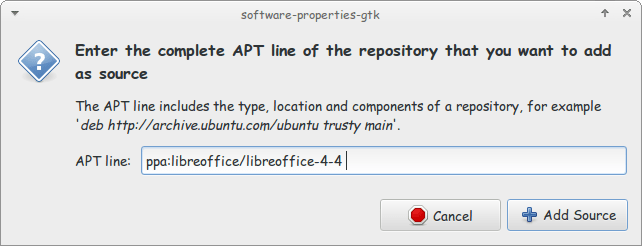
Enter the PPA name in the field and click add source (Copy and paste)

Adding the PPA

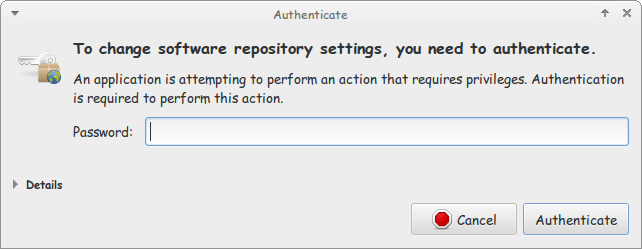
Enter password to confirm

You need the password to confirm

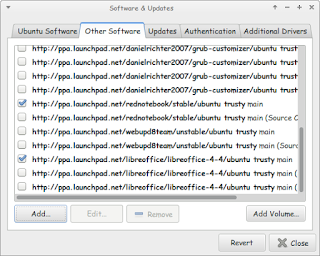
You will see that the source is added (In my case I took both screenshots after adding).


The PPA has been added!

This way we added the LibreOffice PPA to the software sources so the system can fetch automatic updates (we don’t have to update manually every time)

After we added LibreOffice PPA, Let’s install the latest version!

Use the command sudo apt-get purge libreoffice-* and confirm with y to remove the current version (if it’s really old).

Now we continue by downloading LibreOffice from the site and extracting it to the desktop, please note that the tar.gz file is just an archive and doesn’t need any compiling, just extract with your default archive manager!

Extract the folder DEBS to your desktop

In terminal enter cd Desktop

Then write cd DEBS (Hint: If you have the option Right click and choose Open Terminal Here).

Write the command sudo dpkg -i *.deb to install all the debs in the folder (Batch install).

After it’s done. You have LibreOffice fully running!

Finally

The first step I’m not really sure it’s necessary. I’ll have to wait till the next update to confirm that installing a new one removes the old (Can anyone confirm this to me?).

That was how to add LibreOffice PPA and install it to keep it always updated. Have a good one!

Best way to backup files on Ubuntu

Hey there dear fans =)

Backup utility iconToday we are looking into backing up on Ubuntu, I’m going to show you the best way to make full use of the integrated backup utility. And optimize it to be easier and much more productive!

Ubuntu has the backup utility right out of the box. Which is great for new and experienced users! You can customize it with very easy steps to ensure maximum files protection at regular intervals.

I’m going to break it down into easy to follow steps:

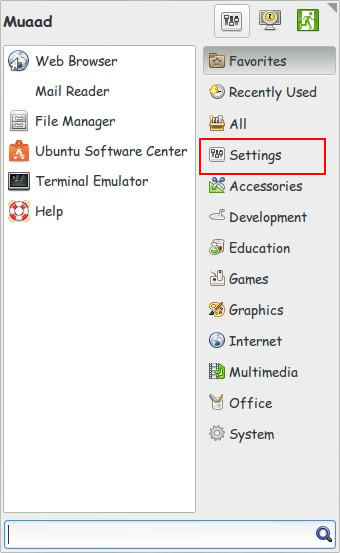
First of all, we need to open Settings

Settings from the menu

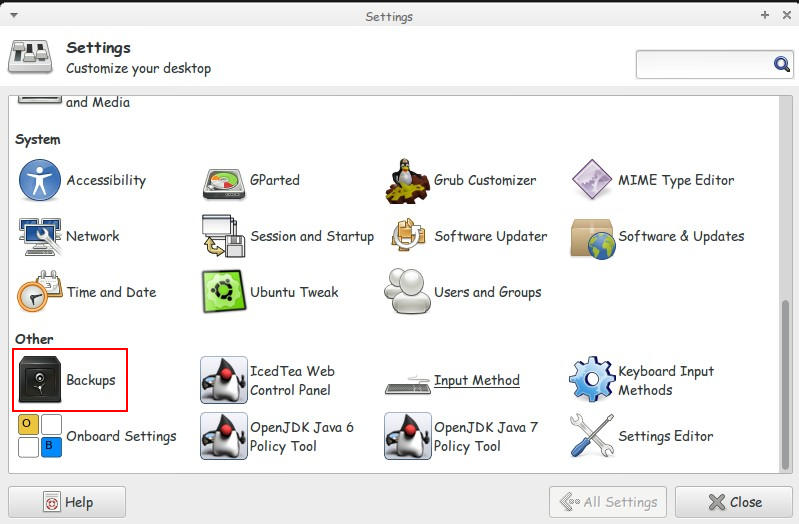
2. From there click Backup

Backups under settings highlighted in red

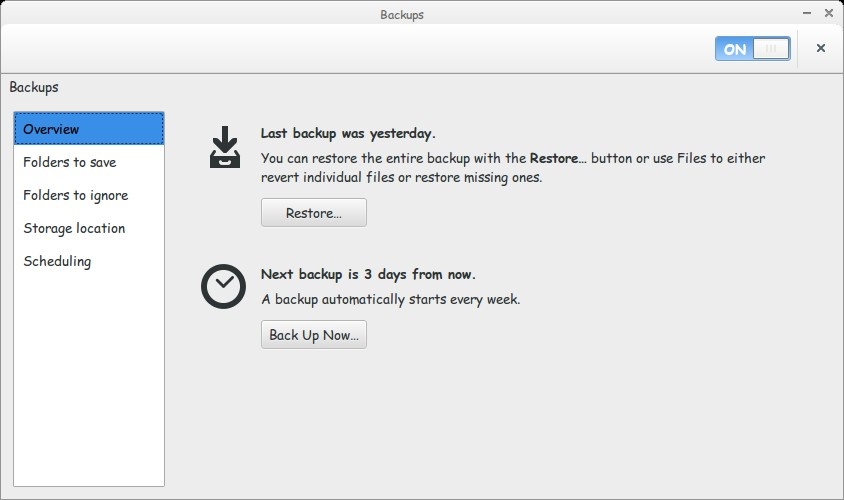
Here we have the Backup utility. On the left we have several tabs to edit in order to customize to our liking.
3. Let’s look at the overview, this tab tells us when the last backup was made. And when the next backup is due. And you can backup at any time from here by pressing backup ( it won’t mess the backup schedule you made).

Backup main interface

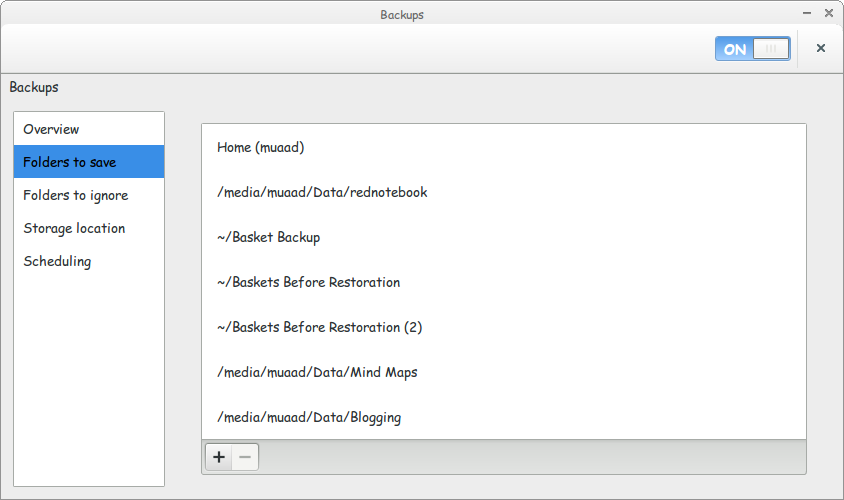
4. Folders to save: Here we get to choose which folders we want to backup. It doesn’t have to be on the same partition!
You can hand pick folders from across the drive to be backed up.

Folders to save dialogue

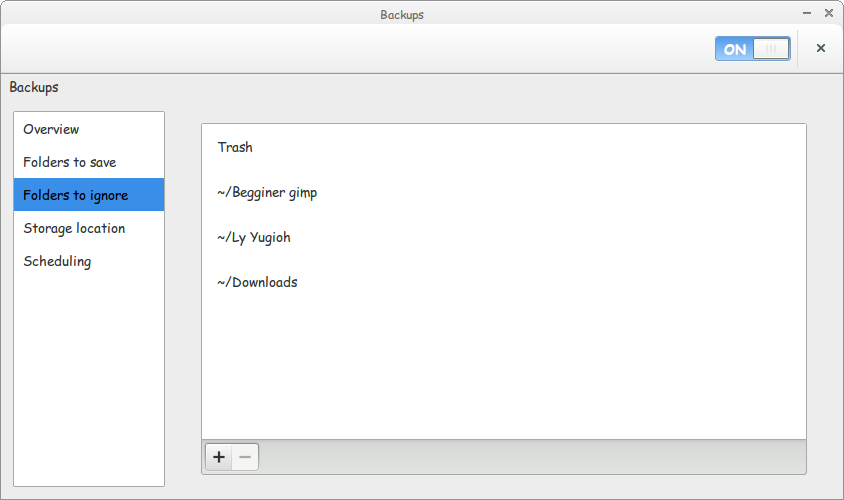
5. Folders to ignore: The exact opposite! If you have some files / folders you don’t want to backup, add them here and the backup utility will ignore them. Let’s say you have a huge video file you captured and you don’t feel like backing up. Well it won’t be backed up if you add it here 😀

Folders to ignore dialogue

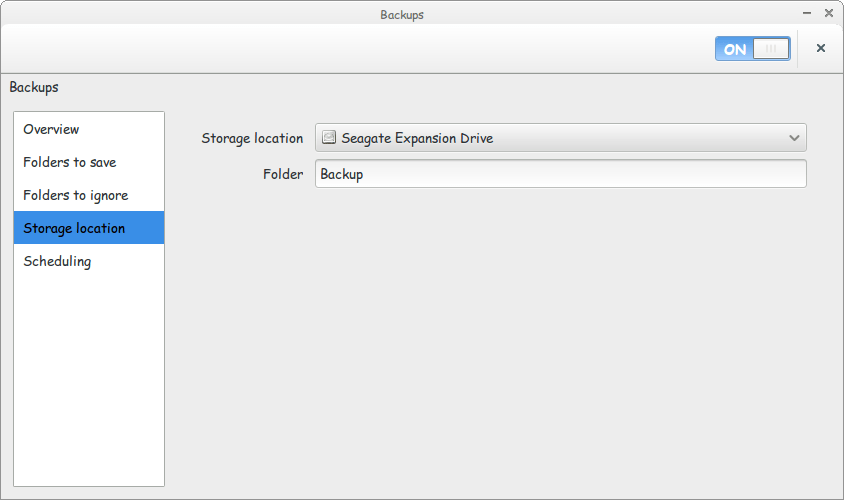
6. Storage Location: Choose a drive outside of your computer. Naturally to stay out of harm’s way. And to keep the files in a second location. Backing up in the same PC is a bad idea! Choose a folder for the backups to be stored. And you are good to go!

Storage location dailouge

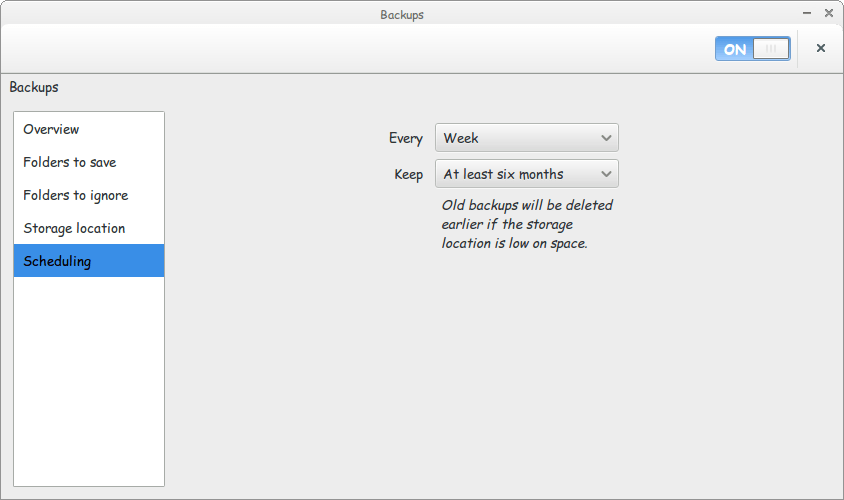
7. Scheduling: You can backup on a daily basis or weekly basis. Choose whatever suits the nature of your work (important files require daily backups)
And the button keep chooses how long you keep a backup. You can choose between three options:

Schedualing dailouge

  • Six months, that’s the lowest amount of time.
  • 1 Year.
  • Forever.

And again. That’s up for you to decide how old to keep your files.
After optimizing all the options you can disconnect the backup drive. And the backup utility will tell you when it’s time to backup via a notification (as it starts with the system). Just connect the drive when asked to do so. And sit back and enjoy a nice cup of coffee as the files are being backed up as planned!
That’s it! An air-tight backup plan on Ubuntu in just a few clicks!

How did you like this post? Did you know that the backup utility can be this flexible?
Let me know what you have to say in the comments section below. Have a nice day 🙂 

P.S: An Arabic version of this tutorial can be found here. 

« Older posts Newer posts »