Category: Xubuntu (Page 3 of 4)

LibreOffice 5.0 hanging on Ubuntu, can’t highlight fix!

While messing around with LibreOffice Writer 5.0 on Ubuntu I discovered that I can’t highlight text, and trying to highlight text made the whole program freeze! I managed to fix it and this is how I did it..

I always download two versions of LibreOffice, one for Linux and the other for Windows, usually the one with the issues it the Windows version, but in this case it worked fine, while the Linux version was acting off.

I assumed that the main culprit is the Java machine, because in Windows it refused to work with the 32 Java machine I had installed which ran version 4.4 well. So installing a 64 bit Java machine did the trick, and the reports worked fine!
I looked at the machines I have installed and they were: and none of them made the problem go away!
You can access them by clicking: Tools Options Advanced
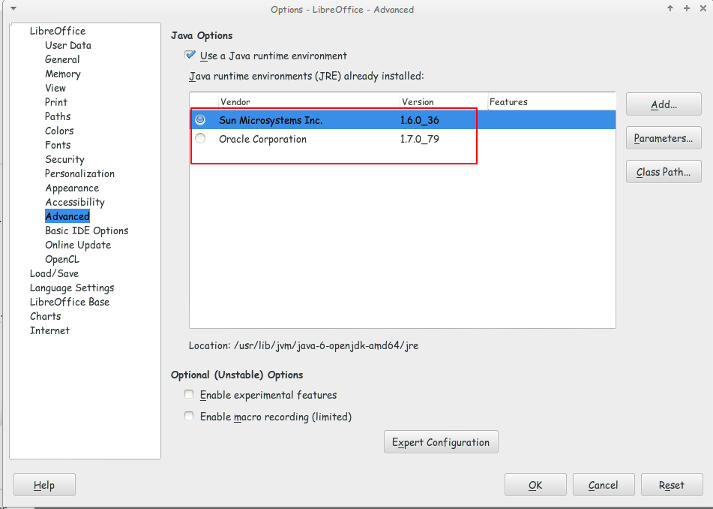
 

Java machines on Ubuntu

They were both excepted by LibreOffice but the problem persisted even after restarting over and over again!

I’ve finally been able to fix the problem that made LibreOffice hang and freeze when highlighting a text.

All you have to do is to navigate to:

/home/”User name”/.config/ and delete the folder LibreOffice.

It will work fine after that!!
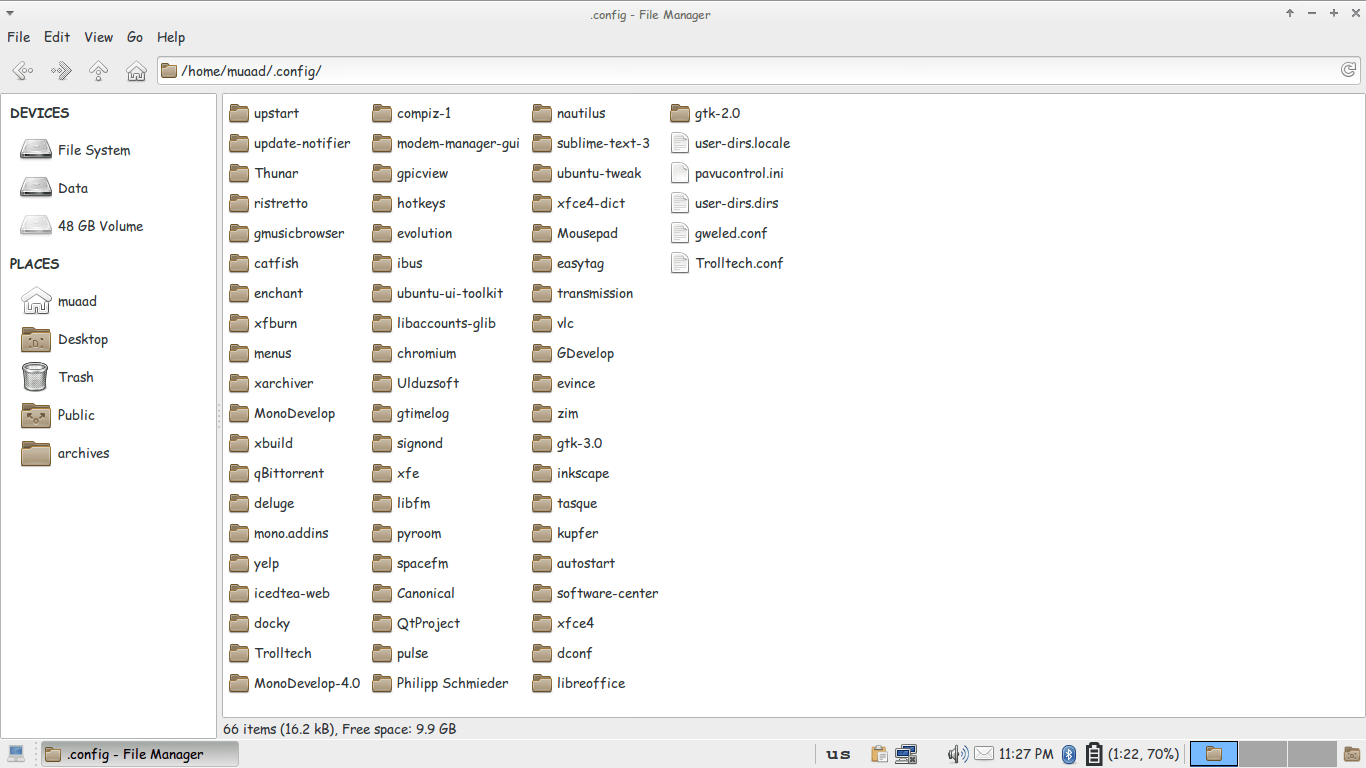
Thunar confing file unhidden to delete LibreOffice config

You might have to unhide the folder in your file manager!

It’s not a Java machine problem. But I don’t think it would hurt if you download the latest version.


How to add LibreOffice to PPA in Ubuntu, Latest version install

I once advocated Apache OpenOffice in favor of LibreOffice, I even had this tutorial where you can remove LibreOffice all together and install Apache OpenOffice to your computer. If you like doing so, that’s a personal choice.


I had to study both softwares and make a decision that will affect me for a very long time. I chose brains over heart and here we are with LibreOffice 4.4.4 waiting for the 5.0 milestone, again not saying that Apache OpenOffice is bad, read more about my choice from here.
Now we come to an important part, Adding LibreOffice to Ubuntu again

Since we used the command purge to remove LibreOffice, we have to install it all over again adding PPAs ( Personal Package Archives) to the system.

We can simply do that by opening a terminal window Ctrl + Alt + T and entering the following command

sudo add-apt-repository ppa:libreoffice/libreoffice-4-4

Update

And there is the GUI way for users who don’t feel comfortable around the terminal!

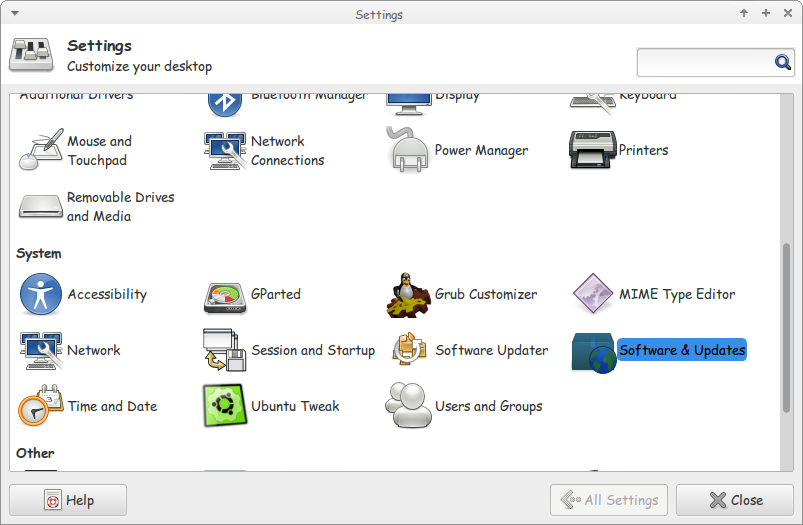
Go to Settings Software and Updates


Settings menu

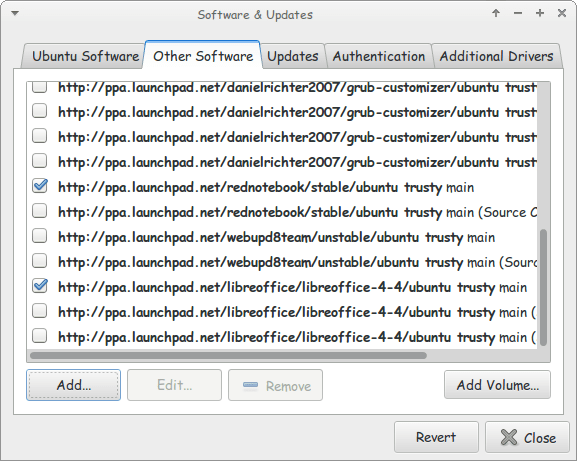
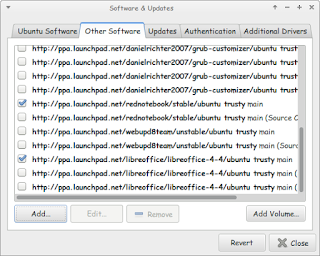
Go to Other Software and click add


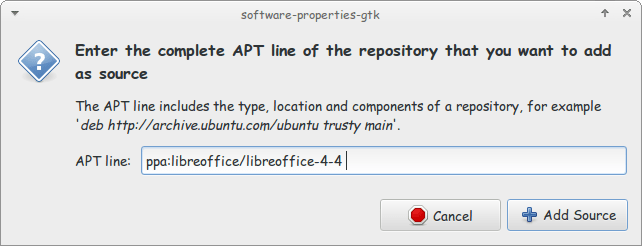
Enter the PPA name in the field and click add source (Copy and paste)

Adding the PPA

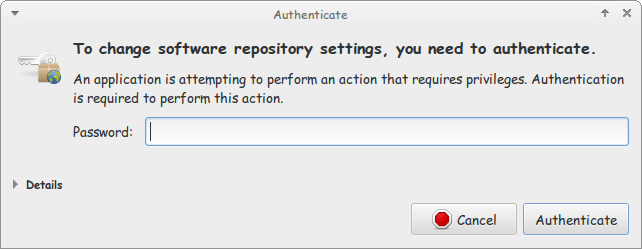
Enter password to confirm

You need the password to confirm

You will see that the source is added (In my case I took both screenshots after adding).


The PPA has been added!

This way we added the LibreOffice PPA to the software sources so the system can fetch automatic updates (we don’t have to update manually every time)

After we added LibreOffice PPA, Let’s install the latest version!

Use the command sudo apt-get purge libreoffice-* and confirm with y to remove the current version (if it’s really old).

Now we continue by downloading LibreOffice from the site and extracting it to the desktop, please note that the tar.gz file is just an archive and doesn’t need any compiling, just extract with your default archive manager!

Extract the folder DEBS to your desktop

In terminal enter cd Desktop

Then write cd DEBS (Hint: If you have the option Right click and choose Open Terminal Here).

Write the command sudo dpkg -i *.deb to install all the debs in the folder (Batch install).

After it’s done. You have LibreOffice fully running!

Finally

The first step I’m not really sure it’s necessary. I’ll have to wait till the next update to confirm that installing a new one removes the old (Can anyone confirm this to me?).

That was how to add LibreOffice PPA and install it to keep it always updated. Have a good one!

Clipboard managers for Ubuntu and Windows will boost your productivity!

Clipboard managers are a very handy tool and a total must have for anyone working on a computer.

Office workers, students, and even bloggers!

It’s a pain! It feels like juggling!

Ubuntu clipboard managers

Well with Clipboard managers we can minimize this pain!

There are many great applications both paid and free! But I’m going to talk about two, one for Linux and one for Windows.

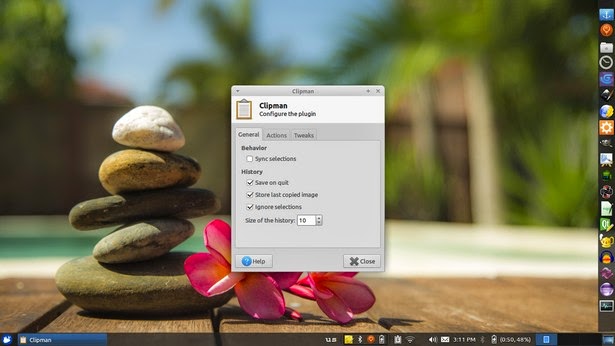
The one I used with Linux came with Xubuntu is panel plugin called Clipman Which is a huge help and can be added as a plugin on the panel. It’s light weight and super effective!


Windows clipboard managers

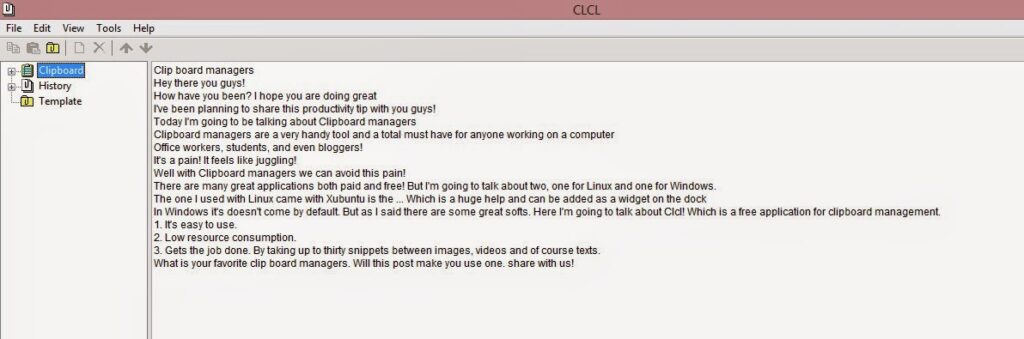
In Windows it’s doesn’t come by default. But as I said there are some great softs. Here I’m going to talk about CLCL! Which is a free application for clipboard management.


Advantages of using CLCL

1. It’s easy to use.

2. Low resource consumption.

3. Gets the job done. By taking up to thirty snippets between images, videos and of course texts.
Download it from here

What is your favorite clip board managers. Will this post make you use one. share with us!
Our next post will discuss screenshots! Stay tuned!


« Older posts Newer posts »