Category: command

A quick fix to many Windows 8 – 8.1 bluescreen issues

Hey you guys 🙂

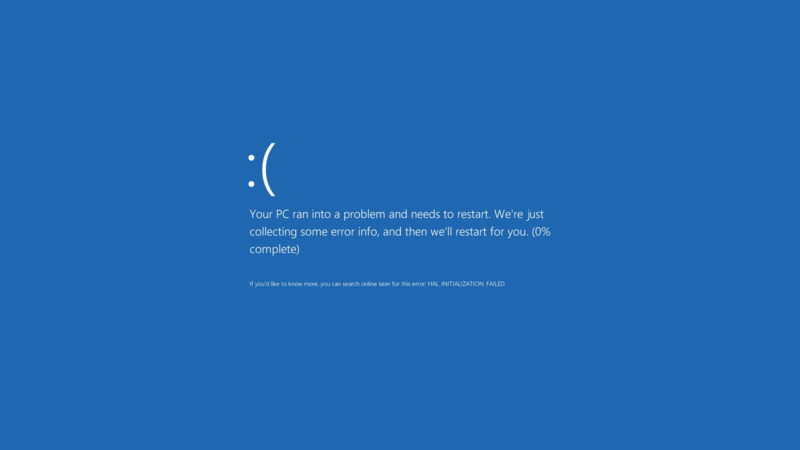
If you are using Windows 8 / 8.1 You would notice an awful lot blue screen of death screens BSOD. Now windows advices you to search online for the error .. (Da! Thanks for the tip captain obvious!)


What’s the cause of these errors?

Some of them are driver related. Others occur when you standby or lock the screen. Some after you install certain software..
The fix to all these causes and more is a simple command!
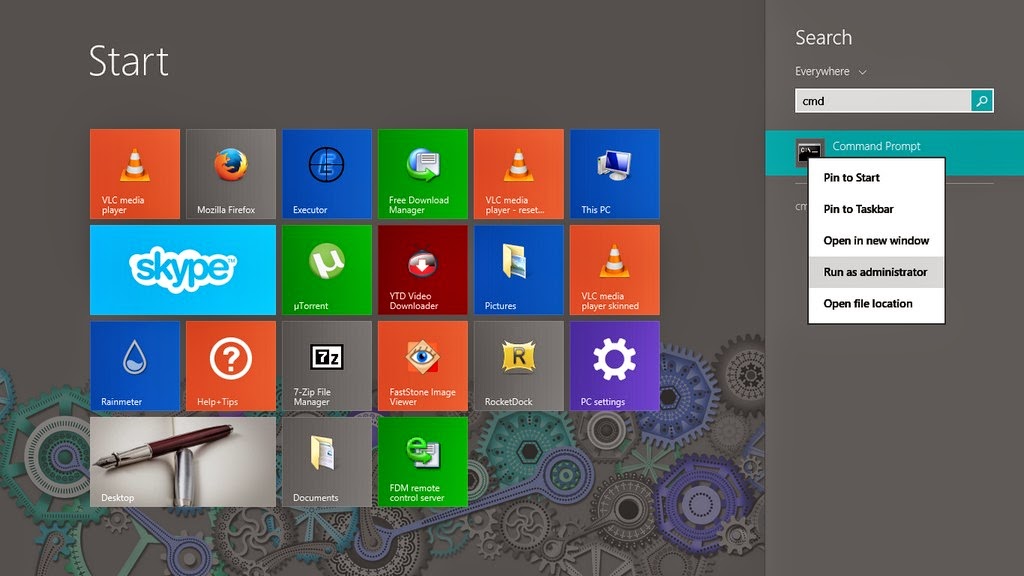
1. Go to the start menu and type CMD

2. When you see command prompt. Right click on it and choose: Run as administrator (Very important!)
3. The command prompt windows will show up. There right this command: “sfc /scannow”

This command checks the system files and attempts to fix the errors.
The process will take some time ( in my case it took an hour to complete)
After it’s done you will be prompted to restart once or twice. After that you are all good!

How easy was that? 🙂

Try it and let me know what you think. Did it fix your problem?
I hope I managed to turn the “frown” upside down 😀
Make sure to follow my blog and join my mail-list NEW

Executor + Everything = Super power

This is an old post edited. Think of it as a remastered version!

Today we are going to talk about a huge productivity advantage.
Adding Everything to Executor to gain the ultimate combination.
For those who are unfamiliar with the programs. Here is a short intro:


1. Everything
Everything is a lightning fast search utility that searches the entire (drive / drives) to get results. It has many parameters to customize the search and many advantages over the usual search utility provided by windows.


2. Executor
What more I could say than I said? It’s an amazing software!

Imagine the power of the two combined!!

1. Index Everything as a search word in Executor. List it as anything you like, for example: Search. (You can do it by simply right clicking everything.exe and choosing send to Executor!)
2. From there launch everything from Executor.
3. Start typing into Everything. The folders and files will appear as you type!

And that’s it!
I hope you enjoyed this remastered version and found it useful!
Please comment and share my post!