Category: Gnome (Page 3 of 4)

Fixes to bugs encounterd after moving to Gnome 3.12 on Xubuntu 14.04

I just moved to Gnome and noticed several bugs! First of all I didn’t know how to go to sleep mode!

That was very easy, click on the right corner and hold ALT and the power off button will change to sleep. That’s great! But now that I can go to sleep mode, the computer won’t wake up!
 

It doesn’t show up anything! Just a laminated dark screen and I have to power it off to be able to use the computer!

I looked up dozens of pages without finding a single clue, many people assumed it was a video driver issue or something. It wasn’t the video driver!
The answer was right under my nose!
Coming to gnome I noticed that it still used the “ugly” login manager LightDM-GTK-Greeter. So I used the command to change the login manager to GDM, Gnome’s default login manager, that’s where the problem started!
As soon as I chose LightDM-GTK-Greeter and rebooted, I’ve been able to sleep and wake at will! No problem at all!
So that’s the fix! Install LightDM-GTK-Greeter.
First of all add it to the repositories via this command:
Then install it via this command:
Finally: Use this command to make it the default login manager.
sudo dpkg-reconfigure lightdm
My problem wasn’t “fixed” 100%. I was feeling bitter-sweet!
I fixed the sleep issue, and now the extensions remain after reboot too! But the login manager is hideous! Isn’t there a way to make it pretty?
Why is it hideous you ask? It was a part of the XCFE interface and when I removed it, it lost the visual elements it had and went back to defaults. And that’s not pretty at all!
Ubutu Tweak couldn’t customize it, and the Tweak utility provided by Gnome had no options for it.
The question remained: How to customize LightDM-GTK-Greeter?
It’s very simple actually! There is a package called: LightDM-GTK-Greeter-Settings. All you have to do is to install it. And use it to customize LightDM-GTK-Greeter to look better!
I began by adding it to the repositories via this command:
Then install it via this command:
sudo apt-get install lightdm-webkit-greeter
From the menu I ran it and it needs administrator rights so I had to enter my password to start it.
I had several options to choose from like theme and position and what tabs to be displayed. It looks so much better now and it gets the job done.
Not as pretty as GDM of course, but at least it works!

In addition to the sleep and wake bug fix, and the extensions staying enabled after reboot, the Gnome classic mode loads an interface rather than just a background with a mouse cursor, but it looks the same as Gnome. I’m yet to figure that out!

My fix to that was very simple, Installing Ubuntu Gnome 14.04.4 a fresh install.
Continue reading

Bugs faced after moving to Gnome 3.12 on Xubuntu 14.04

One of the major issues I felt in Gnome was the extensions installed get disabled after restart (since I can’t go to sleep anyway). The fix suggested was to use the “System default”.


 It didn’t fix other issues like the sleep mode not waking up and the classic mode not showing any elements, but I am tackling issues one at the time.

Message tray pop ups

Message tray, it looked big and annoying ( it responds to every mouse gesture no matter how small)

Size

It’s also very big in size, it took 5GB more than XFCE took, even with cleaners like Bleachbit, I was running low on space.

No sleep

I didn’t even know how to go into sleep mode, turns out you need to press and hold ALT while the menu is popped out to go to sleep menu.

Doesn’t wake up from sleep

I couldn’t find an explanation for this bug! The computer displays a black screen whenever waking from standby and stays that way until I turn it off manually!

No classic mode (just a background)

It only loads a mouse cursor and a background with no visual elements until I turn it off manually! No easy fix or workaround for it (yet).

Extensions won’t install

I wasn’t able to install extensions from the extension site, extensions.gnome.org even after enabling the addon in my browser and adding the site to trust list. It was resolved on it’s on.

After install won’t stay enabled after reboot

Even the extension that is supposed to make it less sensitive resets on reboot. The fix was to choose the “System default” from the login which (worked for me like many other people). It wasn’t convenient but it was an easy fix.

I’ll post that has a fix for most of these issues very soon 🙂

Installing Gnome 3.12 on Xubuntu 14.04

In my effort to make some change into my daily work flow, I decided to install a new interface, and then found myself hopping between interfaces, now I had Cinammon running alone on my computer but..


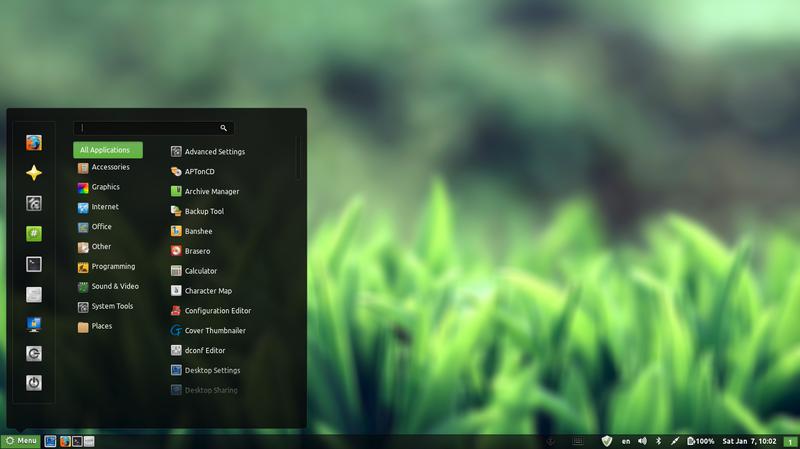
Cinammon interface

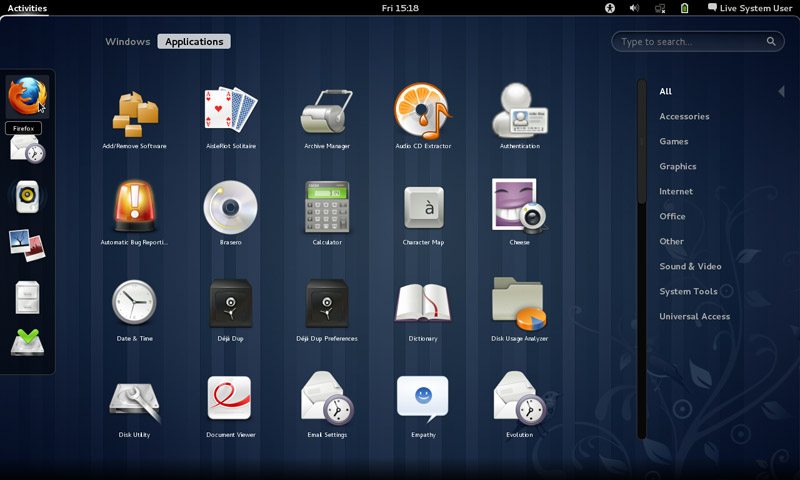
Since I had a thing for Gnome, I decided to install it on my system.

 Gnome was Ubuntu’s default interface until 2011, where it was replaces with Unity, if you go to Ubuntu.com and download it, you will be getting Unity, there is a fork of Ubuntu (alternative version) that runs the Gnome interface called Ubuntu Gnome.

Gnome has a loyal following and many people prefer it over Unity, turns out I do too! (Cinammon is built on Gnome 2).

Installing it was very easy as it was in the software center!
After adding the packages from the software center, I was able to login to Gnome 3.12.2 (last version supported by Ubuntu 14.04).

Visually I wasn’t disappointed at all! It was so good I dropped Docky and Kupfer to enjoy the native features it has!

So good I uninstalled Cinnamon the next day! Now I was running gnome alone on my computer, which isn’t bad at all. I noticed that Gnome classic didn’t load any interface items what so ever, but I’ll update this section as soon as I figure it out. Hopefully.

I have a ton more games now (all were added with Gnome):

  • AisleRiot Solitaire
  • Chess
  • Five or more
  • Four-in-a-Row
  • Lango
  • Klotski
  • Lights off
  • Mahjongg
  • Mines
  • Nibbles
  • Quadrpassel
  • Robots
  • Sudoku
  • Swell Foop
  • Tali
  • Tetravex
  • Xboard

The only thing I didn’t like was the message tray, it looked big and annoying ( it responds to every mouse gesture no matter how small) and even the extension that is supposed to make it less sensitive resets on reboot.

It’s also very big in size, it took 5GB more than XFCE took, even with cleaners like Bleachbit, I was running low on space. (Had a really creative fix for that one 😉

Resetting the interface could fix it. But it will erase any customizations I made.

I decided to remove cinnamon on the biases of being buggy, so I used the command:

 sudo apt-get remove cinnamon

Then ran the command:

sudo apt-get autoremove

To get rid of the unneeded packages and save some disk space.

Alternatively you can use Synaptic and search the word “Cinnamon” and remove any package installed.

I managed to clean the system from cruft using Bleachbit, over 2GB were reclaimed!!

So I had Gnome running on my computer, and you have to wait till the next post to see how I discovered it!

Let me know what you think in the commentst section below.

Removing Cinammon and Installing Gnome 3.12.2 on Xubuntu 14.04

Over the course of the last weeks I’ve been making change happen by playing around with interfaces, now I’m left with the buggy Cinammon interface and the two login screens bug.


I began downloading Gnome 3.12, it took a while using these commands:

$ sudo add-apt-repository ppa:gnome3-team/gnome3

$ sudo add-apt-repository ppa:gnome3-team/gnome3-staging

$ sudo apt-get update

$ sudo apt-get dist-upgrade

$ sudo apt-get update

To add some extras:

sudo apt-get install bijiben polari gnome-clocks gnome-weather gnome-maps gnome-music gnome-photos gnome-documents gnome-contacts epiphany-browser gnome-sushi gnome-boxes gnome-shell-extensions

That didn’t work. Then I realized I need to download Gnome full from Ubuntu software center

That I did, a total of 436 MB


The lock screen thing wasn’t resolved, one page suggested a full uninstall of lightfm-gtk-greeter
I did that, and it won’t log in any more!!
I had to open the system live mode and it didn’t fix it, even by downloading the package manually
The repair option did the trick after enabling the network and choosing the right login manager, I was back to square one
sudo apt-get install lightdm-gtk-greeter
sudo update-alternatives –config default.plymouth
logo/ubuntu-logo.plymouth, afterwards run this command
sudo update-initramfs -u
For the login screen, run this command :
sudo dpkg-reconfigure lightdm
I did the change from under ubuntu after login, from lightdm to gdm, and it worked!

Gnome 3.12.2 Is the last supported Gnome version that Ubuntu 14.04 can handle, that’s one of the drawbacks of running LTS, you can’t always have the latest software.

Work it in

The double password bug was fixed.
I download LightDM-GTK-greeter to fix the deletion of it. And even that didn’t fix it fully. I had to enable it from the commands.
Then I chose Greeter after login to change the ugly Xubuntu login style.
I had to download Ubuntu’s boot animation as it won’t show it.


« Older posts Newer posts »