Category: Gnome (Page 2 of 4)

Productivity tips for a better working session

I always wanted to post on being more productive when working on the computer, I listed a few ideas that should help you achieve the right balance of productivity without exhausting yourself, being productive and consistent gives you more credibility and it means you will meet your deadlines rather than running breathless and sleepless trying to finish before the clock strikes midnight! I also listed a set of handy tools you can add to your arsenal and help you become a productivity guru.

List the tasks you have to do

You can’t just browse causally and do random things and hope these random activities will get you anything done!

IF you don’t know what to do, how will you achieve anything?

 

Some people still enjoy good old pen and paper

Know what needs to be done, and how much time does it need before getting down to business, and don’t forget to prioritize your tools as well!

The best way to keep ahead is to write a to-do list or use a software that arranges that for you, I reviewed a great task management suit from here for Windows, and for GNU/Linux I have my trusty Zim-Wiki to do the trick.

Prepare everything up ahead

Have everything you need by your side so you minimize those “ mini trips” just to look at things or to do trivial tasks, these little pauses damage your focus and makes it harder for you to start working again. Instead use the breaks to do the minor things.
While keeping yourself hydrated always leave the water and other drinks away from the computer or power source, I can’t stress that enough!

Handle distractions

Probably is the hardest part when working, how to disengage from the world and getting into the zone! Here are some suggestions.

No Wi-Fi could fix your procrastination issues!

Turning off the Wi-Fi is too extreme, especially when most of the tools used to work are on line! I suggest a site blocker for your browser, this sets a blacklist of sites you shouldn’t be wasting your time on, and leaves the rest for you to work, if you found yourself fiddling with the extension to get on line then turn off the Wi-Fi!

Again the breaks are your best friend, use those breaks to check on the people you care for, don’t shut your family and friends off to work! That’s never a good idea!

A little tip goes all the way, I set my wifi not to connect automatically anymore! So I have to connect it manually when I need something!

Have a working goal

Say to yourself: I’m not having that treat until I finish writing 5 pages today, or I’m not going to watch my favorite show until I finish the post I started, that way you work for a goal or a reward, and you will find out yourself that the sense of achievement is more rewarding than any treat!

Set a timer

It’s a good idea to use a timer to enhance your productivity, as recent studies show that the brain needs frequent breaks to maintain focus, sadly it’s very easy to forget taking frequent breaks while working.

Regular stretches can prevent RSI and help you rest from long work sessions, hence the need for a good timer!

 

Using a timer for productivity
Ready? Set. Go!


I’ve blogged about several timers here on this blog, feel free to check Instant boss for Windows, and Pomodro timer for Linux, as I rate those the highest.
While Instant boss is more “aggressive” and I would totally recommend it to anyone wanting to get the job done while having procrastination issues, it’s not cross platform, but I spoke to the developer on Twitter and said she might port it to Linux if she had the time, and Pomodro timer is the best timer I came across on Linux, and the post was very well received by the readers of my blog!

The right tools for the job

Use a software package that helps you to do more and focus on the job at hand, I’d recommend LibreOffice as I believe it packs a ton of potential!
You will need a spell checker also, so make sure that the dictionaries for your language are installed in LibreOffice.

 

Toolset
Without the right tools, you will suffer!


You might want to add a clipboard manager and a screenshot tool as well if needed. It will help you be more productive, that’s the office worker starter pack!

All of these tools mentioned in this point come preloaded with Ubuntu (so much for GNU/Linux failing on the desktop) so maybe I should list Ubuntu as one of the right tools for the job?

For many purposes (other than document creating) I tend to use Zim-Wiki and do believe that it’s highly underrated! It can do the work of many tools at once, I use it to make and follow to do lists and keep notes, journals, and all sorts of information, you might want to check it out!

Using better software means making your work easier without putting too much load on your computer, which takes us to the next step.

Your computer

Assuming you work from a laptop / desktop computer -as I find the smaller devices running Android impossible to do any real work with- there is nothing worse than a slow unresponsive computer that hangs all the time.


It looks cute doesn’t it? :3


For that I will be making a separate post that will help many people be happier and more productive at work, simply by optimizing the computer’s performance, so stay tuned.

Working at a specific time of the day

Some writers swear that writing on a specific time of day helps them get the best out of them, why not you? I think we can take this advice forward and apply it on general working and not just writing, you have everything in place and all the tools set up and ready to work.
Building a consistent routine will help you be more productive and will make starting work very easy and more of a habit than a chore.

General health tips

There are more common sense tips that I’ll list very quickly like getting enough sleep and eating healthy, these are often overlooked and that can cause some serious health issues, I’m no doctor but you need to sleep at night, drink enough water and eat your vegetables!

 

Eating healthy and living healthy
Never underestimate the importance of a good diet

How did you like this post? What are your productivity secrets? Do you use any special tricks or tools I didn’t mention here? Please let me know in the comments section below.
And share this with your social media circles and keep the productivity going.


Gnome 3.20 is out!

Gnome 3.20 is out today, let’s take a look at what’s new in this release!

Gnome 3.20 was released on March 23th, it took 6 months of development and the work of 837 contributors and includes 28.933 changes!
This version is named Delhi recognizing the efforts of the  team Asian Gnome team.

The date was delayed from March 20th (which would have been perfect!) to March 23th for reasons unknown to me.

Main highlights for this release

  • OS upgrades can now be installed using Software
  • Wayland support has improved significantly, with kinetic scrolling, drag-and-drop, and middle-click paste
  • Keyboard shortcuts and gestures can be easily learned with new shortcut overlay windows
  • Privacy controls have been improved with per-application location access
  • Quick access to media controls directly from the shell
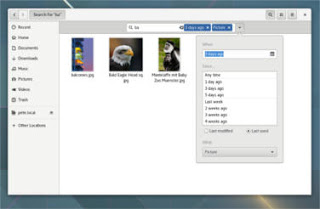
  • Searching in Files has been much improved
  • Builder can now build XDG-Apps, a new cross-distro framework for building and distributing desktop applications. These can also be installed directly from GNOME Software
  • Gnome photos receives a huge update.Gnome Photos screenshot
  • The file manager is also updated and refined.
    Gnome files screenshot
  • There is more to find out, like the new map application, the enhanced web browser, or the fonts! Check out the details from here.

How to get this awesome release?  

It’s immediately available on Fedora and Opensuse, but if you want this on Ubuntu you are going to have to wait a little bit, as the highly anticipated Ubuntu 16.04 is going to be released with Gnome 3.18 (there is an unofficial port of course, let’s leave that until Ubuntu Gnome is out!)

I hope you liked this post, I personally can’t wait as I’m writing this on Gnome 3.10 that ships with Ubuntu Gnome 14.04.4 
Share this post with your friends and family, and if you tried it give us your feed back!

A Pomodoro Timer for GNOME

Using a timer is essential for productivity and fitness using a computer, as it helps you maintain focus and mental agility. Let alone preventing RSI which is a serious issue that affects computer users worldwide.

Timer apps on Linux

There aren’t many good timers for Ubuntu, but this one is clearly different!  
I tried many timers for my productivity use like the timer dockelt on Docky and world timer, I also tried RSI Timer,  but something always felt missing! 

Pomodro timer

Pomodro timer is the best of the bunch. 

Availability

This timer for Linux only as it supports several distros like: ArchLinux, Debian, Fedora, Gentoo, OpenSuse, Ubuntu and more.
It integrates with the interface and works nicely with the notifications. *Gnome only currently.

Work Flow

It’s a must have as it supports a whole work session without the need of manual interfering. It’s better than Gnome clocks which sets one Alarm and the program Alarm that needs a lot of configuration. It’s almost as good as instant boss. Supports productivity and efficiency. While keeping you aware of moving and taking frequent breaks. 
I’ve been able to work it into Ubuntu Gnome 16.04 and it’s been working like a charm, even making use of the notifications, very nice!

Download

It can be downloaded freely from the site for many Linux distributions (Linux only), to download go to the site and scroll down to download. 

It runs perfectly on Ubuntu Gnome 14.04.4 and Ubuntu Gnome 16.04 without a problem.

Did you like this timer? Will you be downloading it? Please let me know what you think in the comments section below.

Fixes to bugs encounterd after moving to Gnome 3.12 on Xubuntu 14.04

I just moved to Gnome and noticed several bugs! First of all I didn’t know how to go to sleep mode!

That was very easy, click on the right corner and hold ALT and the power off button will change to sleep. That’s great! But now that I can go to sleep mode, the computer won’t wake up!


It doesn’t show up anything! Just a laminated dark screen and I have to power it off to be able to use the computer!

I looked up dozens of pages without finding a single clue, many people assumed it was a video driver issue or something. It wasn’t the video driver!
The answer was right under my nose!
Coming to gnome I noticed that it still used the “ugly” login manager LightDM-GTK-Greeter. So I used the command to change the login manager to GDM, Gnome’s default login manager, that’s where the problem started!
As soon as I chose LightDM-GTK-Greeter and rebooted, I’ve been able to sleep and wake at will! No problem at all!
So that’s the fix! Install LightDM-GTK-Greeter.
First of all add it to the repositories via this command:
Then install it via this command:
Finally: Use this command to make it the default login manager.
sudo dpkg-reconfigure lightdm
My problem wasn’t “fixed” 100%. I was feeling bitter-sweet!
I fixed the sleep issue, and now the extensions remain after reboot too! But the login manager is hideous! Isn’t there a way to make it pretty?
Why is it hideous you ask? It was a part of the XCFE interface and when I removed it, it lost the visual elements it had and went back to defaults. And that’s not pretty at all!
Ubutu Tweak couldn’t customize it, and the Tweak utility provided by Gnome had no options for it.
The question remained: How to customize LightDM-GTK-Greeter?
It’s very simple actually! There is a package called: LightDM-GTK-Greeter-Settings. All you have to do is to install it. And use it to customize LightDM-GTK-Greeter to look better!
I began by adding it to the repositories via this command:
Then install it via this command:
sudo apt-get install lightdm-webkit-greeter
From the menu I ran it and it needs administrator rights so I had to enter my password to start it.
I had several options to choose from like theme and position and what tabs to be displayed. It looks so much better now and it gets the job done.
Not as pretty as GDM of course, but at least it works!

In addition to the sleep and wake bug fix, and the extensions staying enabled after reboot, the Gnome classic mode loads an interface rather than just a background with a mouse cursor, but it looks the same as Gnome. I’m yet to figure that out!

My fix to that was very simple, Installing Ubuntu Gnome 14.04.4 a fresh install.

Continue reading

« Older posts Newer posts »