كما يعلم كل القراء فأنا أحب إعادة استخدام المصادر، وإيجاد فوائد حديثة للأشياء القديمة. يمكنك بأن ترى هذا النمط جليًا في تدوينة تصليح الباب الحديدي على سبيل المثال. هذه المرة ستكون تدوينة تقنية حول كيفية إعادة استخدام موارد مهدرة، وتحويلها إلى موارد ثمينة!
Category: HDD
As I was booting my computer up one morning I saw this awful error message rather than the Ubuntu Gnome boot logo, it turned out to be a common error and can be fixed easily, let’s get to the details!
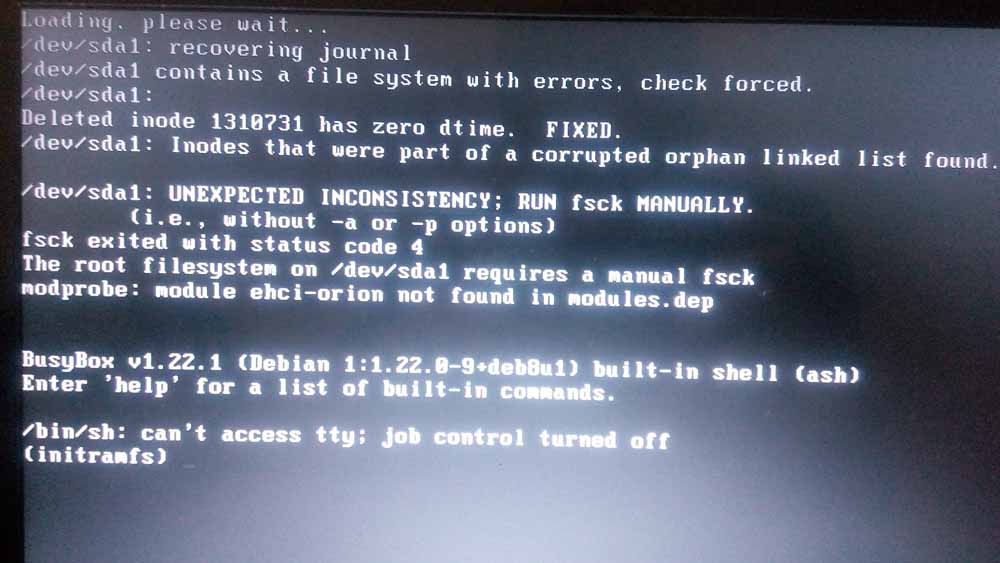
Cause of the issue
The problem occurs when the computer isn’t shut off properly or when electrical failure happens, some data on the SSD
isn’t stored properly and the boot process is halted.
In my case it’s the power issues that ruined my laptop battery and is making it’s way to my data stored on the SSD.
How to fix it
The screen itself suggests a terminal command to fix the drive which was useless in my case, my easy fix was using a live Linux installation from a USB -I used Linux mint- and used Gparted to fix the damaged drive (please note that using Gparted can be very risky and cause data loss).
Using Gparted from a live distro
We are using Gparted to fix the partition, it depends on how you did your disk but it’s the same way.
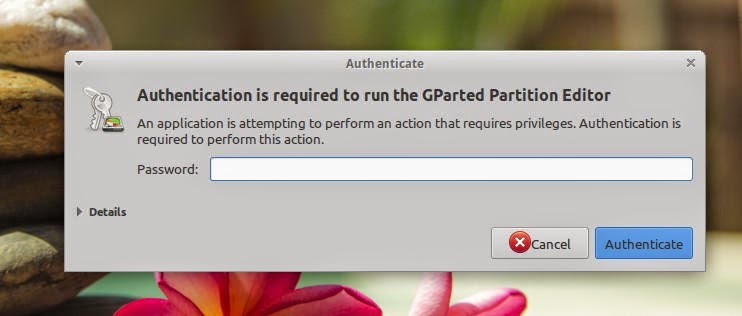
Entering the password to run Gparted.
 |
Viewing a list of disks on your computer.
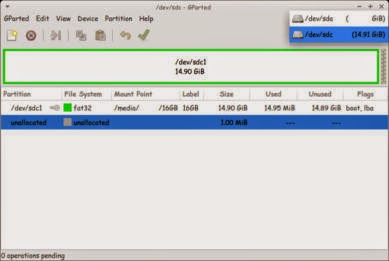 |
Checking the drive for errors with the right click menu.
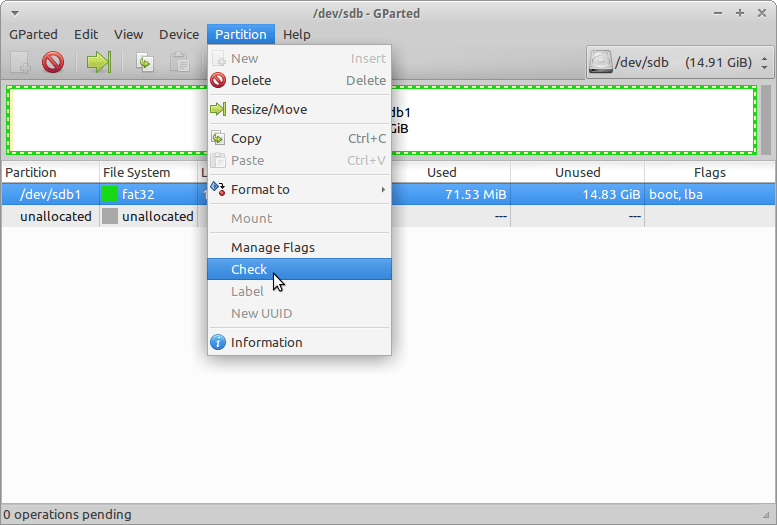 |
We now click Apply changes.
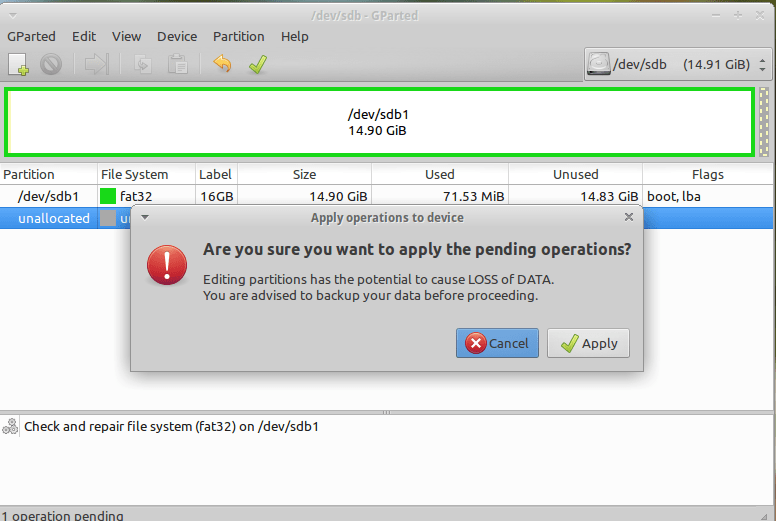
After applying changes we can safely reboot, the fix is done!
Making sure damage didn’t happen
ِAfter rebooting the computer will open as usual, but we want to make sure that the drive wasn’t damaged, to do that we will install a small command line tool called Smartmontools 6.5 and it can be downloaded from this link.
Installing Smartmintools-6.5
Samrtmontools is a terminal utility
to check and monitor disk performance.
To install Smartmontools we need to un-compress the tarball and we do this from the terminal
tar zxvf smartmontools-6.5.tar.gz
The previous step created a directory called smartmontools-6.5 containing the code. Then we go to that directory, build, and install:
cd smartmontools-6.5
./configure
make
sudo make install
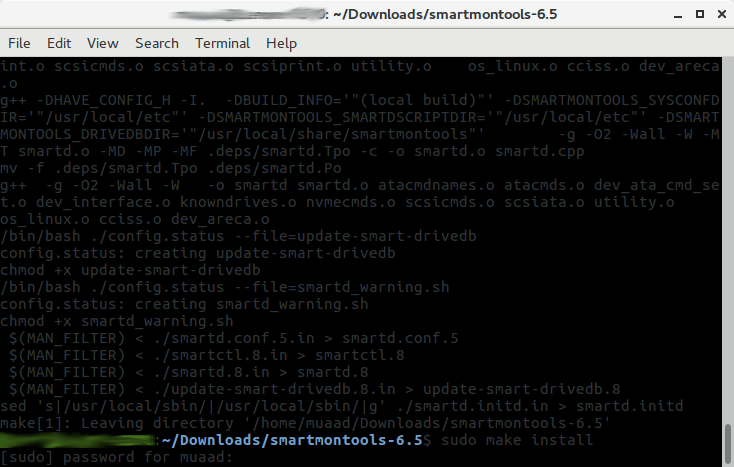
After running these steps we managed to install Smartmintools-6.5 tarball from the terminal.
Running Smartmintools-6.5
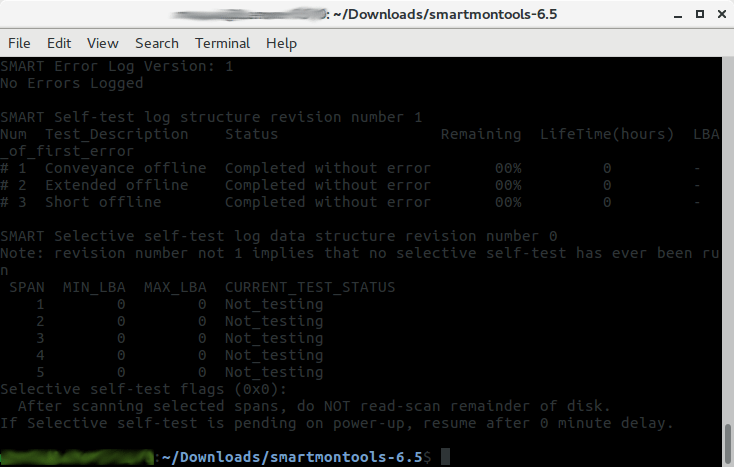
Run the command: sudo smartctl -a /dev/sda. And if the results are like the the screenshot your drive is safe, as it says clearly: No errors logged.
How to make the fix automatic on every boot
Instead of performing the fix every time the issue happens, it’s easier to set the config autofsck to run at every boot.
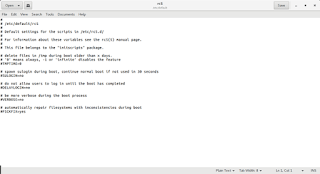
Edit the file etc/default/rcS and change the FSCKFIX from no to yes by using this terminal command:
gksu gedit /etc/default/rcS
Here it opens a gedit windows, navigate to the last line.
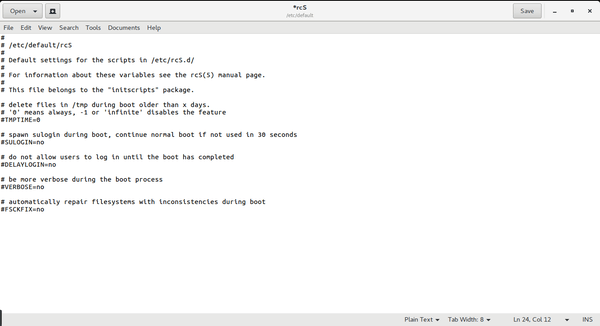 |
Change the FSCKFIX from no to Yes and save to finish.
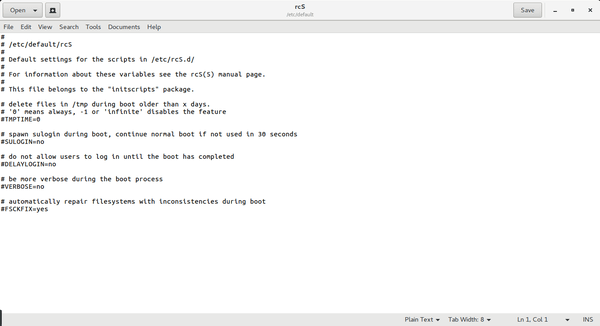 |
This way every time the issue occurs the system will automatically fix it and continue booting normally.
This is how to fix and prevent the /dev/sda1: recovering journal on Linux Ubuntu Gnome 16.04 and similar distros, it’s really easy to fix but it can be scary and ruin a day for you if you don’t know what to do.
And I highly advise you to backup whenever possible.
Hey there guys! What’s up?
It happens to all of us! Suddenly a HDD fails and wont boot or run. Is all that data gone?
Well, maybe not
Assuming you have a backup of your data. physical or via a cloud server. Because loss can happen anytime!
There are some things to try before throwing that HDD away!
Depending on the HDD type you can connect it to another computer. If it’s an external then you need a special connection.
The fault might be in the adapter of the HDD and changing it would resolve the problem!
This is an adapter that connects to the HDD
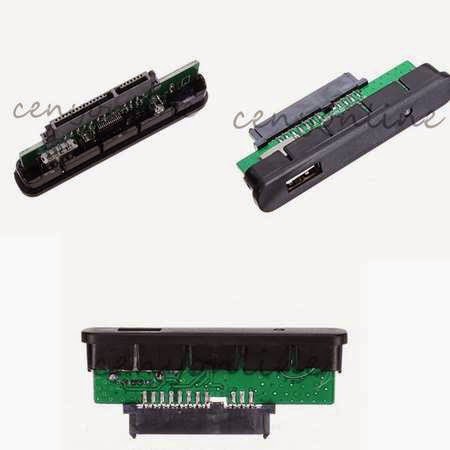
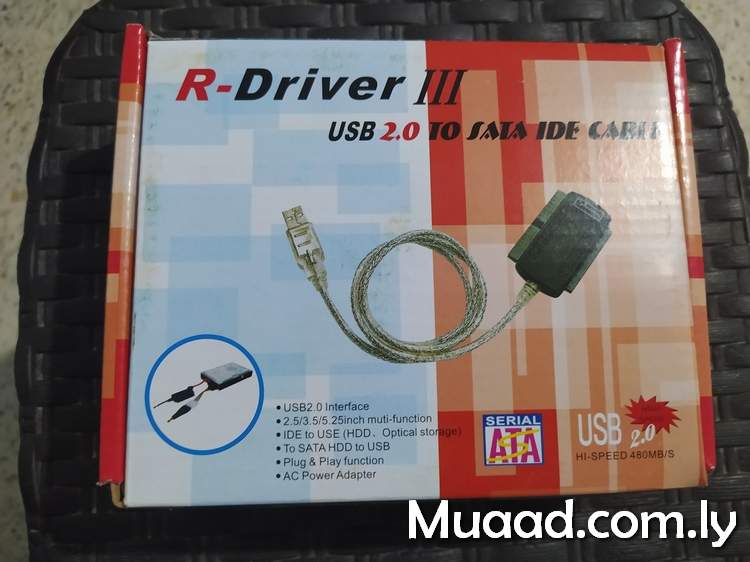
If it’s an old IDE HDD you need an IDE cable and of course a case computer to try it on. If you don’t have one or simply don’t feel like taking a dusty case apart then I recommend one of these:
these connections can connect the SATA / IDE to a USB interface. No need for a case computer there!
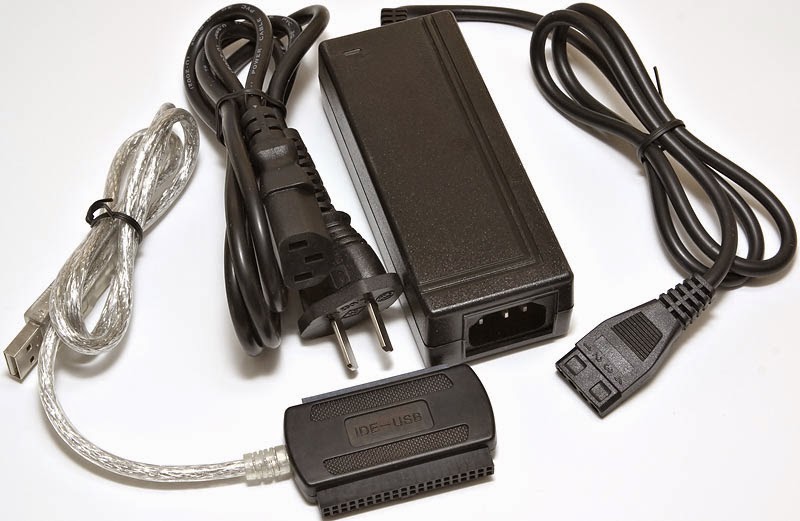
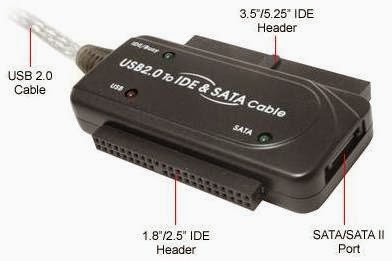
You have to be very careful when connecting these connections
connecting the wrong cable would burn the HDD. Even if it was running!
Happened with me and it was not pretty at all :'(
so to sum up. Try this trick when facing a HDD problem. And remember to always backup!
See you guys in a new post!
Please interact with my post! It keeps me going ..
أنا الفائز بجائزة المدون المنتظم لعام 2025 من موقع مرجع التدوين
