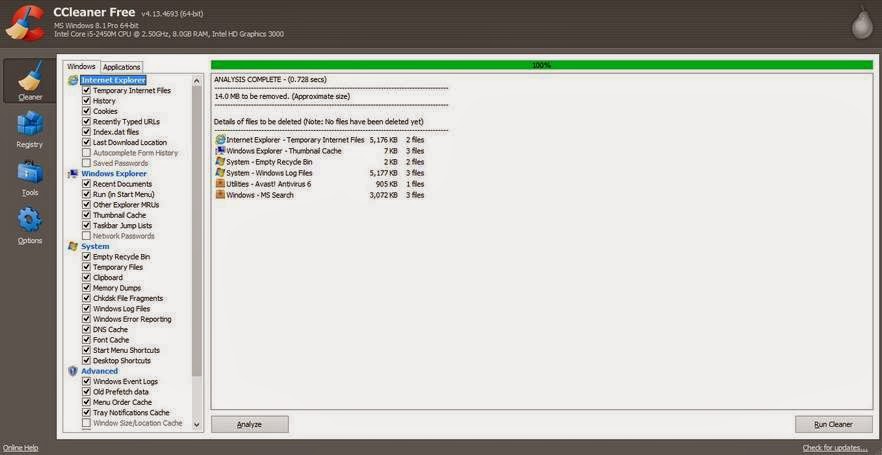
Hey you guys 😀 How are you today?
Today we are going to discuss the easiest way to do an image backup on Windows 8.1
This way applies to Windows 7 and Windows 8.0 too!
Category: Ubuntu (Page 21 of 24)
Hey there you guys 😀 How are you today?
Continuing from this post on tools to help you be more productive.
It’s a handy tool! From remote tech support to making presentations and internet arguments! Ever wished to take a picture of the screen without whipping out your phone?
Screenshots are the way to go! And no! Not like that! *funny pic
It can be done on many platforms! It’s worth mentioning that you don’t need software in Android 2.2 and above! Just hold the power button and volume down and bam! Screenshot saved!
But what about the computer?
In Linux you don’t need a software! Just hit the PrtScr key on your keyboard ( Or add Fn if you are using a laptop) And you will have the program take it for you and offer to open it or save it.
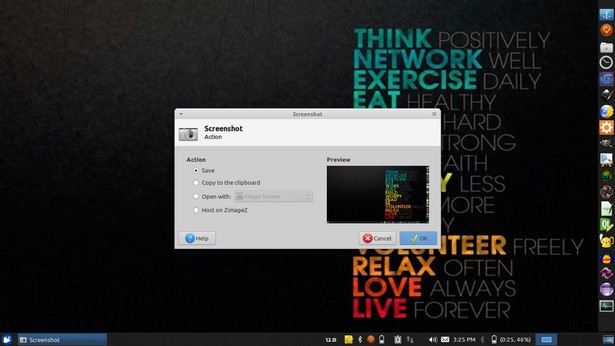
This is the utility used in my Xubuntu. Makes working with screenshots much easier!
But what about Windows?
In windows it’s not that easy.. You have to take the screenshot and manually paste it in a drawing program like paint. Then you have to optimize it because it’s pretty big ( 3MB if your screen resolution is 1368*768) And you have to repeat it every time you take a screenshot :/
There has to be an easy way to do so! Or is there :3
There are tons of screenshot software out there. Some are free, some are not. But all share the same concept! Making taking screenshots easy.
I use PrtScr Assistant for my daily needs! It’s easy and free!
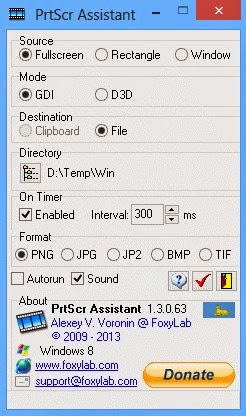
Features:
- It starts minimized so it gets out of the way.
- Runs with the default key (PrtScr key) and saves the file to a folder of your choosing.
- It names files by time stamp so there is no chance of over writing your previous shots.
- It optimizes the screenshot size ( Third of the size taken by paint ) And by choosing the format of the screenshot.
Plus many other features 🙂 so feel free to download it and explore it fully!
What are the tools you use to screenshot? Will this article promote you to screenshot more?
Please share it with us 🙂 And have a lovely day 😀
Clipboard managers are a very handy tool and a total must have for anyone working on a computer.
Office workers, students, and even bloggers!
It’s a pain! It feels like juggling!
Ubuntu clipboard managers
Well with Clipboard managers we can minimize this pain!
There are many great applications both paid and free! But I’m going to talk about two, one for Linux and one for Windows.
The one I used with Linux came with Xubuntu is panel plugin called Clipman Which is a huge help and can be added as a plugin on the panel. It’s light weight and super effective!
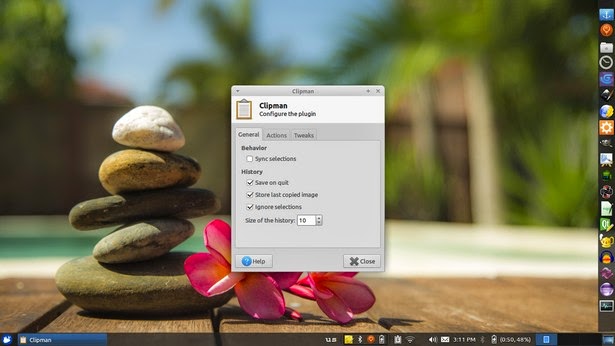
Windows clipboard managers
In Windows it’s doesn’t come by default. But as I said there are some great softs. Here I’m going to talk about CLCL! Which is a free application for clipboard management.
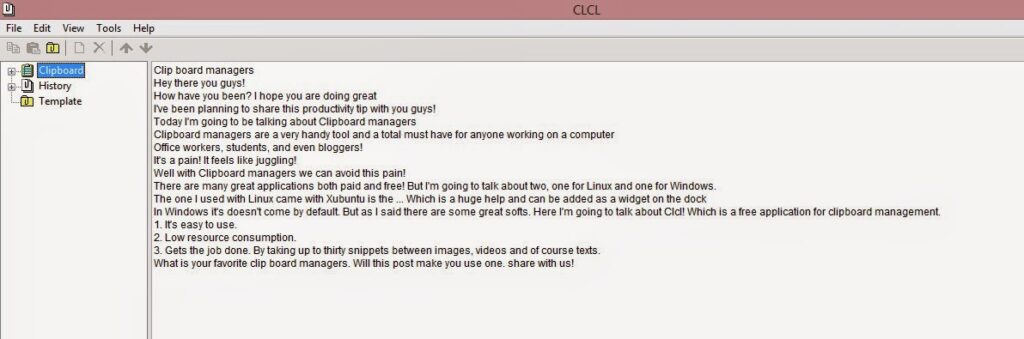
Advantages of using CLCL
1. It’s easy to use.
2. Low resource consumption.
3. Gets the job done. By taking up to thirty snippets between images, videos and of course texts.
Download it from here
What is your favorite clip board managers. Will this post make you use one. share with us!
Our next post will discuss screenshots! Stay tuned!
Hey you guys 🙂
I’m so excited! The Ubuntu phone is finally lunching after two long years since it was announced!
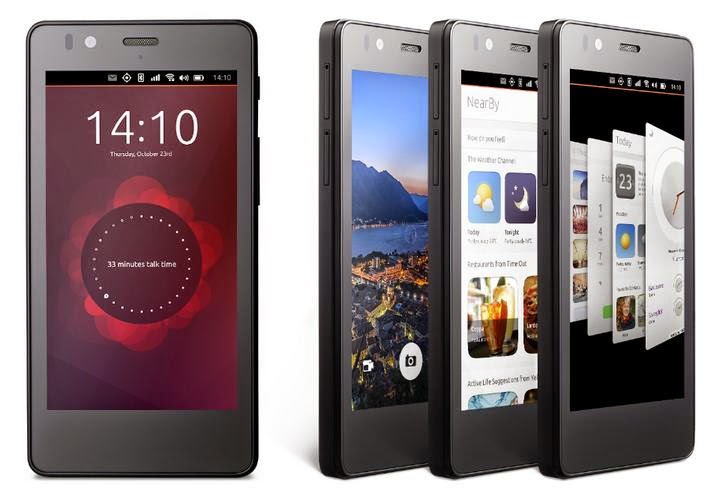
The specs are mid-ranged! It’s built on the BQ Aquaris E4.5 that normally ships with Android. And it’s nothing special.
Specifications
The phone sports a 1.3 quad core processor. 1 Gigabyte of RAM and 8 Gigabyte of storage, 8 Megapixel rear camera. And a 5 Megapixel front camera. ( Apeerently the specs were chosen upon the announcement two years ago! )
Impression
Over all looks pretty nice and solid. BQ will be providing it online in flash sales in Europe only! ( Similar to Chinese phone companies like Xiaomi ) ..
Weird sales strategy!
The question I had for nearly two years remains!
Will Canonical provide the operating system for download? Could normal Android smartphones be flashed to run Ubuntu? Only time will tell.
I hope you enjoyed this update. Have a nice day
Feel free to share your opinion in the comment section 🙂
أنا الفائز بجائزة المدون المنتظم لعام 2025 من موقع مرجع التدوين
