
رأيت أنه من الملائم كتكملة للتطابقات الرقمية، أن أدمج رقم هذا العدد من حديث الأربعاء، مع نسخة أندرويد الجديدة لهاتفي (Lineage OS 18.1). فتكتمل بذلك المطابقة الرقمية. النسخة التي أطلقت منذ 11 شهرًا (أندرويد 11، و 11 شهرًا، مطابقة أخرى). وتكون هي فاتحة هذه النافذة الأسبوعية التي أتحدث فيها مع القراء. قد أدون عن نسخة أندرويد هذه إن كان أداؤها مرضيًا.
Category: VirtualBox (Page 1 of 2)

If you want to have a version of Android running on your PC, you came to the right place!
Android is a very popular platform with hundreds of millions (if not billions) of devices running it world wide, today we take a look on how and why to have Android on your computer!
To be able to install Android on your computer you need to download Android-X86, which is a project to port Android into the PC architecture, then prepare it for installation on your computer since Android is Linux at heart.
In this post we shall install it in a Virtual machine so we can test it safely, and if you find it suits your needs you can install it directly on your PC.
Installing Android on PC is easy, with a couple of extra steps added to the usual installation, you can find the steps in here.
Once you install it, it looks something like this!
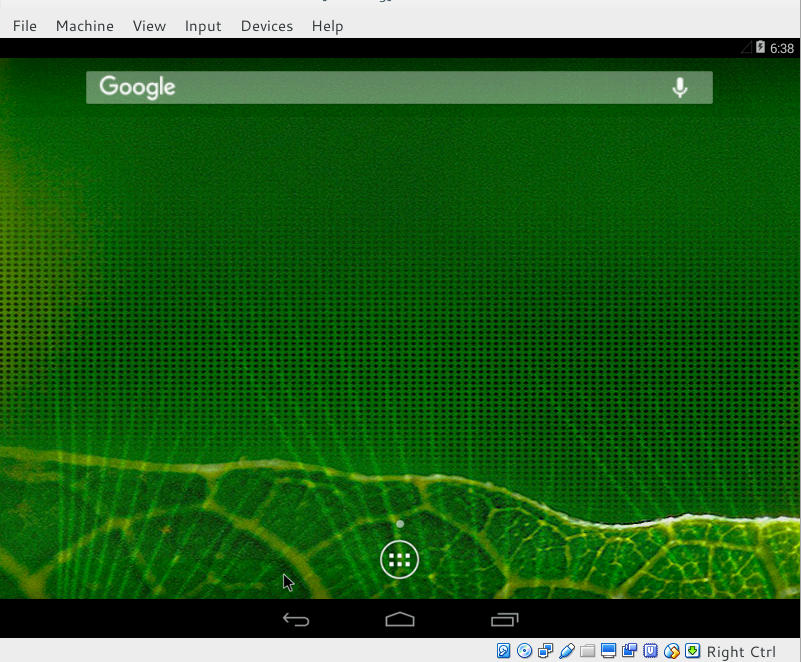
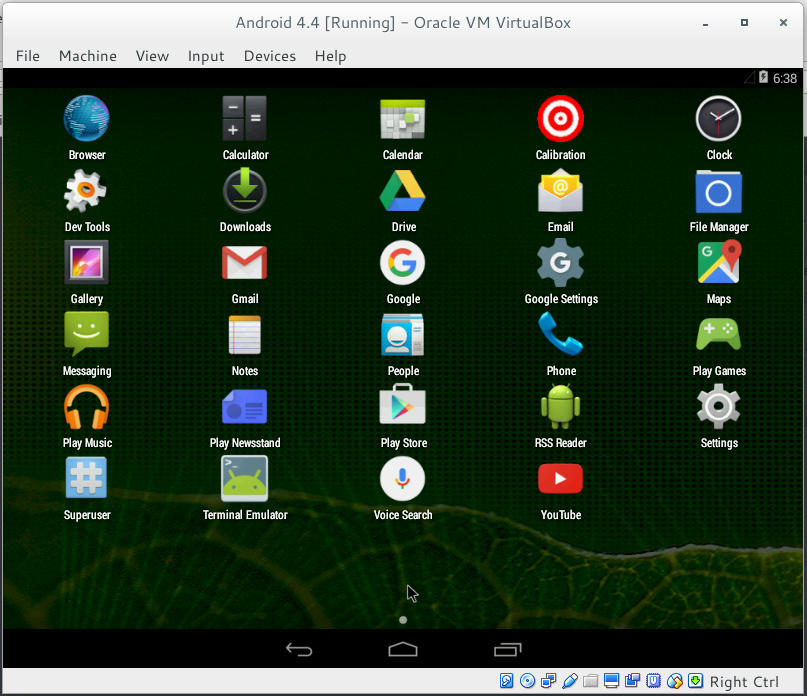
Remember to disable the mouse from input integration to be able to use the mouse as touch input!
now that we covered the how, let’s take a look at the why!
Why to use Android on PC
There are several reasons to use Android on PC: You could be a developer and want to test your applications in a safe environment, or you want to have another account on the VM other than your main account installed on your phone. Or you are like me, you don’t have an Android phone anymore but feel like messing with some applications 😛
It’s a fun project to try! Download the ISO and give it a test drive!
Would you install Android-X86 on an old PC of yours? You think it can be your everyday machine?
It’s a common problem of VirtualBox and I looked through tons of pages and didn’t find a fix, maybe because there isn’t? Good think I found a fix!!
That’s the error message:
Could not open the medium ‘/drive/username/partition/virtual_machine_name.vdi’.
VD: error VERR_FILE_NOT_FOUND opening image file ‘/drive/username/Data/virtual_machine_name.vdi.vdi’ (VERR_FILE_NOT_FOUND).
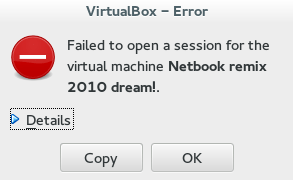
More details on the error:
Result Code:
NS_ERROR_FAILURE (0x80004005)
Component:
MediumWrap
Interface:
IMedium {4afe423b-43e0-e9d0-82e8-ceb307940dda}
It happened with me because I have the virtual machine on a different partition, and I started it without mounting it, that ruined the installation.
How to fix it?
I had to uninstall VirtualBox and install from scratch..
That’s the only fix, uninstall VirtualBox.
When you reinstall it, it should work fine, No need to delete the virtual machine.
Did you have this problem before? How did you fix it?
I know this didn’t “fix” the problem, and maybe you aren’t running Ubuntu and it happened with you.
I’ll post more if I found anything.
Did you find this post useful? If you have share it with your friends. Sharing is caring you know 🙂
We talked about installing VirtualBox on our computer, to do that we will go to VirtualBox.org and download the latest version for our system. And as soon it finishes downloading we start the install.
This post is using version 5
Before beginning you need to go to your BIOS and enable the “Enable Visualization option” so your computer can handle them better!
Installing VirtualBox is pretty straight forward, and as soon as you finish you will have the main interface of the program, it uses wizards and it’s very easy to use.
This post is using version 5
Before beginning you need to go to your BIOS and enable the “Enable Visualization option” so your computer can handle them better!
Installing VirtualBox is pretty straight forward, and as soon as you finish you will have the main interface of the program, it uses wizards and it’s very easy to use.
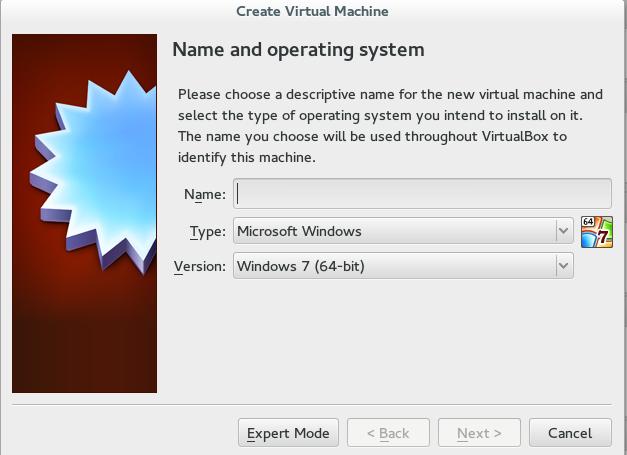
As soon as it runs it will ask you to determine an Operating system to run, define the name and system type, the hardware specifications, size and type and location of the virtual machine and the machine is created!
You need to have licenses for the systems you are installing. Installing Windows in a virtual environment doesn’t mean it you can use a pirated version of it!
It’s recommended never to surpass the actual hardware capacity of your system, and it’s best to leave the specifications as recommended.
Also don’t overload your system, if you crash the OS system then all of the machines will crash too.
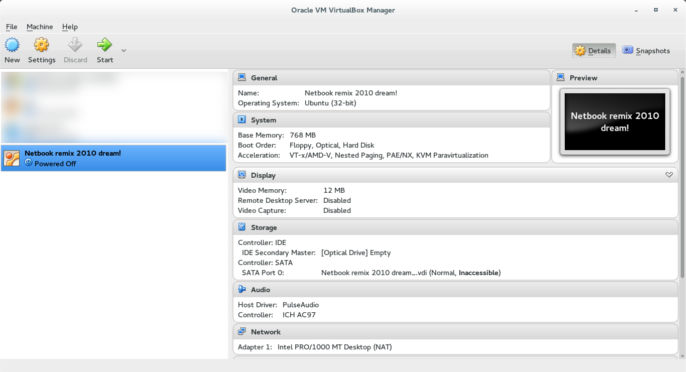
Once you set the virtual machine you need to install the actual system inside of it, it’s totally safe and it won’t harm your host system. You need to own license to the systems you need to install, but if you are installing Linux you are free to install it without legal restrictions as the GPL license allows you to.
Installation varies depending on the system and you can find many installations detailed here in this blog, having a virtual machine is a good place to learn how to install new systems safely.
Once the system install is finished, you are ready to use your guest system.
You can’t access your host drives from a guest, for that you need to download the Extension pack to be able to access folders on your system.
Go to VirtualBox.org and download the extension pack suitable for the version you downloaded,I linked the extension pack suitable for version 5.
After installing it you are able to add the folders you wish to share from host to guest as network folders, or you can use a cloud or a USB to transfer data!
To make sure that the USB works you need to add your user to the VMBOX user group, and the eaiset way to do so is by opening a terminal windows in Ubuntu and writing this command:
sudo usermod -a -G vboxusers $USER
Did you like this post and find it useful? Share it with your friends too! Sharing is caring!
أنا الفائز بجائزة المدون المنتظم لعام 2025 من موقع مرجع التدوين
