Category: Cross-Platform (Page 7 of 10)

Atom text editor review

Hey there you guys!

How are you today? I hope you are doing good

Today we are going to look at an amazing text editor. Free and open source, Atom.
GitHub presented it’s text editor and made it open source under the MIT license in mid 2014. Available for Linux and Windows. “A Hackable text editor for the 21st century!”

It’s made by GitHub. The biggest code repository online.

Lets take a look at the awesome features of Atom.

1. It looks amazing!
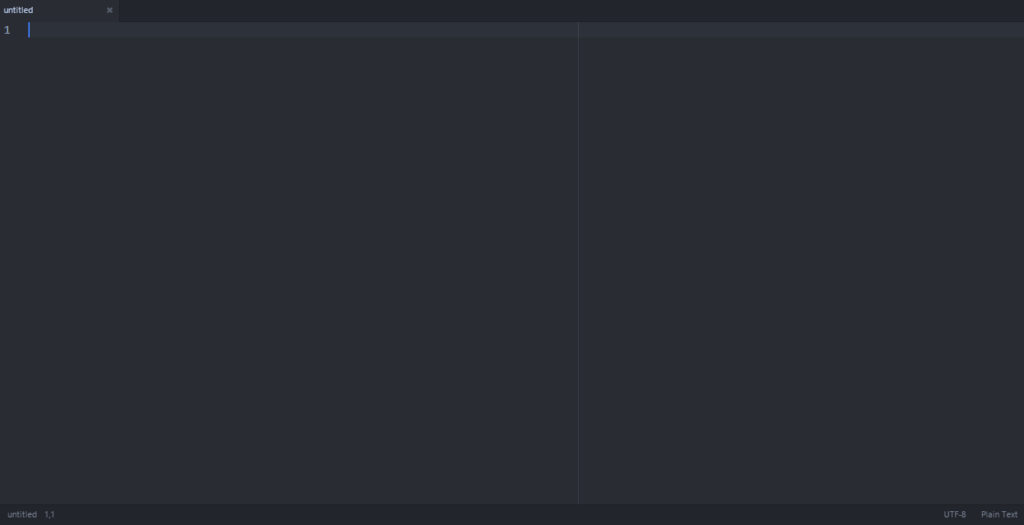
 

Atom’s main interface. Two panes

No more black text on a white background. (Unless you are into that thing. There is a white theme 😛 ) it has the look and feel that made Sublime text the favorite text editor of many developers. It’s divided into panes for ease of use.

2. It has many plug-ins for you to choose from.

It comes preloaded out of the box with many plug-ins and the syntax support of many languages, and you can add as many as you like and need!

3. Great community support

As it is being developed by GitHub you are bound to receive great support and many plug ins and themes to your liking.

4. Cross – Platform

It’s available for Linux (Ubuntu / RedHat). Windows and OS X 10.8 and later. I must note that the version for Windows and Mac checks for Auto update. While in Linux you need to check for it manually!

5. If you didn’t find it. Make it yourself!

You can customize Atoms to your liking and needs by “Hacking it”. That’s right! You can edit parts of the interface and look using your knowledge of CSS & html.

As everything else there are some draw backs to it, let’s check them out:

1. Resource consuming

It’s takes around 200 MB more less. Separated into background services and the program itself (which is 20 MB). In comparison it takes a LOT more than Sublime text.( Same load on Xubuntu)

2. It takes a long time to load

It takes around 19 seconds to load. Compared to Sublime text which takes seconds to load. While when I installed it on Linux Xubuntu. It loaded in 2-3 seconds!!

3.File size restriction of 2 Mega byte file size 

I’ve read around the web that you can’t open files larger than 2 mega bytes. I am yet to test that. I’ll update this section when possible. *Update: Crashed with a 1.5MB .js file on Windows & Linux!

Download

The download page detects your system type and gives a timely link. So go check it out from here.
Also checkout the flight manual which gives you all the information you need to know like Keybindings.

Final words

I think it’s unfair to compare Atom to industry giants like Vim and Sublime Text. Simply it wasn’t around for as long. And it has room for improvement and plenty of potential!  It’s highly customizable, has a great interface and 100% free. Totally worth a try!

How did you like this post? Did you find it useful? Please comment below and let me hear what you have in mind.

Please give Kudos! Comment and share.
LibreOffice 4.4.2.2 is out. Fixes base issue. More!

Hey there you guys!

I hope you are having a good weekend!

I just downloaded the Fresh LibreOffice 4.4.2.2, I have to say it’s looking good!
What I noticed that the install size is still the same at 213.93 MB.

With some improvements.

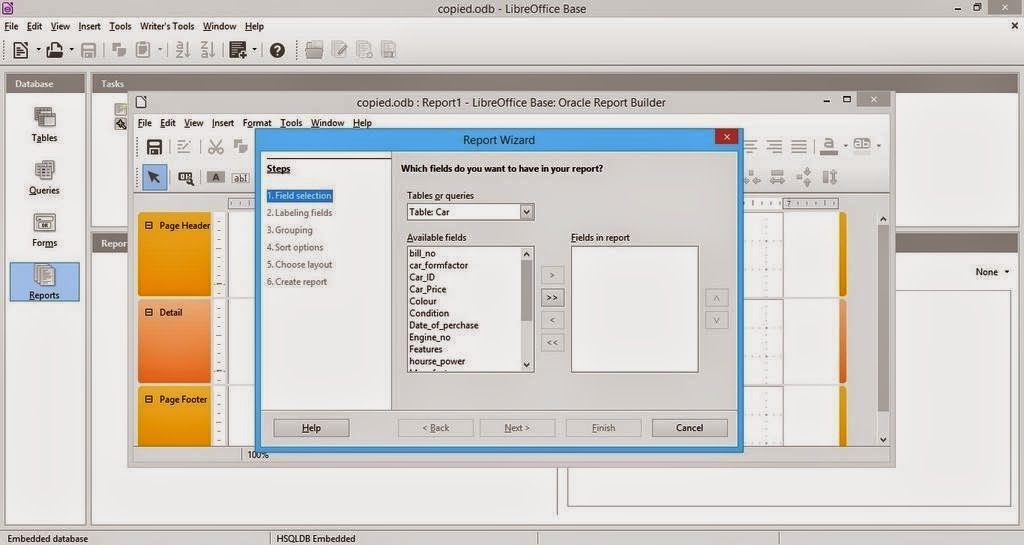
1.I noticed I was able to run reports on data bases after it used to crash the program on 4.4.0, I haven’t changed a thing in my settings. The boys did it <3
And yes. That’s the database from the conversion post that has mainstream attention.

2. I wasn’t able to create a web page via wizard. But the program didn’t crash. So I guess it’s an improvement, I think it will be fixed in a later update. And I’ll report about it (God willing).

So with these improvements I urge you to take a look at the great work done on LibreOffice. And view it as a serious productivity suit with plenty of potential and hidden power rather than an MS-Office clone ( Which is not!!).

Will a clone run from a browser? Does Office do that? That’s right!! LibreOffice done it again!! Check the wiki for more!

Finally. I’d like to thank the guys at @LibreOffice for re-tweeting me.
Consider donating to keep the project going. It’s an amazing movement and it can’t continue for free you know.. The download page has the donation in it. Make sure to leave something there 🙂

I hope you liked my post. Please leave a comment and let me know what you think. Have a nice one!!

Open an Access (2003-2007) database in LibreOffice base

Hey there you guys!

How are you doing today? I hope you are great!

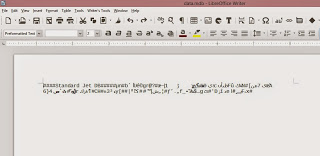
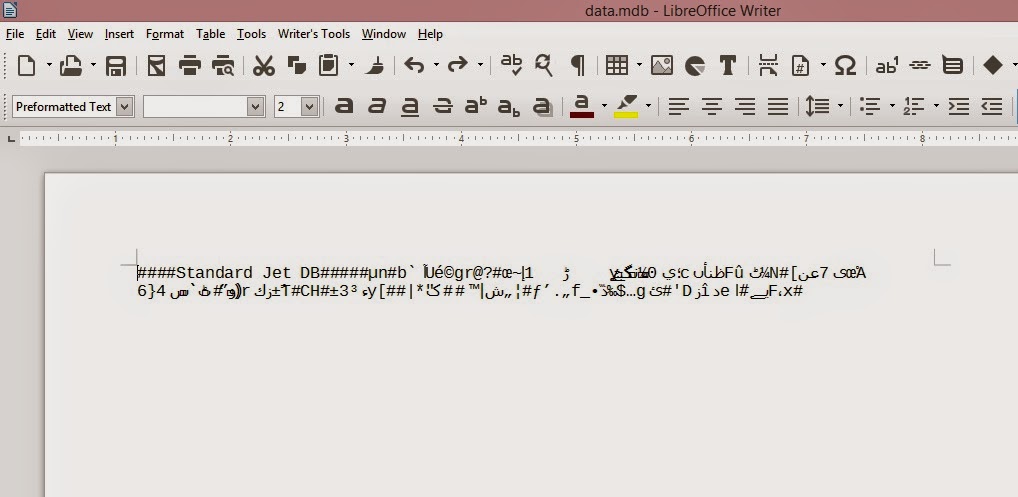
Have you ever tried to open a database file created by Microsoft only to find it looking like this: 


I have! And it sucks!

First of all this isn’t even Base! It’s Writer! And second of all: This is garbage!

Why does it look like this?

Luckily I was able to figure it out! It’s really simple! And it works for 2003 / 2007 (2010 doesn’t work, I tried :/).

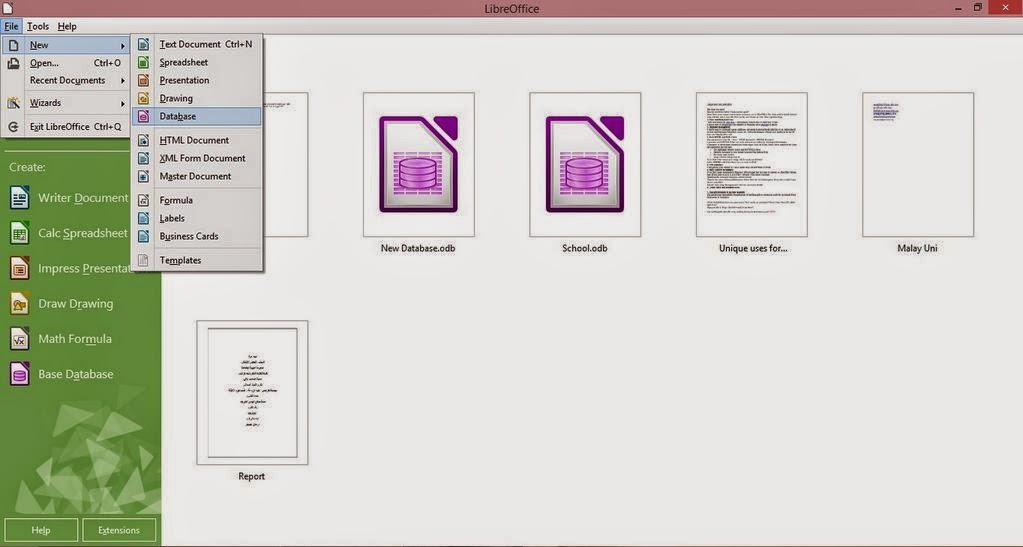
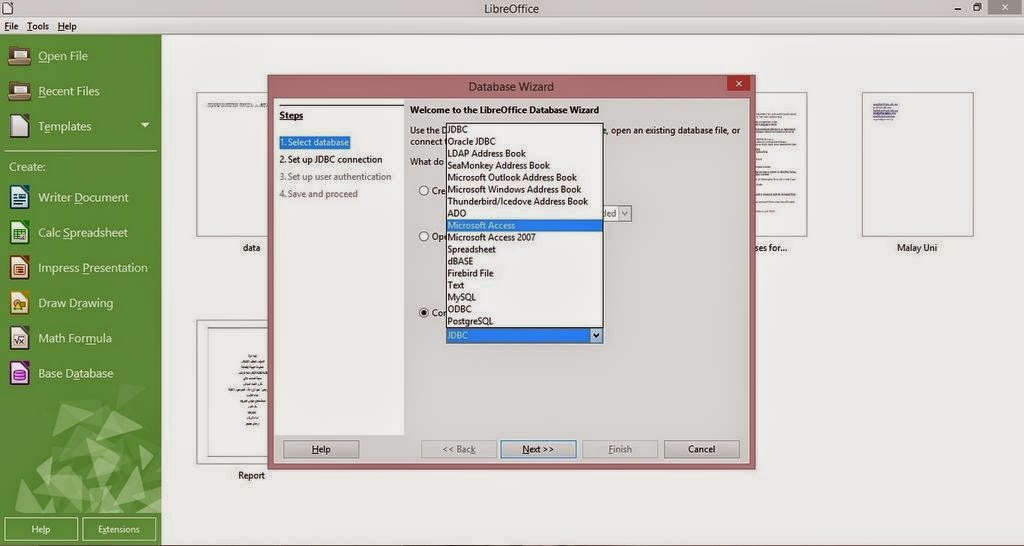
All you have to do is to navigate to File New Database


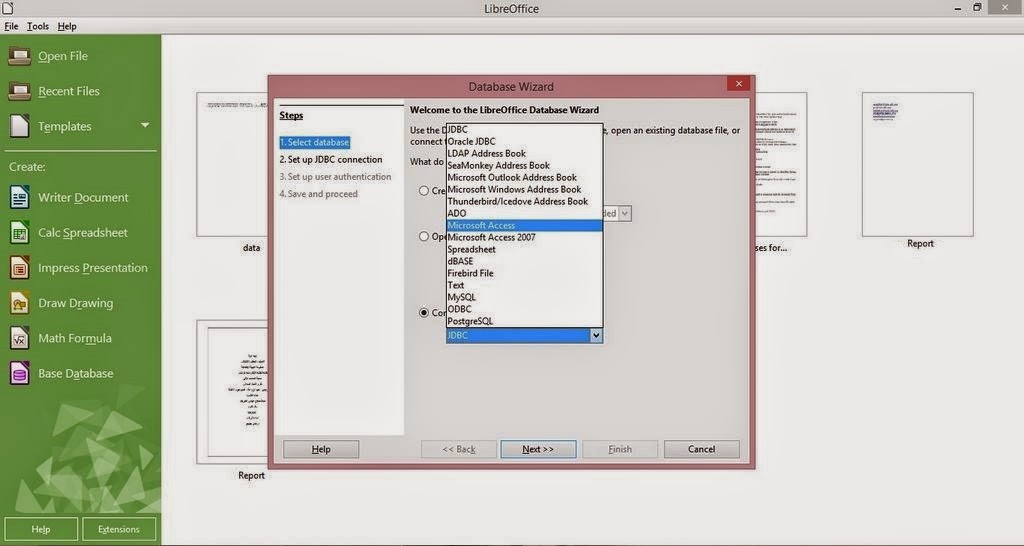
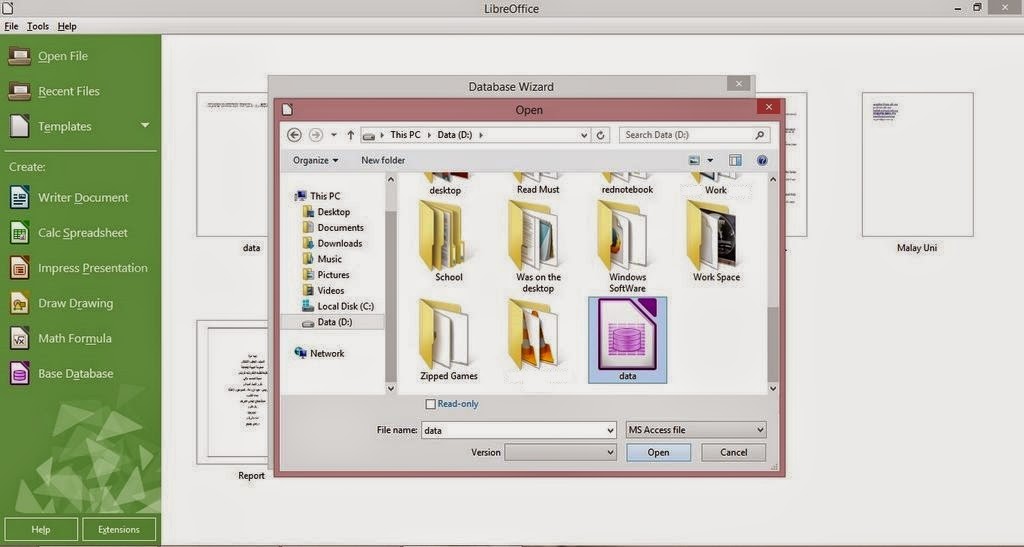
From this window select (Connect to an existing Database) and select Microsoft Access 2003 or 2007 ( in this tutorial it was 2003).


Browse to where your Database is located. In this tutorial it’s in the D:


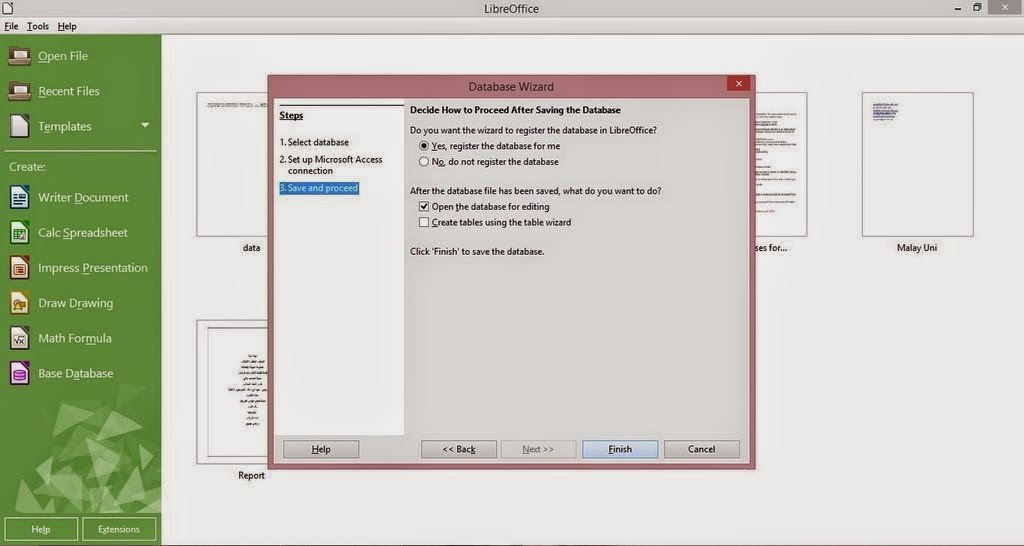
Save and proceed just like you would do with a normal database. And it’s open!


You notice that you saved an ODB database. Why is that?

Because you aren’t really opening an Access 2003 database. You are “Connecting” to it!

You must not delete the database. Or else you won’t be able to access your data!

But I want it to be opened just like a normal database. I don’t want to “connect” every time I edit my database!

Well there is a way for that too!

While this connected database is open, create a new database.

Copy the whole table. And paste it into the new database you just created!

You can keep the keys as is, or change them to meet your needs!

And save the newly created database!

As simple as that! Hope you like it. Drop a line below and let me know! Join my blog and subscribe to my mailing list so you don’t miss a post! NEW!!

What are screenshots? And what tools to use?

Hey there you guys 😀 How are you today?

Continuing from this post on tools to help you be more productive.
It’s a handy tool! From remote tech support to making presentations and internet arguments! Ever wished to take a picture of the screen without whipping out your phone?


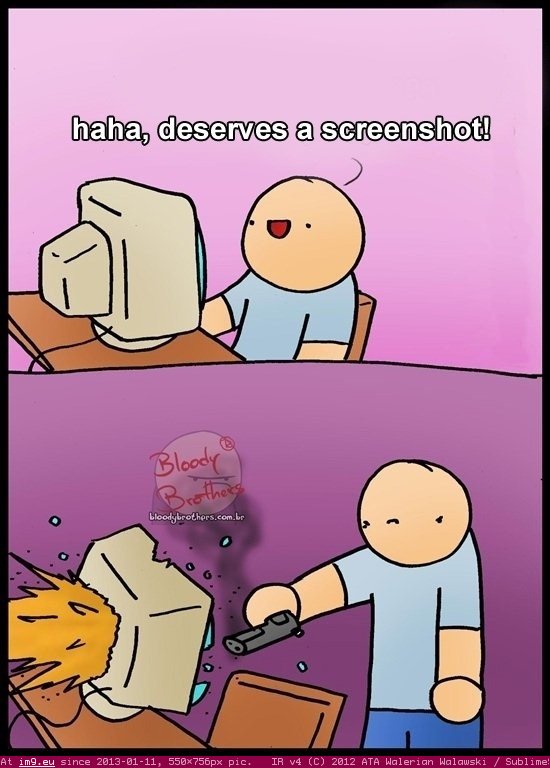
Screenshots are the way to go! And no! Not like that! *funny pic

It can be done on many platforms! It’s worth mentioning that you don’t need software in Android 2.2 and above! Just hold the power button and volume down and bam! Screenshot saved!

But what about the computer?

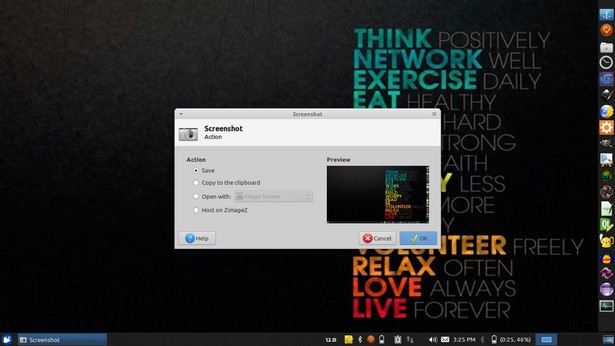
In Linux you don’t need a software! Just hit the PrtScr key on your keyboard ( Or add Fn if you are using a laptop) And you will have the program take it for you and offer to open it or save it.

This is the utility used in my Xubuntu. Makes working with screenshots much easier!

But what about Windows?

In windows it’s not that easy.. You have to take the screenshot and manually paste it in a drawing program like paint. Then you have to optimize it because it’s pretty big ( 3MB if your screen resolution is 1368*768) And you have to repeat it every time you take a screenshot :/
There has to be an easy way to do so! Or is there :3
There are tons of screenshot software out there. Some are free, some are not. But all share the same concept! Making taking screenshots easy.
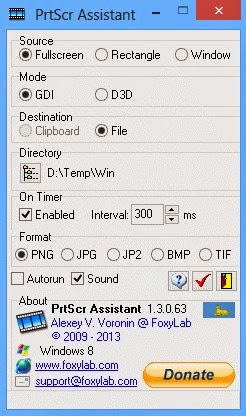
I use PrtScr Assistant for my daily needs! It’s easy and free!


Features:


  1. It starts minimized so it gets out of the way.
  2. Runs with the default key (PrtScr key) and saves the file to a folder of your choosing.
  3. It names files by time stamp so there is no chance of over writing your previous shots.
  4. It optimizes the screenshot size ( Third of the size taken by paint ) And by choosing the format of the screenshot.

Plus many other features 🙂 so feel free to download it and explore it fully!
What are the tools you use to screenshot? Will this article promote you to screenshot more?
Please share it with us 🙂 And have a lovely day 😀

« Older posts Newer posts »