Category: Fix (Page 10 of 11)

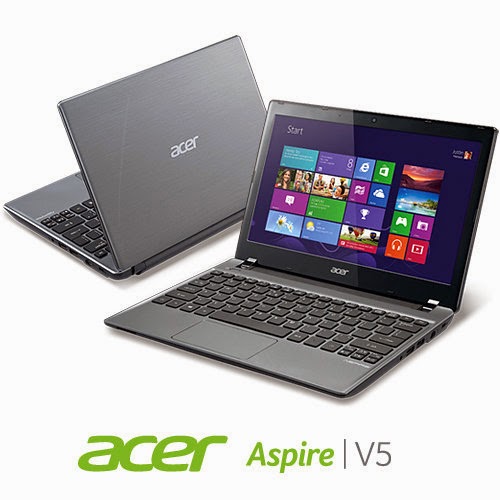
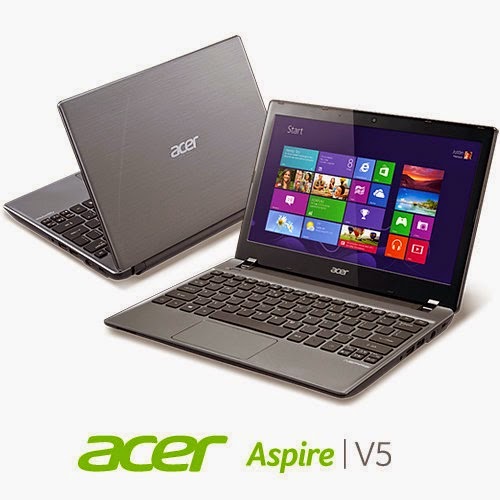
Acer Aspire V5-P122 boot problem FIX !! OEM saved!!

Hey there you guys 🙂
I’m happy to report I was able to fix the Acer Aspire V5-P122 boot problem!

I must emphasis that this tutorial is at your own risk and I can’t be held  responsible for any damages that occur from it! I’m not even sure this is 100% legal and that it doesn’t void Acer warranty! In this case we don’t have an Acer service in our country (It was imported) and therefor I had to take action (To save the OEM license) ..

After the long introduction, let’s get down to business:
As you remember in this post we managed to make the Acer boot under Linux by changing the boot settings. And we could access the hard drive after accessing the repair mode under windows and writing some commands. For the full steps go to this post.
At this point we have our data at hand (since we booted under Windows for repair. Then under Linux for data recovery), we could easily backup the data to an external hard drive, but can we restore Windows?

Sadly I couldn’t manage to use any of the options to make the laptop work again!

  • I couldn’t refresh the system.
  • I couldn’t use the repair utility from the setup.
  • I didn’t have an image ( and I doubt that would have done anything ).
  • It won’t restore to a previous restore point.

Well a mistake happened with us and it totally wiped the hard drive! What happened was instead of booting Linux into live mode I installed Linux on the whole drive! Wiping the data and partitions completely !! ( Deleting the system partition, data partition, the recovery partition. And all of Acer’s bloatware!)

A fresh start

With nothing at hand, I knew that I needed to format! My main concern was the Windows license!  Now I have to go shopping for another Windows version! But I just got this laptop! And it has OEM Windows already on it! Isn’t there a way to keep the license?
Well .. There is 😀
Luckily the new Windows license is stored in the BIOS. Meaning it won’t be lost even if the hard drive was replaced!

Next step

The only thing left now was to install windows again, it’s pretty basic. Checkout the detailed method in this post I made sometime ago 🙂
Again I was stressing, will the license be picked by the setup?
I couldn’t find that version of Windows to install with anywhere! All I could find was the Pro version! Does that mean I have to buy it again? Or I should transfer the license from my other laptop and use it here. Keeping that device a Linux machine?
Anyway I begun the installation via USB ( The Acer doesn’t have a DVD-Rom).
After the setup was complete it noted that windows wasn’t activated, but it was reading the license file!

Viewing the License

I knew that because I downloaded the Nirsoft license viewer tool and tested it on my other device, 100% accurate!
It showed when I used it on the Acer Netbook that indeed the OEM bios has a license. It was yet to be activated.

Powerful command

I used this command and restarted the computer. After the restart I clicked Activate Windows
Windows was activated (With the O.E.M license!!). And it was downgraded to Windows 8 ( The setup was 8 Pro)!!
It was a total success!
I postponed creating a system image until upgrading to 8.1 (it’s equal to a format).
And that was it!
Maybe you need to call Microsoft after the format! And if you have an Acer reseller. Go to them! ( As I said, we have no means of support. I tried to make this as legal as possible. I hope it doesn’t violate any laws)

Final words

To sum the whole post in a paragraph: I reinstalled Windows 8 Pro and activated windows via the O.E.M bios, downgrading it to Windows 8.
Of course I lost all the Acer tools, guides, drivers and even bloatware!
Again I must insist to resort to this as a final solution knowing it may void your warranty!
I hope you find this post useful. Please tell me what occurs with you!
Have a nice day 🙂
Make sure to follow my blog and join my mail-list NEW
A couple more things to try before announcing the HDD dead!

Hey there guys! What’s up?

It happens to all of us! Suddenly a HDD fails and wont boot or run. Is all that data gone?

Well, maybe not

Assuming you have a backup of your data. physical or via a cloud server. Because loss can happen anytime!

There are some things to try before throwing that HDD away!

Depending on the HDD type you can connect it to another computer. If it’s an external then you need a special connection.

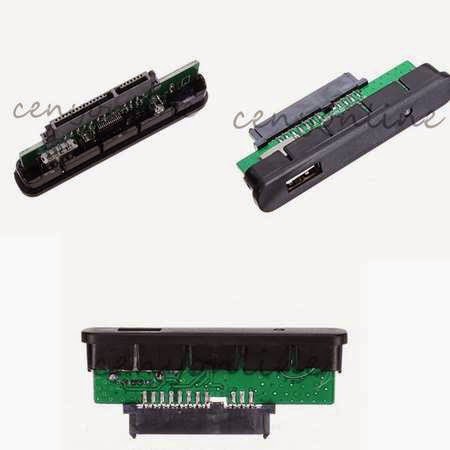
The fault might be in the adapter of the HDD and changing it would resolve the problem!

This is an adapter that connects to the HDD

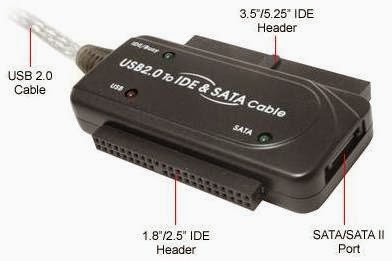
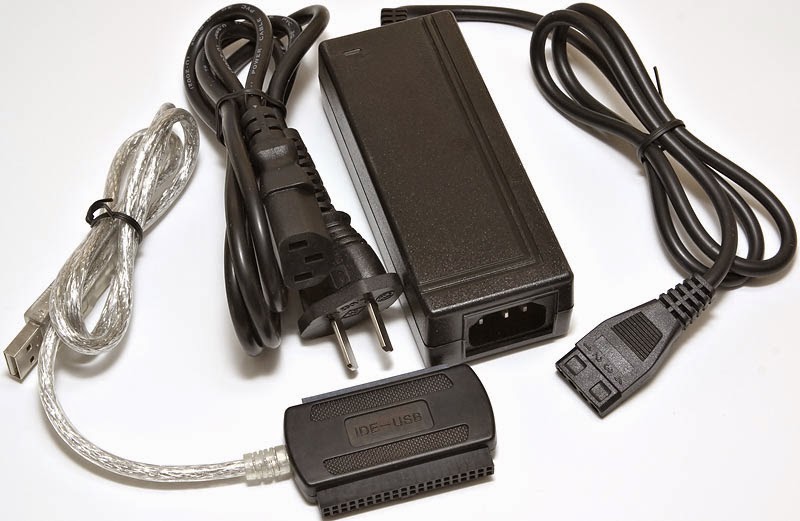
If it’s an old IDE HDD you need an IDE cable and of course a case computer to try it on. If you don’t have one or simply don’t feel like taking a dusty case apart then I recommend one of these:

these connections can connect the SATA / IDE to a USB interface. No need for a case computer there!


You have to be very careful when connecting these connections

connecting the wrong cable would burn the HDD. Even if it was running!

Happened with me and it was not pretty at all :'(

so to sum up. Try this trick when facing a HDD problem. And remember to always backup!

See you guys in a new post!

Please interact with my post! It keeps me going ..

Acer Aspier A5 11 inch Windows 8 boot problem + fix so far

Hey you guys
You probably checked out the slick notebook by Acer. Acer Aspier A5 11 inch. It comes with neat features compared to price. Most notably a touch screen and Windows 8 OEM, sadly it has a fatal bug!!


The issue

As I searched the web ( including the Acer help ) I noticed a lot of people talking about it online and no one has a clear answer .. 🙁

What happens is: After a short while the computer refuses booting!!

No matter what you do, It won’t boot!

Since it doesn’t have a DVD-ROM there isn’t a way for you to insert the disk to restore Windows !

Even if you were slick enough to use a USB drive. It’s hopeless..

Any and all settings lead to nothing at all ..

So I was fiddling with it. Being an open source fanatic I decided to give my Linux live USB a go. I wasn’t able to boot as well!!

My fix was really simple, all you need us the windows USB and the Ubuntu USB. I’ll make a post on how to make bootable media next year 😉 notice the date 😉

**Update the tutorial for windows can be found here

**Update 2 the tutorial for Linux can be found Here

Steps are as follows

1. Insert the Windows USB installer.

2. Go to advanced options and then to command prompt.

3. Insert the following command to disable hibernate ( I’ll tell you why in a minute ) powercfg /h off then shutdown /s /t 0

4. After rebooting go to bios and change boot type from UEFI to Legacy. Save the changes and restart.

5. Make sure the Ubuntu flash is connected, boot from it.

6. Select try Ubuntu and in a minute you will get the desktop. Click the hard drives to gain access to your media and recover it.

7. The commands you entered from step two is to access the drive under Ubuntu, or else you will receive an error message saying you can’t access the drives. Because windows 8 doesn’t really shutdown, it hibernates to save boot time.

Also note that the BIOS moves very fast so make sure you press really fast too 😀 and if it doesn’t work check the boot order from the f2 menu putting USB as the default boot device ..

This is how to recover the media. And frankly this is what I was asked to do on the Acer Aspire A5 11 inch. I hope it helps. And if I make any changes I’ll post a new post referencing this one 🙂

*Update!! Problem fixed!

Check this link for full details 😀

Fix the Resolution problem on netbooks

Hello everyone, and welcome to another tech-tip.
Today we will be talking about the Resolution problem that occur with Netbook while trying to run some programs.
OS: XP SP3, Netbook type HP Compaq CQ10-100


I was not able to find anything useful on this issue so I decided to work it out myself, and this is what I have found:

First of all lets see the error message that comes when this problem happens:

Your system does not meet the minimum requirements for Handbrake.

Your Screen is running at: 1024×600

Screen resolution is too low. Must be 1024×620 or greater.

Cause of the issue

The cause of this problem is that the program cannot run under the Netbook’s resolution, in this case is 1024×600.

You can’t change the resolution because the Intel graphic chipset installed in the Netbook does not support larger resolutions.

Some of the applications that had this problem on my Netbook:

The common thing among these software and games that they are all licensed as Open source, it happened with one Freeware: “dspeech”, but why it targets Open source, this I don’t know (maybe because of OpenGL?).

Now we got two very simple fixes for this problem:

The First Fix

  • Connect your mini computer to a monitor, then change the computer’s resolution to a larger resolution, for example 1024×724, and then when the computer asks you to restart, Restart.
  • Use the function keys to alter between the آetbook monitor and the other monitor, on my Netbook for example is Fn+F2.

The Second Fix

  • Download the following Freeware, less than 100k (NRC10Beta2 Netbook Resolution Customizer) from here, and run it (on some computers it may trigger an antiviurs alarm, but it’s clean).
  • You will find an icon in the tray area (small orange monitor).
  • Right click the icon and click the top choice (which is your current resolution) to display a list of resolutions, and then click the bottom checkbox to the left saying: Enable Downscaling then click OK.
  • Repeat the last step to have the resolution you want, and the scaling means you can’t see the whole screen at once, you must move the mouse at the top and the bottom of the screen to see the rest of it.
  • The resolution will remain until you restart the Netbook, exiting the program will not change it back, a simple restart will put things right on track.
  • So this was today’s tip, we learned how to overcome the disadvantage of the small Netbook screen, for any comments please post below, I will be delighted to answer an questions regarding the matter.
Have a lovely day.
« Older posts Newer posts »