Category: Fresh install

Get Windows 10?! Not again Microsoft!

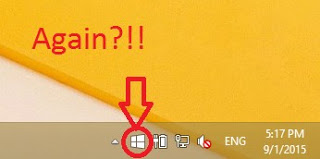
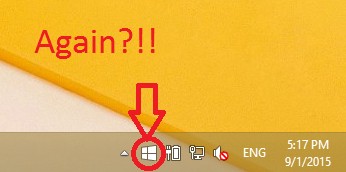
As I was updating my newly installed Windows 8.1 Pro. I came across a familiar icon! It was the Get Windows 10 icon sitting on my taskbar! I wouldn’t have thought that I’m eligible for another download after I downloaded Windows 10, upgraded to it, clean installed it , and finally remove it and get back to Windows 8.1 !!

You can see the date and time to know it’s today!

Well that was a rich reading material wasn’t it?!

I took my time experimenting with Windows 10 on my personal computer, installing and uninstalling again and again, I didn’t even use a virtual machine. NOOOO! I used my everyday computer to do these experiments!

For obvious reasons I’m not falling for that upgrade offer once again! And I have some other reasons to add to that list. So checkout that post!

I think I’ve had enough install/uninstall action for the rest of my life! Let alone the countless updates, the time wasted and the data charges I’m paying for all of this mess.
I’m finishing my updates and that’s that. No more upgrades on this device for me. And I don’t recommend anyone to upgrade to Windows 10!

Uninstall Windows 10 Reinstall Windows 8.1 using the same license (Not a rollback).

I’m happy to announce that I found a way to get back to Windows 8.1! Not from the rollback option or the recovery! My way is uninstalling Windows 10. And reinstalling Windows 8.1 using the same license!

It’s not a rollback. I had Windows 10 for over a month, plus I removed the Windows.old and reinstalled Windows 10. So no recovery options were available. What I did was an old fashion uninstall / reinstall job with some license work.
The method is very simple. I’m going to list somethings you need first:


  • Make sure your Windows 10 works.
  • Make sure you are using the same version of Windows 8.1 you had before.
  • You must be online the whole time. Your Windows 10 has to work because we are going to “Uninstall it”. If it doesn’t work for any reason DON’T INSTALL WINDOWS 8.1 RIGHT AWAY. I warned you!!

You need to repair or fresh install your version of Windows 10 in order to complete this tutorial. I made a post about it so feel free to check it out!

Uninstalling Windows 10

The first step is running the command prompt in administrator privileges.

and type in the commandslmgr /dlv

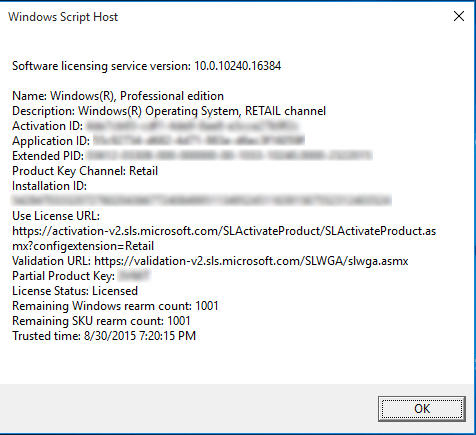
You will get an information box about your computer. What we need from here is the Activation ID.

Information box about your license
  • After getting it we are going to uninstall that product key (so we can use it after reinstalling 8.1). Type in :
    slmgr /upk 181520dd-3fc4-4df2-81f5c513467ad56d –
  • Iblurred out my key, so just put in yours-
  • If a box comes out saying your product is uninstalled. You done it right.
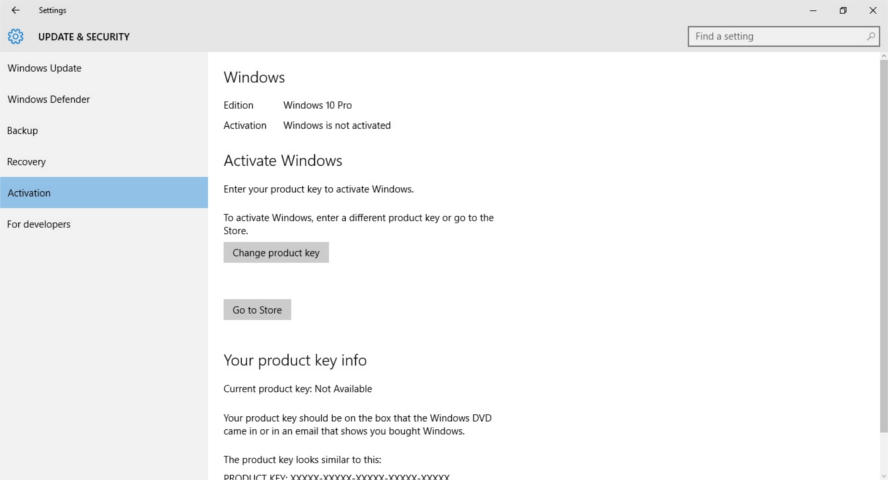
  • Go check the activation. If it says it’s not activated, then you are free to move into the next step.
Windows 10 is not activated

Installing Windows 8.1

Make sure you backup all your data. And that you have your license key (That came with the disk or in an e-mail) and if you don’t know where to find it. There is a helpful way to find it.
Get the Windows 8.1 disk. Boot from it by hitting F12 on boot.
Follow the installation procedure, format the drive Windows 10 is on and install Windows 8.1 there.
Make sure you are connected to the Internet when prompted.
Complete the installation as you would do normally. And when it comes to entering the key. Skip that step.

Activating Windows 8.1

When Windows 8.1 is up and running, run the command prompt in administrator privileges and type in the command
slmgr /ipk XXXXX-XXXXX-XXXXX-XXXXX-XXXXX
 Where XXXXX is your serial number, which you will find on the label of the disk or in the e-mail sent to you.

You will get a box saying key XXXXX-XXXXX-XXXXX-XXXXX-XXXXX installed successfully.

When checking the Windows activation, I found that the key used to activate was the same I had before upgrading to Windows 10. (I blurred mine for obvious reasons).

Windows 8.1 activation

Important Notes

If you use a different version of Windows other than you used, it won’t activate and you would have to reinstall Windows 8.1.

You must be online the whole time.
If you are dual-booting, you will have to do these steps again to make sure everything works.
If you are unable to find your license key use the software in this post.
Update: This part is written after rolling back.
I was forced to download all of the updates released for Windows 8.1. A total of 1.5 GB download on top of the 3 gigabyte download!
I hope you found this a useful post. Please comment below if anything. And if you are out there. Don’t upgrade to Windows 10.

How to add downloaded packages to Synaptic Package Manager in Ubuntu 13.04

Hi, good day to you

There are several ways to install software in Ubuntu, some are easy like the Software Center, and are a bit advanced like Synaptic Package Manager, and you can download a DEB file form the Internet and install it (not recommended)..


But what happens when you want to transfer a lot of software to another computer, or install them on your freshly installed Ubuntu?

You can download them one by one of course :/ but you don’t want to do that, don’t you?
That’s why you are here 😉

My way is very simple and requires a little knowledge of your system.

  •  First copy the software you need from this directory on your computer:
    “/var/cache/apt/archives”
  • Copy the ones you need or all of them if you like
  • Paste them in a folder in your system partition (Where Ubuntu is installed), like your home folder.
  • Now open Synaptic Package Manager and enter your administrator password.
  • When it loads up navigate to File Add downloaded packages
  • Browse to the folder Archives you just copied form the old computer
  • Wait for it to add the packages, and here you have them.
  • It will install the changes automatically (Batch install your packages). 

As easy as that 😀

And the sweet part is: If you previously backed up your computer and restored it after adding the packages you will restore the settings as well 😀

Here you have it 😀 I hope you find this useful  🙂
P.S: I tested it on Zorin OS 7, so it should work on Ubuntu 13.04 with no problem.
If you like it please recommend it on Google + and subscribe to my blog
Have a nice day <3