Category: How to (Page 13 of 20)

How to fix the mixed numbers on Android issue?

You got your new Android phone, you pop in the SIM card and expect everything to work like it should, but it doesn’t!

The issue

Your numbers are mixed, you don’t remember any of them and every call is a guess!


How to fix this annoying bug?

Will to begin with you need to transfer your numbers from the old phone to the new one properly, putting the new SIM in won’t just fix it!

Step to repair

  • You need to get the SIM out, delete all the numbers on the phone and slide the SIM in again.
  • It will work and all of the contacts will be sorted, and even across apps like Whatsapp and Viber.
  • That’s all there is to it!

I know it’s really simple and barley counts as a fix, but it worked for me! And I didn’t find it on line (I looked and found no solution!) so I had to post, maybe someone in my place does a little research on line and finds it.

If that didn’t work (although in my case that was more than enough to fix it) I suggest you look into a transfer wizard depending on your phone type, and consulting the dealer is always good especially if the phone is under warranty.

I hope you find it useful, please leave your comments below.

If you liked this post, share it with your friends and family. Sharing is caring you know 😉
Windows 8.1 losing free space [FIXED]

After installing Windows 8.1 and doing all the updates. I was getting ready to create an image (in case anything happens) so I did the usual steps of cleaning and optimizing. Shortly after creating the image I noticed 12 GB of free space occupied!
Where did my free space go?

I had just finished cleaning it! Didn’t install a thing! Where did the space go?


I decided to use a handy tool called foldersize to determine where the largest folders were, and I wasn’t surprised when Windows was the biggest.
I went in and there was a folder called WinSxS which had 16 GB of size! That’s your culprit right there!

So what is WinSxS? And how does it work?

As it turns out Windows uses this folder to save backups and images alongside backup files (citation needed). There was no need to worry, as there is a monthly cleaning task scheduled that should take care of it.

But what if I want to clean it now?

Doing a disk clean (even enabling system files won’t get you those extra files you are looking for) you need to use the command line.

Run cmd as an administrator and type in:

Dism.exe /online /Cleanup-Image /AnalyzeComponentStore
To see how much space you have, only then you can get to clean by typing:

Dism.exe /online /cleanup-image /StartComponentCleanup 

Finally type in: 

Dism.exe /online /Cleanup-Image /StartComponentCleanup /ResetBase
Important notes:

  • These commands will take some time working, up to an hour, so take your time with the cleanup!
  • This might not work right away. I had to do it a couple of times with a restart. Then it cleaned it.


Warning: NEVER EVER TRY TO DELETE FILES MANUALLY. IT COULD RUIN YOUR COMPUTER AND MAKE IT UNUSABLE..

Any other space hogs?

Another place to look is the page file, if you want to set the size manually (or disable it all together) then that’s a good start!
Last thing to check is the hibernate file (which can go anywhere from 4-7 GB) and is completely useless if you don’t use the hibernation option. Check this tutorial to disable it.
We looked at three ways to taking back space that Windows occupied. I hope you find it useful!

Finally

How much did Windows take, was it more than 12 GB, share the space and let see who has the most loss!
If you liked this post share it with your friends, sharing is caring 🙂

Wifi not connecting on Ubuntu 14.04 LTS 2 [FIXED]

After that partial upgrade and the annoying Docky issue finally fixed, I thought I was safe, but another annoying issue appeared,  and this time hitting closer to home!

One of the issues that occurred after the partial upgrade is that the wifi breaks after putting the computer to sleep. Bluetooth worked fine but the wifi won’t connect!
After a failed connection this message would appear:

Connection Activation Failed

(4) did not receive a reply. Possible causes include: the remote application did not send a reply, the message bus security policy blocked the reply, the reply time out expired
or the network connection was broken.

I tried fixing the issue, switching of the Wi-Fi did not work.

Looking on-line I found that the most suitable solution was to download Wicd. A graphical network manager that asked for the network’s name and password. And started the connection process until I had connection!

So there you have it! Install Wcid to fix the Wi-Fi breaking issue on Ubuntu 14.04.

Did you like this post? Share it with your friends. Sharing is caring!

Partial Upgrades in Ubuntu + Docky issue [FIXED]

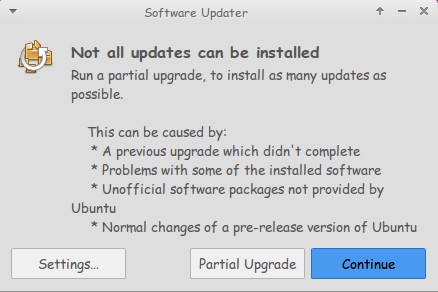
One day out of the blue Ubuntu said it needed a partial upgrade, I clicked OK and didn’t think twice about it, it did some work on many packages and for some reason Docky 3.0 (Experimental branch by Rictoz) was selected for “upgrade” and after the reboot it was gone!
The partial upgrade in general is nothing to worry about and it’s safe to click continue, especially I’m running Ubuntu  14.04 LTS which is supposedly supported until late 2019.

I was set back to Docky 2.0.2 which I don’t have a problem with, except it crashes.

(If you read my Docky post you know that I chose Docky 3.0 over 2.0.2 because it’s more stable and doesn’t crash randomly all the time. Despite Docky 2.0.2 having cool “Docklets” that added to it’s functionality.)

I couldn’t install Docky 3.0 due to package dependency issues, and therefore I was stuck with Docky 2.0.2 for a while, only then I realized how much I depended on it to get my things done!

The fix was super easy!

I went to the downloaded files I had which were three files: Docky, Libplank, and Libplank common.

Using Gdebi I installed Libplank common the first, then Libplank and finally Docky 3.0, it replaces the old one and no need to uninstall.

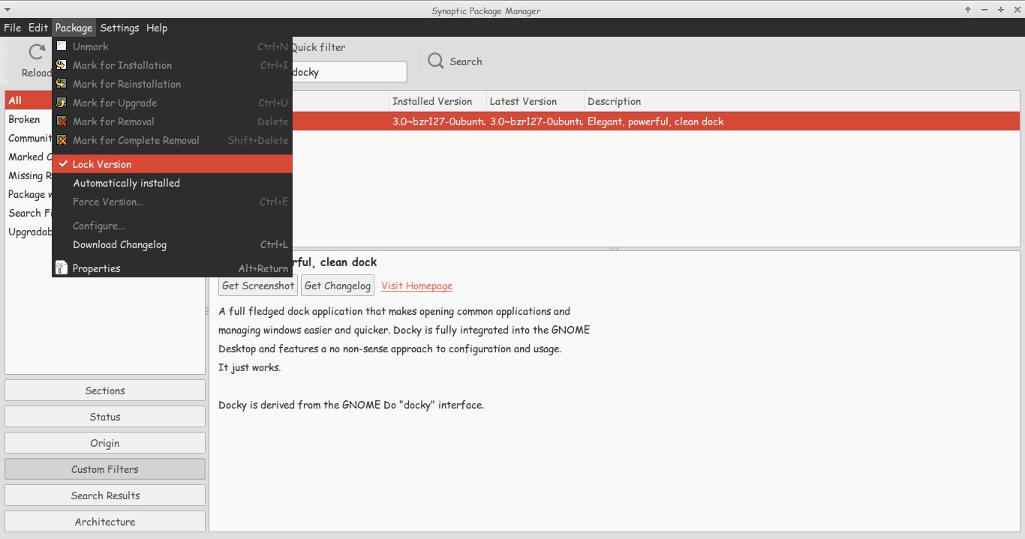
Thing is every time it looks for updates it wants to remove Docky, and that happens daily, I found a way to fix that by simply “locking” the version.

I went to Synaptic and searched for Docky, selected it and clicked lock version under package. Now even when it looks for updates it greys out Docky and doesn’t update it. I have a detailed tutorial on how to use Synaptic that you can find here.

That’s how I got Docky 3.0 back after it was ruined by the partial upgrade, I hope you found this useful, please let me hear your feedback and have a nice day.

« Older posts Newer posts »