Category: laptop (Page 3 of 3)

Unplanned downtime!

I wasn’t planning on staying down for a few days, but it happened anyway.
My laptop fan broke as I was cleaning the laptop from dust (who would have thought the fan blades were so soft!) and I had to look for a replacement, which proved to be a real pain!

Getting the fan

I didn’t know that the hardware / repair shops in Tripoli relied on junk laptops to provide spare parts! I thought they imported the parts in the same manner they imported laptops, but no! These people never seize to amaze me!
Repair shops buy damaged laptops to use them as spare parts, and since my laptop is such a rare limited edition laptop (not really) I had to look in over 20 stores around the capital to find a store that said maybe they can provide me with the part, I had to go home and comeback the next day.
The spare part looked much worse than the one I had running daily for the past four years!! And it was really expensive for a used one too!
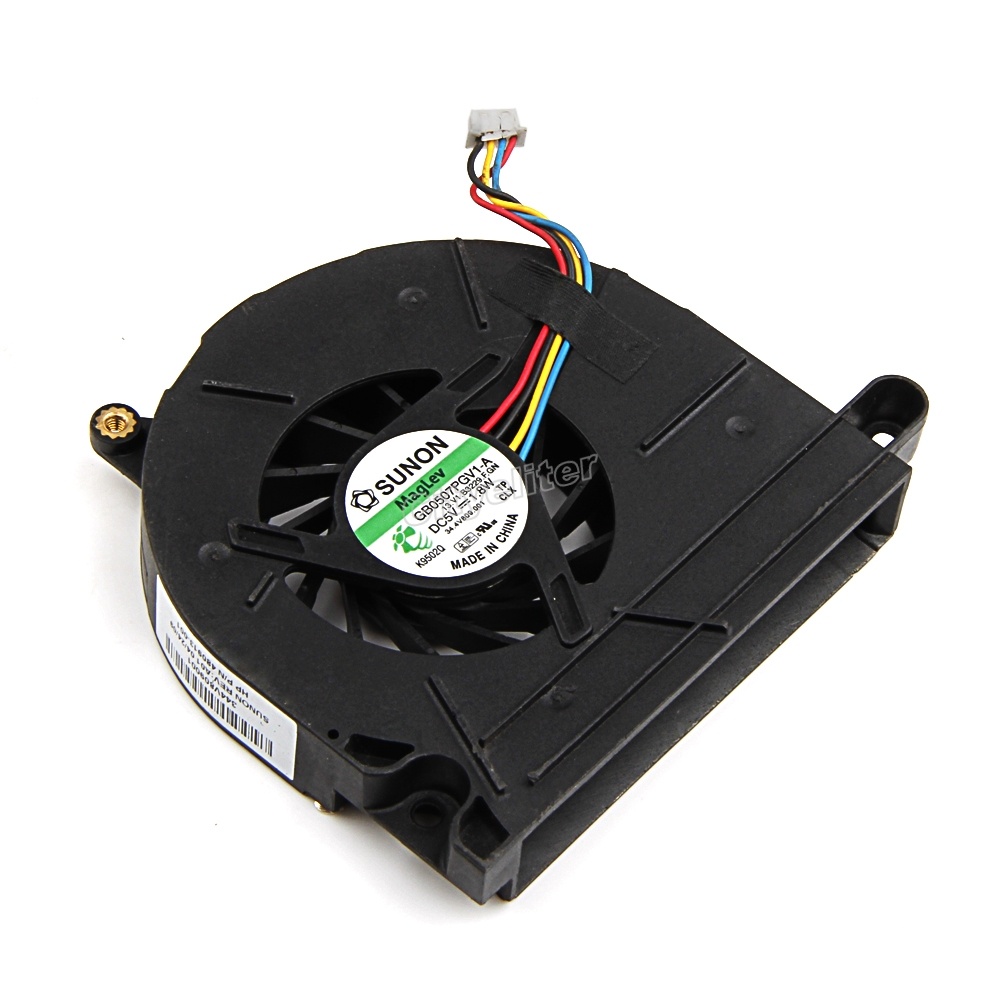
Laptop fan
A laptop fan

You might wonder to yourself: Why didn’t I just get it off of Amazon or Ebay?
For a very simple reason, it would take so much effort and resources that it would lose all meaning! I’d probably rant about it in a another post some time.
The reason why the fan is so rare: It has four wires rather than the usual three like most laptops on the market have, so an extra wire cost me two days worth of downtime! Only in Libya..

I learned three things from this experience 

  1. My laptop is a “unicorn” by Libyan standards, it’s rare and shoots pixie dust out of it’s fan when it flies above the rainbow (for the amount of money I paid for this fan, it better start shooting pixie dust!) and just for the record I bought it from Tripoli, a generic entry level laptop from a common manufacturer.

    This is how repair shops view my laptop
  2. Don’t ever, and I mean EVER, attempt to clean the laptop fan by any means other than compressed air, a lesson well learned indeed, even the smallest amount of pressure can break the fan blades and render the laptop useless.

  3.  I never realized how much I relied on my laptop to do my daily tasks, which makes me think of getting a second laptop as backup, I always had a thing for Netbooks and had one for a couple of years before buying this laptop, maybe I’ll get one for the sake of portability, or I might even invest in a Raspberry Pi 3 or something as a backup system, I’ll blog about my findings when I make progress soon enough! My smartphone did a good job filling the gaps here and there, but there are some things that a smartphone can’t do, to me it’s not doesn’t qualify as a backup system.

To summaries everything said

I can’t afford such downtime at a time like this! I’m almost at my page view goal of 100,000 views which I have been hyping all year, I’d hate to miss that moment with my main device taken apart collecting dust somewhere (my desk in this case, no way I’d let my data at some random repair shop).

I hope you enjoyed this update I provided, I feel the need to stay connected with my readers as often as possible.
What about you? Let me know what you think in the comments section below! 
Do you have a good idea for a backup system? 
Share this post using your social media and help the blog grow.

The death of the laptop

I tend to follow the tech news, and lately laptop sales are dropping and companies are losing money, isn’t that something!

It struck me! Who uses a laptop anymore? When was the last time you used your laptop to do your daily tasks? I am writing this on my phone!

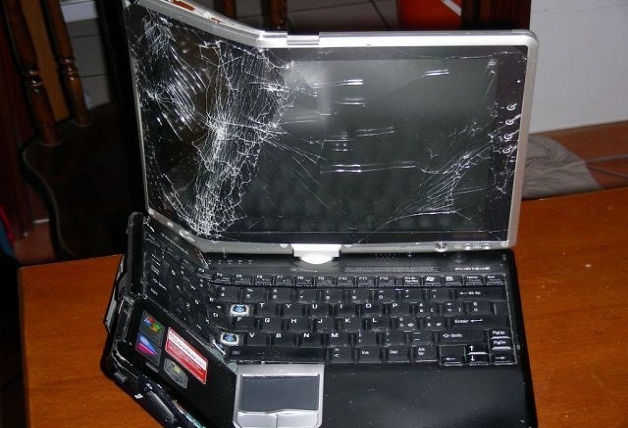
Dead laptop!

Alternatives 

Many people find smartphones and tablets to be more comfortable to use. And the manufactures make devices bigger and better, better than some computers. Check the specs of the latest smartphones and compare it to your computer 😉

What’s wrong with laptops?

Laptops are heavy and consume much more power compared to smartphones. And can do most of the daily tasks laptops (and PCs before it) did like browsing the web and sending / receiving e-mails, even gaming is becoming very popular on smartphones. There are some sites that need a smartphone to register and participate, Instagram for one requires users to sign-up using an app, then use the same app to post and interact. Does that mean you should throw your laptop in the trash? Absolutely not!

When the “smart” ones fail!

Laptops are best suited for business purposes like word processing and web development. Tasks that would be difficult to perform on smartphone or a tablet. In my humble opinion smartphones are a great PC companion. And haven’t matured yet to fully replace it. But if your computer use is for social media and chat it’s best you pick a smartphone.

Do you use your laptop more often? Or are you a smartphone type of person, let me know what you think in the comments section below.

Increase Ubuntu Battery life with these easy tricks

Many new Linux users are surprised by the fact that their batteries don’t last as long as it did. On top of adapting to a new system, this comes along to add strain to them. At ease new Linux users and older ones a like. I have a trick up my sleeve that’s guaranteed to work!!

It’s called PowerTop. And what it does is pretty simple. It allows you to disable some services while unneeded to save battery.

To download power Top go to the terminal and type in: “sudo apt-get install powertop” without the quotes of course!! And enter your password to continue.

It’s really small. About 150KB. So it shouldn’t take long to download.


How to use Powertop to save power?

After it’s downloaded. Type in: “sudo powertop” to display the program.

It runs within the terminal. It doesn’t have a graphical interface. But it’s really easy to use.
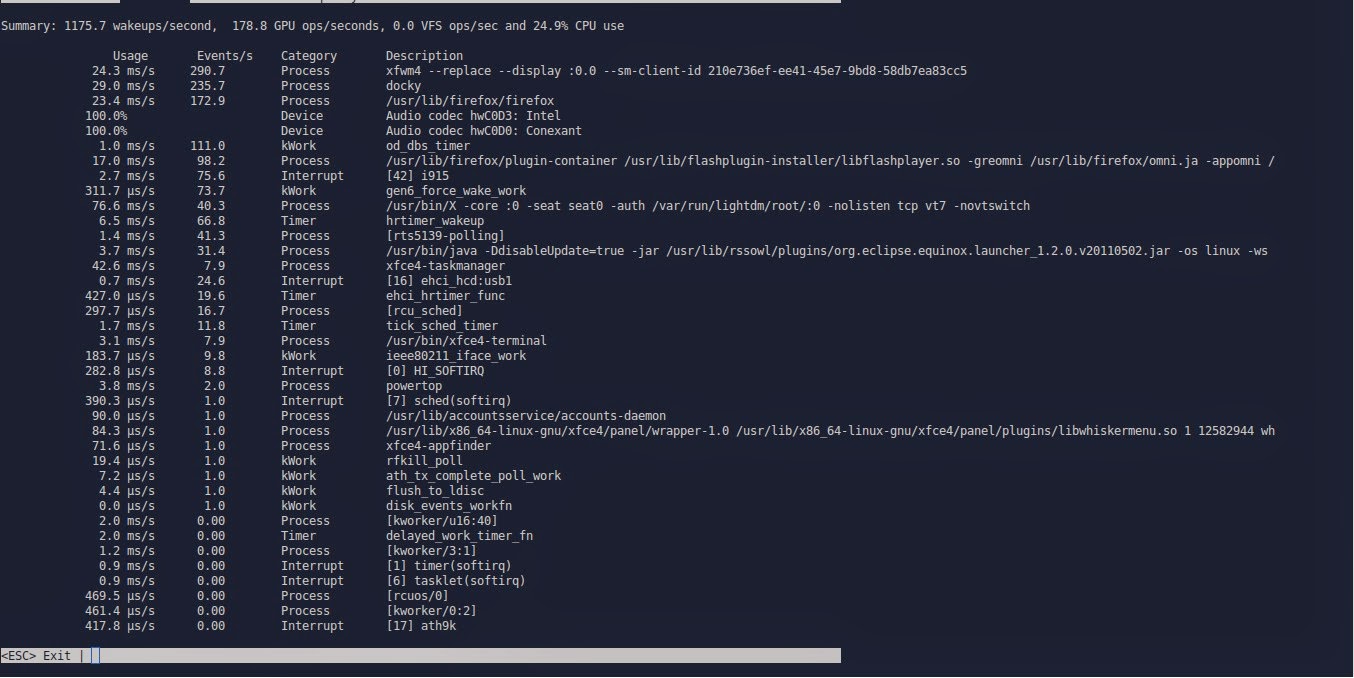
That’s the main interface right there.

Powertop running in the terminal

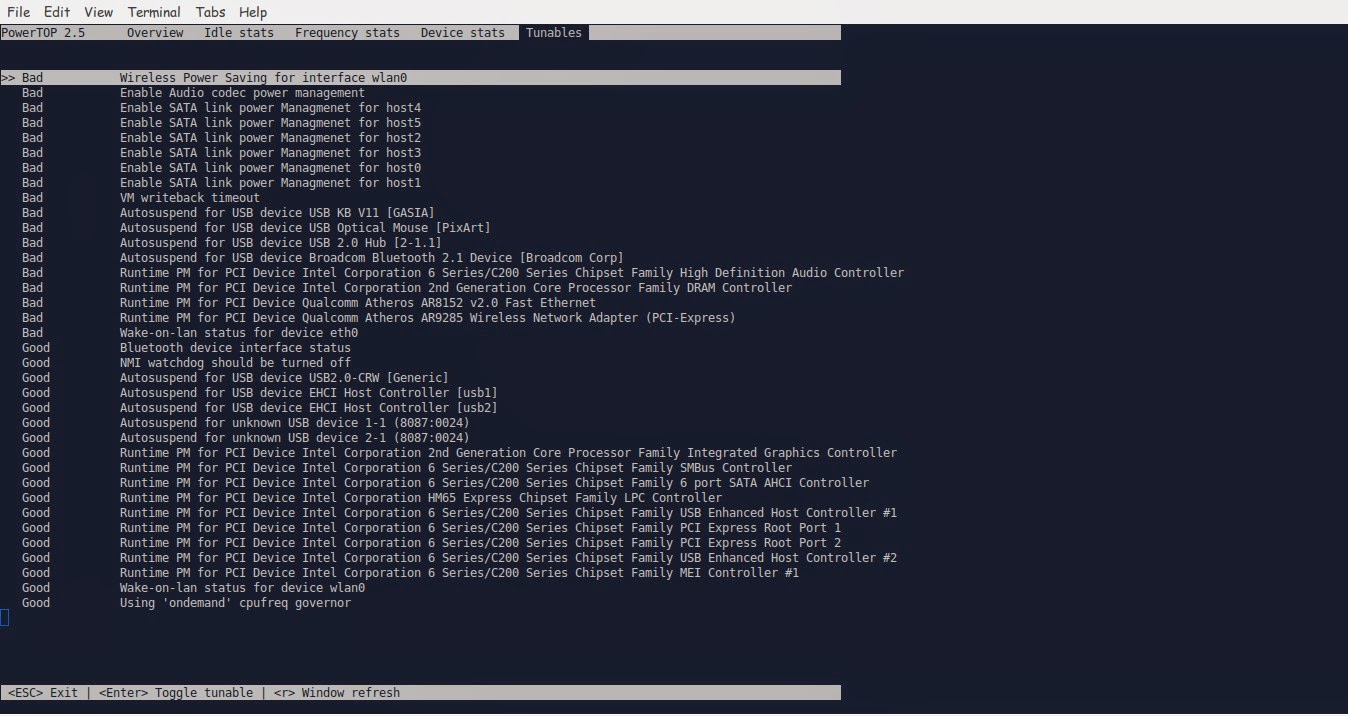
We move around using the TAB key on the keyboard. Until we reach Tunables. Now here things get interesting!!

Powertop Tunables tab

Here you see all the things you can “tune” in order to make your battery run better.
Notice that disabling some items might interfere with how your devices work (I left the mouse on because it kept “sleeping” every time I let go of it!
Click escape to exit. And there you have it!!
Note you might have to do the tuning again after you recharge the laptop.
I noticed a significant save in the battery life! Note that I use an external monitor. So that could be a factor! But in general, great tip!!

TLP

This scriptis very small and it keeps your computer under check, it controls the fanspeedCPU, all you have to do is:

sudo apt-get install tlp

Then to start it all you have to dois:

Sudo tlp start

You will see a message saying: TLP started in AC mode, meaning it’s working!

Another trick: Controlling the CPUfrequency

After we took care of the battery consumption issue it’s time to take a look at the CPU, as there is no option to control the performance from Powertop, that means we are going to need another application to do that.
We will do that by installing  CPU Frequency that will help cool down the computer and reduce fan noise when working with multiple applications at the same time.

Installing CPU Frequency

To Install CPU Frequency type this command into the terminal and hit enter.

sudo apt-get install indicator-cpufreq 

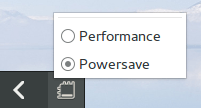
After installing CPU Frequency you need to restart in order it to work, after installing you will see the CPU Frequency’s indicator docked with the other indicators, and the using it couldn’t get any easier!


How to use CPU Frequency

CPU Frequency starts with the system minimized and has no splash or interface, when clicking on the CPU Frequency’s icon you will see two modes, power save and performance, use the power save coupled with Powertop to achieve maximum results! And leave the Performance mode for those times when you need extra juice!
It helped me reduce the fan noise greatly and I couldn’t be happier with it!

Final words

How did your computer perform after these tricks? Hopefully charged and happy with no noise whatsoever! Until next time!
Have a nice day!!
Remember to give kudos. Comment and share this post please.

A couple more things to try before announcing the HDD dead!

Hey there guys! What’s up?

It happens to all of us! Suddenly a HDD fails and wont boot or run. Is all that data gone?

Well, maybe not

Assuming you have a backup of your data. physical or via a cloud server. Because loss can happen anytime!

There are some things to try before throwing that HDD away!

Depending on the HDD type you can connect it to another computer. If it’s an external then you need a special connection.

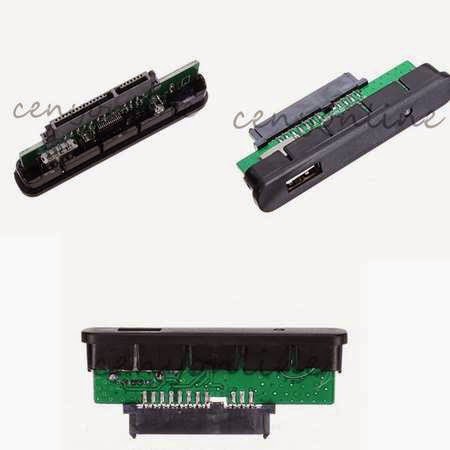
The fault might be in the adapter of the HDD and changing it would resolve the problem!

This is an adapter that connects to the HDD

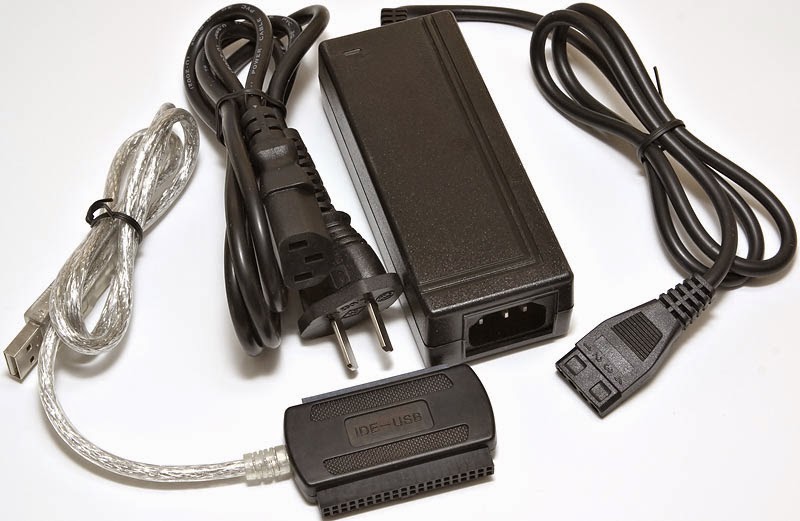
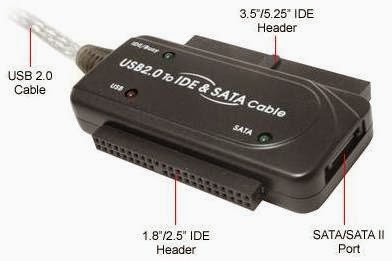
If it’s an old IDE HDD you need an IDE cable and of course a case computer to try it on. If you don’t have one or simply don’t feel like taking a dusty case apart then I recommend one of these:

these connections can connect the SATA / IDE to a USB interface. No need for a case computer there!


You have to be very careful when connecting these connections

connecting the wrong cable would burn the HDD. Even if it was running!

Happened with me and it was not pretty at all :'(

so to sum up. Try this trick when facing a HDD problem. And remember to always backup!

See you guys in a new post!

Please interact with my post! It keeps me going ..

Newer posts »