Category: LibreOffice (Page 9 of 12)

LibreOffice 5.0 is out!

Finally after what seemed like forever! LibreOffice 5.0 is out!
“LibreOffice 5.0 is the tenth major release since the launch of the project and and the first of the third development cycle. LibreOffice is a full feature open source office suite which compares head to head with every product in the same category, while it stands out for superior interoperability features.”

 

I’ve downloaded it for both Windows and Linux. And I immediately noticed the different GUI elements implemented into LibreOffice 5 in comparison with 4.x which are differently cleaner and takes less screen space!
 

Thanks to improved filters the compatibility between LibreOffice and other office suits like Microsoft Office has improved. And a lot of under the hood work has been done to improve the stability and reduce the crashes overall.
Version 5 with be the foundation of the Android version, Ubuntu touch, and the upcoming cloud version.

Note: if you are downloading the 64x version for Windows you are going to need a 64x Java machine.

It looks really good and I can’t wait to sink my teeth into it and make full use of it’s amazing features!
Customize LibreOffice with these awesome native themes

With LibreOffice 5.0 just around the corner, I thought I should share this awesome tutorial with you to make LibreOffice look better and enhance your productivity!
LibreOffice’s killer looks is just one of the many features it sports. Today I’ll be showing you how to change the default look to enjoy the awesome themes it has!

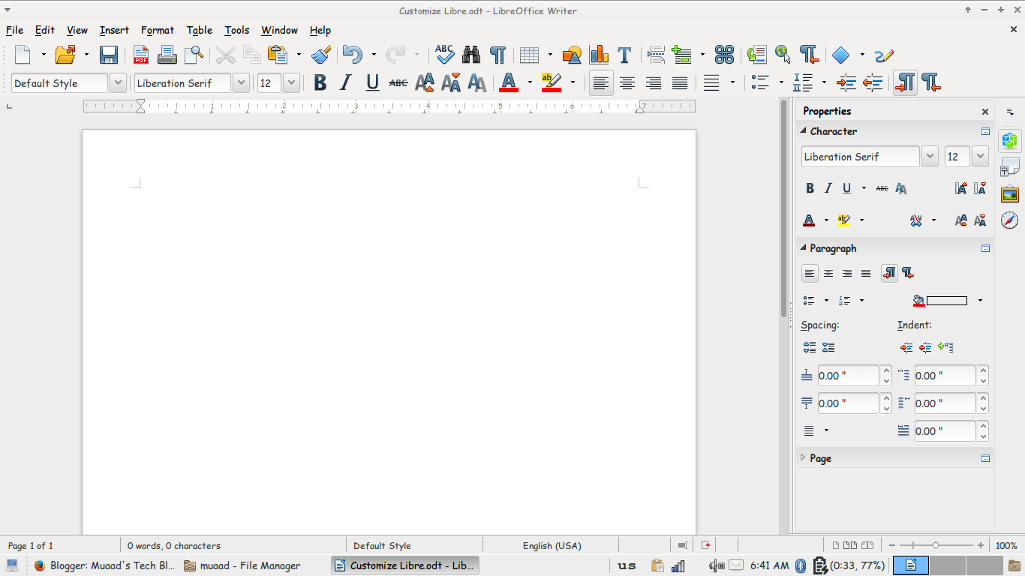
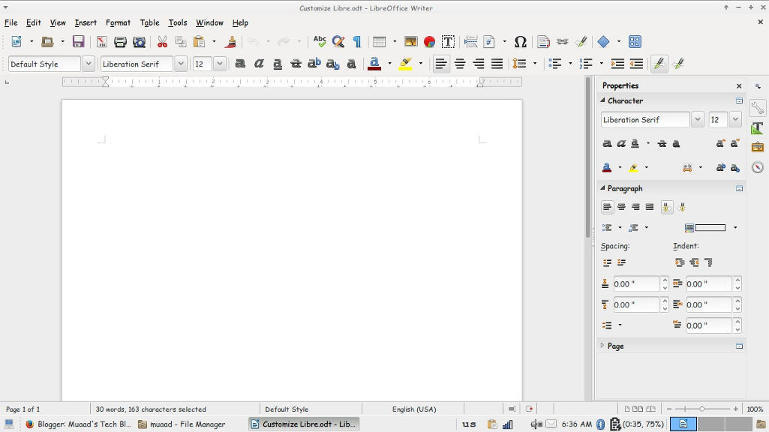
At first, let’s take a look at the default theme:

Not bad! It looks fresh and modern, especially if you are coming from “another” productivity suit, this one is called Tango and it’s the default theme. Now the question is: How to change the theme?
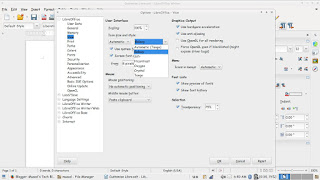
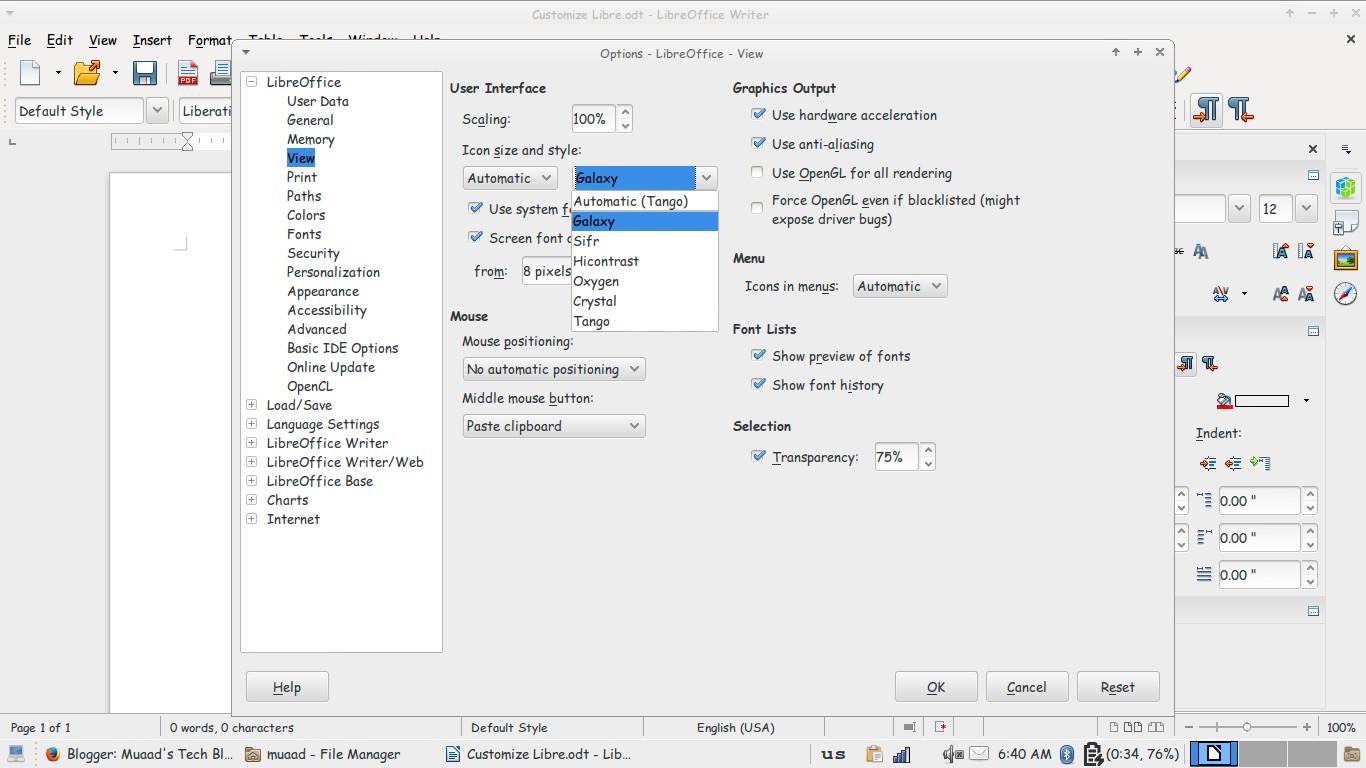
Navigate to: Tools Options View and choose the theme you like from: User interface Icon size and style.

Options menu

There is a total of six themes available (Tango included) and we are going to take a look at all of them! Then I’m going to say which is the best one!

Tango
Tango (Default theme)
Crystal
Crystal


High Contrast
 High contrast


Oxygen
Oxygen  


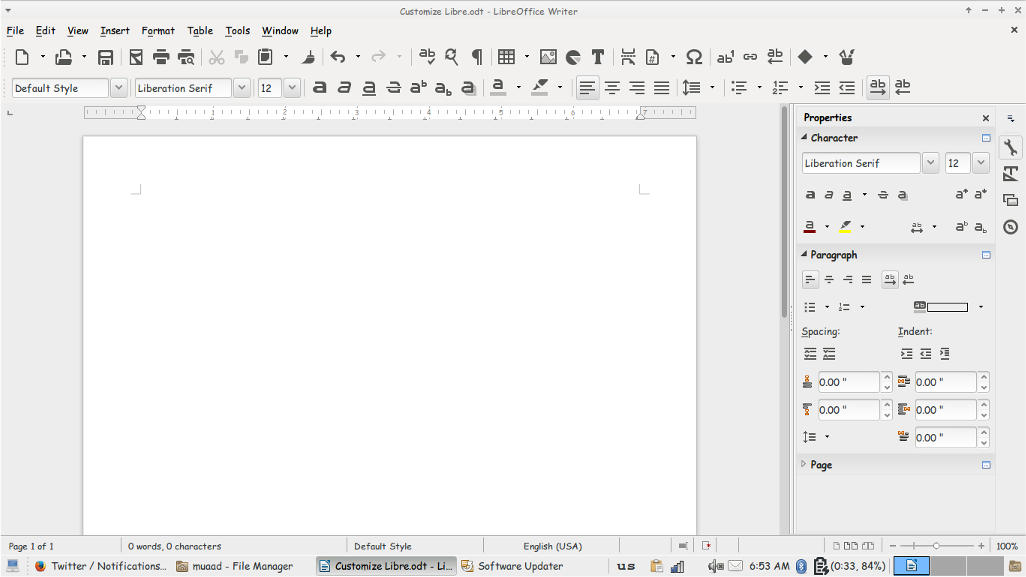
Sifr
Sifr
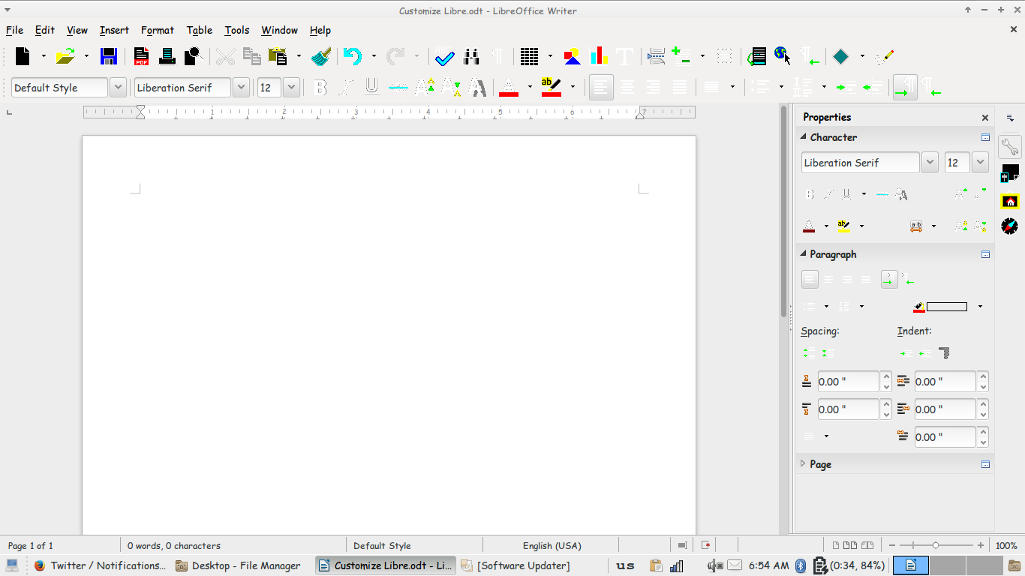
Galaxy
weight: normal;”>Galaxy
Pretty sweet, don’t you think? 

And I’m willing to tell you the best one!

The best theme is the one you like the most and allows you to be most productive!
Which one is the one for you? Let me know in the comments section below! 
I like Sifr btw 😉

LibreOffice 4.4.5 is out. LibreOffice 5.0 is around the corner

Hey fellas!
Thank god that craze was over, now let me return to what I really love, open source!

LibreOffice’s next milestone is just around the corner, it should be there on  Wednesday the 5th of August. but let’s talk about the latest version first!
LibreOffice 4.4.5 is the fifth minor release of the LibreOffice 4.4 family bringing 80 fixes over the previous version.
It’s also replacing 4.3.7 as the stable branch of development (means it’s stable)!
Feel free to download it from this link.

Now that we covered 4.4.5 let’s talk in detail about the much awaited 5.0 milestone.
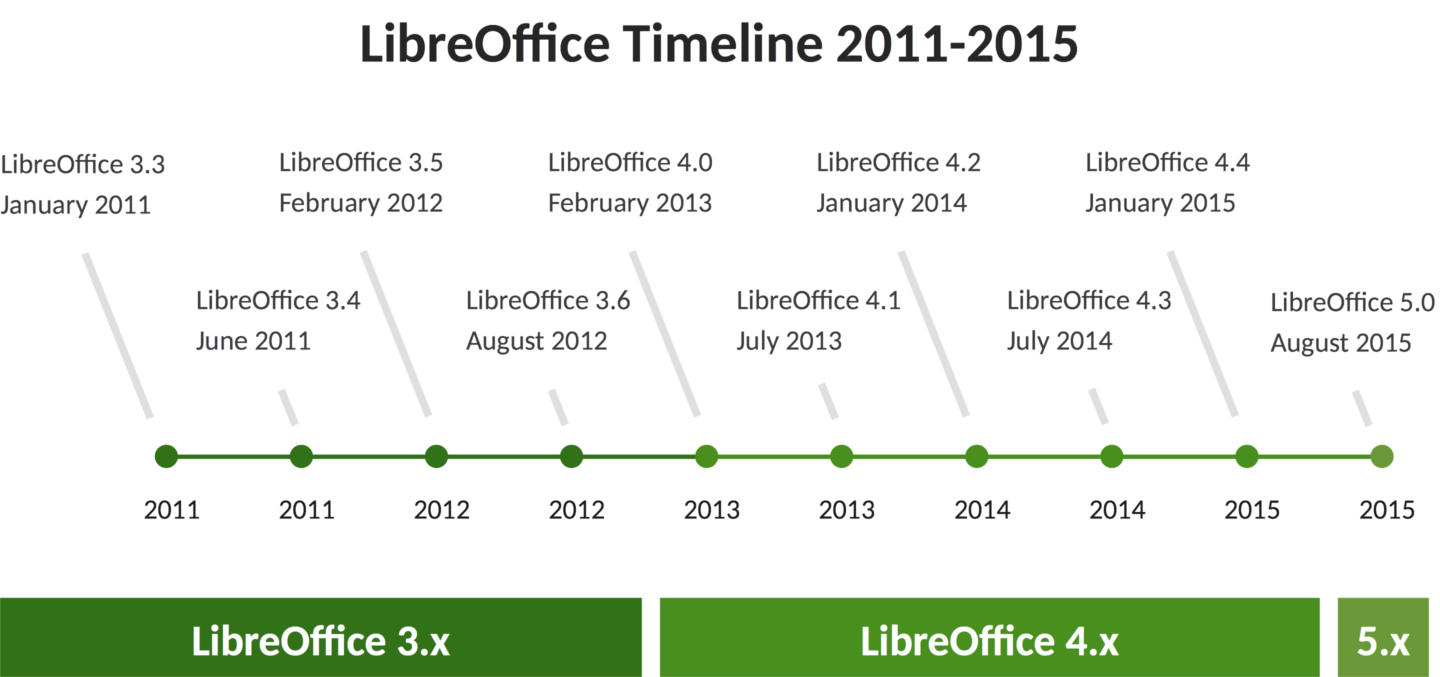
To make things more clear the document foundation has made a chart highlighting the development milestones of LibreOffice since it took over Apache Open Office in 2011.

LibreOffice development milestones

Among the features it’s having a 64x version for Linux, Mac, And Windows alongside the 32x version.
And will be Windows 10 compatible (I am running 4.4.3 with no issue on 10 btw).

Are you excited? I know I am and I have been waiting all summer for this release! It’s so good to see an open source project take off with confidence and make global impact!
Will you download it?

How to add LibreOffice to PPA in Ubuntu, Latest version install

I once advocated Apache OpenOffice in favor of LibreOffice, I even had this tutorial where you can remove LibreOffice all together and install Apache OpenOffice to your computer. If you like doing so, that’s a personal choice.


I had to study both softwares and make a decision that will affect me for a very long time. I chose brains over heart and here we are with LibreOffice 4.4.4 waiting for the 5.0 milestone, again not saying that Apache OpenOffice is bad, read more about my choice from here.
Now we come to an important part, Adding LibreOffice to Ubuntu again

Since we used the command purge to remove LibreOffice, we have to install it all over again adding PPAs ( Personal Package Archives) to the system.

We can simply do that by opening a terminal window Ctrl + Alt + T and entering the following command

sudo add-apt-repository ppa:libreoffice/libreoffice-4-4

Update

And there is the GUI way for users who don’t feel comfortable around the terminal!

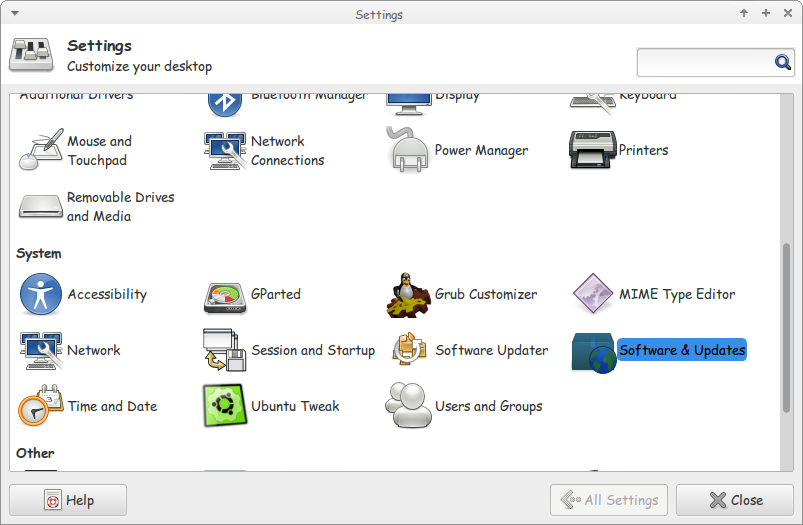
Go to Settings Software and Updates


Settings menu

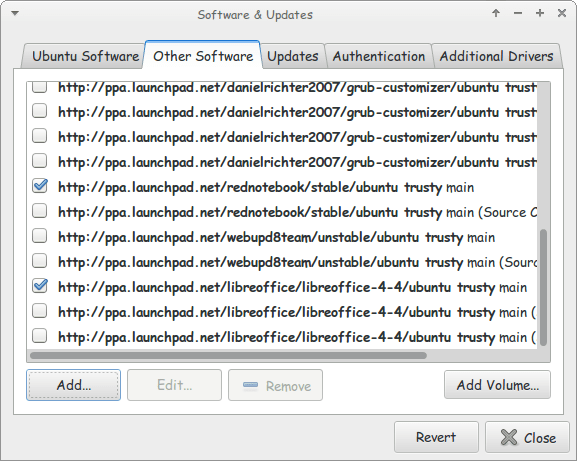
Go to Other Software and click add


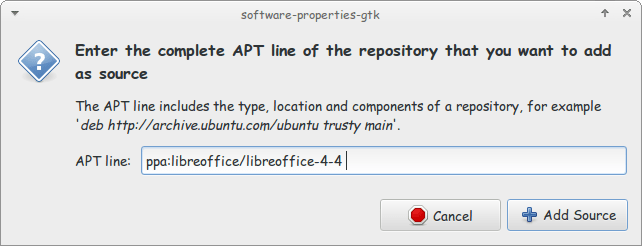
Enter the PPA name in the field and click add source (Copy and paste)

Adding the PPA

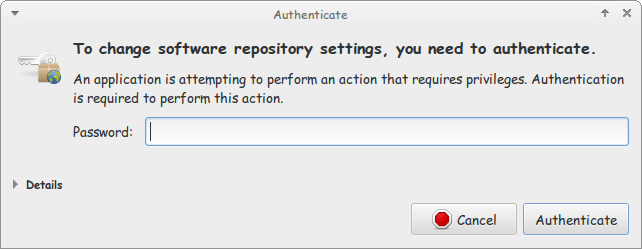
Enter password to confirm

You need the password to confirm

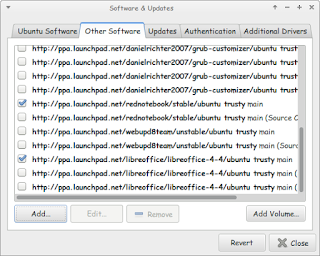
You will see that the source is added (In my case I took both screenshots after adding).


The PPA has been added!

This way we added the LibreOffice PPA to the software sources so the system can fetch automatic updates (we don’t have to update manually every time)

After we added LibreOffice PPA, Let’s install the latest version!

Use the command sudo apt-get purge libreoffice-* and confirm with y to remove the current version (if it’s really old).

Now we continue by downloading LibreOffice from the site and extracting it to the desktop, please note that the tar.gz file is just an archive and doesn’t need any compiling, just extract with your default archive manager!

Extract the folder DEBS to your desktop

In terminal enter cd Desktop

Then write cd DEBS (Hint: If you have the option Right click and choose Open Terminal Here).

Write the command sudo dpkg -i *.deb to install all the debs in the folder (Batch install).

After it’s done. You have LibreOffice fully running!

Finally

The first step I’m not really sure it’s necessary. I’ll have to wait till the next update to confirm that installing a new one removes the old (Can anyone confirm this to me?).

That was how to add LibreOffice PPA and install it to keep it always updated. Have a good one!

« Older posts Newer posts »