Category: LibreOffice (Page 8 of 12)

Fix the p { margin-bottom: 0.1in; line-height: 120%; }a:link { } problem in your blog

It happens more often with me than ever, maybe because now I write my posts outside of blogger and then paste them (and there is nothing wrong with that by the way!). It makes my blog look bad and a lot less professional.

I tried so many things including font play and adjusting the breakers, nothing worked! I was able to fix it so easily, so read on to learn the complete fix!
My old fix was to delete the post and post it again, and I’d lose the comments, and a lot of time. But thankfully I was able to fix it on my own. I looked the problem on line and found nothing.

The Fix

First of all if you publish your post and notice the Fix the p { margin-bottom: 0.1in; line-height: 120%; }a:link { } line where it shouldn’t be then go to blogger and edit the post.

The post has that line

On the edit menu you will see the button to the far left called “Compose”
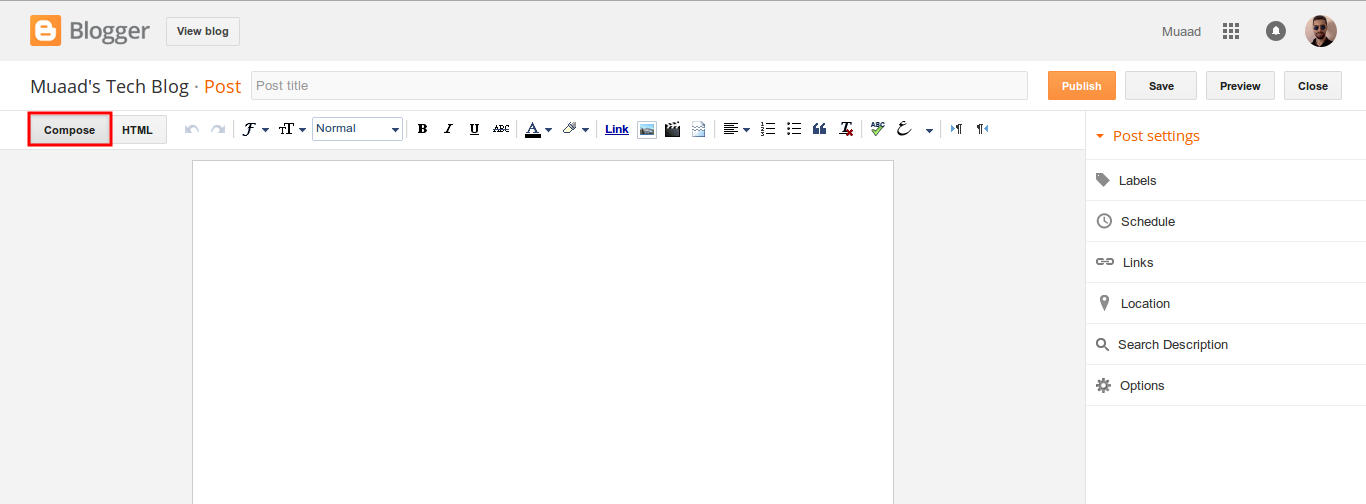
Compose view

  and a button next to it called “HTML”, click on HTML.
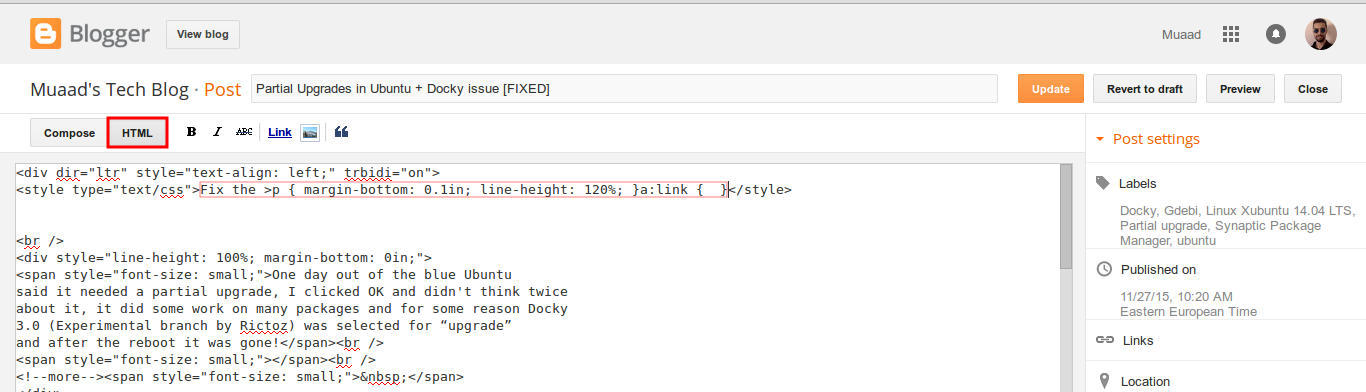
HTML view

Even if you had zero knowledge with HTML, this fix is really easy (And I recommend you as a blogger to learn some HTML as it’s so easy to learn!).
What are we going to do is to remove the Fix the p { margin-bottom: 0.1in; line-height: 120%; }a:link { } line from the post, it’s highlighted in red so it should be easy.
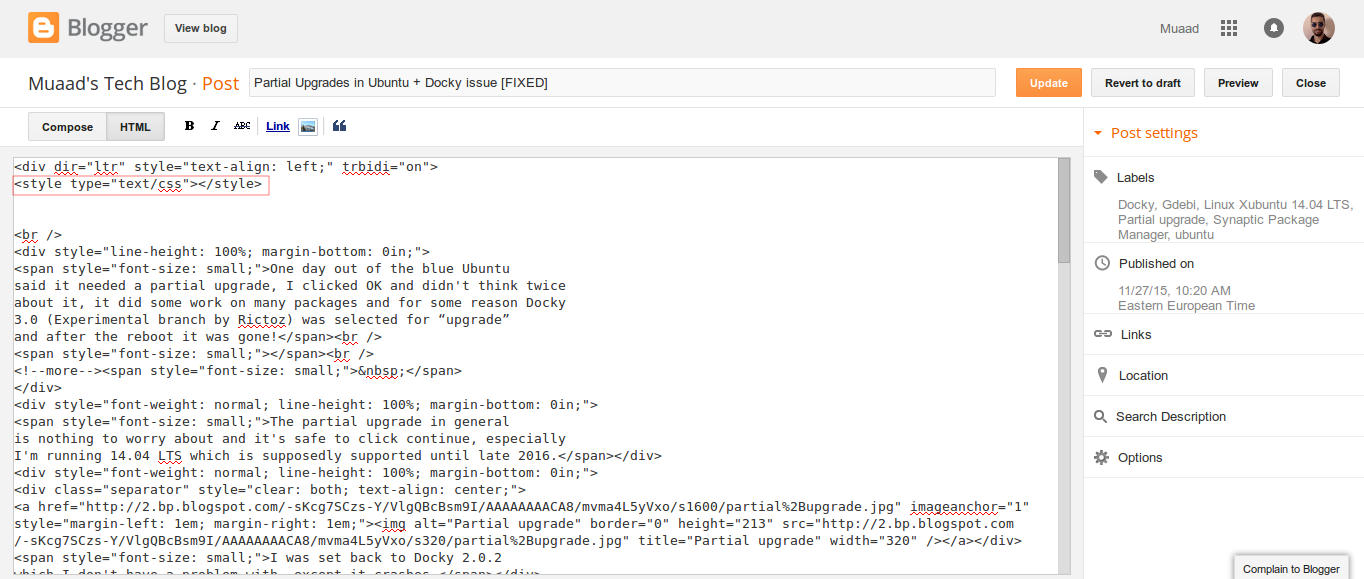
The line to remove is highlighted in red

From the HTML view click find and search for “p { margin-bottom: 0.1in; line-height: 120%; }a:link { }” and you will find it looking like this <style type=”text/css” p { margin-bottom: 0.1in; line-height: 120%; }a:link { }</style
Delete only the line maintaining the brackets or you will result in an error, it needs to look like this after delete <style type=”text/css” </style
go back to compose and update, the problem will be fixed right away!!

So what’s the cause of this annoying bug anyway?

I discovered that it is caused by “Rich text formatting”, as I use LibreOffice to do all of my writing work, I tend to copy and paste directly into blogger, that caused these characters to appear inside the posts!

How to avoid it?

The only way is to strip the text of formatting before pasting it into blogger’s text editor, you can do that by clearing format from LibreOffice’s right click menu. Or by pasting it into a plain text editor like Notepad or Atom.

I hope you found this useful, how often did this happen to you? And how did you deal with it? Please let me know what you have in mind in the comments section below.

P.S: This post itself was infected with this issue, glad I could get it fixed eventually. 

Please, respect FOSS

FOSS stands for free and open source software. Many people tend to have a negative attitude towards FOSS, always criticizing it and doubting it’s ability to fill in for propriety software. 

Let alone to replace it or to operate as competition!

The Free Software Foundation logo


We don’t use opensource because it’s free! The fact is: FOSS gives everyone an equal chance to use it’s software!
It’s sad to see some companies who make the software and call it industry standard. And it’s users attack you for using other free / open source solution!
There is an important fact they forgot! As long as the software gets the job done with no problems. People are going to use it!

Commercial software

Products like Microsoft Office and Photo Shop are fantastic! I respect the effort put into them and they are worth the price tag slapped on them, and there are amazing open source tools that are available free of charge for the public that deserve a break!
Everyone should be able to make sensible choices based on their needs and capabilities. Regardless if it’s a free choice or an paid choice.
And to those hackers who download illegal software and troll on open source users and people who support software by buying it, shame on you!!!

What do you think of this post? Please let me know in the comments section below!

LibreOffice 5.0 hanging on Ubuntu, can’t highlight fix!

While messing around with LibreOffice Writer 5.0 on Ubuntu I discovered that I can’t highlight text, and trying to highlight text made the whole program freeze! I managed to fix it and this is how I did it..

I always download two versions of LibreOffice, one for Linux and the other for Windows, usually the one with the issues it the Windows version, but in this case it worked fine, while the Linux version was acting off.

I assumed that the main culprit is the Java machine, because in Windows it refused to work with the 32 Java machine I had installed which ran version 4.4 well. So installing a 64 bit Java machine did the trick, and the reports worked fine!
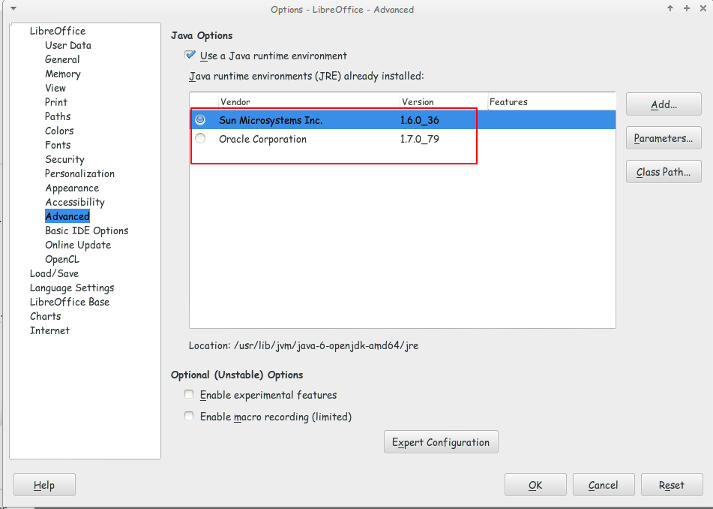
I looked at the machines I have installed and they were: and none of them made the problem go away!
You can access them by clicking: Tools Options Advanced


Java machines on Ubuntu

They were both excepted by LibreOffice but the problem persisted even after restarting over and over again!

I’ve finally been able to fix the problem that made LibreOffice hang and freeze when highlighting a text.

All you have to do is to navigate to:

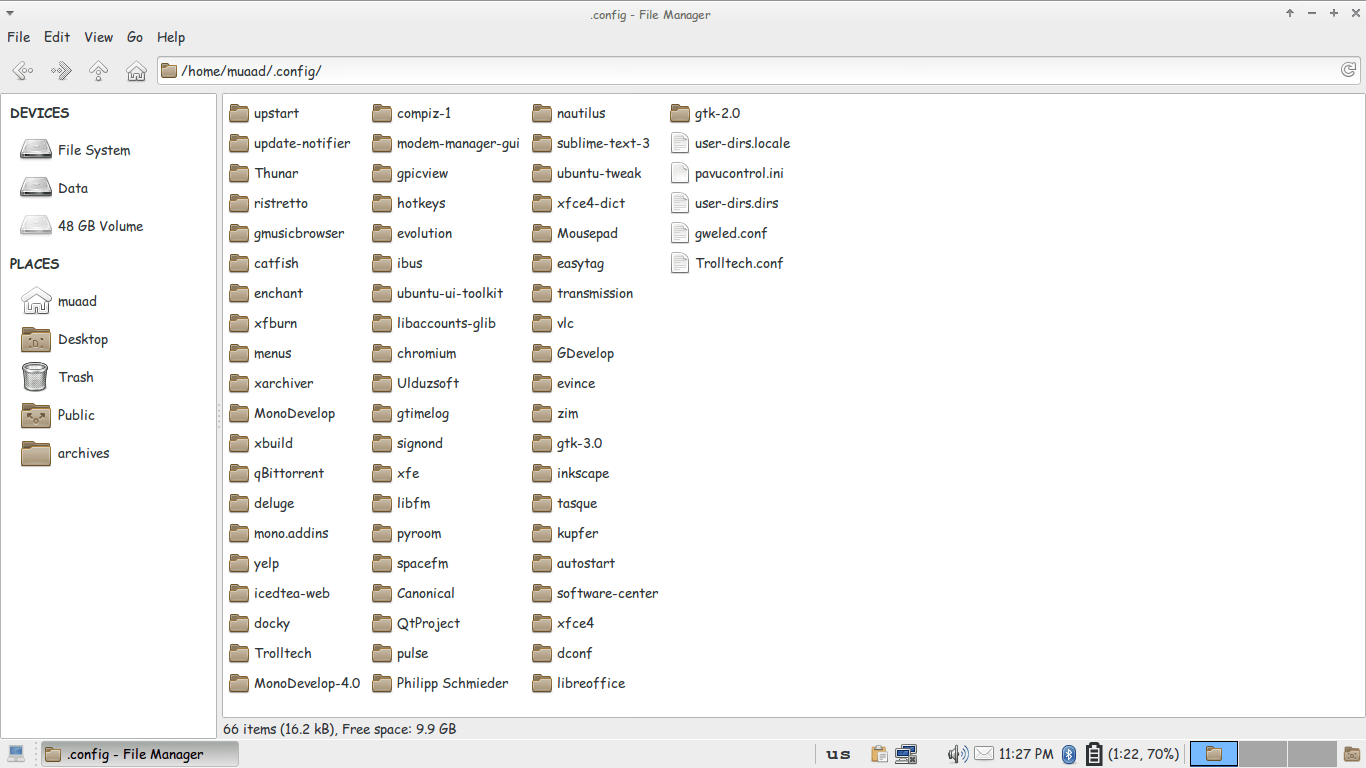
/home/”User name”/.config/ and delete the folder LibreOffice.

It will work fine after that!!

Thunar confing file unhidden to delete LibreOffice config

You might have to unhide the folder in your file manager!

It’s not a Java machine problem. But I don’t think it would hurt if you download the latest version.

Setting the first line as the file name in LibreOffice

LibreOffice Logo

One of the few features I missed moving from Microsoft Office was the auto name upon save, where Word takes the first line of the text and uses it to name the text file. LibreOffice (and OpenOffice before that) don’t have this feature! It’s a small thing but over time it becomes a growing nuisance!

Luckily there is an easy fix for that! Which enables you to enjoy the luxury of easy naming of files and limit the Untitled flood over time!

We are going to use a feature known as macros. macros in office are a Visual Basic code that is used to preform a certain task over and over and is triggered by an event. In this post I’ll be showing how to create a macro that saves the file using the first line of text when pressing the key combination of CTRL + S (assigning the macro to save or save as will result in two files: untitled and the first line of text!) So at first, we are going to need our macro. I took this code as is from an OpenOffice form, it works fine without editing:


  Sub FirstLineFileName_Writer
    On Error goto EH
    oDoc = ThisComponent
    oVC = oDoc.CurrentController.getViewCursor
    Mark = oDoc.Text.CreateTextCursorByRange(oVC)'mark position of view cursor.
    oTC = oDoc.Text.CreateTextCursor 'created at the beginning of doc.
    While oTC.isEndOfParagraph 'skip empty paragraphs.
    oTC.gotoNextParagraph(false)
    Wend
    oVC.gotoRange(oTC,false) 'a text cursor can't go to the end of a line
    oVC.gotoEndOfLine(true)  'so we have to use the view cursor.
    filename = oVC.String
    url = ConvertToURL("C:\" & filename & ".odt")'Insert Your Desired Directory Path.
    oDoc.StoreAsURL(url,Array())
    oVC.gotoRange(Mark,false) 'return view cursor to original position.
    oDoc.Modified = false 'avoid Save being called if doc closed without further edits.
    End 'end normal execution.
    EH: 'error handler.
    MsgBox "You may have illegal file name characters in the first line." & Chr(13)_
    & Chr(13) & filename,,"AN ERROR OCCURRED"
    End Sub


This code is used to save the text file by taking the first line of text and setting it as the name. You can edit the directory of the save. Please note that it saves without conformation!


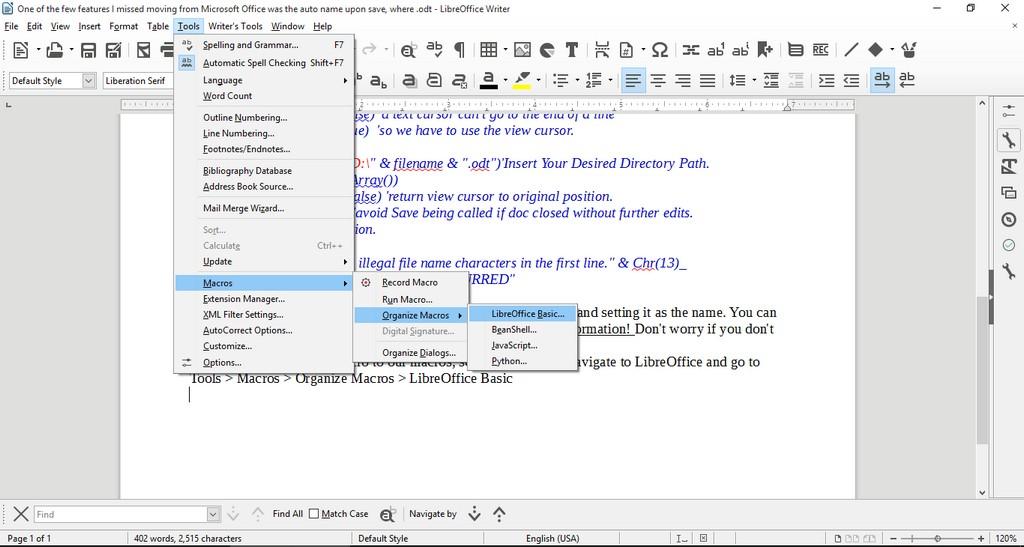
Tools > Macros > Organize > Macros >LibreOffice >Basic

Opening the macro menu

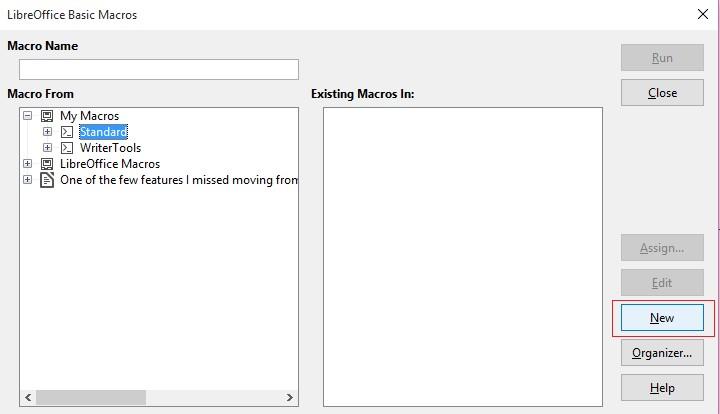
New to add a new macro.


Adding a new macro


Run Macro then choose the macro manually from the menu. But that’s not too handy, is it?

Customizing the key combination

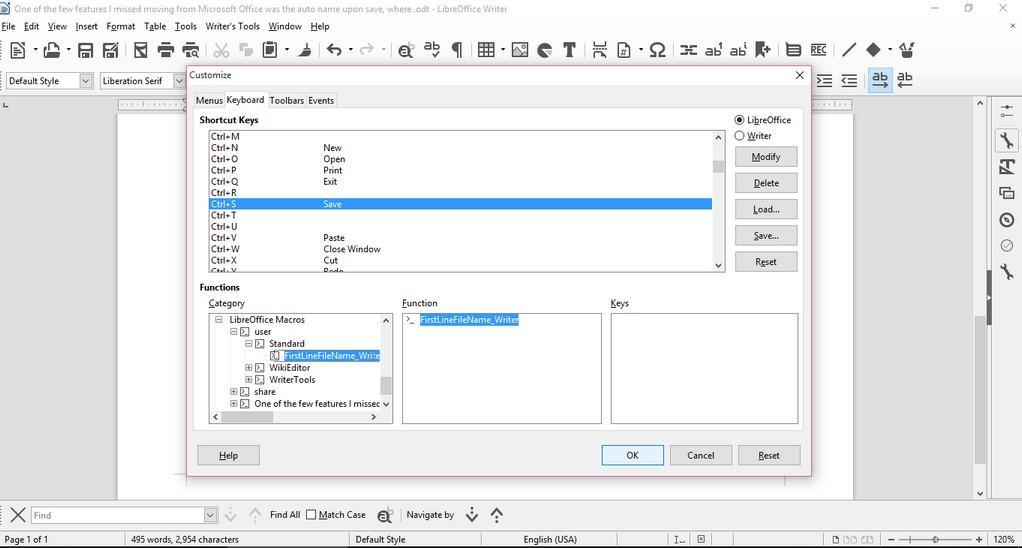
Go to LibreOffice writer and navigate to the menu: Tools > Customize > Tab: Keyboard.

Delete whatever is on CTRL + S, and assign it to the new macro by looking for it, and if everything went according to plan. It should save the 1st line as a file name.

Checkout this for more information.

Important notice

If you get errors it’s because the directory isn’t correct. Libreoffice will default to C:\ and when it can’t save in it. It will crash the macro. I edited the code to: “D:\Documents\ but make sure to choose your own folder.

« Older posts Newer posts »