Category: Ubuntu (Page 19 of 24)

A fix to many of ubuntu’s boot problems!

Ubuntu's Logo

Hey there you guys, How are you keeping?

I hope you are doing good!
I’ve been quite busy these days! Many things happening and I am struggling to keep up. One of these things is my brother’s laptop!
My brother is a new Ubuntu user. He spent all his life using Windows then he decided to take the jump. I advised him to take his time and study it thoroughly. Because using a new operating system takes time to get used to. He did what I told him and he was more than happy to have Ubuntu, but that’s when problems started to happen!!

At first. It was the “Press S to escape problem”. The option I didn’t do anything and the usually bullet fast Ubuntu boot took 10 minutes! And none of the fixes I came across on Askubuntu fixed it. There I had to do the unforgivable!

I formatted the drive and reinstalled Ubuntu! I thought that would fix the problem. Sadly I was mistaken!
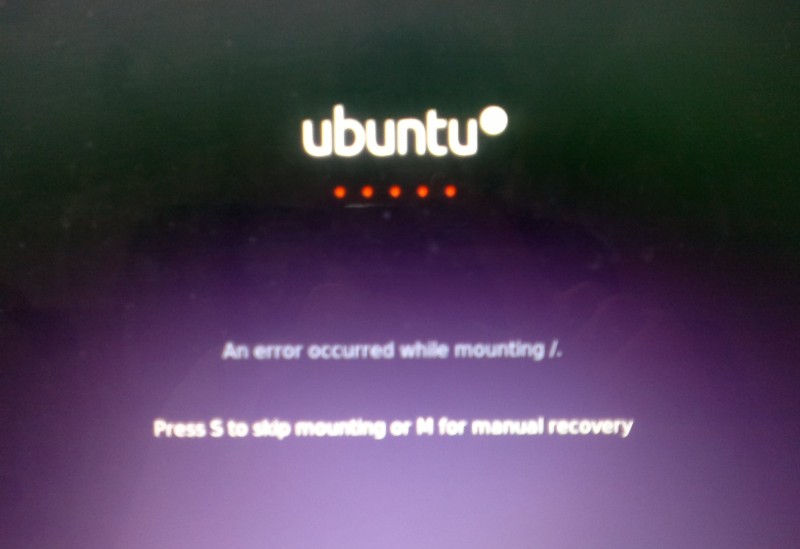
Press S to skip mounting or M for manual recovery!

A new problem emerged! This time it was the dreadful ”error reading sector 0xx Problem in HD 0” . I ignored it and tried a workaround! (That’s after checking the drive using Gparted) I was faced back with the “Press S to escape problem” again!!
At this point, I was losing it totally!!
I tried some fixes and the problem went away! Soon after he came to me and said he couldn’t install anything!
For the third time in two weeks I took the computer to repair it. And after a day and a night I was hopeless!
The system isn’t responding to any repair attempt. And it’s driving me insane.
After some lucky Googling it turns out that the problem was in the HDD itself! A quick test using Partedmagic boot disk confirmed my doubts! We had to throw out the old HDD and get a new one.
Now I’m hoping that this would finally solve his problem! So I can find some time to do other things, say post to this blog maybe 😉
Anyway while I worked on it I learned many things and tricks that will help me with Ubuntu even more. And it made me consider re-writing a post I made some time back. Can you guess what it was?
Ubuntu is a great system, and all these problems didn’t make me lose faith in it. I felt like sharing what was I up to so you guys know!

And if you get any of the error code mentioned above. Take a look at the HDD. It could save you tons of time!!


What did you think of this post?  Did you ever have these problems?
Let me know what you have in mind in the comments section below!
How to Prevent RSI on Linux and Windows

Hi guys 😀
This post is really important for office workers. Programmers. Bloggers. Not gamers! Gamers would hate me forever for suggesting something like that!!

Sitting at the computer for prolonged hours is not good for you. It’s related to many back and neck pains, wrists too! And don’t forget the eyes now!
There are ways to prevent these pains. You need to get up every ten minutes or so. And move a little bit. But who will remind you of that? And who has the time for that really?

There are tools that remind you to get up and move! And that’s where my tip comes to play!

But the Internet is so tempting! I’m really focused here! I keep forgetting to get up

There are softwares for that you know!

These softwares will remind you to wake up, stretch and flex! So you comeback to your computer refreshed!

You must visit a doctor if symptoms arise. These are prevention measures only and CANNOT subtitle a doctor’s visit!!

Now that we understood the whole deal. Let’s look at the software. One for Linux and one for Windows.

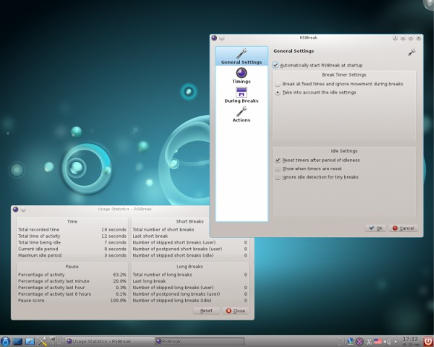
On Linux there were two choices available in Ubuntu Software Center, I went with RSIBreak. It worked better with Xfe. And the settings were much clear to me. It provides two intervals by default. The small on is 10 minutes of work with 20 seconds of brake. And the big one with 60 minutes of work and one minute of break counting idle times!

It’s really neat. And you must have it! It’s originally a Kde app but it will work fine on Ubuntu.

It’s the best I found so far. If I found anything easier I’ll update this post!

Download from the Ubuntu Software Center, RSIBreak.

RSIBreak working on KDE

As for Windows, my favorite has been always Rest brake. It’s a light software that does what it says. Just set the timer and wait for the alarm, you can customize the message of course!

RestBreak Screenshot on Windows

RestBreak download link  Size: 1.2 MB

I don’t have a mac. And I only post about the stuff I test. If you have a good software send it and I’ll post it with credits.

I hope you find these useful. And please share them with your friends and family.

How long do you stay on the computer? Do you have any specific pains? Please comment below and let me hear what you have to say!

P.S: I couldn’t find anything for Android. Sorry 🙁

And didn’t even look for Symbain!!

Useful resources:

Wikipeda, as always!

Restbreak’s site. Very informative!

Rsi.Uni Got me through college!!

Increase Ubuntu Battery life with these easy tricks

Many new Linux users are surprised by the fact that their batteries don’t last as long as it did. On top of adapting to a new system, this comes along to add strain to them. At ease new Linux users and older ones a like. I have a trick up my sleeve that’s guaranteed to work!!

It’s called PowerTop. And what it does is pretty simple. It allows you to disable some services while unneeded to save battery.

To download power Top go to the terminal and type in: “sudo apt-get install powertop” without the quotes of course!! And enter your password to continue.

It’s really small. About 150KB. So it shouldn’t take long to download.


How to use Powertop to save power?

After it’s downloaded. Type in: “sudo powertop” to display the program.

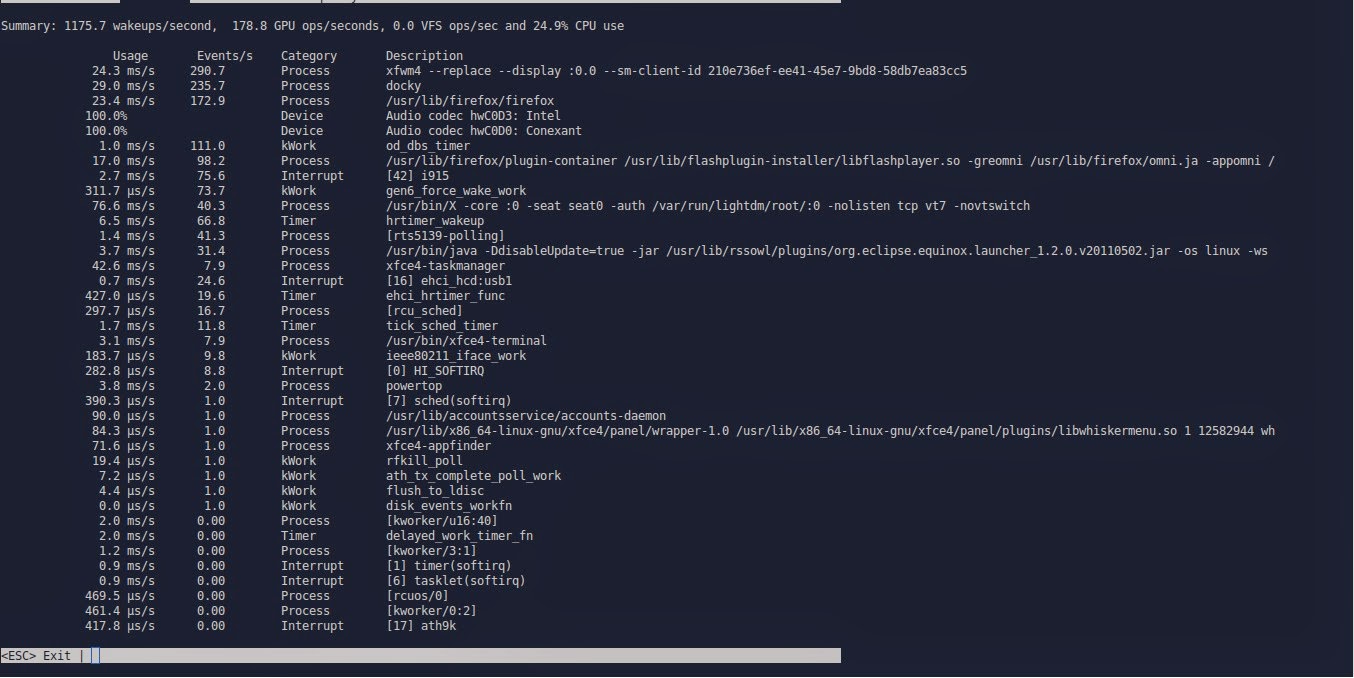
It runs within the terminal. It doesn’t have a graphical interface. But it’s really easy to use.
That’s the main interface right there.

Powertop running in the terminal

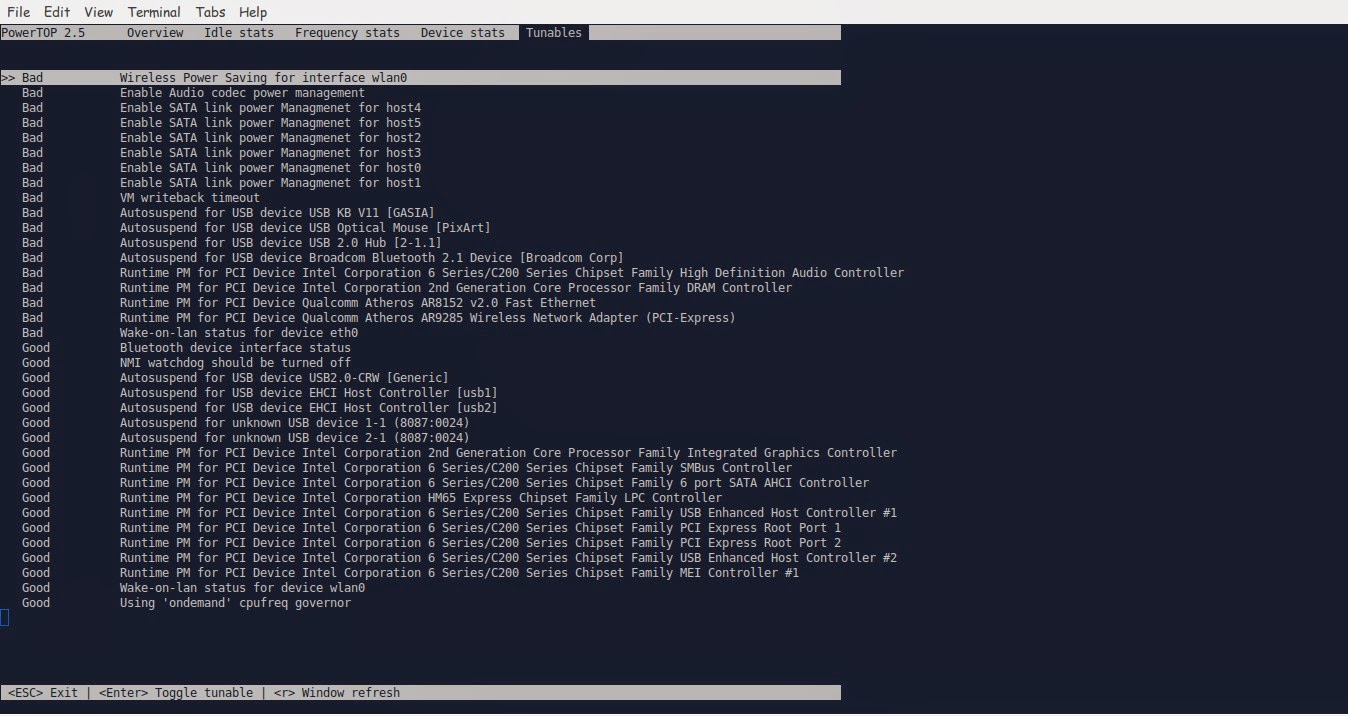
We move around using the TAB key on the keyboard. Until we reach Tunables. Now here things get interesting!!

Powertop Tunables tab

Here you see all the things you can “tune” in order to make your battery run better.
Notice that disabling some items might interfere with how your devices work (I left the mouse on because it kept “sleeping” every time I let go of it!
Click escape to exit. And there you have it!!
Note you might have to do the tuning again after you recharge the laptop.
I noticed a significant save in the battery life! Note that I use an external monitor. So that could be a factor! But in general, great tip!!

TLP

This scriptis very small and it keeps your computer under check, it controls the fanspeedCPU, all you have to do is:

sudo apt-get install tlp

Then to start it all you have to dois:

Sudo tlp start

You will see a message saying: TLP started in AC mode, meaning it’s working!

Another trick: Controlling the CPUfrequency

After we took care of the battery consumption issue it’s time to take a look at the CPU, as there is no option to control the performance from Powertop, that means we are going to need another application to do that.
We will do that by installing  CPU Frequency that will help cool down the computer and reduce fan noise when working with multiple applications at the same time.

Installing CPU Frequency

To Install CPU Frequency type this command into the terminal and hit enter.

sudo apt-get install indicator-cpufreq 

After installing CPU Frequency you need to restart in order it to work, after installing you will see the CPU Frequency’s indicator docked with the other indicators, and the using it couldn’t get any easier!


How to use CPU Frequency

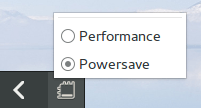
CPU Frequency starts with the system minimized and has no splash or interface, when clicking on the CPU Frequency’s icon you will see two modes, power save and performance, use the power save coupled with Powertop to achieve maximum results! And leave the Performance mode for those times when you need extra juice!
It helped me reduce the fan noise greatly and I couldn’t be happier with it!

Final words

How did your computer perform after these tricks? Hopefully charged and happy with no noise whatsoever! Until next time!
Have a nice day!!
Remember to give kudos. Comment and share this post please.

Where did the Windows 10 inspiration came from?

Hey there dear readers. How have you been?
Windows 10 seems like an innovated revolutionary system. Where did they come up with all those great ideas? You must be wondering!

Hmmm?! From Linux perhaps?

Let’s take a look at the facts, shall we?

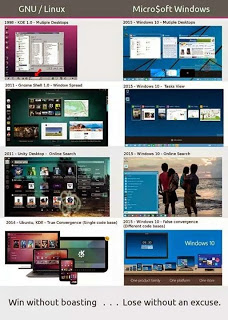
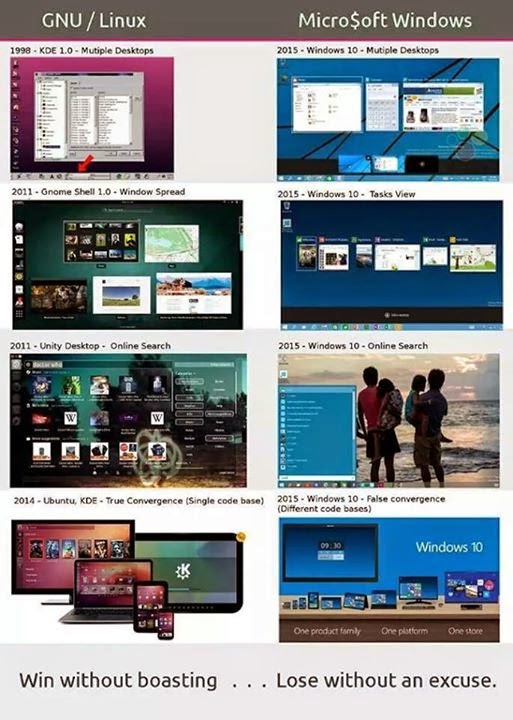
  • 1998 KDE 1.0 brought multiple desktops. When did Windows adopt that? 2015!
  • 2011 Unity brought the desktop on-line search. When did Windows adopt that? 2015!
  • 2011 Unity brought Window spread. When did Windows adopt that? 2015!
  • 2014 Ubuntu – KDE brought true convergence (Single code base) When did Windows adopt that? 
  • 2015! (False convergence) with Different code base!!

 
Check the info-graphic for more detail.

Can we call that stealing? No! That’s not how open source works. What Windows did here was slapping a label on an existing thing and calling it their own, I don’t think it’s stealing or unethical. But the people should know where the ideas originated from and have the right to decide for their own.

Imitation is the sincerest form of flattery, one could say. I mean it took after Linux so much. And as the old saying goes: “If you can’t beat them, join them” with an NT twist, mimic them so much in private and curse them in public. That’s how to make business.

So Windows 10 is Ubuntu 11.11 with an overpriced tag? Maybe that’s why they won’t release a Windows 11!! (just kidding)..

It’s 10 so they break the habit

of names and of course to escape the age old install routine that confuses Windows 9 with Windows 98!

At least Microsoft has it’s own code! While Mac closed the source of Minix (Unix based system) and sold it as Mac OS under the BSD license!!

Big time companies steal ideas all the time and get away with it. The really clever ones like Mac steals then sews who steals from them?! Brilliant!!

Anyway. I’m a bit interested to see how will Windows 10 will fair in the real world. A world ruled and dominated by Microsoft. And by forcing the people to upgrade to it and even giving it free for a while. I think the way is paved!

If Windows 10 succeeds it’s going to be a hit. If it failed then it’s going to be a disaster!! They want to make it the alpha dog. But what if the dog was dead on arrival?

I’d like to know what do you have in mind. So press that sweet comment section and let me know what you have in mind 🙂

Have a good day.

« Older posts Newer posts »