Category: Windows 8.1 (Page 2 of 6)

Time for a change of interface on on Xubuntu 14.04

I have a need for change lately, I have been shaking things up and reordering things here and there . I believe its healthy. Amongst the changes decided to do some remodeling on my computer.

As you may know I use Xubuntu Linux and Windows 8.1 side by side as a dual boot. And since I just reverted back to Windows 8.1 (coming back from Windows 10) there is no need to mess around that. So it was time to take a look at my Linux distribution.

I have been using the same interface for quite some time now (since April 2014 to be specific) and that seems like a very long time to spend around one interface.

XFCE works well and I configured it to work like I want. Using Docky and Kupfer to do my daily tasks. And it works too well I’m afraid!

XFCE is a minimalistic interface who focus on performance rather than visual appeal, that’s a polite way of saying it looks awful but works well.

The blue scheme is depressing! I felt a sudden urge to change the scenery ( not just editing the theme, NOPE!).

I took a look at the interface options available for my Ubuntu LTS 14.04 Trusty Taher:

  • Unity (Ubuntu’s default interface).
  • Gnome(Ubuntu’s former default interface).
  • Cinnamon(Comes with Mint).
  • KDE( I assumed it will be much bigger in size because its not Gnome based).
  • LXDE(has an even more minimalistic approach than XFE).

Back when I installed Xubuntu I made the system partition small, so this is going to be an issue. Added to the horrible Internet that Libyawears so proudly, I needed to make a sensible decision to accommodate all of these conditions.

Before going any further, I need to mention that a Linux interface isn’t a theme (there are themes available for every interface), its the upper layer of the system that has the visual elements, login controls, handler apps. While it sounds like a difficult thing to do, its actually very easy to install an interface. You can have multiple interfaces at the same time (if you have enough free space on your system partition.) and alternating between them is as easy as choosing the user on login!

It’s an easy change that feels like installing a whole new system without the hassle of starting over and installing everything like it was before, your apps will be safe but the apps that come with the interface will change from one to the other.
I divided this into parts, I’ll post the next part soon enough, let me know what you think in the comments section belows 🙂

CodeLobsterPHP Edition 5.8 is out, supports Arabic!

CodeLobsterPHP Edition continues it’s active development cycle by launching version 5.8 which brings many improvements to the  IDE, most notably an improvement long anticipated by Arab developers, Arabic support.

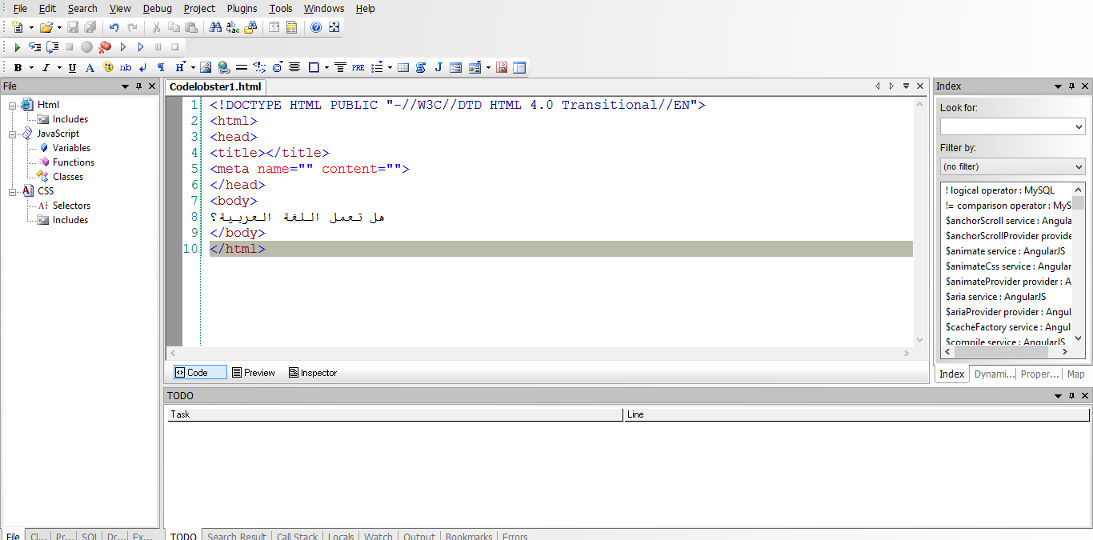
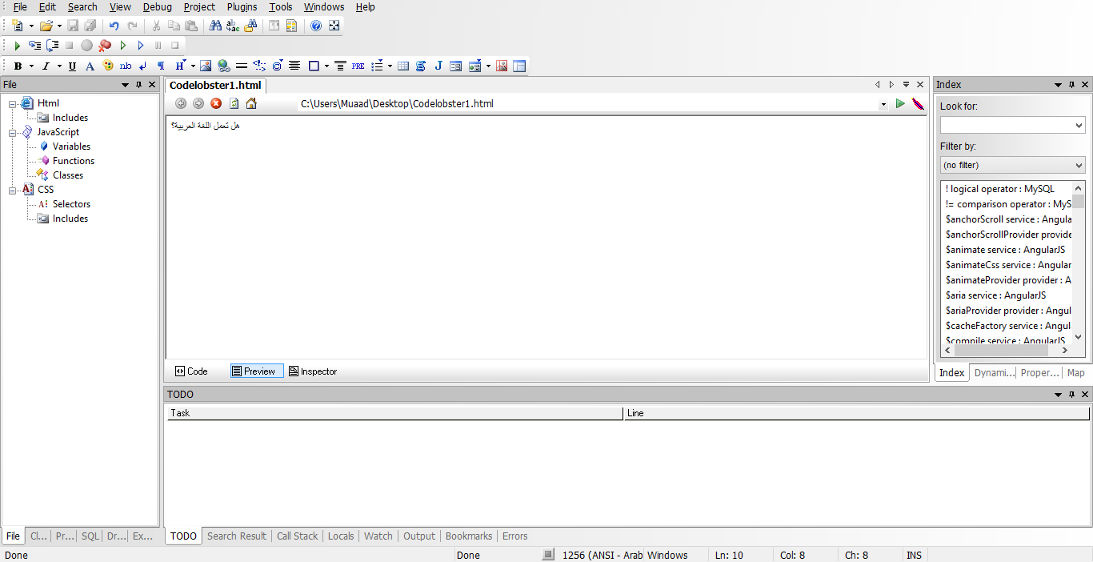
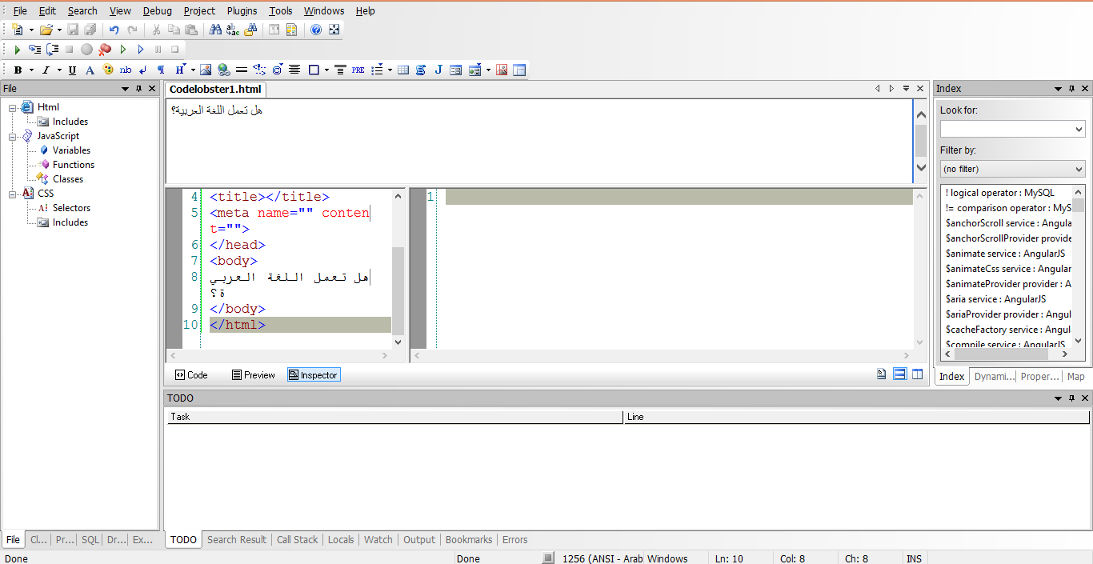
In my review of CodeLobsterPHP IDE I listed not supporting Arabic as a con of this software, now I can proudly say that it supports Arabic, and I was asked by the company to test for Arabic support, here are the results:


Arabic language working on the code pane


Arabic language working on the preview pane


Arabic language working on the inspector pane

For a complete list of features and bug fixes on version 5.8 click here.

Many Arab developers like this IDE and they are interested in purchasing a license, the only thing stopping them is that CodeLobsterPHP Edition doesn’t support Arabic. Starting of version 5.8 that’s a thing of the past!

I listed in my review of CodeLobsterPHP Edition that it has a friendly and responsive community, check the request I posted asking for Arabic language support, they are as good as I said they were!

So here you have it!  It supports Arabic now!
As an Arab developer, is having Arabic support in the tools a problem? How do you feel when Arabic is supported on such an amazing IDE? Would you try it? It has a free version you know 😉
Let me here what you have to say, and expect an Arabic post about CodeLobsterPHP Edition soon!


Windows 8.1 losing free space [FIXED]

After installing Windows 8.1 and doing all the updates. I was getting ready to create an image (in case anything happens) so I did the usual steps of cleaning and optimizing. Shortly after creating the image I noticed 12 GB of free space occupied!
Where did my free space go?

I had just finished cleaning it! Didn’t install a thing! Where did the space go?


I decided to use a handy tool called foldersize to determine where the largest folders were, and I wasn’t surprised when Windows was the biggest.
I went in and there was a folder called WinSxS which had 16 GB of size! That’s your culprit right there!

So what is WinSxS? And how does it work?

As it turns out Windows uses this folder to save backups and images alongside backup files (citation needed). There was no need to worry, as there is a monthly cleaning task scheduled that should take care of it.

But what if I want to clean it now?

Doing a disk clean (even enabling system files won’t get you those extra files you are looking for) you need to use the command line.

Run cmd as an administrator and type in:

Dism.exe /online /Cleanup-Image /AnalyzeComponentStore
To see how much space you have, only then you can get to clean by typing:

Dism.exe /online /cleanup-image /StartComponentCleanup 

Finally type in: 

Dism.exe /online /Cleanup-Image /StartComponentCleanup /ResetBase
Important notes:

  • These commands will take some time working, up to an hour, so take your time with the cleanup!
  • This might not work right away. I had to do it a couple of times with a restart. Then it cleaned it.


Warning: NEVER EVER TRY TO DELETE FILES MANUALLY. IT COULD RUIN YOUR COMPUTER AND MAKE IT UNUSABLE..

Any other space hogs?

Another place to look is the page file, if you want to set the size manually (or disable it all together) then that’s a good start!
Last thing to check is the hibernate file (which can go anywhere from 4-7 GB) and is completely useless if you don’t use the hibernation option. Check this tutorial to disable it.
We looked at three ways to taking back space that Windows occupied. I hope you find it useful!

Finally

How much did Windows take, was it more than 12 GB, share the space and let see who has the most loss!
If you liked this post share it with your friends, sharing is caring 🙂

You are getting Windows 10 Whether you like it or not!

I haven’t been using Windows very often lately!

I am mostly on Xubuntu doing things light and easy. Today I logged in to defrag and checkout things. I also checked the updates, looking closely I found a bad surp
rise!

I was looking at the optional updates when an update number caught my attention. I had to look in the knowledge base to make sure, yes! It’s the notorious Get Windows 10!!
But.. I did my best to get rid of it! I even hid the update when presented with it!

I read some reports online that Microsoft are getting aggressive in terms of Windows 10 adaptation, they want you to install it and install it now!

My impressions so far

I didn’t think Microsoft would go that low! But here they are!
I tried it. Didn’t like it, uninstalled it and moved on! Why can’t you Microsoft?
There is no way on god’s green earth I’d go back to Windows 10. It’s just that bad!!
I have many reasons to stay away from Windows 10.  Being too pushy is now one of them.
Windows 10 is being shoved down our throats, I don’t want it, I don’t care for it. End of story..
Be careful and keep an open eye. They will not rest until you are using Windows 10, and that’s when the fun starts!!
If you installed the get Windows 10 by mistake. Check my tutorial on how to remove it and prevent it in the future!

« Older posts Newer posts »