Category: Windows 8.1 (Page 5 of 6)

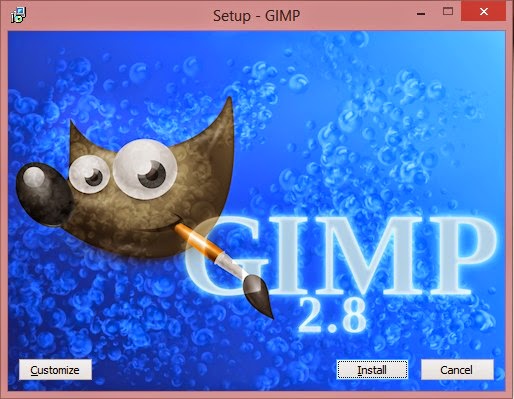
Gimp 2.10.14 won’t install problem solved!

Hey guys 🙂

It’s been ages since I posted anything about GIMP!! Not that I don’t like it or don’t use it anymore. It’s just I’ve been busy exploring other things while working with Gimp often.

I had gimp installed by default when I got Xubuntu 14.04 LTS. And to my greatest pleasure it is automatically updated. So I didn’t check the new versions for a while.

When I started reviewing some web design material. I had to have the Gimp on Windows too (For comfort 😛 ) and so I downloaded the latest version 2.8.14.1 from Filehippo.com t. And to my disappointment. It didn’t work ..

I double clicked and it didn’t progress pass the language selection option. It stopped responding many times.

I went to the official website and downloaded it via a bit-torrent client. Nothing ..

It did the same thing, no matter what I did it froze on the language selection and I had to end it from the task manager.

It was a bummer .. I downloaded it twice. Fiddled with many windows settings like:
Running as administrator.
Trying the compatibility options with every prior version of Windows.
I even installed the latest GTK library and Python ( Didn’t work).

And the funny thing no one reported that problem. I Googled all around. Nothing!!

When I installed it on a another Windows 8 computer. It went smooth!

Maybe the problem is with something in Windows 8.1?

What did I do to fix it?

Nothing!

I ran the installer. And let it running. After a few minutes it resumed installing like nothing happened.

I even uninstalled GTK and Python. And it didn’t affect how Gimp worked!

So here you have it. Be patient! It’s a Gimprtue !! Play on virtue!

That was today’s post. Please tell me if worked for you! And did it happen with you?

Please join my blog and subscribe to my mail list!

A quick fix to many Windows 8 – 8.1 bluescreen issues

Hey you guys 🙂

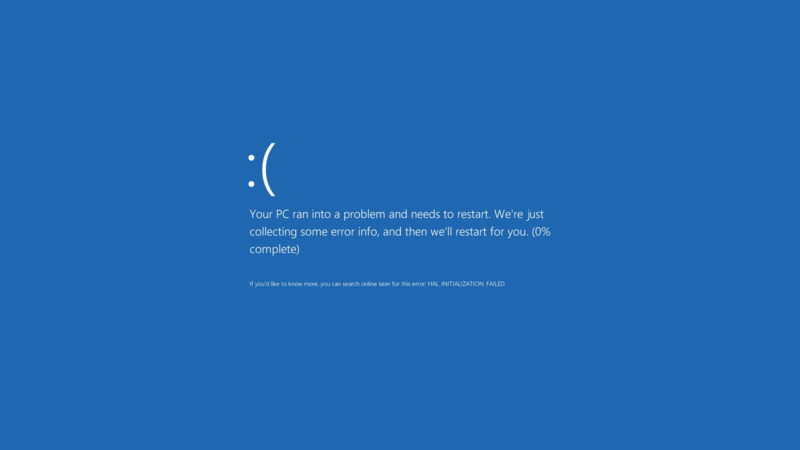
If you are using Windows 8 / 8.1 You would notice an awful lot blue screen of death screens BSOD. Now windows advices you to search online for the error .. (Da! Thanks for the tip captain obvious!)


What’s the cause of these errors?

Some of them are driver related. Others occur when you standby or lock the screen. Some after you install certain software..
The fix to all these causes and more is a simple command!
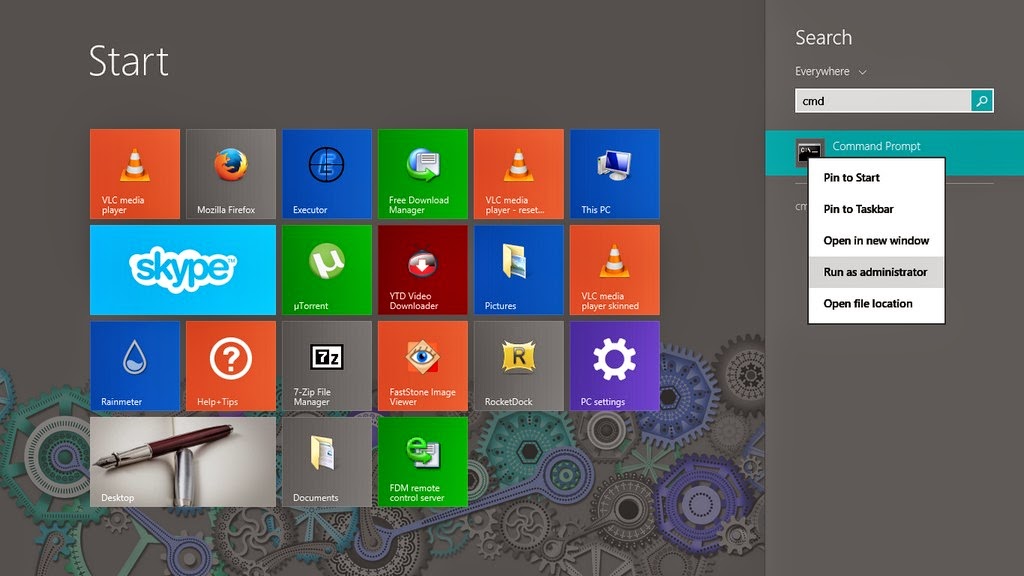
1. Go to the start menu and type CMD

2. When you see command prompt. Right click on it and choose: Run as administrator (Very important!)

3. The command prompt windows will show up. There right this command: “sfc /scannow”

This command checks the system files and attempts to fix the errors.
The process will take some time ( in my case it took an hour to complete)
After it’s done you will be prompted to restart once or twice. After that you are all good!

How easy was that? 🙂

Try it and let me know what you think. Did it fix your problem?
I hope I managed to turn the “frown” upside down 😀
Make sure to follow my blog and join my mail-list NEW

Windows 10 FREE FOR ALL!! What’s the catch?!

Hey you guys! I have some breaking news!!

Windows 10 will be launched this summer. Free for all Windows machines ( Genuine and pirated!) Running Windows 7, 8.1 And it will be available in 190 countries and in 111 languages!

New browser 

They also plan on retiring the famous Internet explorer and to replace it with a new web-browser!

More on the story as it develops!

Sources: 1, 2

Opinion piece

Since when does Microsoft give anything for free? Wouldn’t this be a trick to bust all the pirated users of Windows?

I’d say to wait and see how this develops. And don’t use pirated software!

Acer Aspire V5-P122 boot problem FIX !! OEM saved!!

Hey there you guys 🙂
I’m happy to report I was able to fix the Acer Aspire V5-P122 boot problem!

I must emphasis that this tutorial is at your own risk and I can’t be held  responsible for any damages that occur from it! I’m not even sure this is 100% legal and that it doesn’t void Acer warranty! In this case we don’t have an Acer service in our country (It was imported) and therefor I had to take action (To save the OEM license) ..

After the long introduction, let’s get down to business:
As you remember in this post we managed to make the Acer boot under Linux by changing the boot settings. And we could access the hard drive after accessing the repair mode under windows and writing some commands. For the full steps go to this post.
At this point we have our data at hand (since we booted under Windows for repair. Then under Linux for data recovery), we could easily backup the data to an external hard drive, but can we restore Windows?

Sadly I couldn’t manage to use any of the options to make the laptop work again!

  • I couldn’t refresh the system.
  • I couldn’t use the repair utility from the setup.
  • I didn’t have an image ( and I doubt that would have done anything ).
  • It won’t restore to a previous restore point.

Well a mistake happened with us and it totally wiped the hard drive! What happened was instead of booting Linux into live mode I installed Linux on the whole drive! Wiping the data and partitions completely !! ( Deleting the system partition, data partition, the recovery partition. And all of Acer’s bloatware!)

A fresh start

With nothing at hand, I knew that I needed to format! My main concern was the Windows license!  Now I have to go shopping for another Windows version! But I just got this laptop! And it has OEM Windows already on it! Isn’t there a way to keep the license?
Well .. There is 😀
Luckily the new Windows license is stored in the BIOS. Meaning it won’t be lost even if the hard drive was replaced!

Next step

The only thing left now was to install windows again, it’s pretty basic. Checkout the detailed method in this post I made sometime ago 🙂
Again I was stressing, will the license be picked by the setup?
I couldn’t find that version of Windows to install with anywhere! All I could find was the Pro version! Does that mean I have to buy it again? Or I should transfer the license from my other laptop and use it here. Keeping that device a Linux machine?
Anyway I begun the installation via USB ( The Acer doesn’t have a DVD-Rom).
After the setup was complete it noted that windows wasn’t activated, but it was reading the license file!

Viewing the License

I knew that because I downloaded the Nirsoft license viewer tool and tested it on my other device, 100% accurate!
It showed when I used it on the Acer Netbook that indeed the OEM bios has a license. It was yet to be activated.

Powerful command

I used this command and restarted the computer. After the restart I clicked Activate Windows
Windows was activated (With the O.E.M license!!). And it was downgraded to Windows 8 ( The setup was 8 Pro)!!
It was a total success!
I postponed creating a system image until upgrading to 8.1 (it’s equal to a format).
And that was it!
Maybe you need to call Microsoft after the format! And if you have an Acer reseller. Go to them! ( As I said, we have no means of support. I tried to make this as legal as possible. I hope it doesn’t violate any laws)

Final words

To sum the whole post in a paragraph: I reinstalled Windows 8 Pro and activated windows via the O.E.M bios, downgrading it to Windows 8.
Of course I lost all the Acer tools, guides, drivers and even bloatware!
Again I must insist to resort to this as a final solution knowing it may void your warranty!
I hope you find this post useful. Please tell me what occurs with you!
Have a nice day 🙂
Make sure to follow my blog and join my mail-list NEW

« Older posts Newer posts »