Page 259 of 325

جعل ليبر أوفيس متوافقًا مع العربية أكثر

بعد أن تحدثنا عن حزمة الإنتاجية المكتبية ليبرأوفيس وعن أهم مميزاتها، يجب أن نقوم ببعض التخصيصات كي تكون ملائمة تمامًا للغة العربية.

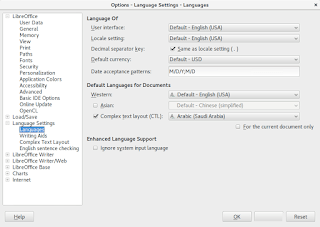
قبل كل شيء يجب أن تكون اللغة العربية مفعلة ضمن الخيارات، لذا نذهب لإعدادات اللغة ونختار اللغة العربية كاللغة المناسبة للنصوص المعقدة، وإختر اللغة المناسبة لمنطقتك الجغرافية، بهذه الطريقة فإن اﻷدوات لتوجيه النص نحو اليمين ستظهر تلقائيا في شريط اﻷدوات.
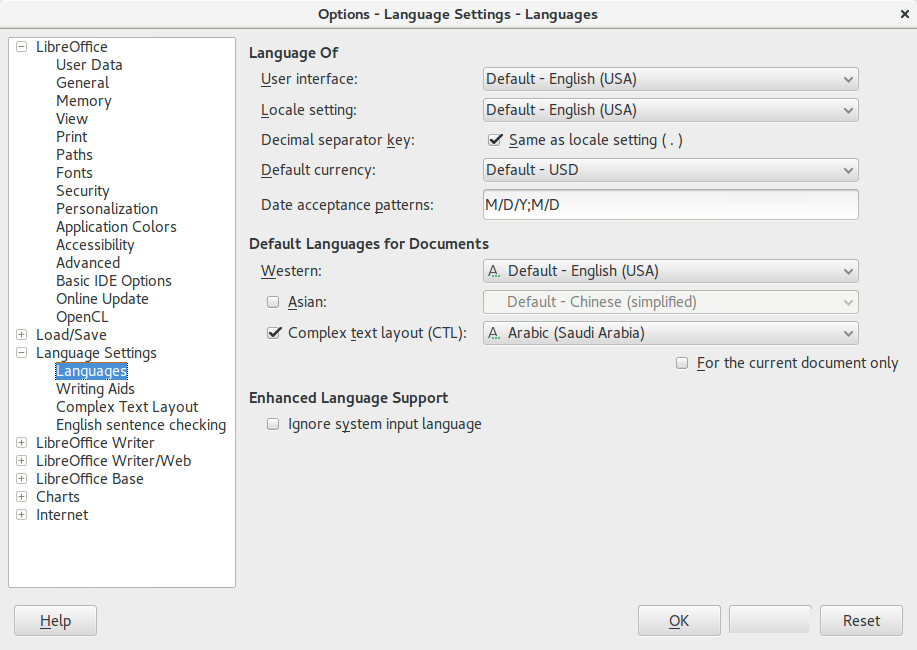
 

ثم يجب علينا تعديل الإعدادات قليلًا لإظهار عناصر التحكم بالاتجاه، ليسهل علينا توجيه النص من اليمين إلى اليسار،مع ملاحظة أنه بالإمكان عمل ذلك من خلال الاختصار(Ctrl + Shift + D) دون اللجوء للأداة على الشريط.

 Tools Options Language Settings Languages Enhanced language support

والتأكد من أن خيار اللغة المعزز مفعل لإظهار عناصر اللغة الإضافية.
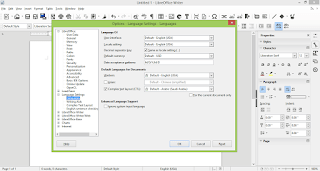
إظهار عناصر اللغة الإضافية.

من المميزات المفيدة لمحرر النصوص إمكانية تصحيح الأخطاء الإملائية واللغوية أثناء الكتابة، لا يدعم ليبر أوفيس هذه الخاصية للغة العربية افتراضيا، لتفعيل هذه الخاصية اتبع الخطوات الأتية:

تحميل القاموس العربي (آية سبل) الخاص بليبر أوفيس (والمتوافق مع عدة تطبيقات منها فايرفوكس وثندربيرد وأوبن أوفيس كذلك) وإضافته كإضافة على ليبر أوفيس. للمزيد من المعلومات حول( آية سبل) الرجاء الإطلاع على صفحة المشروع.
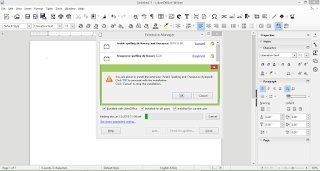
تنصيب قاموس Ayaspell

الذهاب للإعدادات، ثم خانة اللغات، وإختيار العربية لغة النصوص المعقدة كما بالصورة.

سيقوم بالتصحيح فور تنصيب الإضافة وإعادة تشغيل البرنامج.

أمل أن تكون هذه الإضافات قد أثرت تجربتكم في استعمال ليبر أوفيس، أنا شخصيًا استفدت كثيرًا وقلت أخطائي الإملائية بشكل كبير!


 

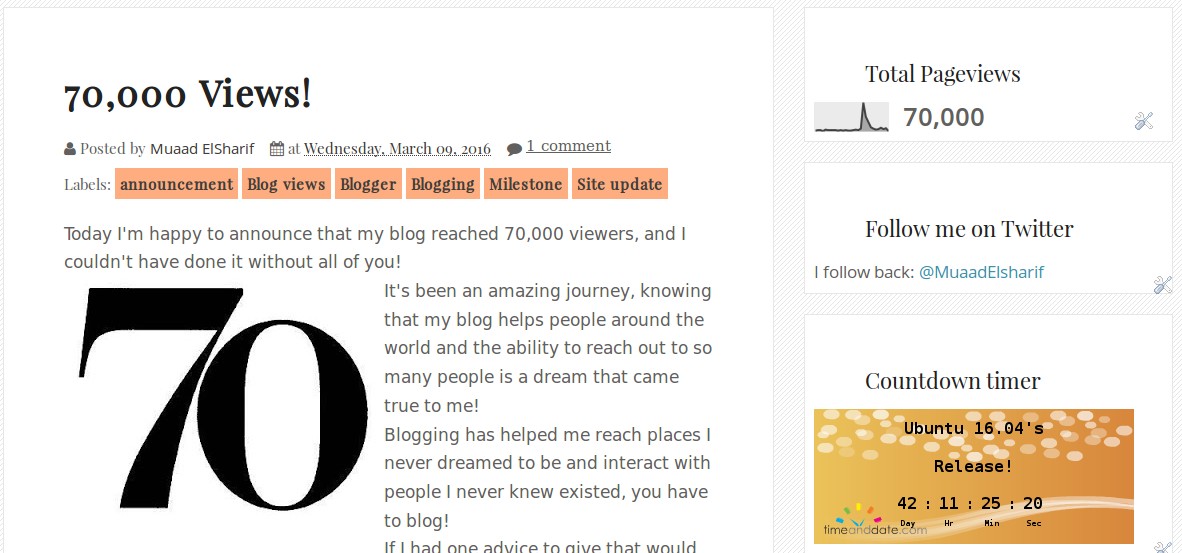
70,000 views!

Today I’m happy to announce that my blog reached 70,000 viewers, and I couldn’t have done it without all of you!

70,000 views!

It’s been an amazing journey, knowing that my blog helps people around the world and the ability to reach out to so many people is a dream that came true to me!
Blogging has helped me reach places I never dreamed to be and interact with people I never knew existed, you have to blog!
If I had one advice to give that would be open a blog and start sharing your experiences and knowledge with the world!
Now that I have reached 70,000 views! I want more!
Next stop, 80,000 views. Building up to 100,000 views.

70,000 views!

I promised a surprise when I reach 100,00 views, and I shall deliver 😉

uGet downloader

A download manager is a must have tool for any computer user, and there are many options to choose from, my favorite is FDM that only exists on Windows (was recently ported to Mac and soon to Ubuntu). But until FDM is available for Ubuntu, let’s take a look at another popular option, that’s uGet, I chose it over the rest of the bunch for many reasons.


uGet logo

Uget is a light weight fully featured download manager available for many operating systems, Linux (Arch, Debian, elementary OS, Fedora, Gentoo, Linux Mint, Mageia, openSUSE, Semplice, Slackware Sparky, Ubuntu), Windows (XP – 10), BSD, Mac OSX And Android. 


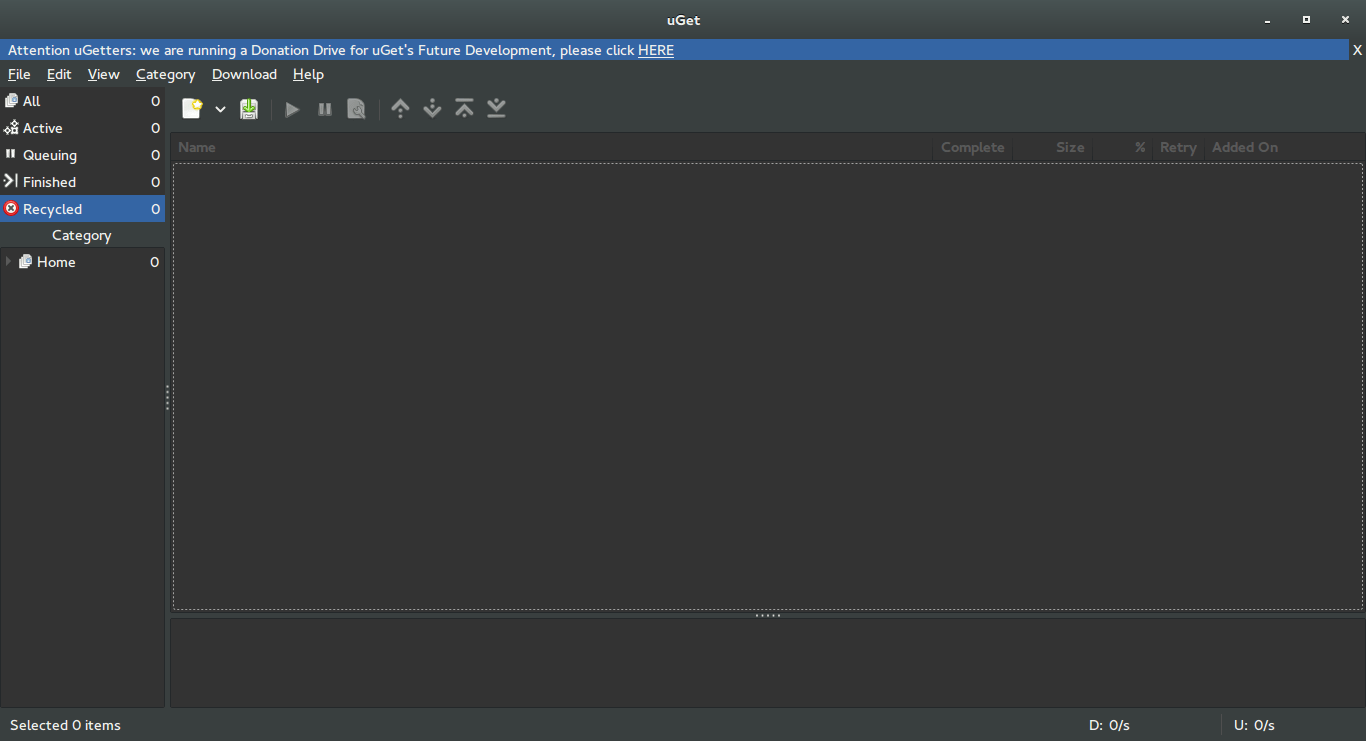
uGet interface


Uget is free and open source and available in 29 languages. It has many features like: Mutil mirrors, Pause/Resume, Speed Limits, Clipboard Monitor, and many other features you can check from here.


Despite being a powerful downloader, Uget is very light weight, here I quote from the feature page as it goes: “Uget is a VERY Powerful download manager application with a large inventory of features but is still very light-weight and low on resources, so don’t let the impressive list of features scare you into thinking that it ”might be too powerful” because remember power is good and lightweight power is Uget!”.

Download

Visit the download page and click on your operating system to get specific instructions on download and install.

I recommend using this download manager with Ubuntu, it’s a good one!

Did you like this post?  Would you consider downloading uGet? Let me know wha you think in the comments section below.

« Older posts Newer posts »