Today’s post is a re-write of “How to add downloaded packages to Synaptic Package Manager in Ubuntu 13.04” because I had to install packages Offline when I was fixing my brother’s computer. And something wasn’t right!

In that particular case I installed Ubuntu 14.04 twice in the same week so using the same packages to update was probably the right thing to do to save time and data plan.
Anyway based on my recent experience it will be much more clear. And I added pictures too! Synaptic is a GTK+-based graphical user interface for Advanced Packaging Tool (APT)—the Package management system used by Debian and its derivatives. Synaptic is usually used on systems based on deb packages but can also be used on systems based on RPM packages. (Source)
We are using it today to batch install software on Ubuntu, and you must take note that it’s a powerful tool and can potentially harm your system. So take care. You are going to need admin permission to access Synaptic.
Also don’t install anything you don’t trust! Be careful because now the program has admin permission to change your system!
After we took a look at the warnings, let’s take a look at the scenarios:
You are an Ubuntu admin and you have 10+ computers. And you need to install the same software on all 10 computers. So instead of Connecting them all to the Internet and downloading the same software. Connect one of them and download the required software. Then install it on the rest.
You just installed Ubuntu on a machine and begun to download software. But the Internet is really slow! (Third world problems) so you take the programs on a USB from another computer and get to work!
You have a limited data plan and you are trying to save!
No matter what was the situation. It’s a handy trick and you will comeback to this tutorial over and over to read it!
First of all. Let’s prepare the software.
You can either use the software center cache. Or any random .deb packages you have. (Or both)
If you want to copy the software center cache then go to the directory:
“Computer/var/cache/apt/archives” where “computer” is your system partition.
This is a system folder so you can’t cut or delete any of these packages. And if you copy the .lock file or the partial it will result in copy error.
Remember where you put the packages and the folder name as we are going to need that later.
Open Synaptic and enter your password. If you don’t have Synaptic you have to install it. Say from the Ubuntu Software Center.
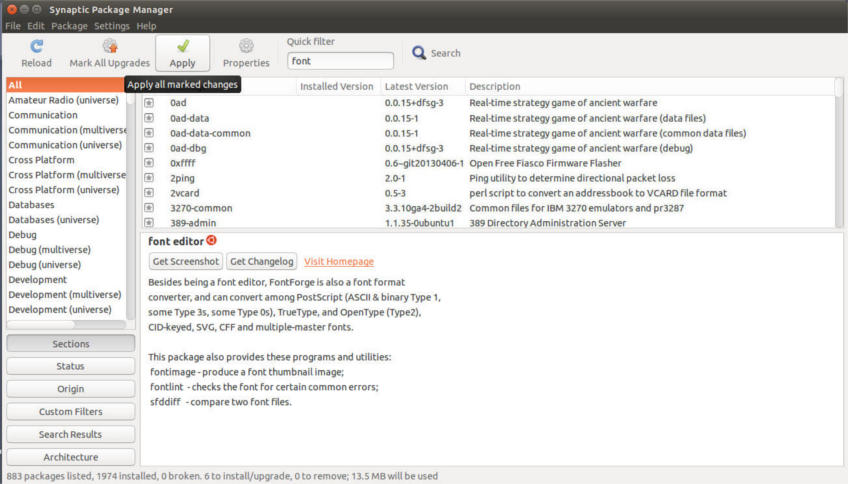
Once you opened it you have to confirm that you are online. I can’t stress this enough. And it won’t work if you aren’t connected to the Internet.
You can confirm that by reloading package information. If it downloads package information without problem. Then you are good to go!
Paste all the packages in that directory, in this tutorial it’s called “New Packages”.
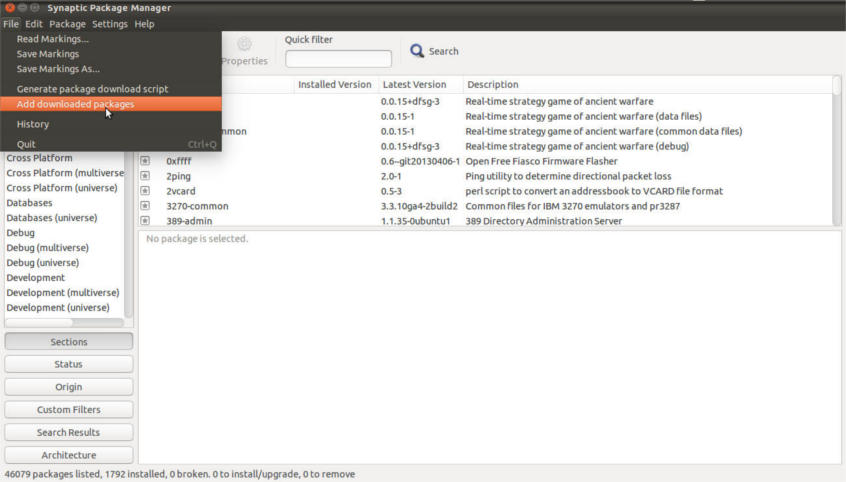
Click file Add downloaded packages.
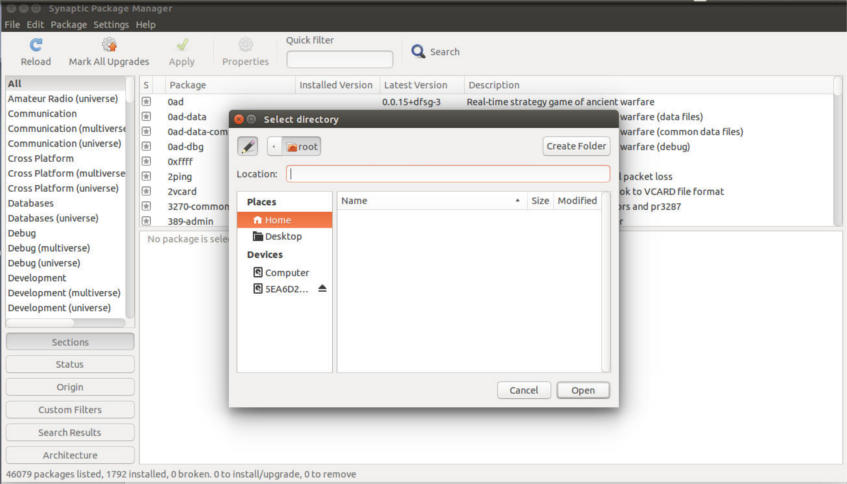
once there click open.
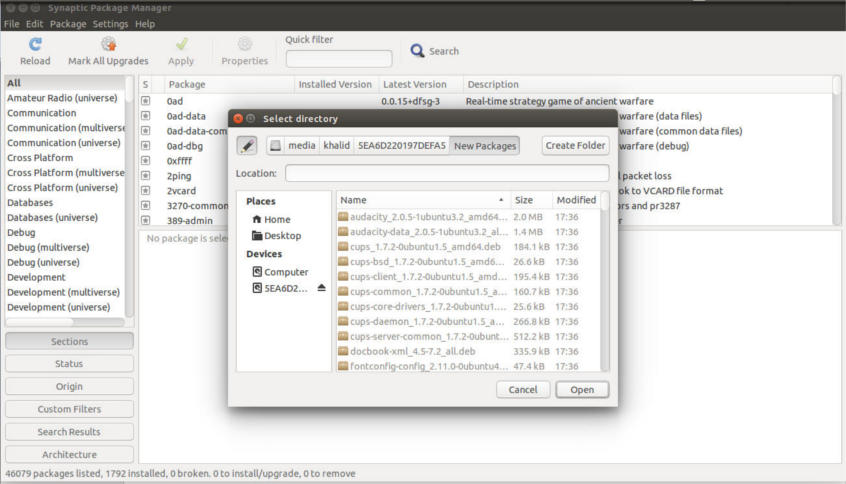
Wait a moment for the packages to add. It can take several minutes when adding a lot of packages.
Click Apply and Synaptic will tell you how much packages will be installed. The size of install and how much it will download.
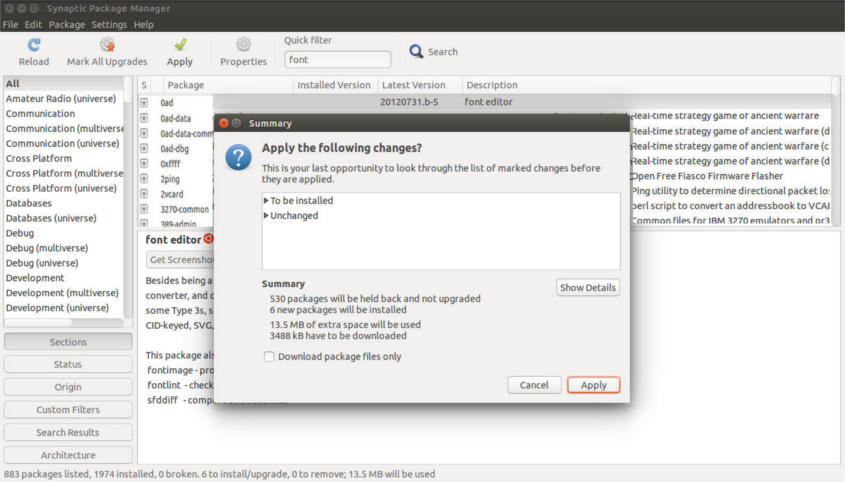
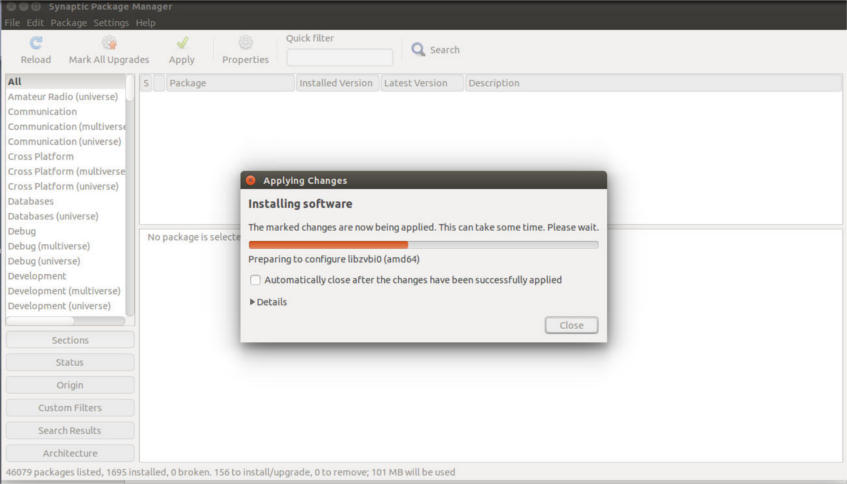
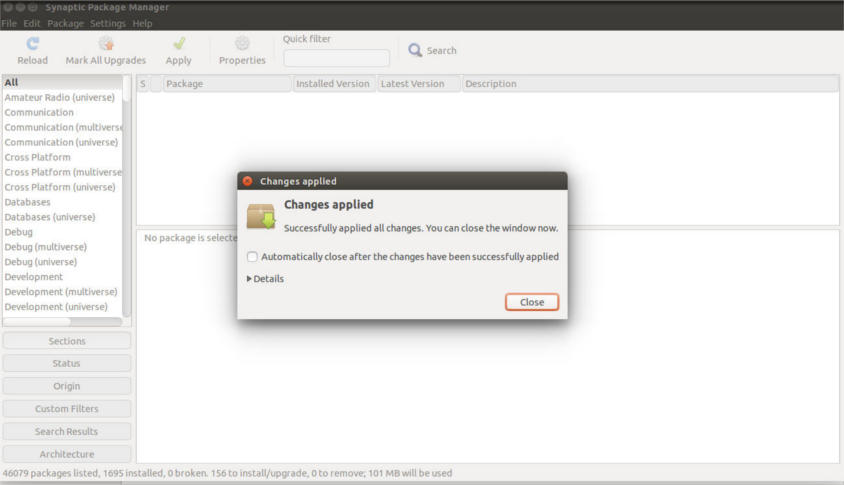
This way we installed a batch of software as we would install a single one. Without re-downloading them again!
Pretty handy isn’t it?