Day: April 13, 2015

OpenOffice transitioning to LibreOffice

Hey there you guys

How are you today. I hope you are doing great.

Today we are going to talk about

Apache OpenOffice. It’s been a while since we spoke about it!

I’ve used it for over five years and it has been nothing but good! Then I transitioned to LibreOffice. You can see all about it in here. If you are thinking like me you are probably wondering: Is there a learning curve for me? My answer is: Not at all!

They quite similar. You won’t have a problem at all. Everything you knew and liked in Apache OpenOffice you will find in LibreOffice plus much more!

You might ask: Why are we still mentioning Apache OpenOffice?

Well for a very simple reason! It has been around for much longer than LibreOffice. And many people still use it. After all it was downloaded over 100 million times!!

If you are out there and still using Apache OpenOffice. You might want to check the new LibreOffice. It’s simply the best!

I hope you enjoyed this post! Please let me know what you think in the comments section!

Have a nice one!

Backup and restore Rednotebook journal

Hey there you guys. How are you? How are you doing today?

I have reviewed Rednotebook before here on this blog. As a great journal and note taking software.
I have been using it for years now and it hasn’t failed me once!

Today we will see how to backup the journal folder (where you kept your notes) and restore it!
And how to share this awesome software across systems on the same computer (Dual Boot)

Since RedNoteBook has become an important tool of mine. I needed to backup and restore my notes in case something happened. I tried using the Zip folder but that failed badly and I lost tons of data!

Until I came up with a really easy fix!

By default the directory for rednotebook on Windows (7, 8 ,8.1) is:
“C:Users<User Name .rednotebook

And on Linux is: “/home/<User Name /.rednotebook/”.

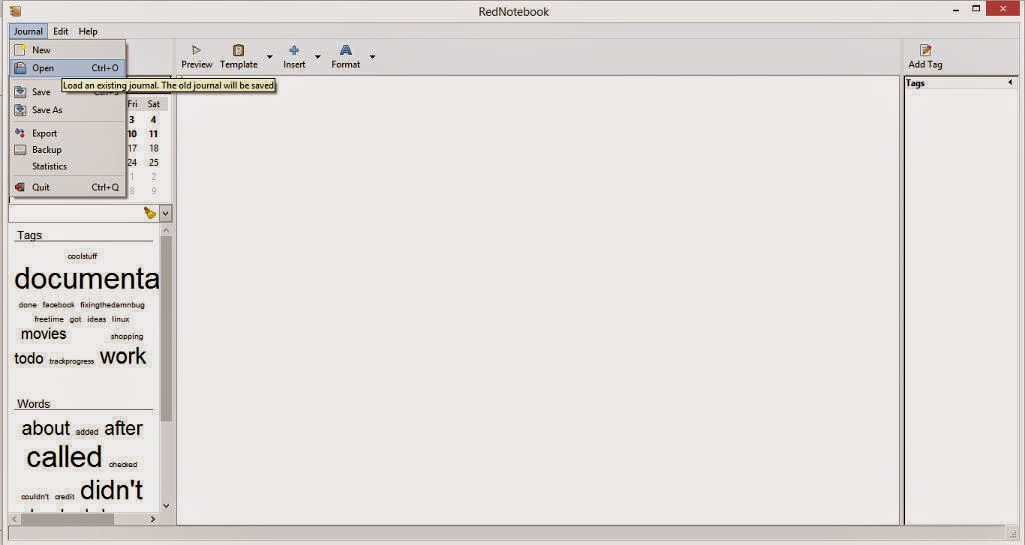
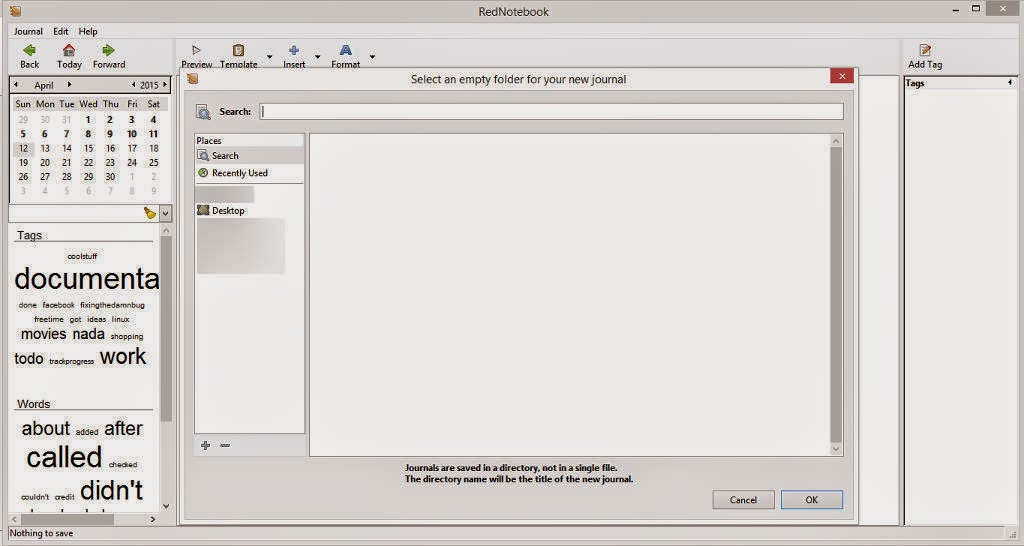
From the main interface click File Open to change the directory to the one you created

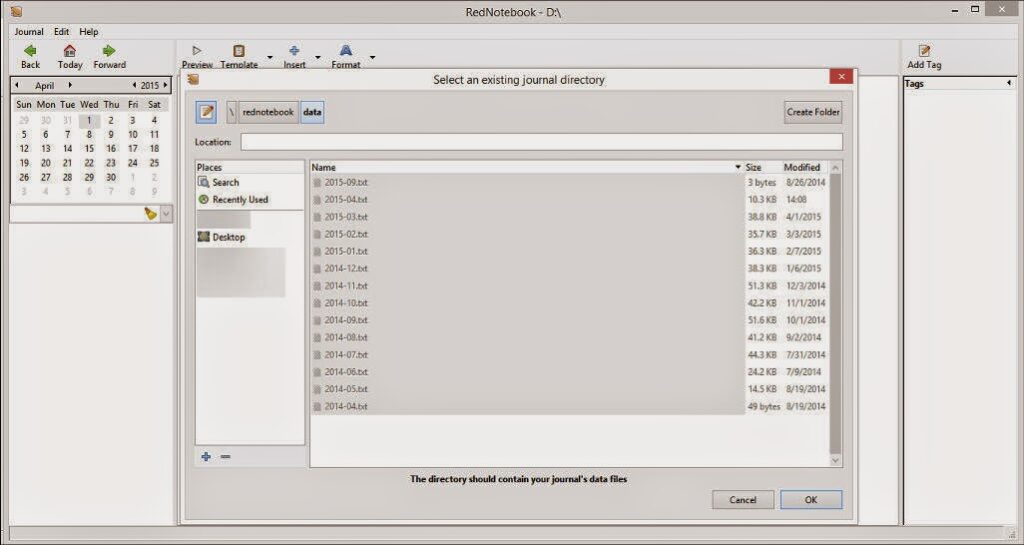
Navigate to the folder where you put the “Rednotebook” folder (Restoring notes)

Go inside the folder and choose “Data

You will find the notes you already entered.

Click OK and you are done! Make sure to do it on both systems and select the same folder for both systems. And it’s very important to choose a folder both Linux and Windows can “See”.
How did you like the post? I hope you find it useful. Please leave a comment!!