Category: Apache OpenOffice (Page 2 of 4)

Setting the first line as the file name in LibreOffice

LibreOffice Logo

One of the few features I missed moving from Microsoft Office was the auto name upon save, where Word takes the first line of the text and uses it to name the text file. LibreOffice (and OpenOffice before that) don’t have this feature! It’s a small thing but over time it becomes a growing nuisance!

Luckily there is an easy fix for that! Which enables you to enjoy the luxury of easy naming of files and limit the Untitled flood over time!

We are going to use a feature known as macros. macros in office are a Visual Basic code that is used to preform a certain task over and over and is triggered by an event. In this post I’ll be showing how to create a macro that saves the file using the first line of text when pressing the key combination of CTRL + S (assigning the macro to save or save as will result in two files: untitled and the first line of text!) So at first, we are going to need our macro. I took this code as is from an OpenOffice form, it works fine without editing:


  Sub FirstLineFileName_Writer
    On Error goto EH
    oDoc = ThisComponent
    oVC = oDoc.CurrentController.getViewCursor
    Mark = oDoc.Text.CreateTextCursorByRange(oVC)'mark position of view cursor.
    oTC = oDoc.Text.CreateTextCursor 'created at the beginning of doc.
    While oTC.isEndOfParagraph 'skip empty paragraphs.
    oTC.gotoNextParagraph(false)
    Wend
    oVC.gotoRange(oTC,false) 'a text cursor can't go to the end of a line
    oVC.gotoEndOfLine(true)  'so we have to use the view cursor.
    filename = oVC.String
    url = ConvertToURL("C:\" & filename & ".odt")'Insert Your Desired Directory Path.
    oDoc.StoreAsURL(url,Array())
    oVC.gotoRange(Mark,false) 'return view cursor to original position.
    oDoc.Modified = false 'avoid Save being called if doc closed without further edits.
    End 'end normal execution.
    EH: 'error handler.
    MsgBox "You may have illegal file name characters in the first line." & Chr(13)_
    & Chr(13) & filename,,"AN ERROR OCCURRED"
    End Sub


This code is used to save the text file by taking the first line of text and setting it as the name. You can edit the directory of the save. Please note that it saves without conformation!


Tools > Macros > Organize > Macros >LibreOffice >Basic
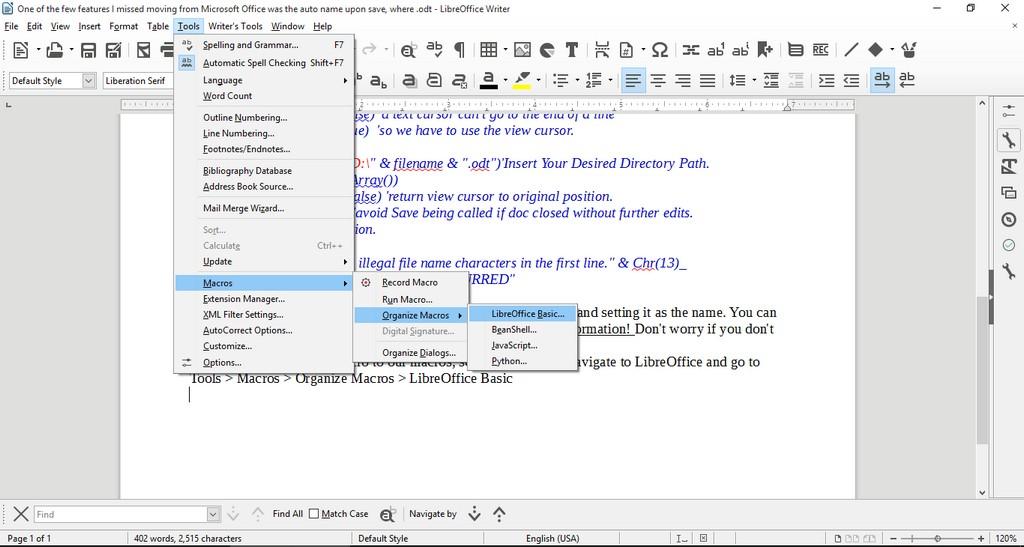
Opening the macro menu

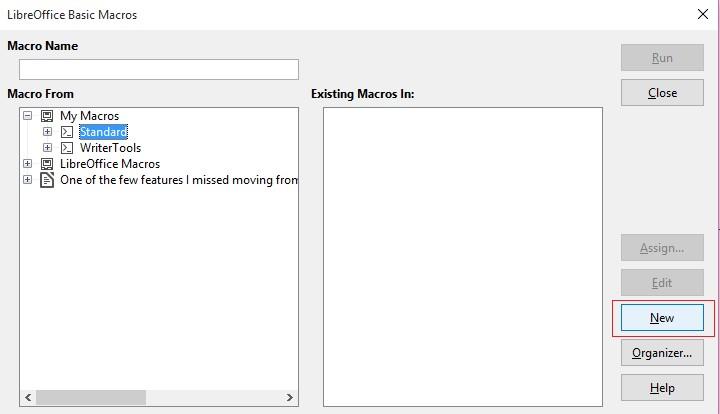
New to add a new macro.


Adding a new macro


Run Macro then choose the macro manually from the menu. But that’s not too handy, is it?
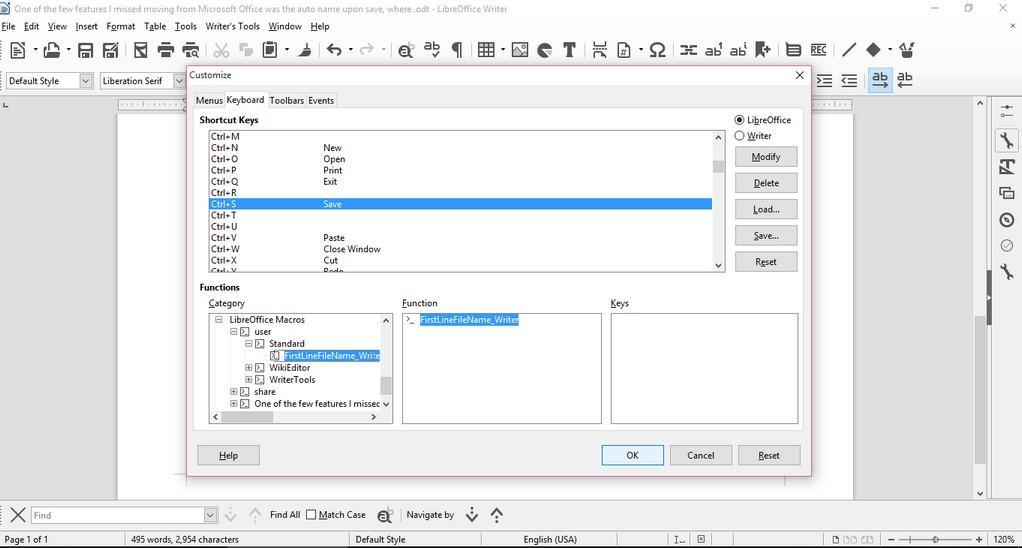
Customizing the key combination

Go to LibreOffice writer and navigate to the menu: Tools > Customize > Tab: Keyboard.

Delete whatever is on CTRL + S, and assign it to the new macro by looking for it, and if everything went according to plan. It should save the 1st line as a file name.

Checkout this for more information.

Important notice

If you get errors it’s because the directory isn’t correct. Libreoffice will default to C:\ and when it can’t save in it. It will crash the macro. I edited the code to: “D:\Documents\ but make sure to choose your own folder.


How to add LibreOffice to PPA in Ubuntu, Latest version install

I once advocated Apache OpenOffice in favor of LibreOffice, I even had this tutorial where you can remove LibreOffice all together and install Apache OpenOffice to your computer. If you like doing so, that’s a personal choice.


I had to study both softwares and make a decision that will affect me for a very long time. I chose brains over heart and here we are with LibreOffice 4.4.4 waiting for the 5.0 milestone, again not saying that Apache OpenOffice is bad, read more about my choice from here.
Now we come to an important part, Adding LibreOffice to Ubuntu again

Since we used the command purge to remove LibreOffice, we have to install it all over again adding PPAs ( Personal Package Archives) to the system.

We can simply do that by opening a terminal window Ctrl + Alt + T and entering the following command

sudo add-apt-repository ppa:libreoffice/libreoffice-4-4

Update

And there is the GUI way for users who don’t feel comfortable around the terminal!

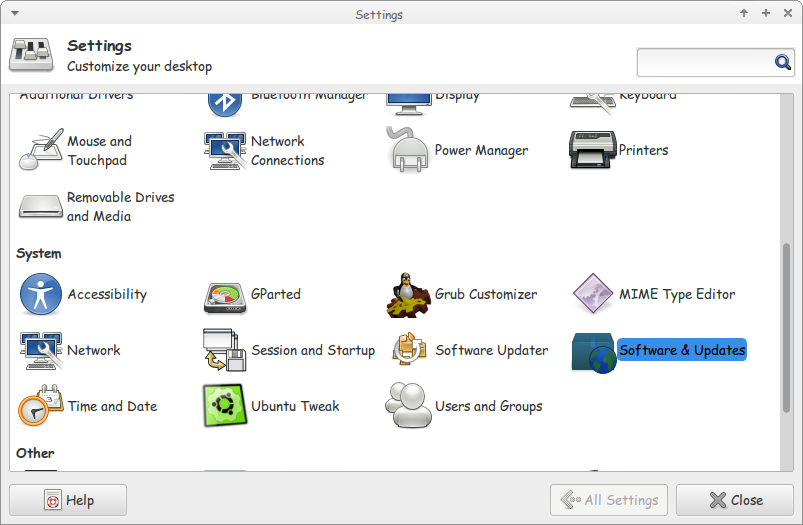
Go to Settings Software and Updates


Settings menu

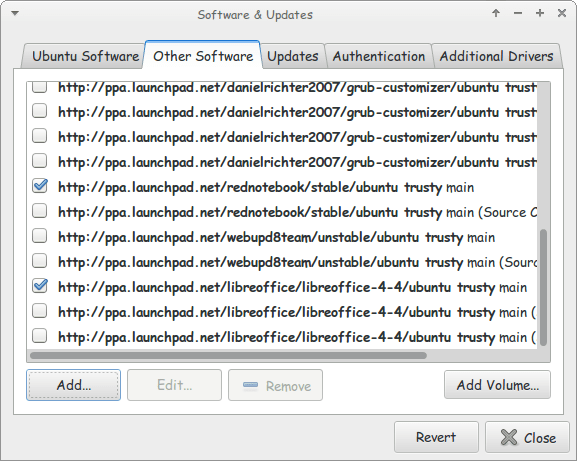
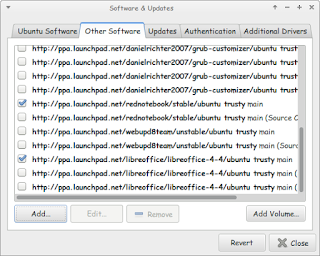
Go to Other Software and click add


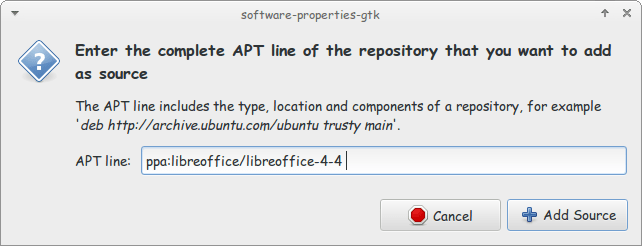
Enter the PPA name in the field and click add source (Copy and paste)

Adding the PPA

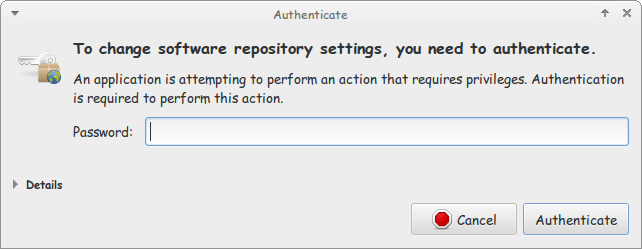
Enter password to confirm

You need the password to confirm

You will see that the source is added (In my case I took both screenshots after adding).


The PPA has been added!

This way we added the LibreOffice PPA to the software sources so the system can fetch automatic updates (we don’t have to update manually every time)

After we added LibreOffice PPA, Let’s install the latest version!

Use the command sudo apt-get purge libreoffice-* and confirm with y to remove the current version (if it’s really old).

Now we continue by downloading LibreOffice from the site and extracting it to the desktop, please note that the tar.gz file is just an archive and doesn’t need any compiling, just extract with your default archive manager!

Extract the folder DEBS to your desktop

In terminal enter cd Desktop

Then write cd DEBS (Hint: If you have the option Right click and choose Open Terminal Here).

Write the command sudo dpkg -i *.deb to install all the debs in the folder (Batch install).

After it’s done. You have LibreOffice fully running!

Finally

The first step I’m not really sure it’s necessary. I’ll have to wait till the next update to confirm that installing a new one removes the old (Can anyone confirm this to me?).

That was how to add LibreOffice PPA and install it to keep it always updated. Have a good one!

Why do I like Linux better?

Today. After reading the Windows 10 update plans. I tried to put everything in perspective. And I realized something! I was blessed that I got to use and enjoy Linux! Linux is the true definition of freedom. It’s not owned by some company that controls it. It’s a community of people. You and I included!

Before I go any further on why I like Linux better. Let’s take a look at the competition. Shall we?

I’m a simple guy who wanted genuine software. So I bought Windows 8 (yay). And when the Upgrade to 8.1 was out. I updated to it.

It was awful. It’s filled with problems. But what can I do? It’s the latest craze! Even if I wanted Windows 7, I couldn’t get it. I won’t buy an OEM laptop with 7 installed just to relive the past!!

I couldn’t downgrade to Windows 7. Or use Windows XP after they ended the support. And no one would use Vista (at least when they are sober!)

I’m using Windows 8.1 because I had no choice. My back is against the wall.

Everyday I got a blue screen of death telling me to search the internet for one thing or the other! And some of it didn’t make any sense!! (An iPod related error and I don’t even own an iPod)!!!

I was so upset!! The system is Flawed and there is nothing I could do but to wait for the next update. We were told at the time it would be Windows 9.

Which means paying for Microsoft to fix a mistake they made!! Seriously?

Then came the savior, or so we were told. Windows 10. Which is supposed to carry us into the future. Sounds too much like Windows XP to me!

And if you see my last post about how original is Windows 10. You will see what I’m talking about!

Not a single word about Linux yet huh?

When I say that Linux is free. I don’t mean that it doesn’t cost money. I mean it’s absolutely free by all the meaning.

You are free to use, share, edit, sell. Try doing that with a Windows product!!

Use whatever Distro you like. Customize it the way you like. And use it for whatever you like. If you want you can donate. If you don’t want or can’t. Then it’s OK.

You’ve got many interfaces to choose from and hundreds of Distros to choose from. That’s free!!

You can use it in your home. In your school, for your business. Without restrictions. You can even make copies of it and sell it and no one would stop you.

While Microsoft attacked and condemned Linux with childish name calling, referring to it as a cancer. And who can forget the vigorous campaigns that Microsoft lead to destroy OpenOffice’s reputation as an alternativeto Microsoft Office?

Linux is more open minded and excepting. Notice that most users (if not all are Windows / Mac converts). And they are

I’m not going to talk about Mac at all. If you have one. May God help you!
My advice: Take this opportunity and think before Microsoft starts the exodus towards Windows 10. I’m I really free?

Do I have a choice? Can I simply refuse being controlled by Microsoft or Apple?

I hope this article gives you that perspective. Life is too short to spend on one OS or dealing with one company. Explore the world ofopen source. What’s there to lose?

Thanks for reading. Have a nice day 🙂

Please comment below and let me know what’s on your mind 🙂

OpenOffice transitioning to LibreOffice

Hey there you guys

How are you today. I hope you are doing great.

Today we are going to talk about

Apache OpenOffice. It’s been a while since we spoke about it!

I’ve used it for over five years and it has been nothing but good! Then I transitioned to LibreOffice. You can see all about it in here. If you are thinking like me you are probably wondering: Is there a learning curve for me? My answer is: Not at all!

They quite similar. You won’t have a problem at all. Everything you knew and liked in Apache OpenOffice you will find in LibreOffice plus much more!

You might ask: Why are we still mentioning Apache OpenOffice?

Well for a very simple reason! It has been around for much longer than LibreOffice. And many people still use it. After all it was downloaded over 100 million times!!

If you are out there and still using Apache OpenOffice. You might want to check the new LibreOffice. It’s simply the best!

I hope you enjoyed this post! Please let me know what you think in the comments section!

Have a nice one!

« Older posts Newer posts »