Category: Fix (Page 4 of 11)

Synaptic package manager 0.83 not adding downloaded packages [fixed]

Synaptic LogoSynaptic package manager happens to be my favorite way of installing software, much better than Gnome software and Software center, I even blogged twice about how it can be used to batch install downloaded packages (one was the older one and the other was a rewrite).
but lately it won’t add the downloaded packages and that was frustrating to me!


 Describing the issue

When clicking on add downloaded packages nothing happens, the installation prompt doesn’t appear, to me that is a serious issue because I copy the packages from my laptop to other computers around the house to update and add new software

The first solution that cam to mind was to uninstall Synaptic 0.83 and install an older version, 0.82 and 0.81 needed some dependencies so I dropped the idea!

Uninstalling and reinstalling Synaptic didn’t do anything, not even when using the option “completely remove” option from inside Synaptic (ironic, isn’t it?).

Finally fixing the Synaptic package manager 0.83 not adding downloaded packages issue

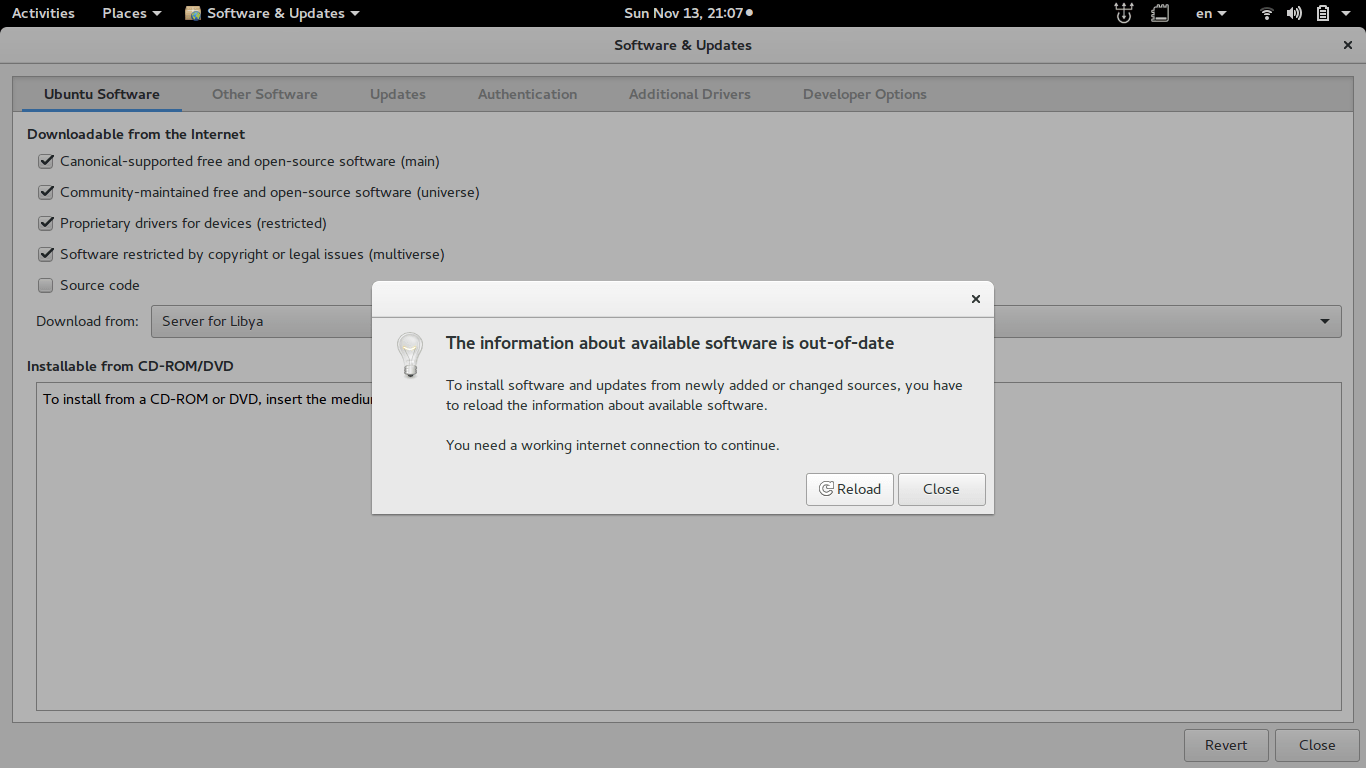
  • To fix the Synaptic package manager 0.83 not adding downloaded packages issue you need to close Synaptic and go to Software and updates.
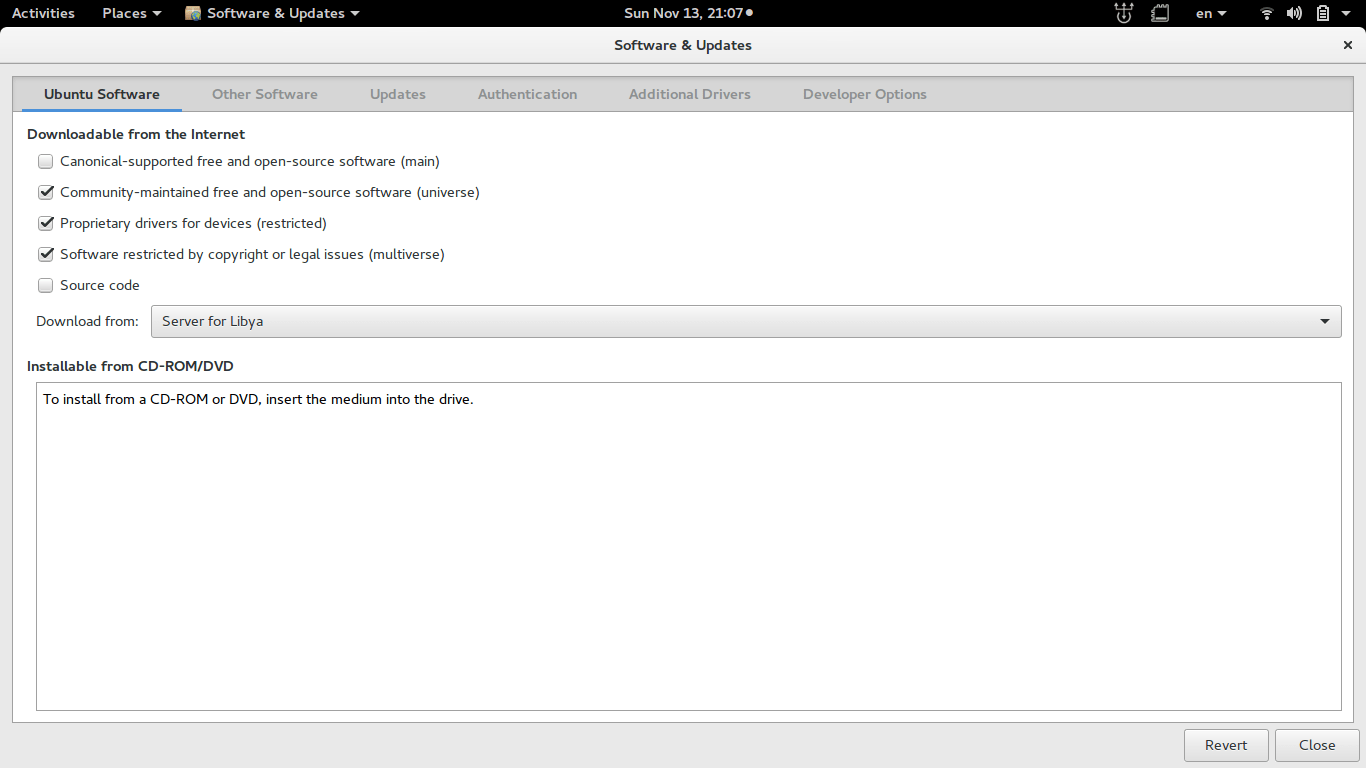
Software and updates interface

  • From there make sure that the first option is checked, if it’s checked then uncheck it and then check it again, you will be promoted to enter your password, then click close.
     
  • A pop up will appear telling you that package information is out of date and needs updating, and that you need a working Internet connection , click on “Reload” to continue.
    Reload package information (out of date)
    Reload package information (out of date)
     
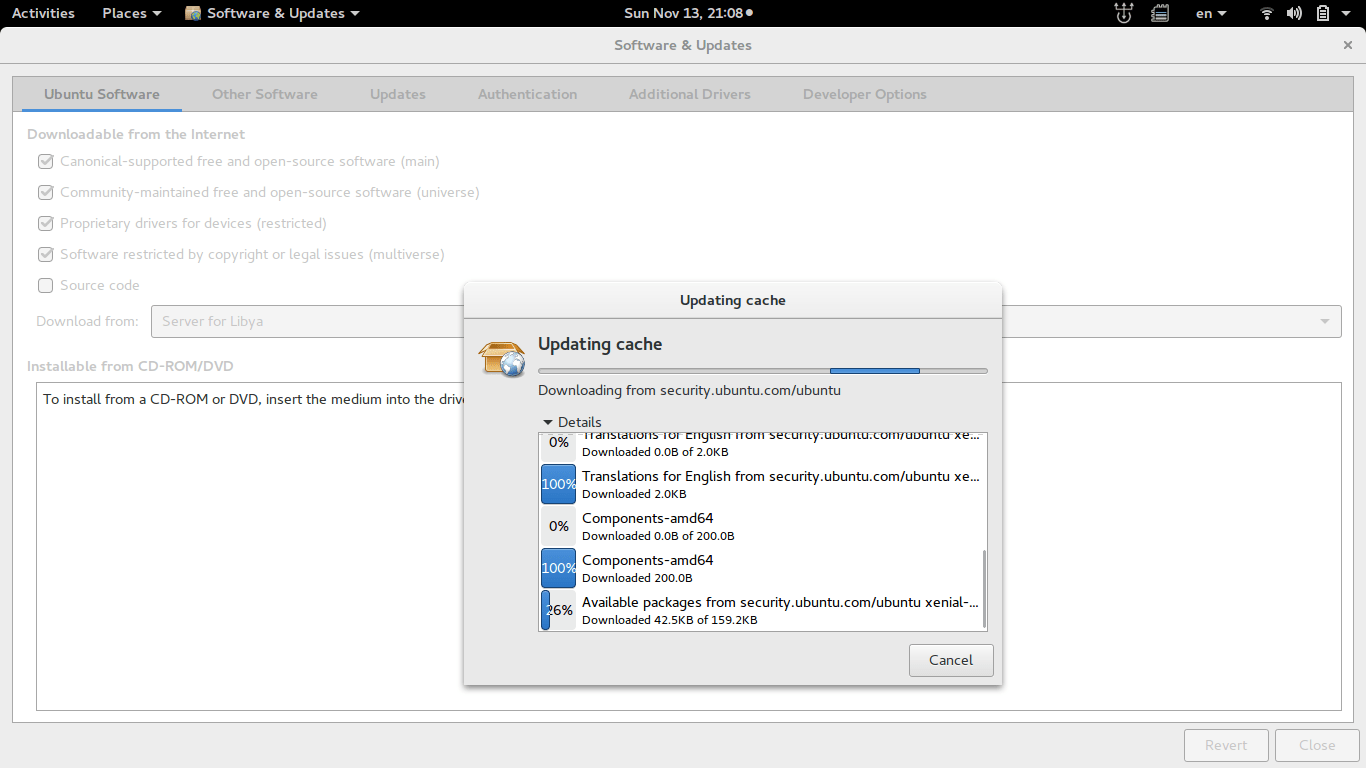
  •  The following windows will appear, the system is updating cached information, After the package reload is complete, it will be closed automatically.
    Updating cache
    Updating cache

  • Now you can go into Synaptic and add downloaded packages without a problem!

Final words

Fixing this annoying bug was so easy after all and it felt so good! I hope this helps you go through a hard day.
Please share this post so you can help someone else in need, and leave a comment if you have any questions!
Have a nice day 🙂
How to fix and prevent the /dev/sda1: recovering journal On Ubuntu 16.04 Gnome

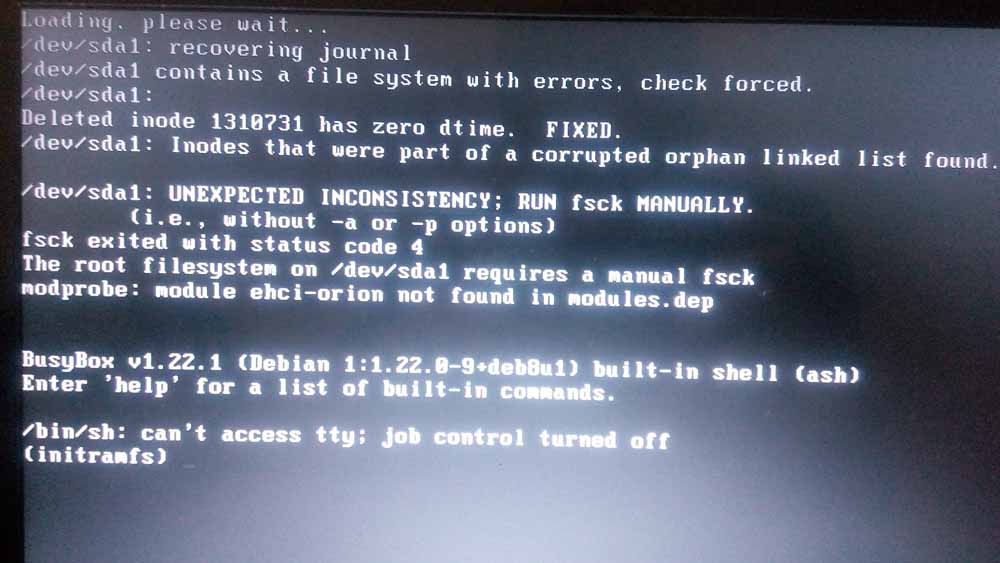
As I was booting my computer up one morning I saw this awful error message rather than the Ubuntu Gnome boot logo, it turned out to be a common error and can be fixed easily, let’s get to the details!

/dev/sda1: recovering journal

Cause of the issue

The problem occurs when the computer isn’t shut off properly or when electrical failure happens, some data on the SSD

isn’t stored properly and the boot process is halted.

In my case it’s the power issues that ruined my laptop battery and is making it’s way to my data stored on the SSD. 

How to fix it

The screen itself suggests a terminal command to fix the drive which was useless in my case, my easy fix was using a live Linux installation from a USB -I used Linux mint- and used Gparted to fix the damaged drive (please note that using Gparted can be very risky and cause data loss). 

Using Gparted from a live distro

We are using Gparted to fix the partition, it depends on how you did your disk but it’s the same way.
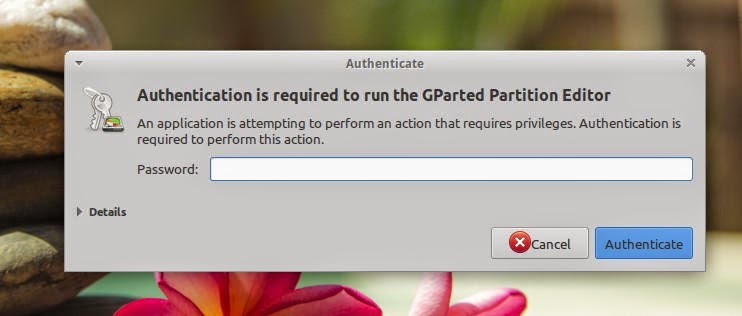
Entering the password to run Gparted.
Opening Gparted


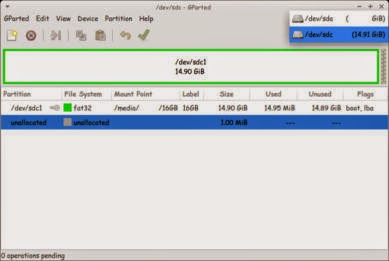
  Viewing a list of disks on your computer.

View disks with Gparted


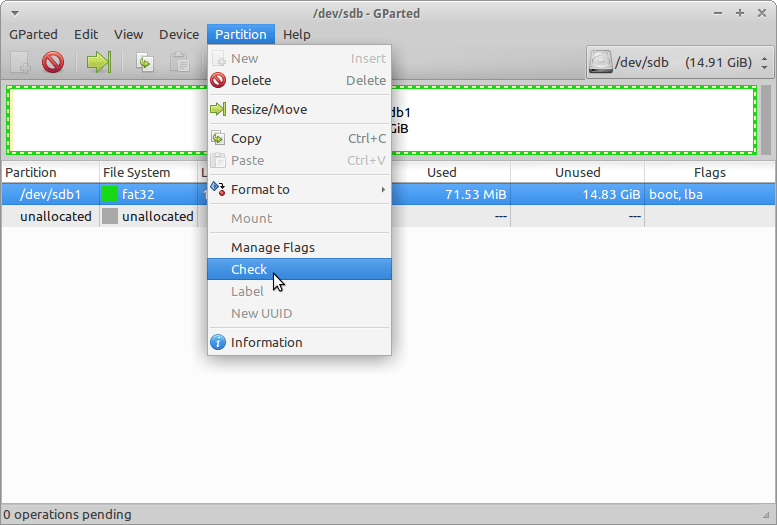
 Checking the drive for errors with the right click menu.

Checking the disk for errors using Gparted

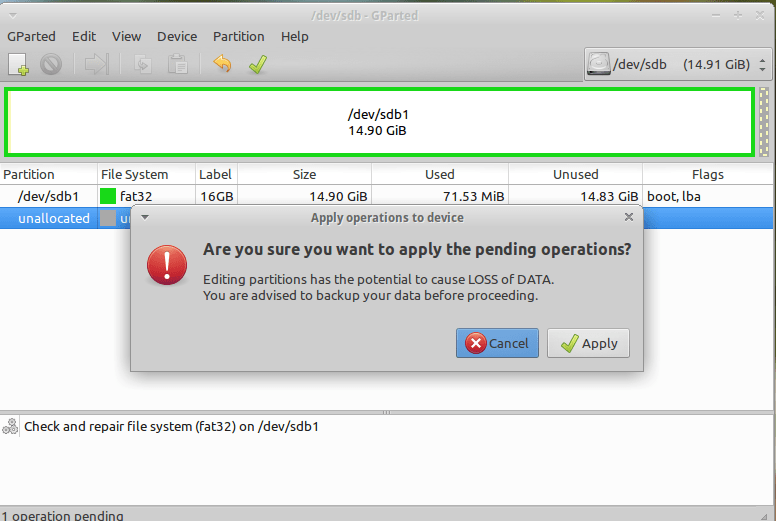
We now click Apply changes.

Applying changes using Gparted
After applying changes we can safely reboot, the fix is done!

Making sure damage didn’t happen

ِAfter rebooting the computer will open as usual, but we want to make sure that the drive wasn’t damaged, to do that we will install a small command line tool called Smartmontools 6.5 and it can be downloaded from this link.

Installing Smartmintools-6.5

Samrtmontools is a terminal utility
to check and monitor disk performance. 

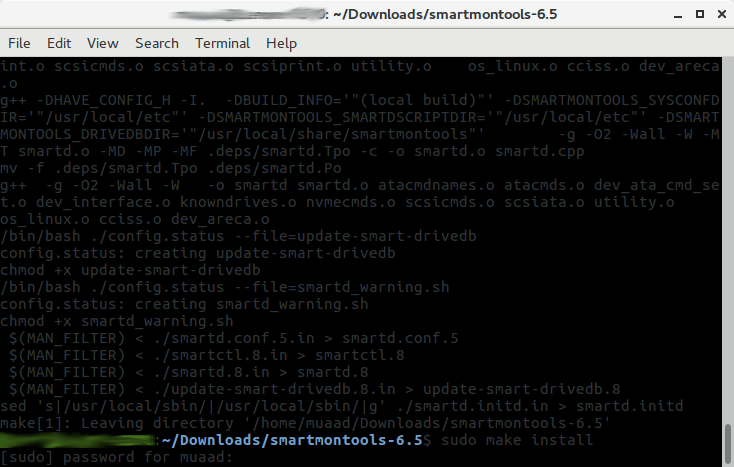
To install Smartmontools we need to un-compress the tarball and we do this from the terminal

  tar zxvf smartmontools-6.5.tar.gz

The previous step created a directory called smartmontools-6.5 containing the code. Then we go to that directory, build, and install:

 cd smartmontools-6.5

  ./configure
  make
  sudo make install

After running these steps we managed to install Smartmintools-6.5 tarball from the terminal.

Running Smartmintools-6.5

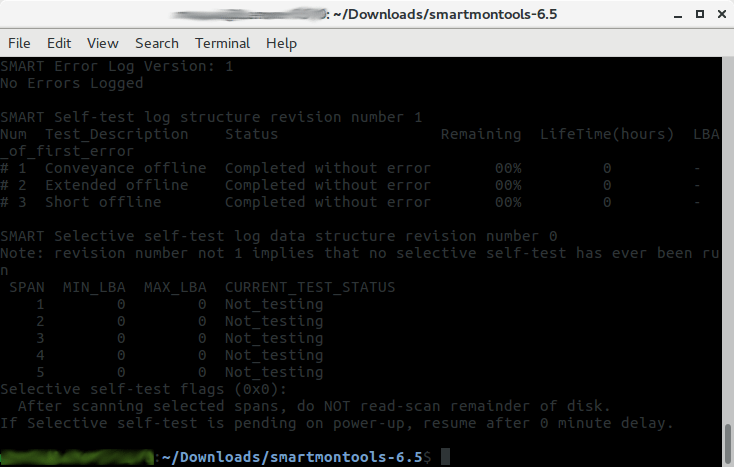
Run the command:  sudo smartctl -a /dev/sda. And if the results are like the the screenshot your drive is safe, as it says clearly: No errors logged.


How to make the fix automatic on every boot

Instead of performing the fix every time the issue happens, it’s easier to set the config autofsck to run at every boot. 


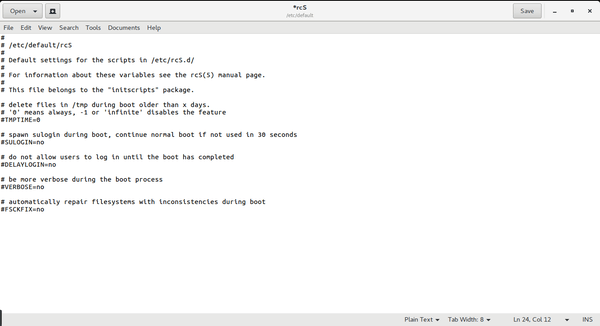
Edit the file etc/default/rcS and change the FSCKFIX from no to yes by using this terminal command:


gksu gedit /etc/default/rcS
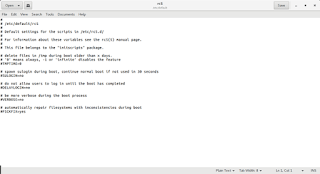
Here it opens a gedit windows, navigate to the last line.

Editing /etc/default/rcS

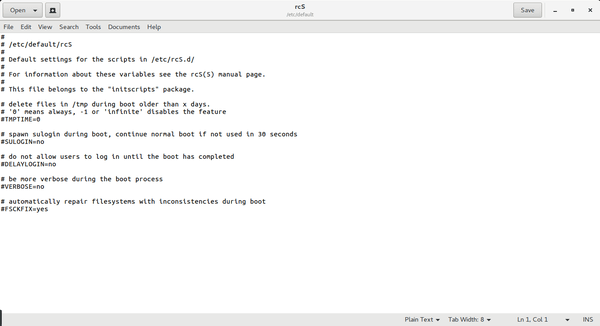
Change the FSCKFIX from no to Yes and save to finish.

Editing /etc/default/rcS

This way every time the issue occurs the system will automatically fix it and continue booting normally. 

This is how to fix and prevent the /dev/sda1: recovering journal on Linux Ubuntu Gnome 16.04 and similar distros, it’s really easy to fix but it can be scary and ruin a day for you if you don’t know what to do.
And I highly advise you to backup whenever possible

Unplanned downtime!

I wasn’t planning on staying down for a few days, but it happened anyway.
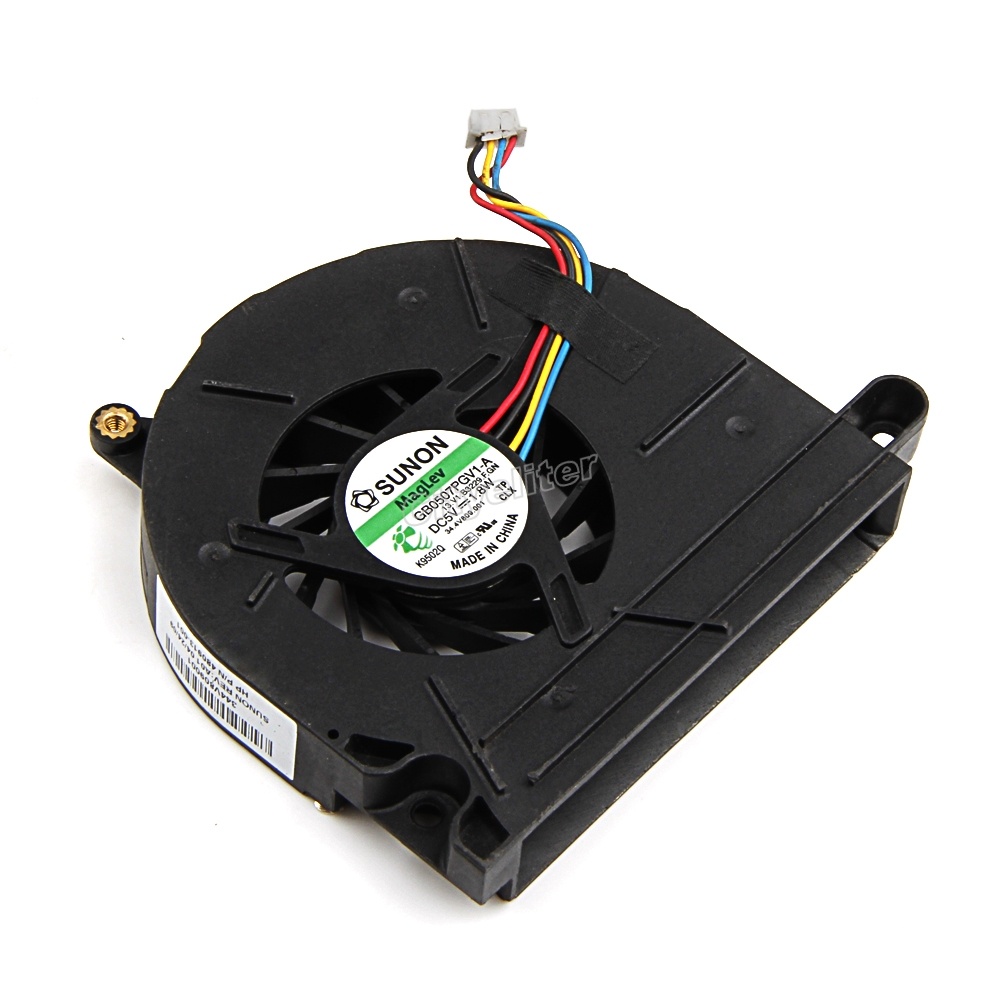
My laptop fan broke as I was cleaning the laptop from dust (who would have thought the fan blades were so soft!) and I had to look for a replacement, which proved to be a real pain!

Getting the fan

I didn’t know that the hardware / repair shops in Tripoli relied on junk laptops to provide spare parts! I thought they imported the parts in the same manner they imported laptops, but no! These people never seize to amaze me!
Repair shops buy damaged laptops to use them as spare parts, and since my laptop is such a rare limited edition laptop (not really) I had to look in over 20 stores around the capital to find a store that said maybe they can provide me with the part, I had to go home and comeback the next day.
The spare part looked much worse than the one I had running daily for the past four years!! And it was really expensive for a used one too!

Laptop fan
A laptop fan

You might wonder to yourself: Why didn’t I just get it off of Amazon or Ebay?
For a very simple reason, it would take so much effort and resources that it would lose all meaning! I’d probably rant about it in a another post some time.
The reason why the fan is so rare: It has four wires rather than the usual three like most laptops on the market have, so an extra wire cost me two days worth of downtime! Only in Libya..

I learned three things from this experience 

  1. My laptop is a “unicorn” by Libyan standards, it’s rare and shoots pixie dust out of it’s fan when it flies above the rainbow (for the amount of money I paid for this fan, it better start shooting pixie dust!) and just for the record I bought it from Tripoli, a generic entry level laptop from a common manufacturer.
    This is how repair shops view my laptop
  2. Don’t ever, and I mean EVER, attempt to clean the laptop fan by any means other than compressed air, a lesson well learned indeed, even the smallest amount of pressure can break the fan blades and render the laptop useless.

  3.  I never realized how much I relied on my laptop to do my daily tasks, which makes me think of getting a second laptop as backup, I always had a thing for Netbooks and had one for a couple of years before buying this laptop, maybe I’ll get one for the sake of portability, or I might even invest in a Raspberry Pi 3 or something as a backup system, I’ll blog about my findings when I make progress soon enough! My smartphone did a good job filling the gaps here and there, but there are some things that a smartphone can’t do, to me it’s not doesn’t qualify as a backup system.

To summaries everything said

I can’t afford such downtime at a time like this! I’m almost at my page view goal of 100,000 views which I have been hyping all year, I’d hate to miss that moment with my main device taken apart collecting dust somewhere (my desk in this case, no way I’d let my data at some random repair shop).

I hope you enjoyed this update I provided, I feel the need to stay connected with my readers as often as possible.
What about you? Let me know what you think in the comments section below! 
Do you have a good idea for a backup system? 
Share this post using your social media and help the blog grow.

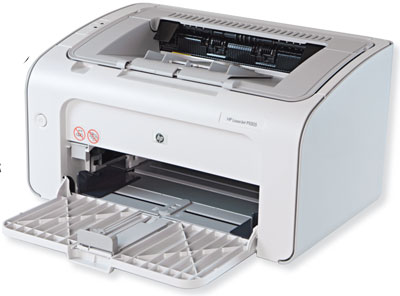
HP 1005 not printing paper stuck fixed

While working as an IT, I come across some technical problems that simply make me wanna blog!
There was this old HP printer sitting on a shelve at the department I worked for, and while fixing other major downtime issues, the head of the department asked me to look at it: “I know you are busy, but could you look at this printer when you have some time to spare? It stopped printing and we already ordered another one, but it wouldn’t hurt if you fixed it so we could have another one to spare?”.

I wasn’t going to turn the request down.

Problem description

I plugged the printer to the main PC at the department (running Windows 7 professional) and the printer was recognized by the computer, took the printing command. And made that printing noise, but nothing was coming out! The paper was jammed!


I did some research on the HP forums, but couldn’t get a single piece of information regarding the issue, and I wasn’t going to sign-up for the form and post the issue (it’s a 10 year old printer!) so I let it go at that point.


The actual fix

One day I was feeling bored and decided to give it a go.

I took the printer and removed the ink cartridge and inspected it for physical damage, nothing was broken or dislocated, so I decided to clean it up since it had gunk inside it, mainly dried up ink that fell from a broken ink cartridge.

I used some alcohol and a cloth to clean the ink, then decided to lubricate all the moving parts and wheels with some alcohol (since the alcohol evaporates and won’t mess things up).

I then plugged it into the same computer and gave it a printing command, to my pleasure it printed up a page! In many years no paper has came off that printer tray!

Sadly the page was all black!
So far I wasn’t able to tell what’s the reason of that or how to fix it! So if anyone knows give me a clue in the comments section below 🙂

Fun update

While sharing this post on Twitter I got some feedback from the HP support account which was really nice! Didn’t fix the issue tho.

I hope you enjoyed this post, let me know what you think in the comments section below 🙂
Have a lovely weekend, share this post with your friends and help the blog grow 🙂

« Older posts Newer posts »