Category: Fix (Page 5 of 11)

LinkWithin not showing similar posts fixed!

LinkWithin is a widget that appears on your blog and shows similar posts to the post you are on, it’s a good way to show more content and get the users engaged, I tried adding it to my site and it didn’t work!
It wasn’t showing any posts!
In this post I’m going to show you how to fix it with one easy step!


This tutorial doesn’t explain how to install LinkedWithin, it’s explained thoroughly on the site itself when you are installing, so take a moment to look at it before jumping in!

 Cause #1: Third party domains

At first make sure you are using a blogger domain! Don’t use the domain you bought from the hosting company, your blogspot blog must be a sub domain of blogspot.com in order for Linkwithin to work!
Seems basic? Check your settings again!

Cause #2: Must be placed directly under the post!

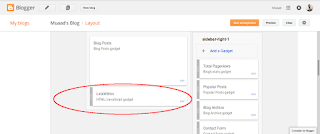
There are many places to place widgets in blogger, at first when you add Linkwithin it will be added to the sidebar, drag it and place it under the post, not in the footer! Under the post as in the image below!
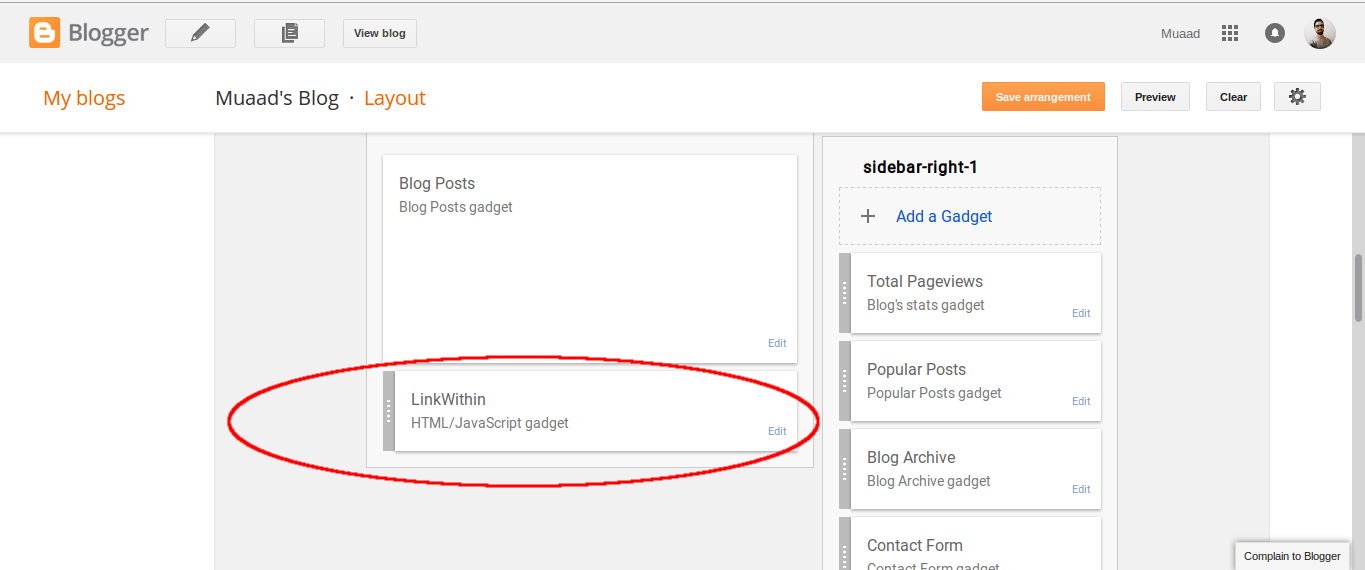
This should fix the problem right away! And LinkWithin will show posts in minutes!
For me it worked, too much I’m afraid!
LinkedWithin was showing posts on the home page, something I didn’t expect! And the fix for that is also very easy!

3. Fix LinkedWithin showing posts on Home page

Go to Blogger Your blog Template Edit HTML
From there search for LinkWithin, and go inside the widget and you will find this line of code

<b:includable id=”main” <data:content / </b:includable
 
Replace it with this one, and you are good to go!
<b:includable id=”main” <b:if cond=’data:blog.pageType ==&quot;item&quot;’ <data:content / </b:if </b:includable  

 4. HTTPS redirect

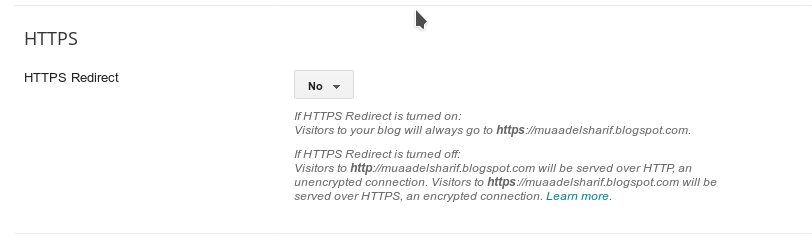
If you are using HTTPS for added security on your blog then you are going to have to sacrifice using Linkwithin, the widget only supports the usual version of the domain “http://” and not “https://” and won’t even show it on the blog unless you change the settings. 

Go to settings HTTPS and switch from on to off.
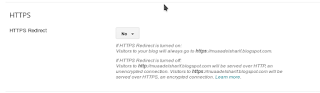
 

Switch HTTPS from on to off

I hope you found this post useful, I will be posting tips on how
to increase your blog views soon enough
Share with your friends and family and have a good day!

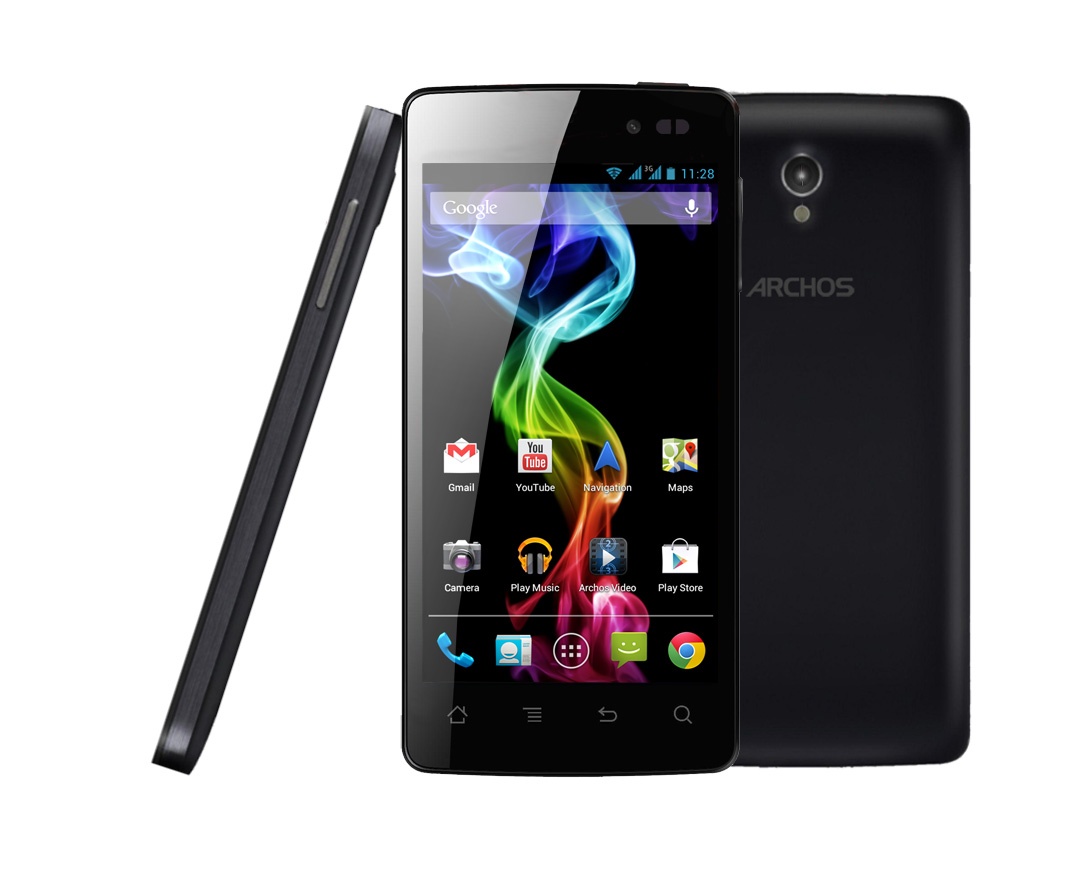
Fix the random restart issue on Archos 45 Platinum

My brother uses an Android smartphone made by Archos, a French multinational electronics company that specializes in making smartphones, tablets and audio players since 1988, I like the company personally, yet I notice it’s barley known in the Libyan market. My

Lately my brother’s phone (Archos 45 Platinum) was acting up, it was restarting at random times, he also noticed a drop in battery performance, the phone became unusable and it needed to be repaired, so here is what we did.
The first step was to remove all the data from the phone, back it up and then preform a factory reset, I used MyPhone explorer, which I blogged about before here.

Archos 45 Platinum

Factory default didn’t work..
We went to the support page and decided to download the phone’s firmware to flash it new, but that didn’t work also, even when following the steps on this site.
My brother noticed something worth noting! That when the phone was plugged into power it didn’t reboot, so I concluded it was a battery problem (combined with the performance decline). Flashing it with firmware also didn’t work.  

The Fix

We went to the Archos dealership and spoke to them about the issue and they offered us a free battery as a part of the warranty, and the phone has been working great ever since!
So here you have it! The fix to the restart issue on Archos 45 is getting a new battery! This should fix the battery performance issues and the random hangup and reboot.
I highly advise you visit the place you bought the phone from with your warranty card to get service in all cases, but it was totally worth mentioning!

I wish you a problem free tech life 🙂
Did you like the post and find it useful? Share it with your friends 🙂

Fix some Ubuntu startup issues with this easy trick!

I fresh installed Ubuntu 14.04.4 lately and things has been smooth, most of the issues I encountered were because of the interface change, looking back maybe the interface was buggy, and I should have read the bug list before installing it!

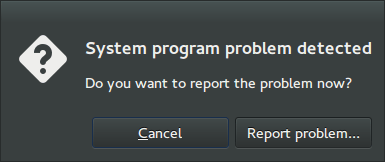
After installing I noticed that every time I reboot the system shows prompt to send error messages, I sent the error to the developers thinking that was it, I send the error report and I’m done, but another one came, and another one.. And it just keeps happening every time I reboot (to install updates for example) so it became a minor nuisance!

I remember facing this issue back in April 2014 when I first installed Ubuntu, and the fix was so easy!

Apparently Ubuntu tends to look for records of errors and send them, even the old ones that have been reported, so the easy way to stop it is to disable Apport.

Disabling Apport

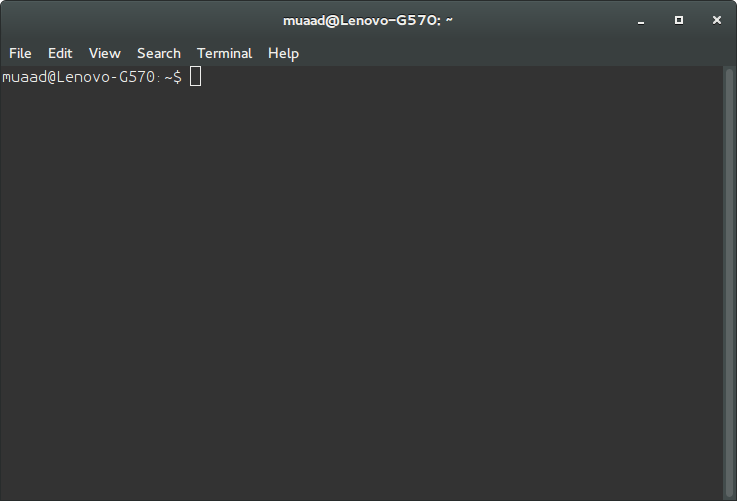
It’s actually very easy to do, just go to the terminal by pressing Ctrl + Alt + T

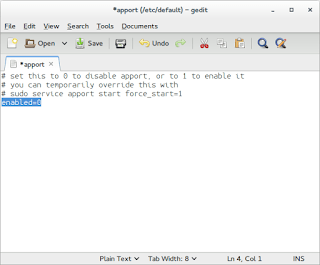
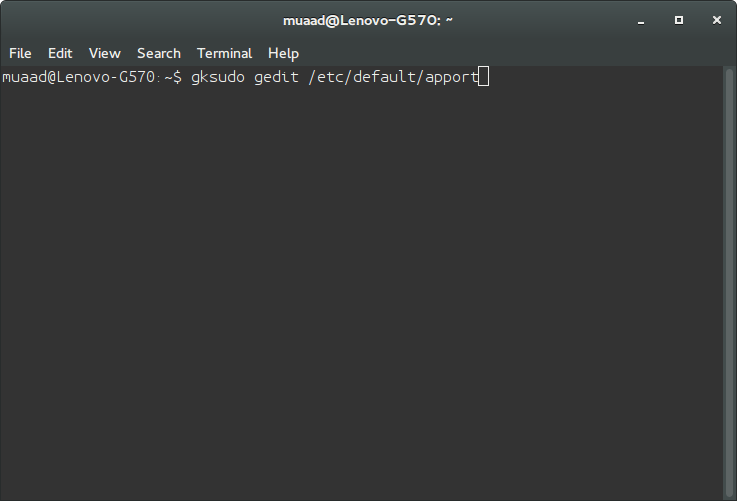
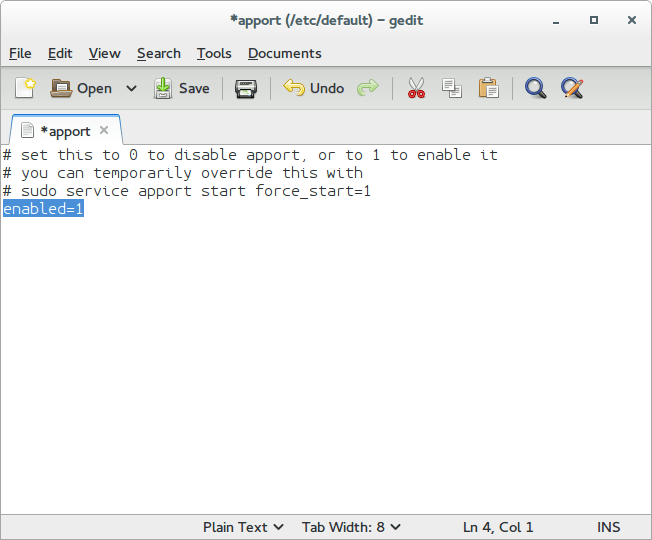
Then type in gksudo gedit /etc/default/apport and press Enter. You will be prompted to enter your password, please do that.

Be careful because this command is running Gedit in root privileges and we will use it to change a vital part of the system, so follow the steps carefully!

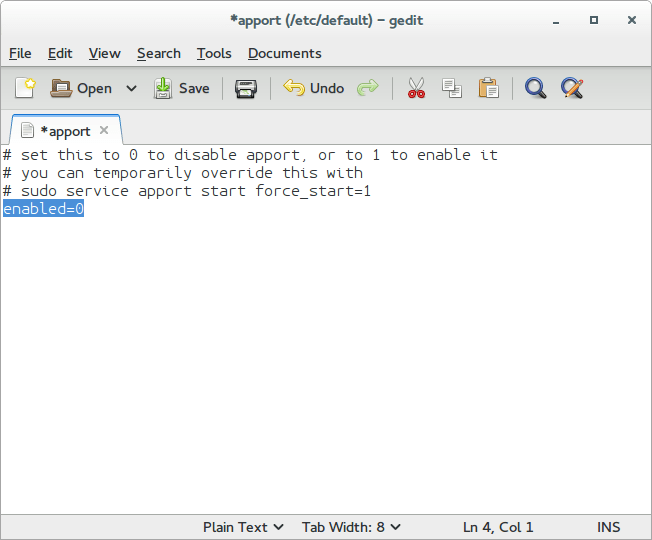
Change Enabled=1 to Enabled=0 and save.

Close Gedit and the terminal.

The next time you reboot, you won’t see such error messages!

It’s as easy as that!

You can research the issue further by visiting this link.

Common Windows Phone errors and how to fix them

Windows 8.1 logo It’s not all fun and games with Windows phone. It’s better than Android as it doesn’t crash as often, but I ran into several bugs the other day that I have to blog about.

Let’s take a look at the issue

I turned off the phone and removed the battery to remove the SD memory card that’s underneath (a major design flaw) and when I returned it, it was not the same! I noticed that many apps were refusing to work the way they used to! And the browser won’t load search results. I thought it was a connection issue ( Error 800704CF). but the error messages were about syncing with outlook ( Error 80070020).
At this point I was going to restore the factory default settings, which would have deleted everything on the phone and I would have to start all over!
After researching several error codes I realized it was far too simple!

The fix

I set the date wrong! (Error 80072F05) The easiest fix was to set the time automatically, to do this follow these three easy steps!

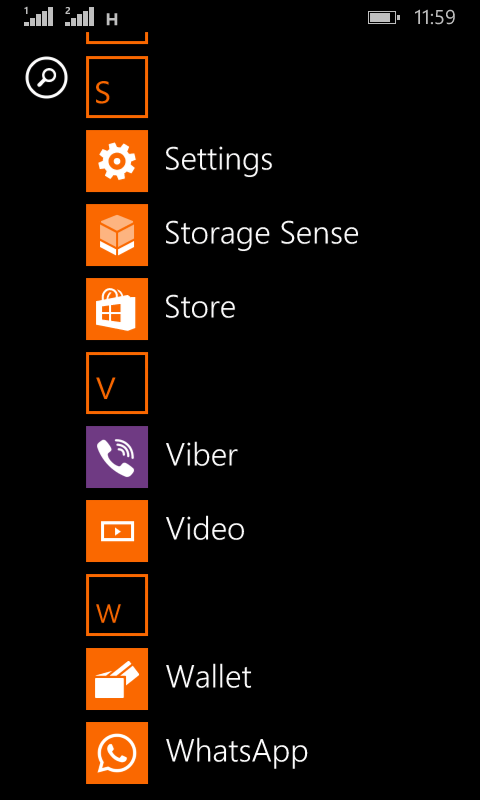
  • Go to the main menu (swipe left from the desktop).

Windows Phone main menu
  •  From there go to Settings
Windows Phone time and date settings
  •  On the date and time settings, set all of the values to on (24-hour clock, set date and time automatically and Set time zone automatically).

  and the phone went back to normal!
 

The codes I encountered were: 80070020, 800704CF and 80072F05. So if you face any of those the first thing you need to check is the time settings. I hope you found this tip useful, and please share it with your friends and family to help the blog grow! 

« Older posts Newer posts »