Category: LibreOffice base

LibreOffice 4.4.2.2 is out. Fixes base issue. More!

Hey there you guys!

I hope you are having a good weekend!

I just downloaded the Fresh LibreOffice 4.4.2.2, I have to say it’s looking good!
What I noticed that the install size is still the same at 213.93 MB.

With some improvements.

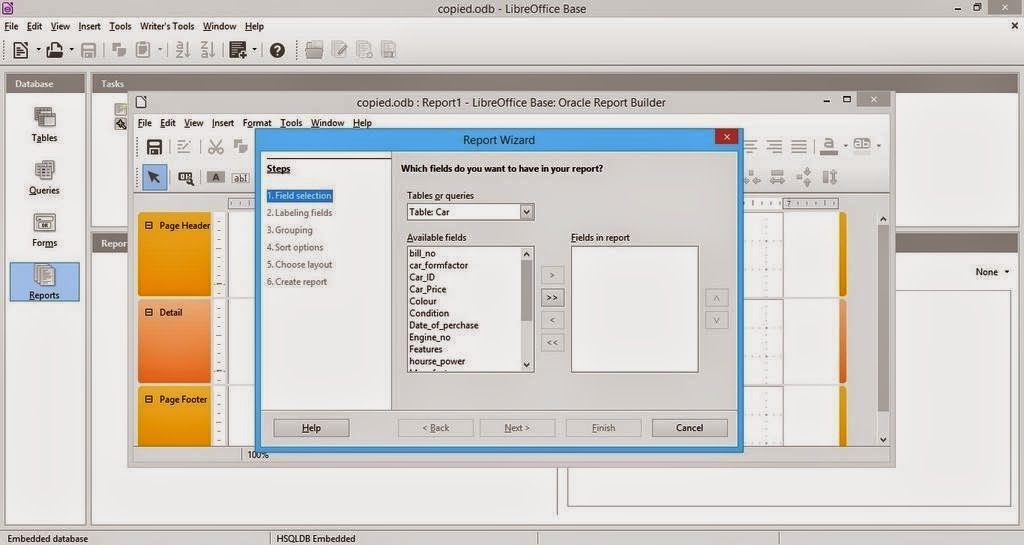
1.I noticed I was able to run reports on data bases after it used to crash the program on 4.4.0, I haven’t changed a thing in my settings. The boys did it <3
And yes. That’s the database from the conversion post that has mainstream attention.

2. I wasn’t able to create a web page via wizard. But the program didn’t crash. So I guess it’s an improvement, I think it will be fixed in a later update. And I’ll report about it (God willing).

So with these improvements I urge you to take a look at the great work done on LibreOffice. And view it as a serious productivity suit with plenty of potential and hidden power rather than an MS-Office clone ( Which is not!!).

Will a clone run from a browser? Does Office do that? That’s right!! LibreOffice done it again!! Check the wiki for more!

Finally. I’d like to thank the guys at @LibreOffice for re-tweeting me.
Consider donating to keep the project going. It’s an amazing movement and it can’t continue for free you know.. The download page has the donation in it. Make sure to leave something there 🙂

I hope you liked my post. Please leave a comment and let me know what you think. Have a nice one!!

9 Unique uses for LibreOffice

Hey there you guys! How are you doing today? I hope you are great!
Here I have some unique ways to make maximum use of LibreOffice. You don’t need to install external tools with this suit on your PC! Here are the ones I came up with while experimenting:

1. Draw and design software

I used (Draw) to design the blog icon, it has amazing features and it’s super easy to use.
It can be used to design logos and banners! It reminded me of Inkscape so much!
 

2. Database management

Base can be used to create and mange databases, anywhere from your book collection to an entire school or your small business! Why blow money on a full scale database when all your needs can be met by your user friendly office suit?
It can be buggy on report wizard in Windows.
*Update: Fixed on 4.4.2.2 😀 


3. Basic HTML and XHTML Editor

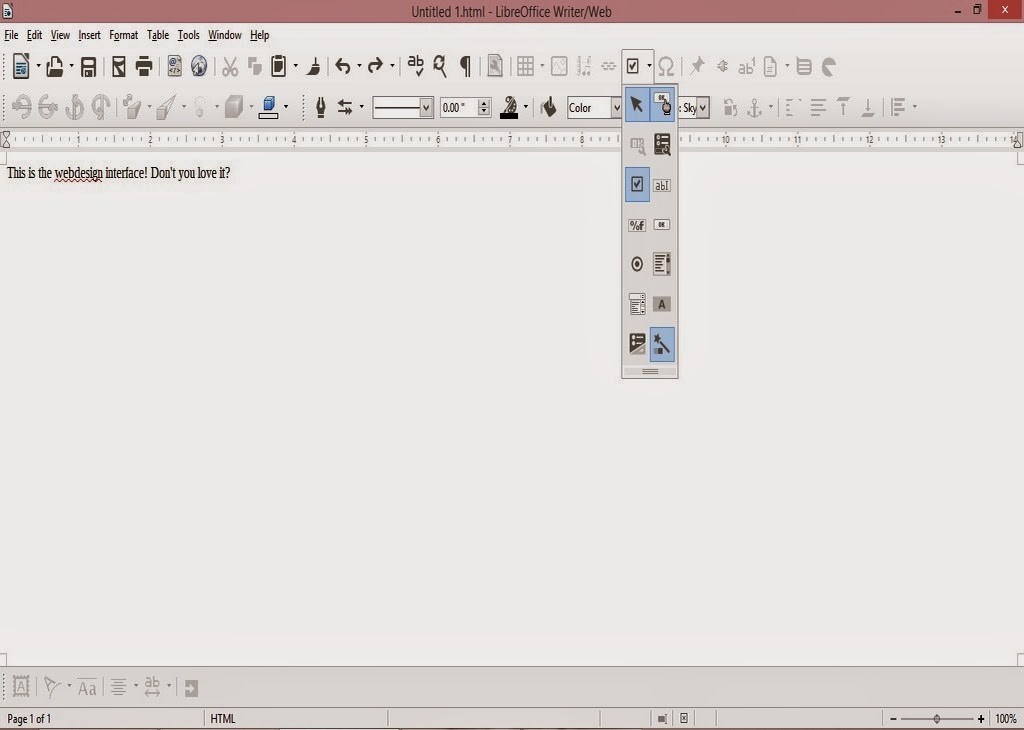
You can access it from File New HTML Document / XHTML Document

It provides a WYSIWYG (What you see is what you get) editor for working with webpages
It has many of the standard features you would expect from an HTML editor. I was amazed when I saw the capabilities this tool had! (Better than most of the free bunch!!).

  • You can toggle between source and WYSIWUG view.
  • Open the document in your default browser (One button click).
  • Has many page controls
  • Image controls: image map etc ..

If you follow the wizard your design will be much much better!
As for XHTML well. I don’t know how to use it so 😛 xD

4. Web publisher

It can publish your website to a local folder, a zip file or even an FTP site!
Sadly it crashes. See the bug details. Works fine in Linux!
*Update (Works great in 4.4.4).

5. Batch convert documents!

If you have some documents in Microsoft office format that you want to convert to LibreOffice format, then all you have to do is to go to File Wizards Document converter.
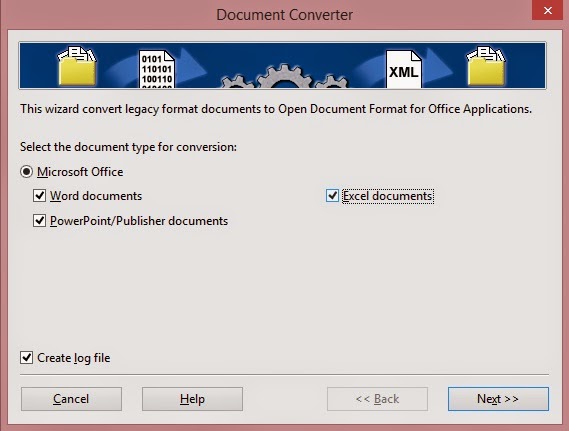
Determine the document types you want to convert

Then set the source folder and destination folder. Note the sub-folder option. It can take a while if you choose many files!
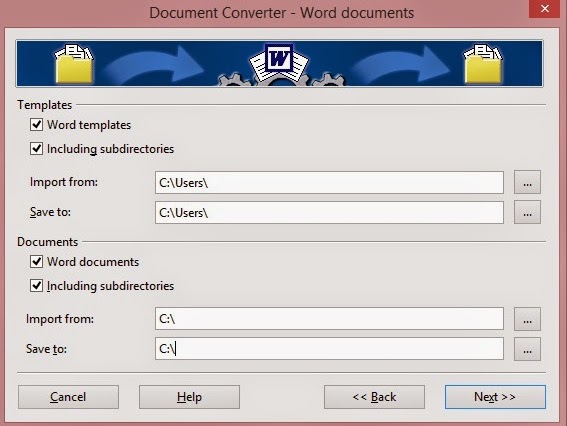
After it’s done a log file is generated with the conversion details!


6. Create labels and business cards!

You can use it to design labels and business cards right out of a database you have!

 You can access it from File New Label
You can access it from File New Business Card

7. Create awesome agendas for work and home 

You can create professional looking agendas for work and home. And to keep it as a template for creating future agendas!

8.Write books!

Yes that’s right! You can use LibreOfficeto write books! I’ve made an entire post about it that you can checkout from here, it has a fair share of tools and tips to turn LibreOffice into the book writing software you always fancied!

9. Mind maps!

You read correctly!You can use LibreOffice draw to make awesome mind maps, just download this template and start mapping!

10. Tons of extensions to increase usability

You can increase the usability by adding one of the thousands of extensions ready for download, from dictionaries to Templates.

What’s the hidden feature you came across? How much can you name? Please let me know. I’ll add it right away! Hope you like it. Drop a line below and let me know!
Join my blog and subscribe to my mailing list so you don’t miss a post! NEW!!

Open an Access (2003-2007) database in LibreOffice base

Hey there you guys!

How are you doing today? I hope you are great!

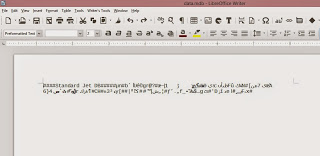
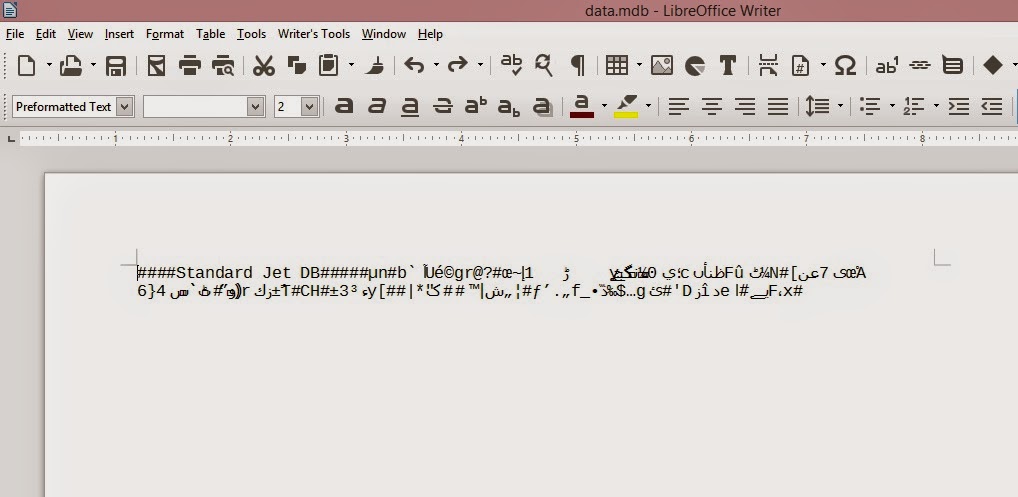
Have you ever tried to open a database file created by Microsoft only to find it looking like this: 


I have! And it sucks!

First of all this isn’t even Base! It’s Writer! And second of all: This is garbage!

Why does it look like this?

Luckily I was able to figure it out! It’s really simple! And it works for 2003 / 2007 (2010 doesn’t work, I tried :/).

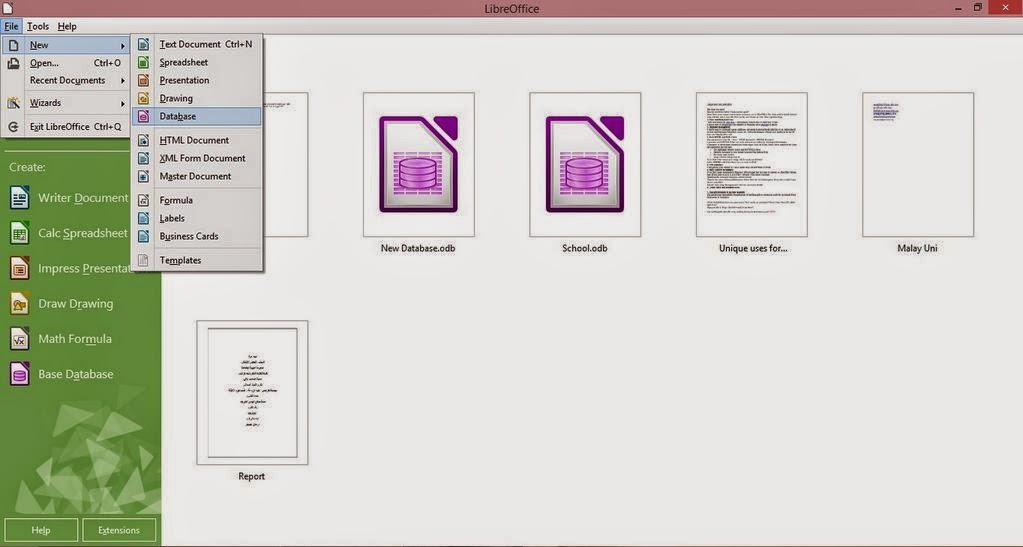
All you have to do is to navigate to File New Database


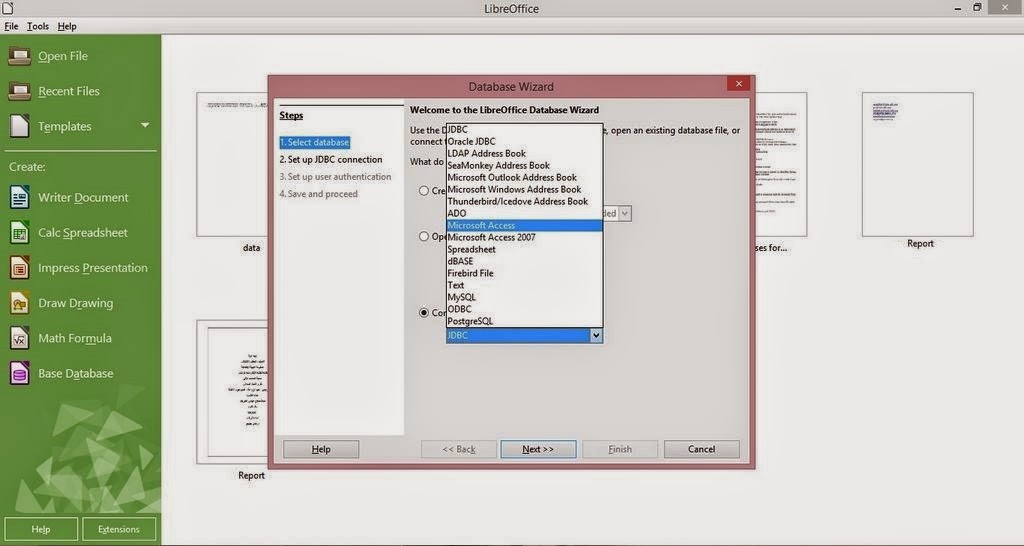
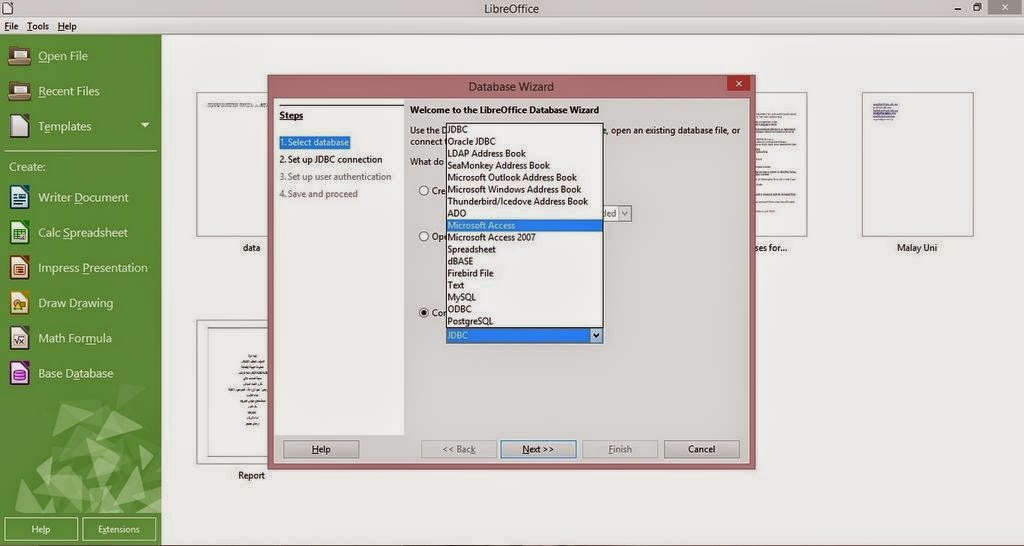
From this window select (Connect to an existing Database) and select Microsoft Access 2003 or 2007 ( in this tutorial it was 2003).


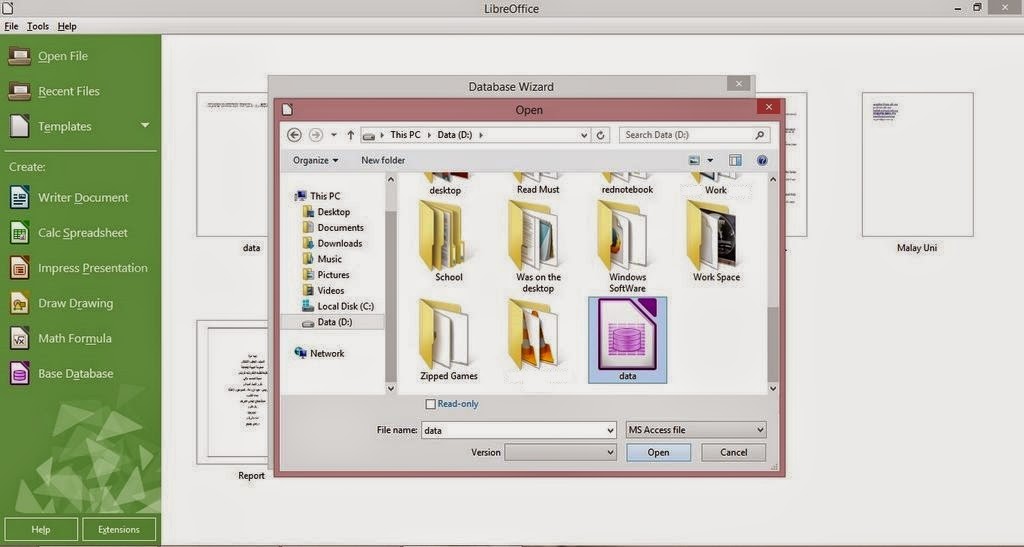
Browse to where your Database is located. In this tutorial it’s in the D:


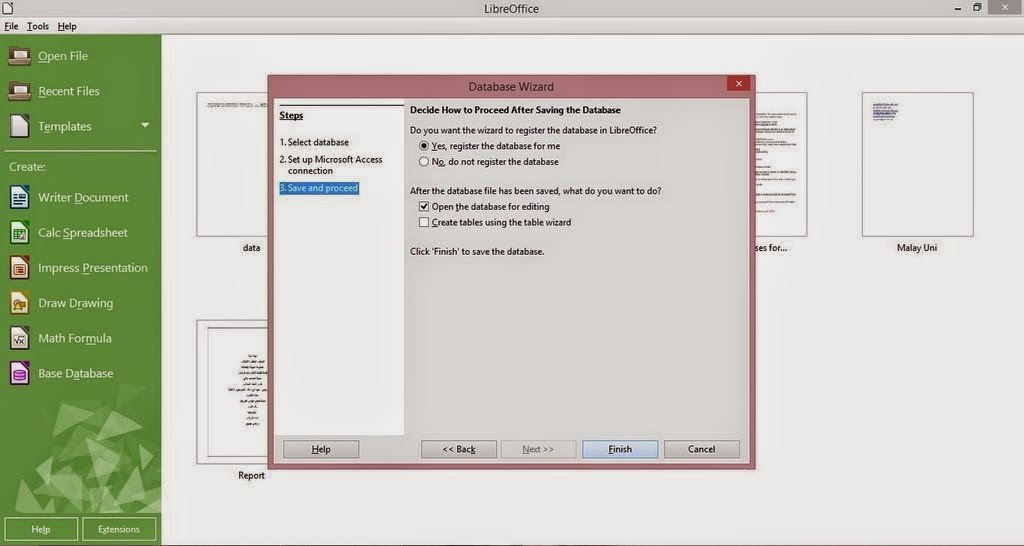
Save and proceed just like you would do with a normal database. And it’s open!


You notice that you saved an ODB database. Why is that?

Because you aren’t really opening an Access 2003 database. You are “Connecting” to it!

You must not delete the database. Or else you won’t be able to access your data!

But I want it to be opened just like a normal database. I don’t want to “connect” every time I edit my database!

Well there is a way for that too!

While this connected database is open, create a new database.

Copy the whole table. And paste it into the new database you just created!

You can keep the keys as is, or change them to meet your needs!

And save the newly created database!

As simple as that! Hope you like it. Drop a line below and let me know! Join my blog and subscribe to my mailing list so you don’t miss a post! NEW!!