Category: Microsoft office (Page 1 of 2)

LibreOffice is more than just a MS office alternative

The timing couldn’t have been more prefect, with Libreoffice convention just ending and as we enjoy the freshly released LibreOffice 5.2, this post has been siting as a draft for quite some time! It’s about Libreoffice taking the lead as a unique word processing suit.

Many websites that claim to be expert on software label LibreOffice as a “drop dead alternative” for MS office, some are down playing LibreOffice by calling it: the best of the “free” bunch, those are still a little better than the guys who can’t tell LibreOffice apart from Apache OpenOffice (I am afraid that OpenOffice might be dead already)!
Those are the people who rather use a pirated MS product than to use LibreOffice, for shame!
The only thing that LibreOffice has in common with MS office is the “word processing” part, and other than that, LibreOffice is a different project completely!

If you think that LibreOffice is just a meek second for MS office, then you need to think again!

LibreOffice is not a MS office copy cat!

Some people download LibreOffice thinking it should look and feel like MS office and should even act the same, and when it doesn’t they get frustrated and blast the entire open source movement for not copying MS office’s look and style.
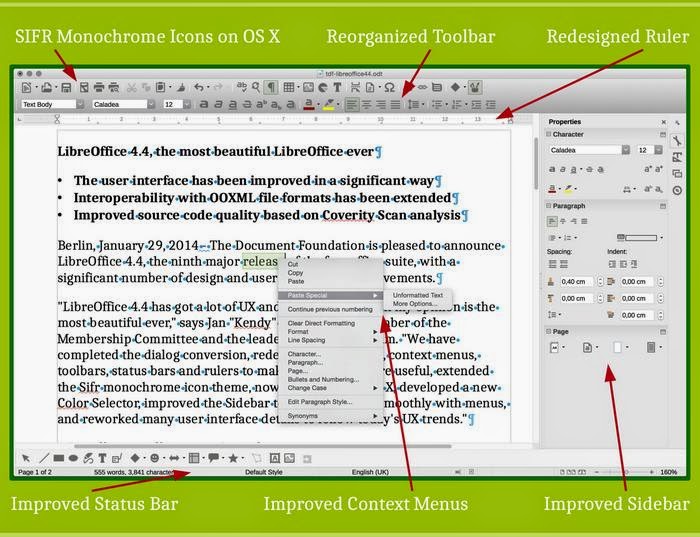
 

The unique interface on LibreOffice write explained

A lot of that frustration comes from the fact that the buttons aren’t arranged in the same way, or that the theme doesn’t look the same as it does on MS office, it doesn’t look like MS office, here is a little shocker:  It’s not supposed to look like MS office. It’s a completely different product! LibreOffice wasn’t made to be MS office lite.

There are numerous word processing suits that look and feel like MS office for a fraction of the price, but if you want the MS look and feel I suggest that you invest in a licensed copy of MS office, plain and simple!! 

Other than looks, there are some serious complaints regarding compatibility.

Compatibility issues broken down

Another major complain is that documents edited in MS office don’t look as it should on LibreOffice, and that has a reason as well, let’s look at the first reason.

ODT vs OOXML

LibreOffice uses ODT file format by default, which stands for open document text, while MS office uses the OOXML standard, which is used and imposed by Microsoft as the standard for all documents, it is changing gradually as many countries are adopting the ODT standard and started to impose it on companies, even Microsoft!
Now that we covered the document standard, it’s time to look at another huge issue, is the fonts!

Fonts

Fonts used in MS office are a part of the office license, you can’t simply download them and use them on another computer that doesn’t run MS office, that wasn’t discovered until later! And the document foundation are doing what they can to help replace the fonts effortlessly within LibreOffice.
So when that .docx document looks horrid on LibreOffice, remember who to blame!

Let‘s take a look at some of the features that make LibreOffice a unique suit.

Cross platform and portable

While MS office is only available to Mac users and Windows users (since it’s a Microsoft product), LibreOffice is available to almost every computer platform out there, no matter what kind of system you have, you can enjoy LibreOffice’s power!

And, you can use a portable version of it, if you don’t want to mess your current settings, or you are in a domain and can’t install software, you can have LibreOffice on a USB and run it from there, I’d like to see MS office do that!!

A swiss army knife of tools 

  • LibreOffice can do so much more than meets the eyes, it has a lot of hidden menus that can preform so many awesome tasks, I’ve blogged about it in detail in this post.
  • LibreOffice can be used to write and layout books easily, with adding a few extensions and using some features the right way, I’ve also blogged about it in this blog and you can find it here.
  • Finally, I’ve managed to improve a way to use LibreOffice draw to design mind maps, I suggest you check it out from here.

Pricing

This is an obvious one, but it had to be mentioned!
I stopped following MS office news a while ago, but the last I know is they have two payment plans: One time, and a monthly subscription with many license forms like student, home, etc. While LibreOffice comes free of charge, and all donations are welcomed!

Development speed

While you get one product per year from Microsoft, one cloud and one regular, the Document Foundation rolls out a version of LibreOffice every month, that fixes bugs and adds features, with a major milestone every six months. That’s on the Fresh branch, but if you don’t like living on the fast lane, you can go with the Stable branch and enjoy stability, it provides updates not as often as Fresh but quicker than MS office!

With these obvious advantages explained, let’s look at the organization behind LibreOffice

The Document Foundation

The document foundation is an independent self-governing meritocratic entity, created by former leading members of the OpenOffice.org Community, in the form of a charitable Foundation under German law (gemeinnützige rechtsfähige Stiftung des bürgerlichen Rechts).
It continues to build on the foundation of ten years’ dedicated work by the OpenOffice.org Community.
The Document Foundation logo

It was created in the belief that the culture born of an independent Foundation brings out the best in contributors and will deliver the best software for users.
It is open to any individual who agrees with our core values and contributes to our activities.
It welcomes corporate participation, e.g. by sponsoring individuals to work as equals alongside other contributors in the community.
The Document Foundation is proud to be the home of LibreOffice, the next evolution of the world’s leading free office suite.
Please support our efforts: Your donation helps us to deliver a better product!

The team

LibreOffice is a community project by the document foundation, with thousands of programmers and volunteers working on the project passionately around the world to make LibreOffice a better product, who is the MS team responsible for MS office? I don’t know either!

One might argue the age old Open Source VS closed source argument that has been around since the dawn of computing, well.. It’s here also!

Community

The LibreOffice community like many open source communities is the place to get support, with friendly people willing to help and share their knowledge and help fix bugs and issues. It’s also available in many native languages, without extra fees.
It’s one of the best – if not the best – open source communities out there!

LibreOffice has been around for six years, how much impact did it have globally?

Global Impact

LibreOffice exceeded Apache Openoffice record download of 100 million in a few years! It took Open Office over a decade to achieve this record number of downloads, and LibreOffice is been around for six years!
 
People from all over the globe are using LibreOffice on daily basis, entire cities are converting to LibreOffice to reduce licensing costs.
LibreOffice communities are emerging all over the world, spreading the culture of open source and promoting the use of LibreOffice, chances are there is one where you live!

Other projects

Here are some other projects that aren’t directly linked to LibreOffice, but a part of the on going development at the Document Foundation.

LibreOffice cloud

There are efforts to make LibreOffice is available in the cloud, to be able to use LibreOffice inside the cloud without the need to install it on your computer! A lot like Google Docs!

LibreOffice Android viewer

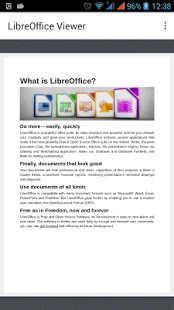
This app is terrific for viewing documents you created on the go from your smartphone, it’s available on the store for android.
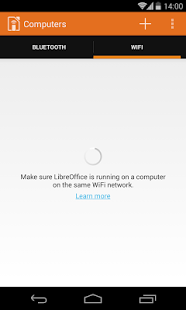
Impress remote 

it can be used as a remote to navigate through your presentations without added software! Brilliant for students, teacher and office workers alike! You can download it from here for Android.

Conclusion

So there you have it, LibreOffice, the open source project with over 20 years of heritage from the Star office days, taking the pure open office soul you loved, and turning it into something spectacular! One of the best open source projects out there if not, the best! Much more than a “word processing suit”, it’s truly a lifestyle!
Feel free to download, create, and share with your friends and family, and please don’t forget to give back to the wonderful people behind LibreOffice to keep it going!
if you aren’t sure how much to place, think of how much MS used to cost you and pay a part of that to the document foundation.

How did you like this post? Tell me what you think in the comments section below. 
And share it on your social media please!
Turn LibreOffice into the best book writing software out there

Recently I’ve came across some “book writing software” that is supposedly able to help me write a book and enhance my productivity, I gave that software a try and felt it was too complicated, If I need to take an advanced course just to learn how to use the software, that’s a serious problem and some major down time spent learning a new software while I have a productivity suit that does everything required with ease!

Ease of use

Ease of use should be factored in whenever evaluating a new software, and that particular software bombed! Not even mentioning the name because it’s not worth it, and the price tag is also discouraging!

I’m giving today a good way to use LibreOffice as a writing software that you can use for anything and really count on!

Why LibreOffice?

LibreOffice is a jack of all trades and can be used for many uses you never thought a word processing suit could do, checkout this very popular post of mine to see how capable LibreOffice is!

  • Let’s Face it, we

already have too much tools!

Type Writer

We use something to write code (Sublime or Notepad++), something to do the daily work (LibreOffice or Microsoft Office) and a “book writing software”?

  • Way to go being minimalist! Lets look at the price tag, shall we?

We bought Sublime for 70$, Got office for 200$ and that “book writing software” for 40$ and you use a Mac book of course, very neat! That’s 310$ worth of writing software alone!

That’s a lot of money, I’m not here to tell you how to live your life, but I think I have a more cost effective way of making this happen!


A minimalist dream!

You can’t write everything in one place, I wish that was possible, like Atom handling complex text layout or using LibreOffice to write code! It would be a dream come true! Some die hard programmers who think that memory foot print is everything and mostly prefer CLI over GUI would think this is a total waste, but I like to think I fall somewhere between a CLI nerd and an Apple fan!

Why LibreOffice? Because it’s simply awesome! I could write forever on how awesome LibreOffice is! You can find many posts in this blog that tell you exactly why it’s awesome and should be chosen over commercial and free software, you don’t have to learn new things, it’s the productivity suit you know and use daily! Just add the tips I’m about to tell you, and you are good to go!

1. Distraction free

Focus!An important tool for any writing software is to be able to eliminate all outside distractions and just focus on the piece of writing at hand, it’s a feature of LibreOffice that can be accessed from View Fullscreen, or by typing the shortcut Control + Shift + J. You will have the screen dimmed down to the horizontal ruler and the page only! (you can toggle the ruler by pressing Control + Shift + R) to have the document focused with nothing else on the screen.


2. Word count

Another important tool for writers is the word count, you need to know how much you have written and set daily goals for yourself, you can see that in the lower bar of LibreOffice and it’s updated as you write.

3. Writer’s Tools

Writer tools is a set of tools installed as a single extension for LibreOffice that adds a ton of functionality, so much it deserves a post on it’s own, once you install it, it adds an extra menu to the menu bar called Writer’s Tools, it adds a timer for how much time you spent on a document, a word count to see if you reached your goal (more advanced than the one at the bottom bar), a to do list, a data base to organize your text snippets. And many tools for backup, saving documents and many others. A total of 15!
It’s something you definitely need if you want to use LibreOffice as your main writing suit.

There is a fix for writer tools not working. You can find it here.

4. MultiDeff

This little extension gives you the ability to save in three different formats in one command, ODT, DOC and PDF.

With these tools you are good to go, my advice is yo implement a timer like  Instant boss if you are on Windows or Pomodro if you are on Ubuntu, to keep you healthy while writing the next best seller.


5. Master Document

I left the best for the last! Master pages are a great way to collect your individual documents into one, enabling you to control the style and position of each sub document based on the master document, creating a consistent document all around!

For more information check the detailed help document from here.
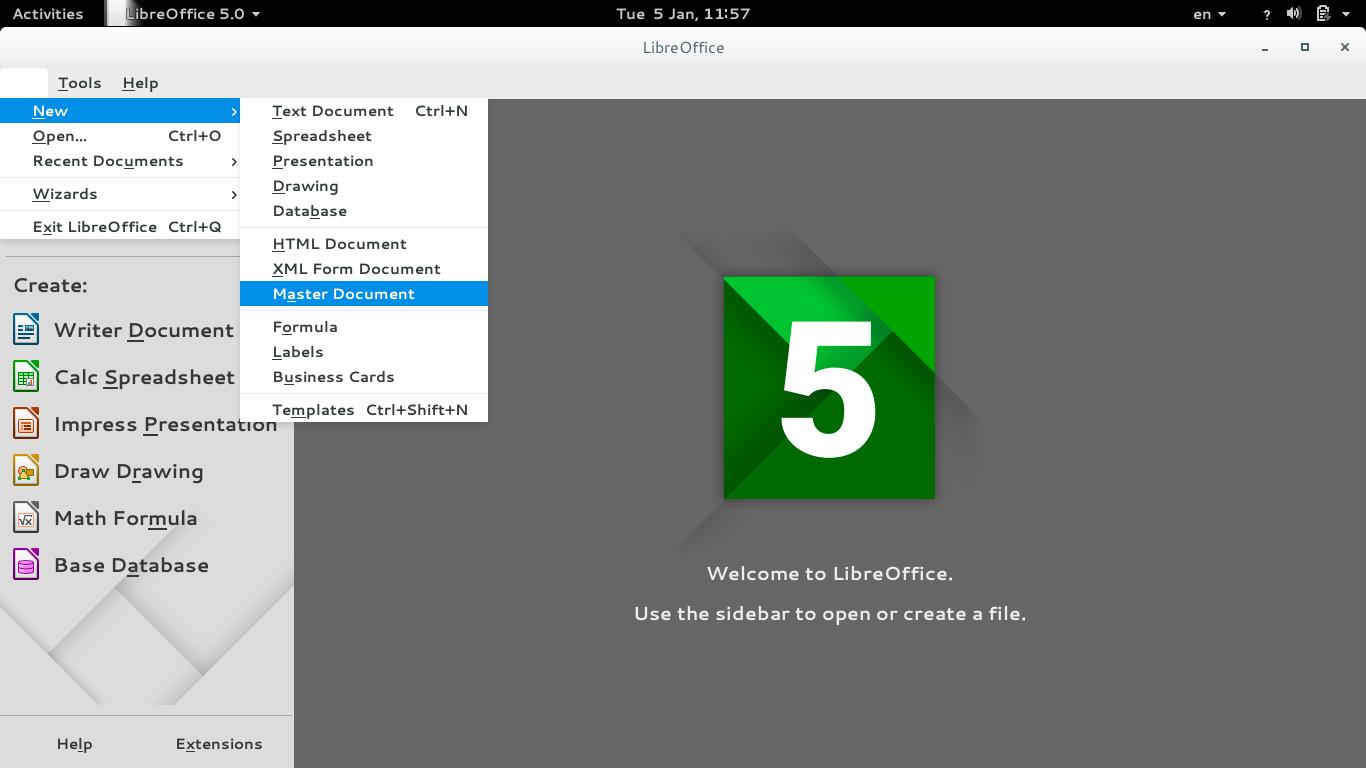
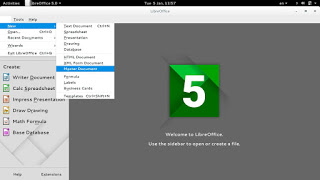
To create a master document, go to File New Master Document
How to create a master document
For complete help on working with master documents, check the

Libreoffice help section from here.

If you aren’t using the excellent native feature, then creating a book will be a problem for you! When you have a standard container for all of your chapters, you can control the style easily and be able to get a central view on all of your work!


Final words

If you aren’t a LibreOffice user already, go download it now! You can install it without changing your settings!

I hope you find this post useful! And I’d like to know what do you use for word flow!

If you are using LibreOffice then you don’t need much more!!
Do you have any other features to add? I’m waiting for your comments!
You like the post you just read? Then share it with your friends! Sharing is caring!

Setting the first line as the file name in LibreOffice

LibreOffice Logo

One of the few features I missed moving from Microsoft Office was the auto name upon save, where Word takes the first line of the text and uses it to name the text file. LibreOffice (and OpenOffice before that) don’t have this feature! It’s a small thing but over time it becomes a growing nuisance!

Luckily there is an easy fix for that! Which enables you to enjoy the luxury of easy naming of files and limit the Untitled flood over time!

We are going to use a feature known as macros. macros in office are a Visual Basic code that is used to preform a certain task over and over and is triggered by an event. In this post I’ll be showing how to create a macro that saves the file using the first line of text when pressing the key combination of CTRL + S (assigning the macro to save or save as will result in two files: untitled and the first line of text!) So at first, we are going to need our macro. I took this code as is from an OpenOffice form, it works fine without editing:


  Sub FirstLineFileName_Writer
    On Error goto EH
    oDoc = ThisComponent
    oVC = oDoc.CurrentController.getViewCursor
    Mark = oDoc.Text.CreateTextCursorByRange(oVC)'mark position of view cursor.
    oTC = oDoc.Text.CreateTextCursor 'created at the beginning of doc.
    While oTC.isEndOfParagraph 'skip empty paragraphs.
    oTC.gotoNextParagraph(false)
    Wend
    oVC.gotoRange(oTC,false) 'a text cursor can't go to the end of a line
    oVC.gotoEndOfLine(true)  'so we have to use the view cursor.
    filename = oVC.String
    url = ConvertToURL("C:\" & filename & ".odt")'Insert Your Desired Directory Path.
    oDoc.StoreAsURL(url,Array())
    oVC.gotoRange(Mark,false) 'return view cursor to original position.
    oDoc.Modified = false 'avoid Save being called if doc closed without further edits.
    End 'end normal execution.
    EH: 'error handler.
    MsgBox "You may have illegal file name characters in the first line." & Chr(13)_
    & Chr(13) & filename,,"AN ERROR OCCURRED"
    End Sub


This code is used to save the text file by taking the first line of text and setting it as the name. You can edit the directory of the save. Please note that it saves without conformation!


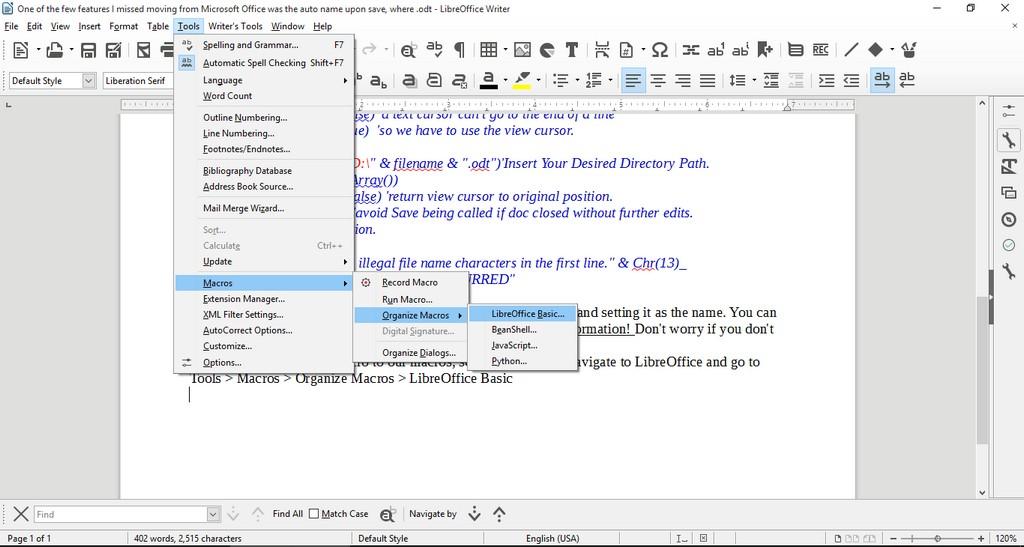
Tools > Macros > Organize > Macros >LibreOffice >Basic

Opening the macro menu

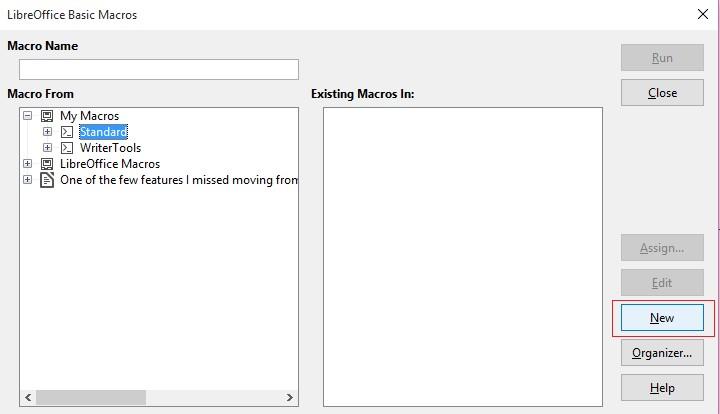
New to add a new macro.


Adding a new macro


Run Macro then choose the macro manually from the menu. But that’s not too handy, is it?

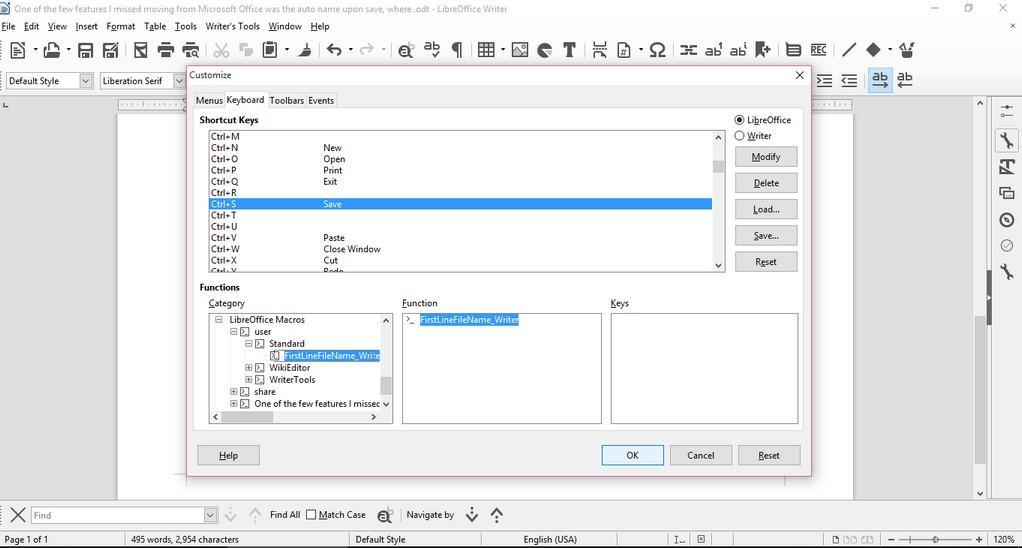
Customizing the key combination

Go to LibreOffice writer and navigate to the menu: Tools > Customize > Tab: Keyboard.

Delete whatever is on CTRL + S, and assign it to the new macro by looking for it, and if everything went according to plan. It should save the 1st line as a file name.

Checkout this for more information.

Important notice

If you get errors it’s because the directory isn’t correct. Libreoffice will default to C:\ and when it can’t save in it. It will crash the macro. I edited the code to: “D:\Documents\ but make sure to choose your own folder.

9 Unique uses for LibreOffice

Hey there you guys! How are you doing today? I hope you are great!
Here I have some unique ways to make maximum use of LibreOffice. You don’t need to install external tools with this suit on your PC! Here are the ones I came up with while experimenting:

1. Draw and design software

I used (Draw) to design the blog icon, it has amazing features and it’s super easy to use.
It can be used to design logos and banners! It reminded me of Inkscape so much!


2. Database management

Base can be used to create and mange databases, anywhere from your book collection to an entire school or your small business! Why blow money on a full scale database when all your needs can be met by your user friendly office suit?
It can be buggy on report wizard in Windows.
*Update: Fixed on 4.4.2.2 😀 


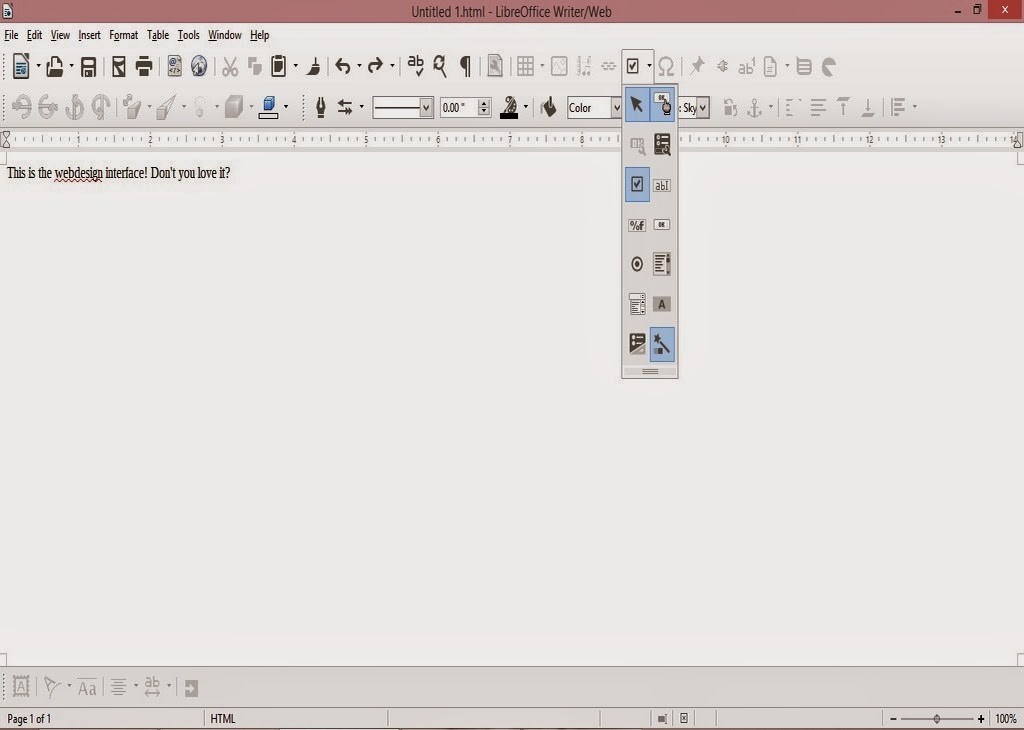
3. Basic HTML and XHTML Editor

You can access it from File New HTML Document / XHTML Document

It provides a WYSIWYG (What you see is what you get) editor for working with webpages
It has many of the standard features you would expect from an HTML editor. I was amazed when I saw the capabilities this tool had! (Better than most of the free bunch!!).

  • You can toggle between source and WYSIWUG view.
  • Open the document in your default browser (One button click).
  • Has many page controls
  • Image controls: image map etc ..

If you follow the wizard your design will be much much better!
As for XHTML well. I don’t know how to use it so 😛 xD

4. Web publisher

It can publish your website to a local folder, a zip file or even an FTP site!
Sadly it crashes. See the bug details. Works fine in Linux!
*Update (Works great in 4.4.4).

5. Batch convert documents!

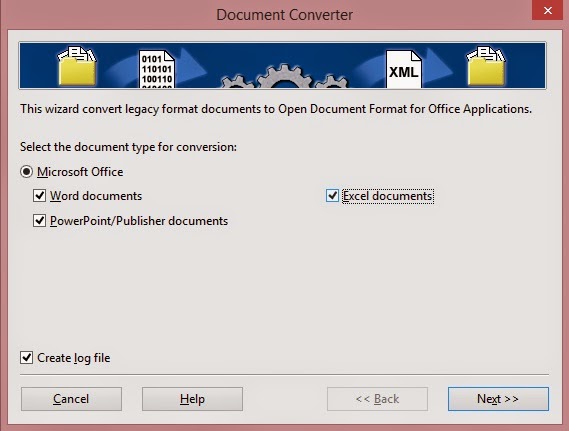
If you have some documents in Microsoft office format that you want to convert to LibreOffice format, then all you have to do is to go to File Wizards Document converter.

Determine the document types you want to convert

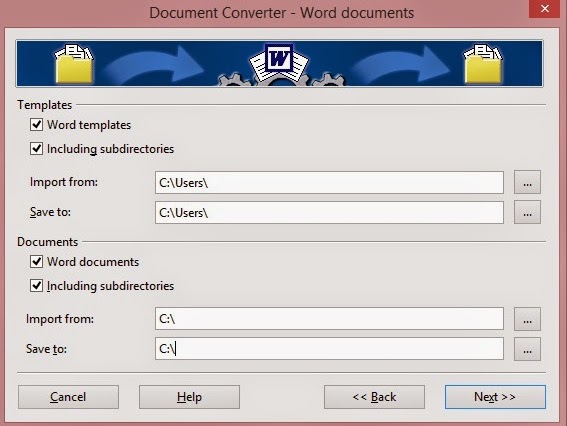
Then set the source folder and destination folder. Note the sub-folder option. It can take a while if you choose many files!

After it’s done a log file is generated with the conversion details!


6. Create labels and business cards!

You can use it to design labels and business cards right out of a database you have!

 You can access it from File New Label
You can access it from File New Business Card

7. Create awesome agendas for work and home 

You can create professional looking agendas for work and home. And to keep it as a template for creating future agendas!

8.Write books!

Yes that’s right! You can use LibreOfficeto write books! I’ve made an entire post about it that you can checkout from here, it has a fair share of tools and tips to turn LibreOffice into the book writing software you always fancied!

9. Mind maps!

You read correctly!You can use LibreOffice draw to make awesome mind maps, just download this template and start mapping!

10. Tons of extensions to increase usability

You can increase the usability by adding one of the thousands of extensions ready for download, from dictionaries to Templates.

What’s the hidden feature you came across? How much can you name? Please let me know. I’ll add it right away! Hope you like it. Drop a line below and let me know!
Join my blog and subscribe to my mailing list so you don’t miss a post! NEW!!

« Older posts