
مرحبًا بك عزيزي القارئ، في حدث جديد من أحاديث اﻷربعاء، أستعرض فيه بعض اﻷفكار والخواطر، والقليل من هنا، وهناك. لذا هلم معي، ولنشارك معًا فحوى هذا الحديث الجديد.
Category: Macro
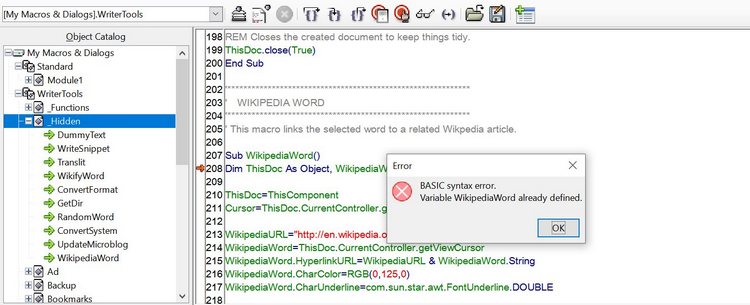
Writertools is an extension created to increase Open Office functionality (and later LibreOffice). The last version of Writertools 1.9.0 was released in September 2010.
Recently I’ve came across some “book writing software” that is supposedly able to help me write a book and enhance my productivity, I gave that software a try and felt it was too complicated, If I need to take an advanced course just to learn how to use the software, that’s a serious problem and some major down time spent learning a new software while I have a productivity suit that does everything required with ease!
Ease of use
 Ease of use should be factored in whenever evaluating a new software, and that particular software bombed! Not even mentioning the name because it’s not worth it, and the price tag is also discouraging!
I’m giving today a good way to use LibreOffice as a writing software that you can use for anything and really count on!
Why LibreOffice?
LibreOffice is a jack of all trades and can be used for many uses you never thought a word processing suit could do, checkout this very popular post of mine to see how capable LibreOffice is!
- Let’s Face it, we
already have too much tools!

We use something to write code (Sublime or Notepad++), something to do the daily work (LibreOffice or Microsoft Office) and a “book writing software”?
- Way to go being minimalist! Lets look at the price tag, shall we?
We bought Sublime for 70$, Got office for 200$ and that “book writing software” for 40$ and you use a Mac book of course, very neat! That’s 310$ worth of writing software alone!
That’s a lot of money, I’m not here to tell you how to live your life, but I think I have a more cost effective way of making this happen!

A minimalist dream!
You can’t write everything in one place, I wish that was possible, like Atom handling complex text layout or using LibreOffice to write code! It would be a dream come true! Some die hard programmers who think that memory foot print is everything and mostly prefer CLI over GUI would think this is a total waste, but I like to think I fall somewhere between a CLI nerd and an Apple fan!
Why LibreOffice? Because it’s simply awesome! I could write forever on how awesome LibreOffice is! You can find many posts in this blog that tell you exactly why it’s awesome and should be chosen over commercial and free software, you don’t have to learn new things, it’s the productivity suit you know and use daily! Just add the tips I’m about to tell you, and you are good to go!
1. Distraction free
 An important tool for any writing software is to be able to eliminate all outside distractions and just focus on the piece of writing at hand, it’s a feature of LibreOffice that can be accessed from View Fullscreen, or by typing the shortcut Control + Shift + J. You will have the screen dimmed down to the horizontal ruler and the page only! (you can toggle the ruler by pressing Control + Shift + R) to have the document focused with nothing else on the screen.
2. Word count
Another important tool for writers is the word count, you need to know how much you have written and set daily goals for yourself, you can see that in the lower bar of LibreOffice and it’s updated as you write.
3. Writer’s Tools
Writer tools is a set of tools installed as a single extension for LibreOffice that adds a ton of functionality, so much it deserves a post on it’s own, once you install it, it adds an extra menu to the menu bar called Writer’s Tools, it adds a timer for how much time you spent on a document, a word count to see if you reached your goal (more advanced than the one at the bottom bar), a to do list, a data base to organize your text snippets. And many tools for backup, saving documents and many others. A total of 15!
It’s something you definitely need if you want to use LibreOffice as your main writing suit.
There is a fix for writer tools not working. You can find it here.
4. MultiDeff
This little extension gives you the ability to save in three different formats in one command, ODT, DOC and PDF.
With these tools you are good to go, my advice is yo implement a timer like Instant boss if you are on Windows or Pomodro if you are on Ubuntu, to keep you healthy while writing the next best seller.
5. Master Document
I left the best for the last! Master pages are a great way to collect your individual documents into one, enabling you to control the style and position of each sub document based on the master document, creating a consistent document all around!
For more information check the detailed help document from here.
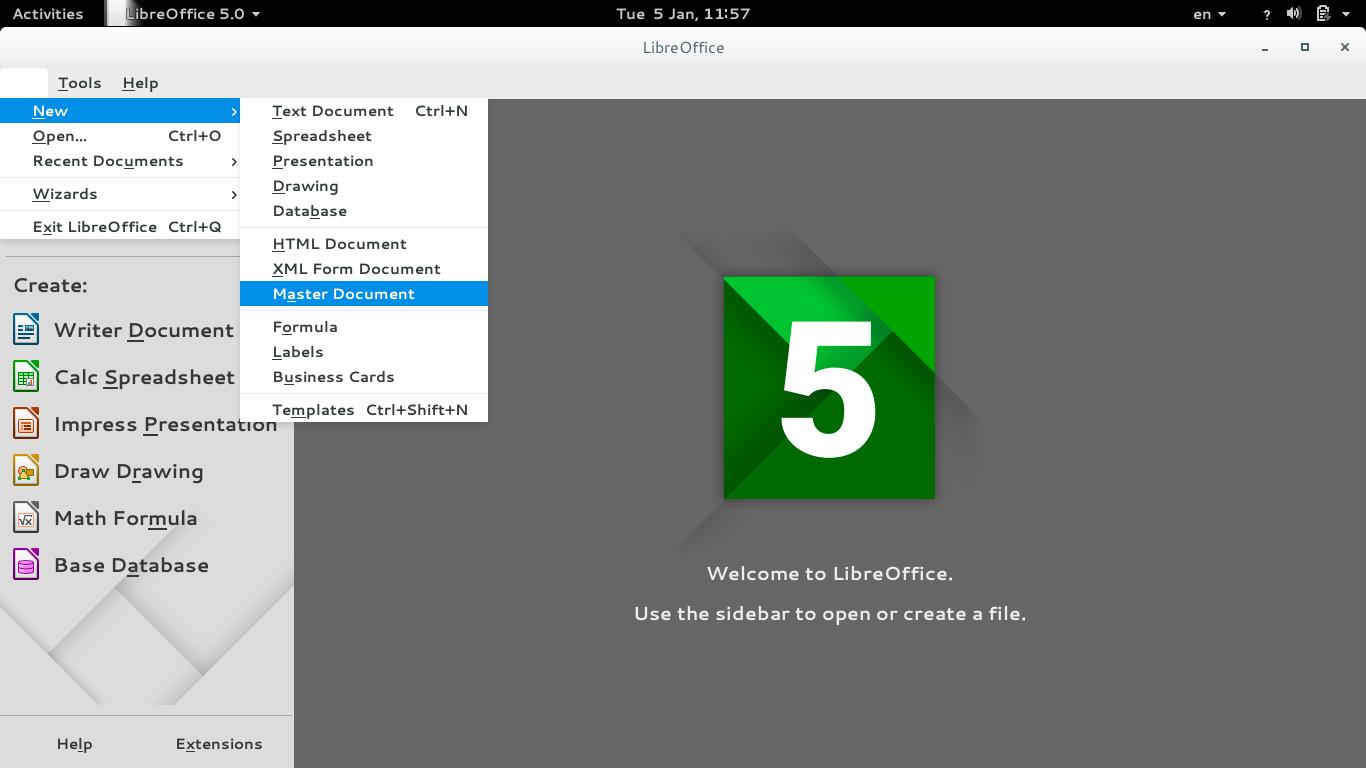
To create a master document, go to File New Master Document
For complete help on working with master documents, check the
Libreoffice help section from here.
If you aren’t using the excellent native feature, then creating a book will be a problem for you! When you have a standard container for all of your chapters, you can control the style easily and be able to get a central view on all of your work!
Final words
If you aren’t a LibreOffice user already, go download it now! You can install it without changing your settings!
I hope you find this post useful! And I’d like to know what do you use for word flow!
If you are using LibreOffice then you don’t need much more!!
Do you have any other features to add? I’m waiting for your comments!
You like the post you just read? Then share it with your friends! Sharing is caring!

One of the few features I missed moving from Microsoft Office was the auto name upon save, where Word takes the first line of the text and uses it to name the text file. LibreOffice (and OpenOffice before that) don’t have this feature! It’s a small thing but over time it becomes a growing nuisance!
Luckily there is an easy fix for that! Which enables you to enjoy the luxury of easy naming of files and limit the Untitled flood over time!
We are going to use a feature known as macros. macros in office are a Visual Basic code that is used to preform a certain task over and over and is triggered by an event. In this post I’ll be showing how to create a macro that saves the file using the first line of text when pressing the key combination of CTRL + S (assigning the macro to save or save as will result in two files: untitled and the first line of text!) So at first, we are going to need our macro. I took this code as is from an OpenOffice form, it works fine without editing:
  Sub FirstLineFileName_Writer
    On Error goto EH
    oDoc = ThisComponent
    oVC = oDoc.CurrentController.getViewCursor
    Mark = oDoc.Text.CreateTextCursorByRange(oVC)'mark position of view cursor.
    oTC = oDoc.Text.CreateTextCursor 'created at the beginning of doc.
    While oTC.isEndOfParagraph 'skip empty paragraphs.
    oTC.gotoNextParagraph(false)
    Wend
    oVC.gotoRange(oTC,false) 'a text cursor can't go to the end of a line
    oVC.gotoEndOfLine(true)  'so we have to use the view cursor.
    filename = oVC.String
    url = ConvertToURL("C:\" & filename & ".odt")'Insert Your Desired Directory Path.
    oDoc.StoreAsURL(url,Array())
    oVC.gotoRange(Mark,false) 'return view cursor to original position.
    oDoc.Modified = false 'avoid Save being called if doc closed without further edits.
    End 'end normal execution.
    EH: 'error handler.
    MsgBox "You may have illegal file name characters in the first line." & Chr(13)_
    & Chr(13) & filename,,"AN ERROR OCCURRED"
    End Sub
This code is used to save the text file by taking the first line of text and setting it as the name. You can edit the directory of the save. Please note that it saves without conformation!
Tools > Macros > Organize > Macros >LibreOffice >Basic
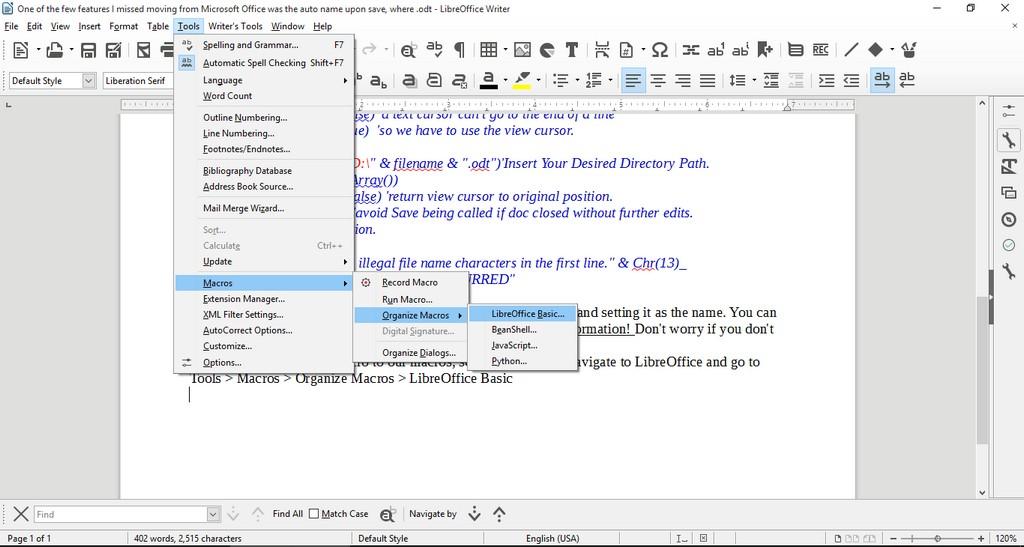
New to add a new macro.
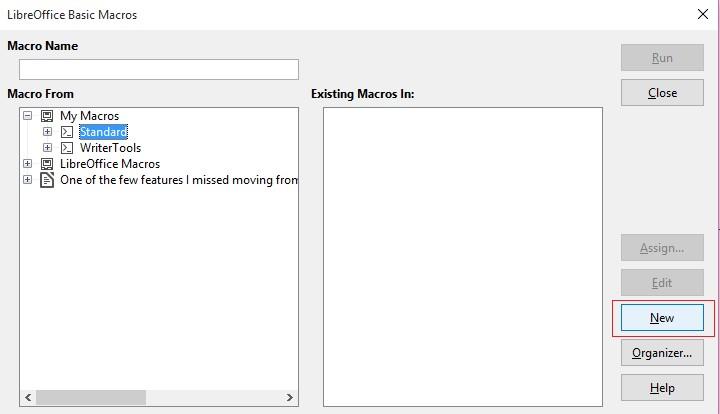
Run Macro then choose the macro manually from the menu. But that’s not too handy, is it?
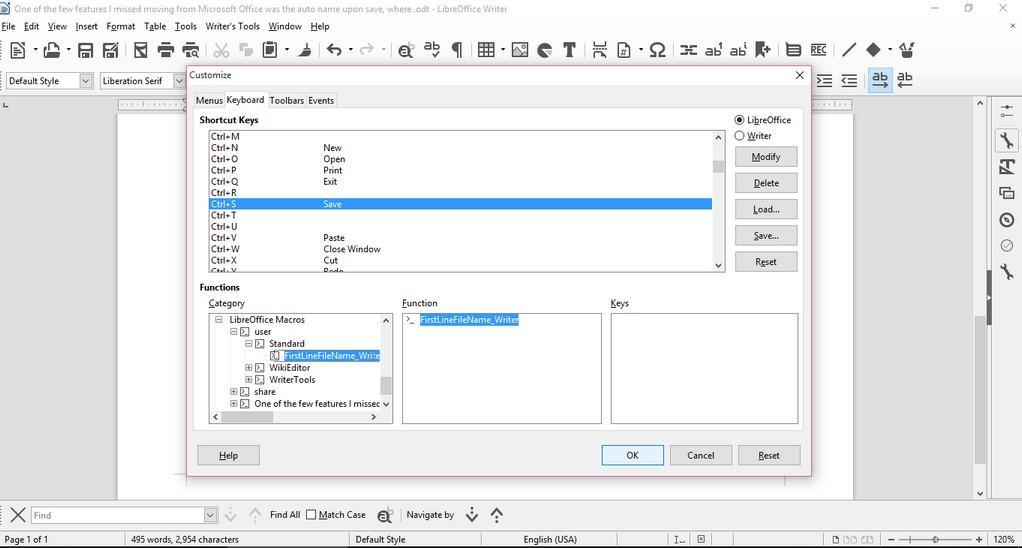
Go to LibreOffice writer and navigate to the menu: Tools > Customize > Tab: Keyboard.
Delete whatever is on CTRL + S, and assign it to the new macro by looking for it, and if everything went according to plan. It should save the 1st line as a file name.
Checkout this for more information.
Important notice
If you get errors it’s because the directory isn’t correct. Libreoffice will default to C:\ and when it can’t save in it. It will crash the macro. I edited the code to: “D:\Documents\ but make sure to choose your own folder.
أنا الفائز بجائزة المدون المنتظم لعام 2025 من موقع مرجع التدوين
