Category: Productivity (Page 11 of 13)

RocketDock is my new favorite Dock and here is why!

Hey you guys 🙂

How are you today? I hope you are doing great! Here is a post on my new favorite dock. RocketDock!
RocketDock is an awesome dock for windows. Developed by two hardcore Mac lovers who wanted to bring a piece of Mac to windows!
You can put almost anything on it. Customize it in anyway you like, plus it’s super fast and doesn’t affect the performance at all, let alone the boot 😀

RocketDock Icon

Pros

  1. It’s easy to use!
  2. Free of charge! (Provided under the Creative Commons license ).
  3. Light on the system (My memory print was 8.7 MB)
  4. Works great with lower end computers! I tested it on Windows 7, Windows 8, Windows 8 pro, Windows 8.1 and it works fine!

It’s also expandable via a great number of skins and add-ons and docklets! (Available from the download website).
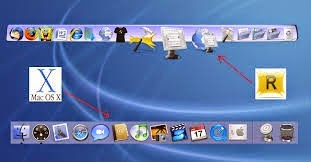
 

 RocketDock compared to Mac dock

I’ve tried it to replace my old favorite Nexus, who was a huge impact on the startup despite my utter love for that dock. I love a speedy boot more! xD
There are also tutorials on-line on how to develop your own skins. And the one I found was using Gimp! I really need to check that one out 😉

I have been using it for a month now! Works great! I don’t even miss nexus that much anymore ..
And yet .. Nothing is perfect! I’ve had some “issues” with it in general.

Cons

  • It has been version 1.3.5 for so long! Dare to say it’s dead now?
  • It doesn’t start up with the system right away. You need to set it from the settings! ( I don’t know if this counts as a con or not .. )
  • It doesn’t pin opened software automatically like Nexus does!

 Personal tweaks

I have been tweaking the settings and these are my top must have settings I’m going to share with you to maximize the use of RocketDock:

  • General Run at Startup
  • Position Layering – Always on bottom
  • Style Theme – Choose your favorite theme from there 😉
  • Open running application instance. Which minimizes and maximizes the open windows into the dock.

License

The license is “Free for non-commercial use” and to a free lancer like me this is a real bummer!(Just to clarify RocketDock’s license, you can absolutely use it in a work environment. You just can’t sell it. 🙂
The developer of Rocketdock reached out to me and corrected that statement! She is awesome!


Do you have any favorite settings to share with us? Any remarks to add? Possibly a better dock to share with us? Please let us know!
Make sure to follow my blog and join my mail-list NEW

What are screenshots? And what tools to use?

Hey there you guys 😀 How are you today?

Continuing from this post on tools to help you be more productive.
It’s a handy tool! From remote tech support to making presentations and internet arguments! Ever wished to take a picture of the screen without whipping out your phone?


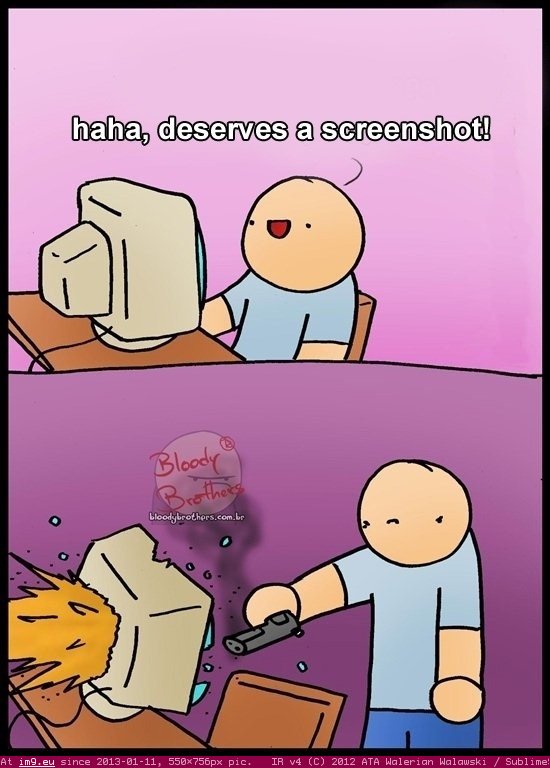
Screenshots are the way to go! And no! Not like that! *funny pic

It can be done on many platforms! It’s worth mentioning that you don’t need software in Android 2.2 and above! Just hold the power button and volume down and bam! Screenshot saved!

But what about the computer?

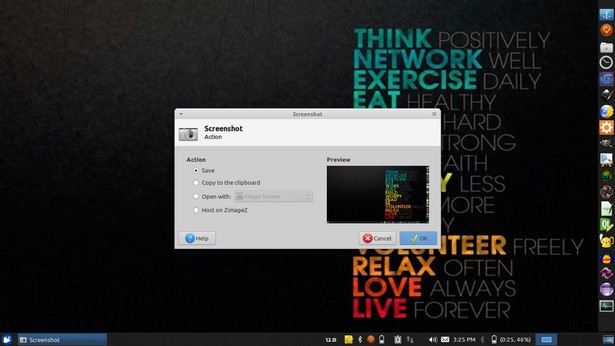
In Linux you don’t need a software! Just hit the PrtScr key on your keyboard ( Or add Fn if you are using a laptop) And you will have the program take it for you and offer to open it or save it.

This is the utility used in my Xubuntu. Makes working with screenshots much easier!

But what about Windows?

In windows it’s not that easy.. You have to take the screenshot and manually paste it in a drawing program like paint. Then you have to optimize it because it’s pretty big ( 3MB if your screen resolution is 1368*768) And you have to repeat it every time you take a screenshot :/
There has to be an easy way to do so! Or is there :3
There are tons of screenshot software out there. Some are free, some are not. But all share the same concept! Making taking screenshots easy.
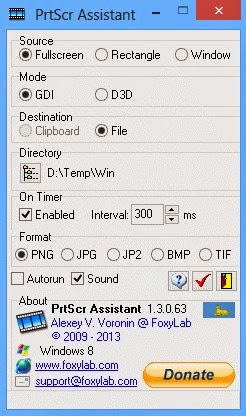
I use PrtScr Assistant for my daily needs! It’s easy and free!


Features:


  1. It starts minimized so it gets out of the way.
  2. Runs with the default key (PrtScr key) and saves the file to a folder of your choosing.
  3. It names files by time stamp so there is no chance of over writing your previous shots.
  4. It optimizes the screenshot size ( Third of the size taken by paint ) And by choosing the format of the screenshot.

Plus many other features 🙂 so feel free to download it and explore it fully!
What are the tools you use to screenshot? Will this article promote you to screenshot more?
Please share it with us 🙂 And have a lovely day 😀

Clipboard managers for Ubuntu and Windows will boost your productivity!

Clipboard managers are a very handy tool and a total must have for anyone working on a computer.

Office workers, students, and even bloggers!

It’s a pain! It feels like juggling!

Ubuntu clipboard managers

Well with Clipboard managers we can minimize this pain!

There are many great applications both paid and free! But I’m going to talk about two, one for Linux and one for Windows.

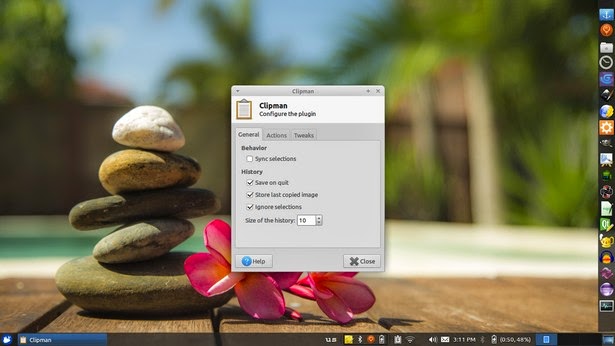
The one I used with Linux came with Xubuntu is panel plugin called Clipman Which is a huge help and can be added as a plugin on the panel. It’s light weight and super effective!


Windows clipboard managers

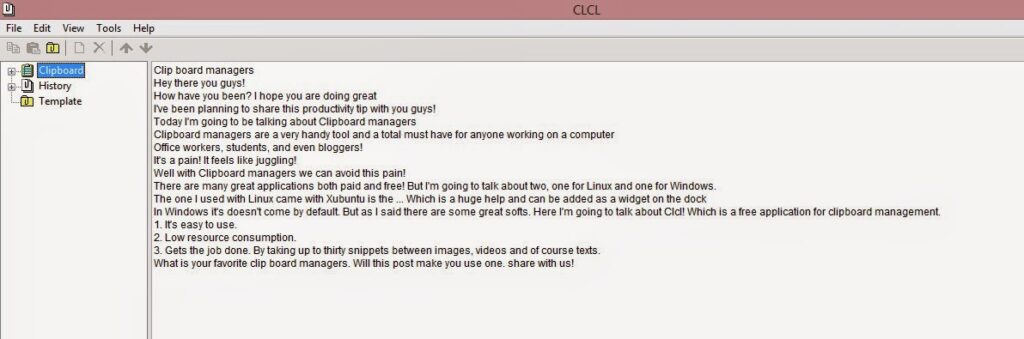
In Windows it’s doesn’t come by default. But as I said there are some great softs. Here I’m going to talk about CLCL! Which is a free application for clipboard management.


Advantages of using CLCL

1. It’s easy to use.

2. Low resource consumption.

3. Gets the job done. By taking up to thirty snippets between images, videos and of course texts.
Download it from here

What is your favorite clip board managers. Will this post make you use one. share with us!
Our next post will discuss screenshots! Stay tuned!


RedNotebook 1.5.0 review

Hey hey guys

Today I will be reviewing a really good software to keep your journal ordered and organized, it’s also a good way to practice writing and keep it consistent!!


It’s Called RedNotebook, it helps you keep a daily journal but it can do much much more, make to do lists, use tags for frequent entries, and other features!


The software is open source and free of charge, you can download from their site on source forge size around 20 MB

for Linux and Windows!

And I have written a post on how to backup the journal entries and transfer them. It’s a must have if you install it and use it on daily basis!!

My verdict: It’s a good solid software that anyone would need!
Cons: I wish it was more of a native style in writing, for example to end sentences you need to use “//”, why can’t it be a simple “.”?

Thank you for reading, please comment on my post for any questions and I would love for you to join my blog.

« Older posts Newer posts »