Category: Screenshots

Whatsapp for Android now supports voice calls! (Screenshots)

Hey there you guys!

How is it going? How are things?

Whatsapp has announced that it will bring voice calls since late 2013 beginning of 2014. And only now they have brought that feature to Android!

Whatsapp has been widely popular ever since. And lost some fans after being purchased by Facebook over security concerns. But this step will increase it’s popularity among users. And create rivalry with the current Voip app out there, Viber.
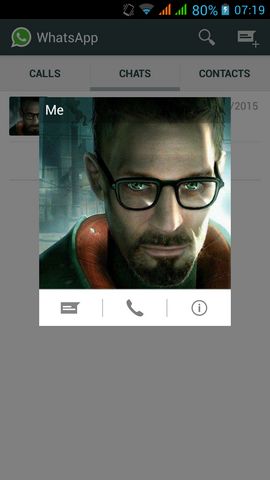
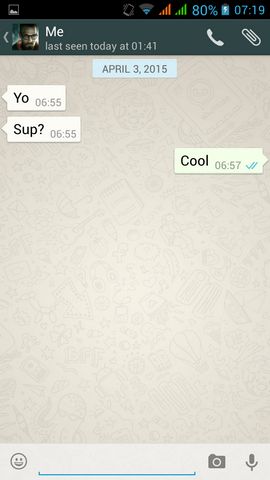
The update number is 2.11.560. You have to update your application to receive the voice call update.

As you can see. They added the call button to the contacts. Tap a contact to view it.

Or from the chat itself you can call the contact you are chatting with.

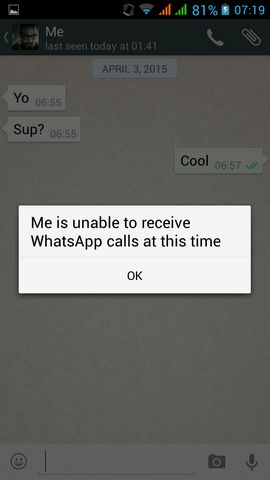
If the receiver doesn’t support calls. You will get this message:

The call was to my Symbian phone. It doesn’t support Voip (I should be grateful it still has Whatsapp text support anyway)!

As for other platforms as iOS and Windows Phone. It’s coming in the near future.

As a last word, don’t use any other applications other than the official Whatsapp you get from the store. Other apps can be risky. If not sure check the website.

Thanks for checking out my post! Please comment below. I’d love to hear your input!

Join my blog and subscribe to my mail for more posts like this 🙂
What are screenshots? And what tools to use?

Hey there you guys 😀 How are you today?

Continuing from this post on tools to help you be more productive.
It’s a handy tool! From remote tech support to making presentations and internet arguments! Ever wished to take a picture of the screen without whipping out your phone?


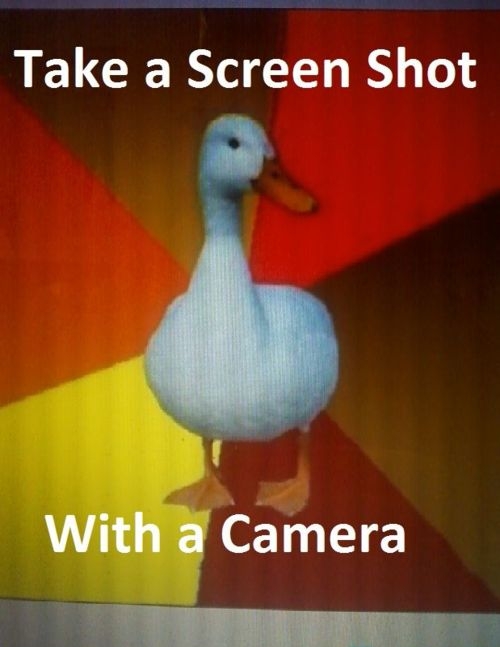
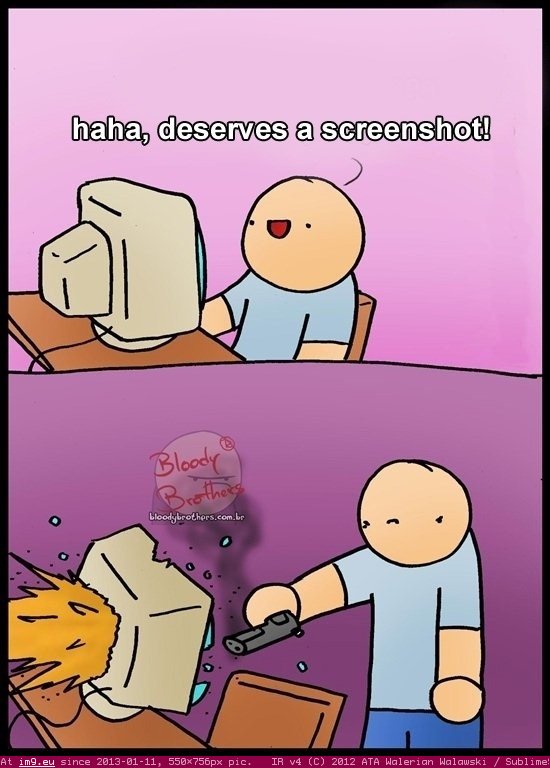
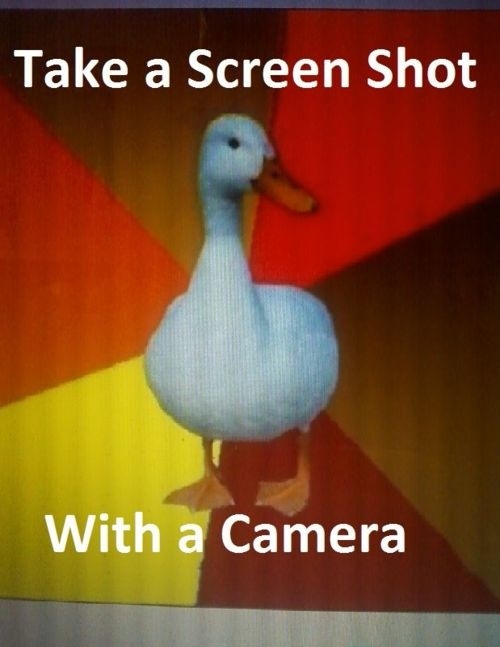
Screenshots are the way to go! And no! Not like that! *funny pic

It can be done on many platforms! It’s worth mentioning that you don’t need software in Android 2.2 and above! Just hold the power button and volume down and bam! Screenshot saved!

But what about the computer?

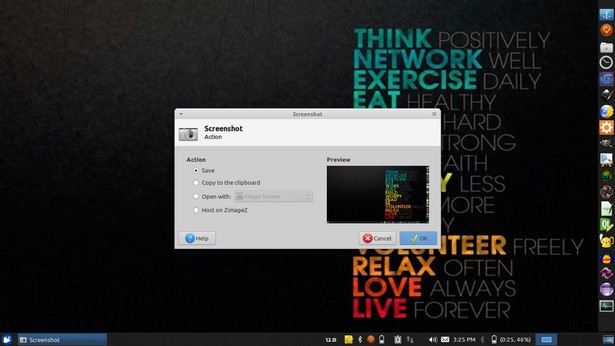
In Linux you don’t need a software! Just hit the PrtScr key on your keyboard ( Or add Fn if you are using a laptop) And you will have the program take it for you and offer to open it or save it.

This is the utility used in my Xubuntu. Makes working with screenshots much easier!

But what about Windows?

In windows it’s not that easy.. You have to take the screenshot and manually paste it in a drawing program like paint. Then you have to optimize it because it’s pretty big ( 3MB if your screen resolution is 1368*768) And you have to repeat it every time you take a screenshot :/
There has to be an easy way to do so! Or is there :3
There are tons of screenshot software out there. Some are free, some are not. But all share the same concept! Making taking screenshots easy.
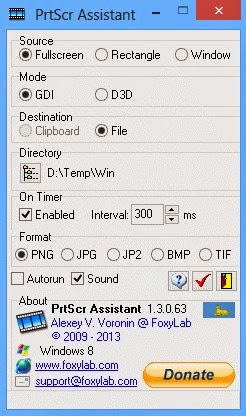
I use PrtScr Assistant for my daily needs! It’s easy and free!


Features:


  1. It starts minimized so it gets out of the way.
  2. Runs with the default key (PrtScr key) and saves the file to a folder of your choosing.
  3. It names files by time stamp so there is no chance of over writing your previous shots.
  4. It optimizes the screenshot size ( Third of the size taken by paint ) And by choosing the format of the screenshot.

Plus many other features 🙂 so feel free to download it and explore it fully!
What are the tools you use to screenshot? Will this article promote you to screenshot more?
Please share it with us 🙂 And have a lovely day 😀