
Compiling Wesnoth from source on Ubuntu 16.04
1. Download the source code from the game’s site, always go for the latest version. and make sure to checksum the source code prior to doing anything, the value of the checksum is provided on the download page and you can easily check it using the terminal.
I’ve decided to compile the source using scons rather than cmake because it’s much easier, however the compiling process happens in the same directory as the game, so make sure to copy the game to the target directory first, I’m going with /opt/wesnoth-1.14.7/wesnoth for the rest of the tutorial.
sudo apt install libsdl2-dev libsdl2-image-dev libsdl2-mixer-dev libsdl2-ttf-dev
libboost-all-dev libvorbis-dev libcairo2-dev libpango1.0-dev l
ibssl-dev libreadline-dev cmake make scons pkgconf
4. Go into the game directory, for example /opt/wesnoth-1.14.7/wesnoth and install with the command scon.
Please note that the process is long and resource extensive, so please be patient.
More instructions and options can be found here on the official wiki.
And that’s it, now the game works fine!
Note: If you played an earlier version of Wesnoth, please be sure to copy your save games and preferences so you don’t start from scratch.
Integrate with Lutris
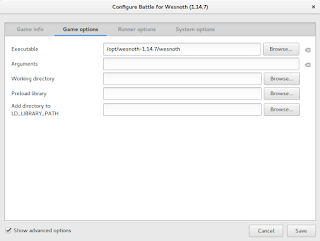
After compiling from source, Wesnoth can be easily configured to work with Lutris, simply by changing the path of Wesnoth from the default to wherever you installed it, I happened to install in /opt/wesnoth-1.14.7
 |
| Lutris icon |
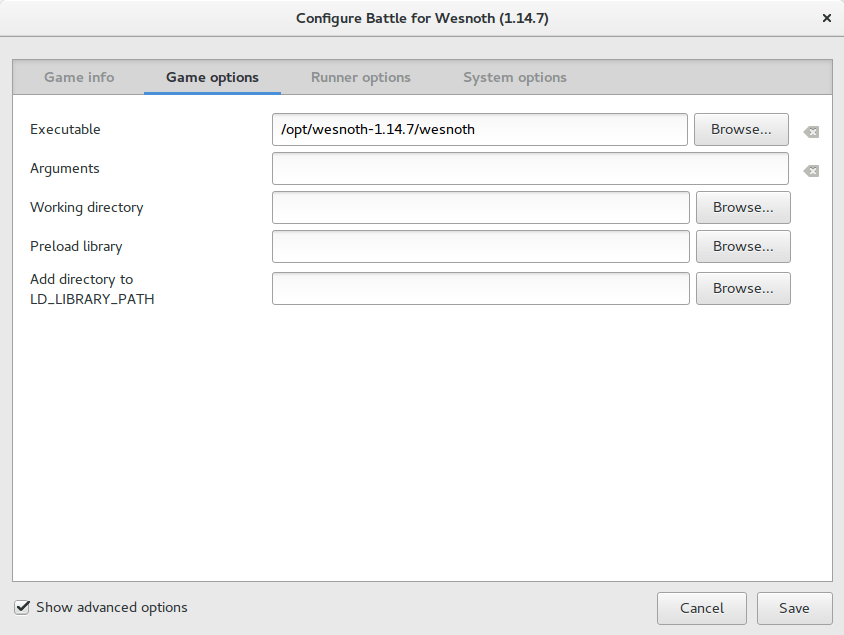 |
| A screenshot from Lutris showing how the directory is changed |
Adding an icon so you can dock it and be able to see it in the dash
Compiling Wesnoth this way won’t allow you to be able to search it or add it to plank for example, you will have to add a custom icon for this to work.
[Desktop Entry]
Name=wesnoth
wesnothComment=The Battle for Wesnoth
The Battle for WesnothEncoding=UTF-8
Exec=/opt/wesnoth-1.14.7/wesnoth
Icon=/usr/share/applications/wesnoth.png
Terminal=false
Type=Application
StartupNotify=false
Categories=Application;Game;
Feel free to copy this file to your computer as long as you have everything installed as mentioned here, if you change anything make sure this document reflect your changes.
2. Save the file and you are good to go! As soon as you loook up Wesnoth in your system you will be able to find it and dock it on launchers such as plank.
After doing all that, I’ve uninstalled the old 1.14.5 and removed the repositories from my system, from now on I’ll compile on my own!
I hope that you find this tutorial useful, if you have any questions please let me know in the comments section below.
Credit goes out to Reddit user TonicAndDjinn as he provided a lot of helpful tips on how to compile the game.