Category: Upgrade

FDM 5.1 released, Ubuntu version up for vote?

I’ve blogged about FDM in this blog before, being the best free download manager, and the alternative for IDM, and that it could replace uTorrent on your computer (and if you are using uTorrent, please remove it, it’s malicious!)< and the continue broken downloads using mirrors even if the server doesn’t support it!

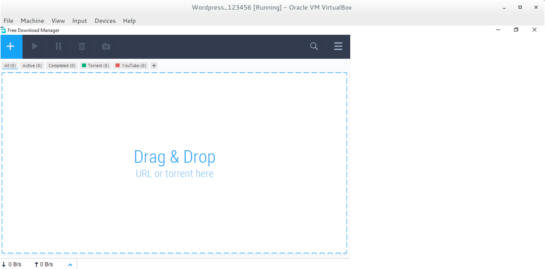
FDM 5.1 Interface

It has been redesigned into a more streamlined UI and they made the configuration is easier to use.
One of the biggest changes noted is the addition of a mac version and dropping the support for Windows XP and Windows Vista.

Since the addition of a Mac version, I wondered, why not an Ubuntu version? So I e-mailed the contact e-mail, and this is the response they gave me:


Hello!
Thank you for your feedback.

Our team is planning to release FDM5 for Linux OS, still, not in the nearest future though. We’ll inform all our users. Please keep up with the news on our blog.

I will be following them closely for you!

That means that FDM is one step away from being truly cross platform after being stuck in the Windows ecosystem for years!

Those are fantastic news! The new version is so awesome, Mac addition is lovely, and I can’t wait to see how does it look on Ubuntu, Will it make it in time for Ubuntu 16.04?

Update 2


“Dear Muaad,
Unfortunately, we are not planning to release a Linux build until a stable release for Mac OS X & Windows is out.
However, we are doing our best to make sure that our source code is compilable under Linux to the extent that it will not be too big an issue when we get to it.”

Update 3:
FDM has published a poll for future features, Linux is one of them! So vote Linux!!

Until this wait is over, be more than welcome to use uGet, it’s that good!
Let me know what you think in the comments section below.
Remove the Get Windows 10 once and for all

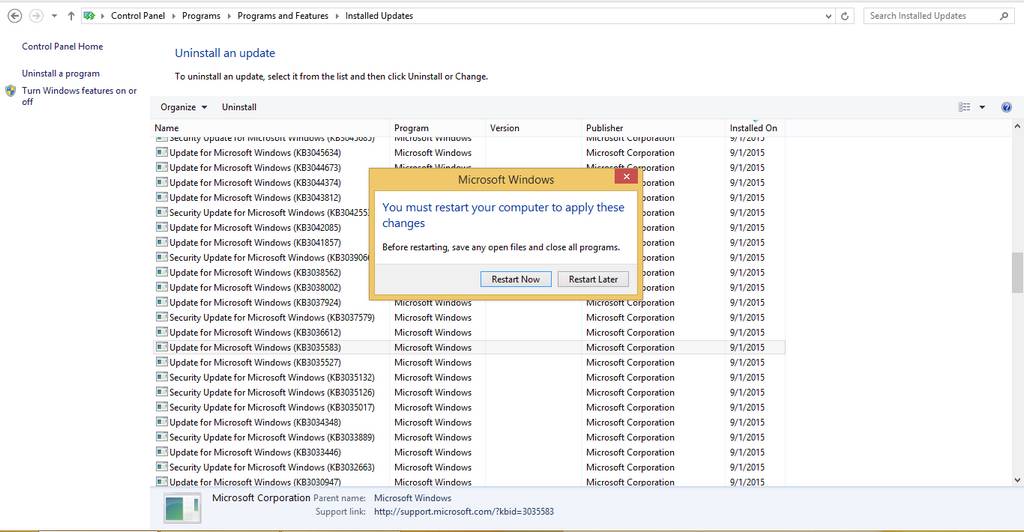
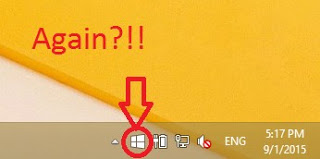
What is GWX? Get Windows 10 is the advert Microsoft slipped into the Windows updatemasked as a “recommended update” KB3035583, after you install it you have to restart the computer. After that it will stay until you upgrade to Windows 10. I was flattered at first, especially after my upgrade was reserved “on it’s own”, but after upgrading and going back I started to think of it as more of a Spyware than a flattery.


Think of it! It was installed on it’s own, there is no way of closing it, it starts with the computer. Totally sounds like a Spyware to me!

Now that we know what is it and where it came from. Let’s take a look at removing it all together. And removing it means you don’t get to upgrade to Windows 10 from the store (good riddance!) Ehm! Removing GWX will tackle the source of the problem, attempting to close the application GWX will only close it for now. And it will dock itself happily on the task bar the next time you boot.

Removing Get Windows 10

We will uninstall the update that installed GWX which is KB303586 (make sure you only uninstall that and nothing else) and after restart the problem should go away.

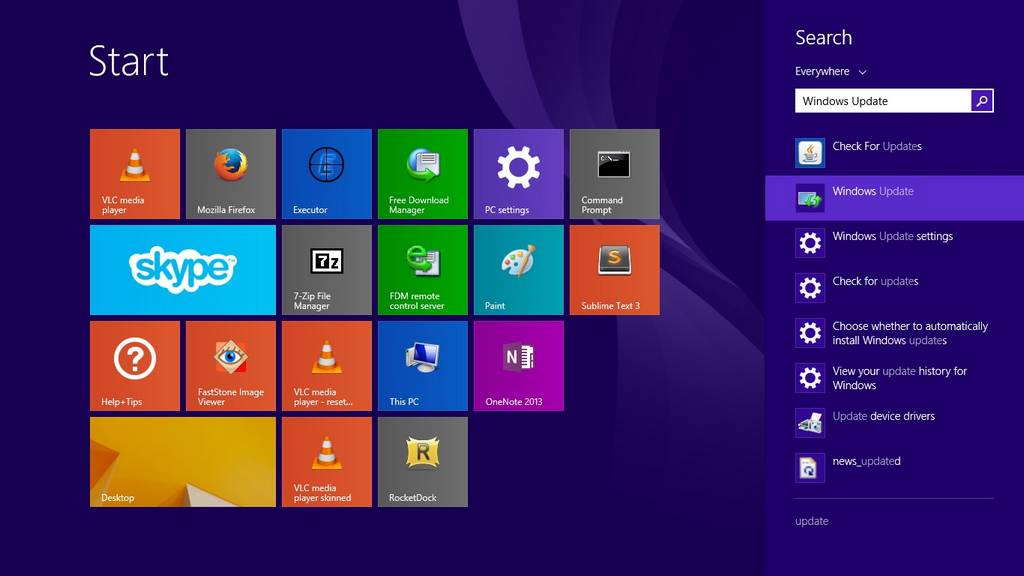
Go to the start menu and type in Update to go to the Windows update, alternatively you can right click the GWX icon to go to the update (make a use of it at least!).

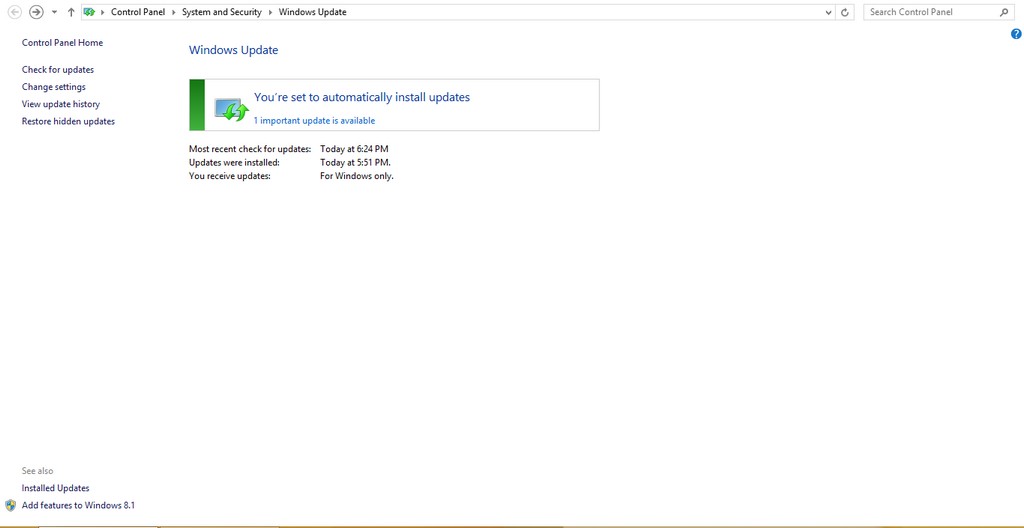
Open Windows Update

From there go to installed updates.


Go to installed updates

Scroll down until you find the culprit and uninstall it.

Click yes to uninstall it.

  Restart to continue


And once it’s done you need to restart to finish uninstalling

Do so and when you log in you won’t find it! Until you check again for updates! (remember how I underlined the should?).

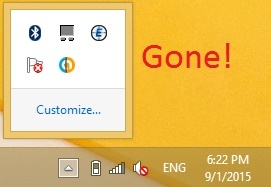
GWX is gone!

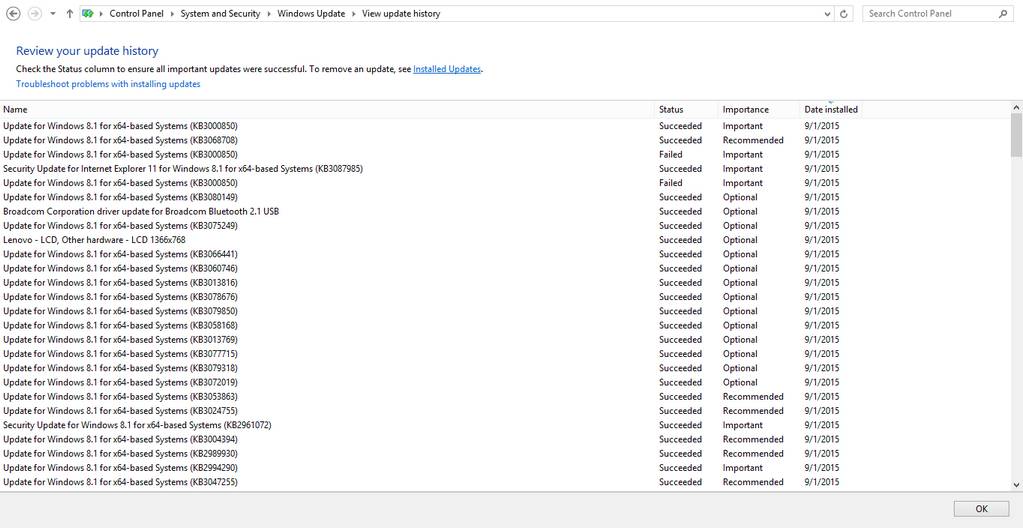
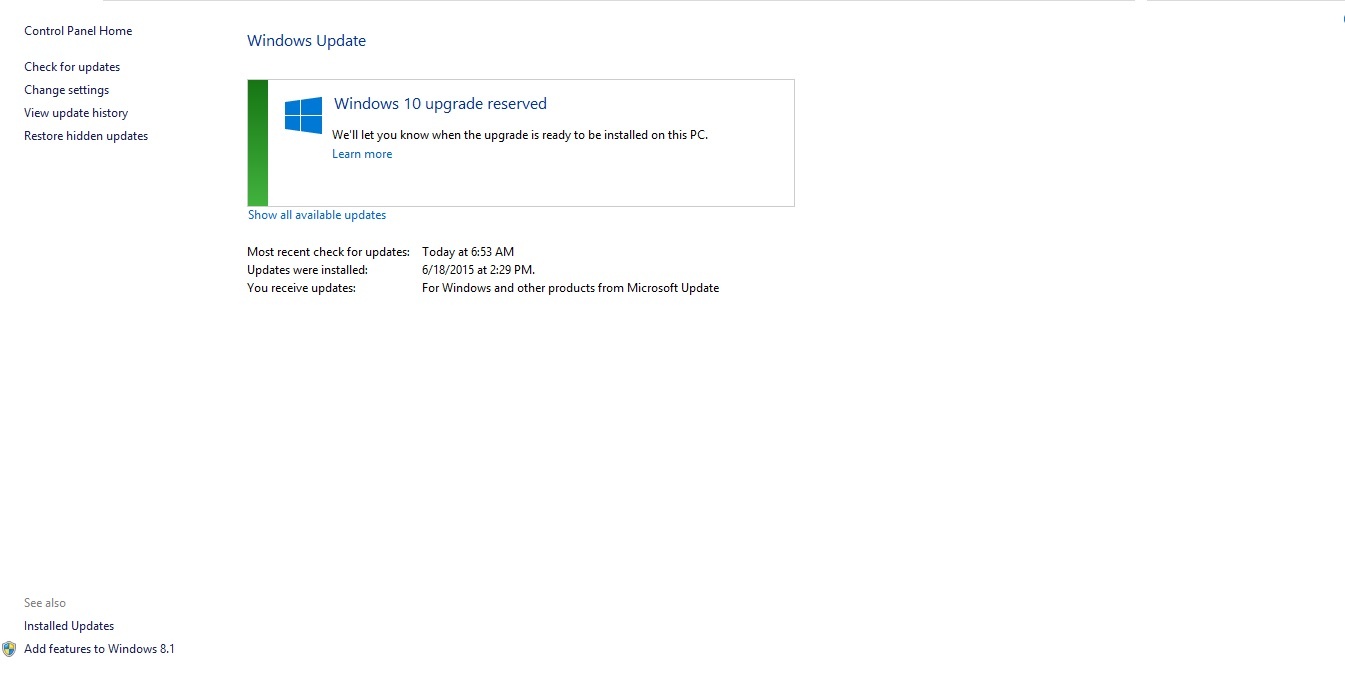
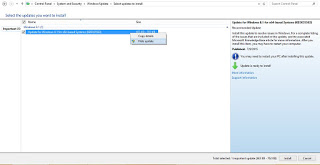
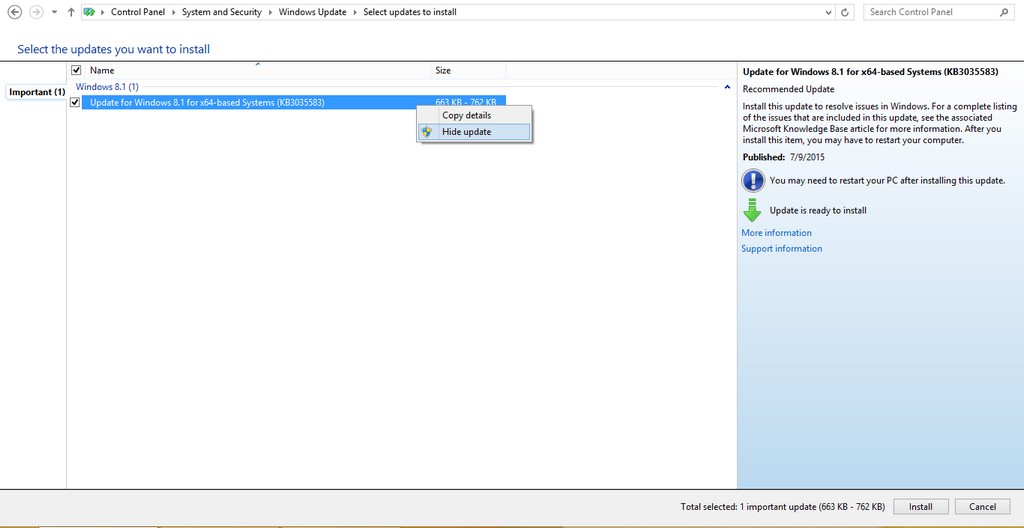
To make sure you don’t install it again. Go to show all updates and right click it and choose hide.

Hide the update to get rid of it.

It should disappear now! But what if it doesn’t?

  • If you happen to see GWX again open Run and type in Regedit
  • Navigate to HKEY_LOCAL_MACHINESOFTWAREPoliciesMicrosoftWindowsGwx
  • Inside GWX create a new 32-bit DWORD value on the right-hand side named DisableGwx, and give it a value of 1.
  • This should take care of it once and for all!

I must repeat! If you had the least interest in downloading or trying Windows 10 don’t try this method as it will disable the application and thus take away your Windows 10 upgrade (for shame!).

Another tip to seal the deal

To prevent Windows 10 from downloading all together set your connection to be metered. I’ll be showing you how to do it in Windows 8.1 but I really don’t know how to do it in Windows 7 (I don’t have Windows 7).

Go to the network icon on the bottom right corner of your screen.

Right click on the network you use to connect and choose set as a Metered connection.

Windows will understand that you actually pay money to access the Internet and will not download the 3.6 GB update to your system (how considerate of him!).

Get Windows 10!

Hey there you guys. How are you keeping? I hope you are doing good!
I have an update to report!
And it’s regarding Windows 10!
I will be posting a special coverage about Windows 10 until the release date. Then some  hands on reviews..

I know it’s super late. And I admit that I only open Windows to defrag every Wednesday and to backup my Android phone 😛
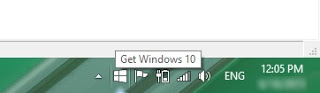
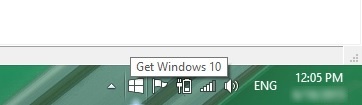
And due to very slowInternet I couldn’t update my system for about a month or so. I managed to update it recently. And that’s where I came across this beauty! (This icon is legit! Not a virus or whatever!).

My heart was racing! I know I had nothing nice to say about Windows 10. But getting it for free was worth the excitement I had! After all Windows hold nearly 90% of the personal computer market share and Windows 10 is supposed to be that 90% !!
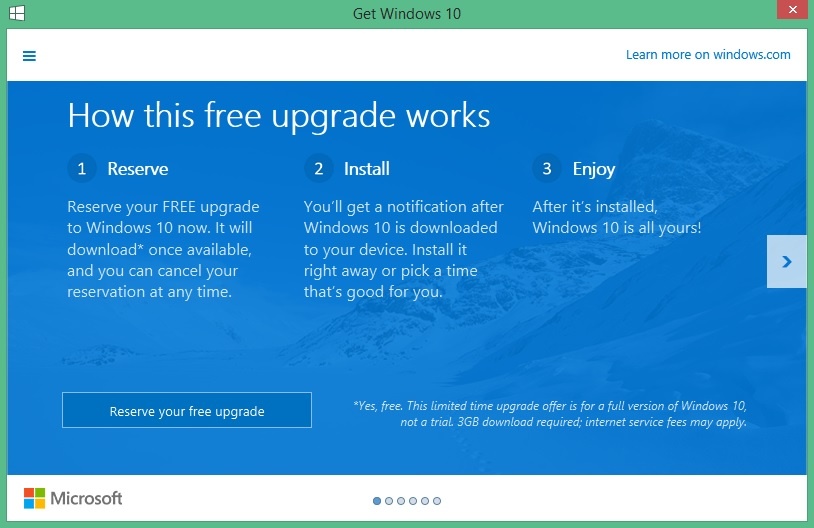
When I clicked the white icon this is what popped up!


How this free upgrade works

From here I was supposed to “Reserve” my license for the time to install. Meaning that 3 Gigabytes will be downloaded from the Internet to my device for the upgrade to complete. ( Will be breaking this pop-up in detail in following posts!)
I felt like a bucket of cold water was poured on me! With such poor Internet and often power cuts, how am I supposed to download the update? It took me 2 days to download the 8.1 upgrade!!
That’s for me to figure out and for you to find out later. As the update is supposed to install on the release date of Windows 10.
Did you get this icon / pop-up? If you did let me know in the comments section below.
And if you didn’t, don’t be frustrated! Just wait for my next post 😉
Have a nice day!!