Category: Windows (Page 9 of 22)

CodeLobsterPHP Edition 5.8 is out, supports Arabic!

CodeLobsterPHP Edition continues it’s active development cycle by launching version 5.8 which brings many improvements to the  IDE, most notably an improvement long anticipated by Arab developers, Arabic support.

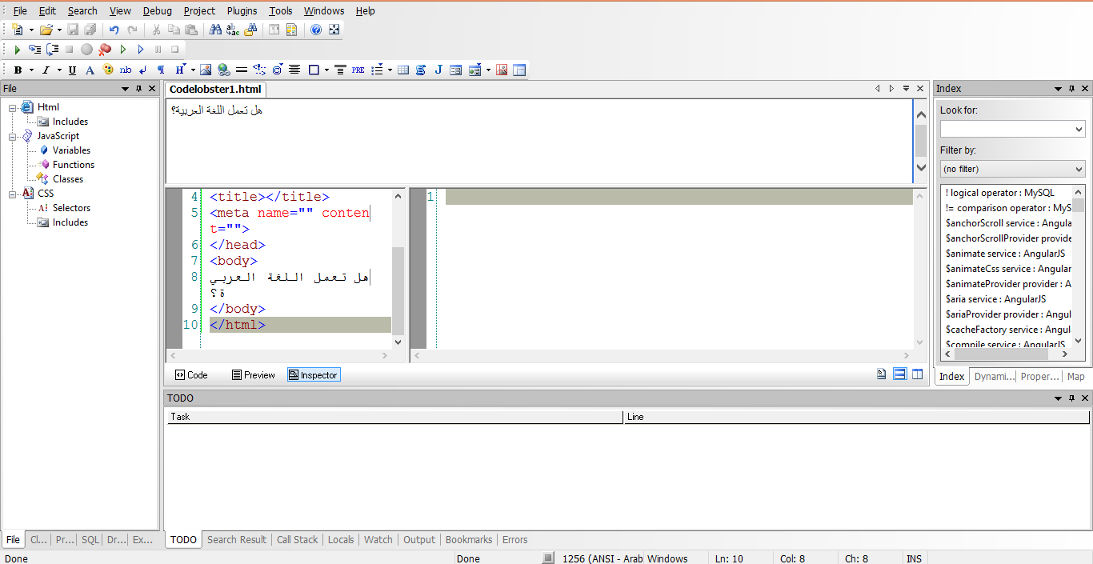
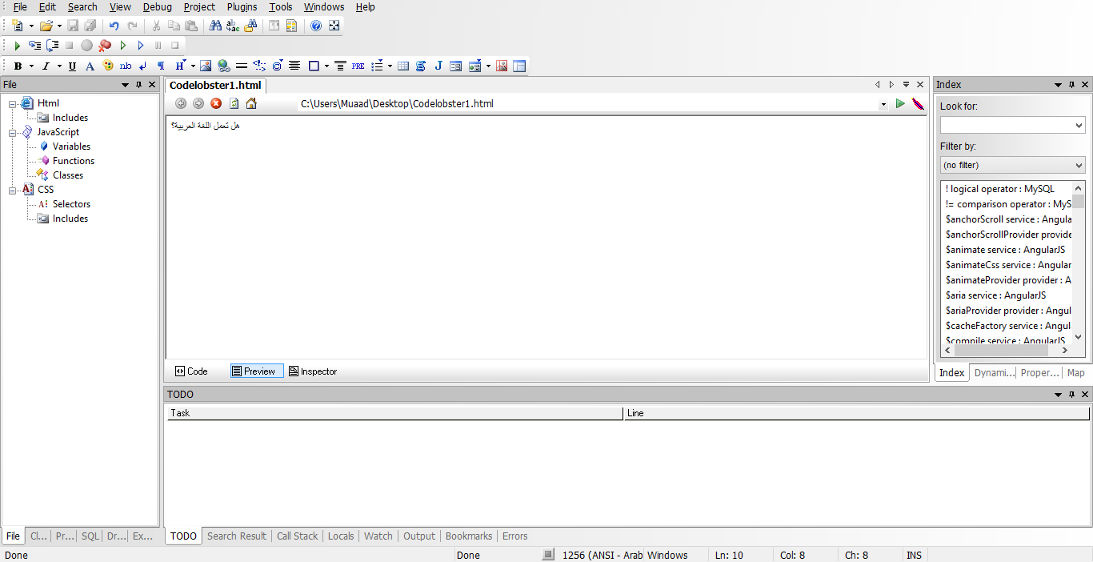
In my review of CodeLobsterPHP IDE I listed not supporting Arabic as a con of this software, now I can proudly say that it supports Arabic, and I was asked by the company to test for Arabic support, here are the results:
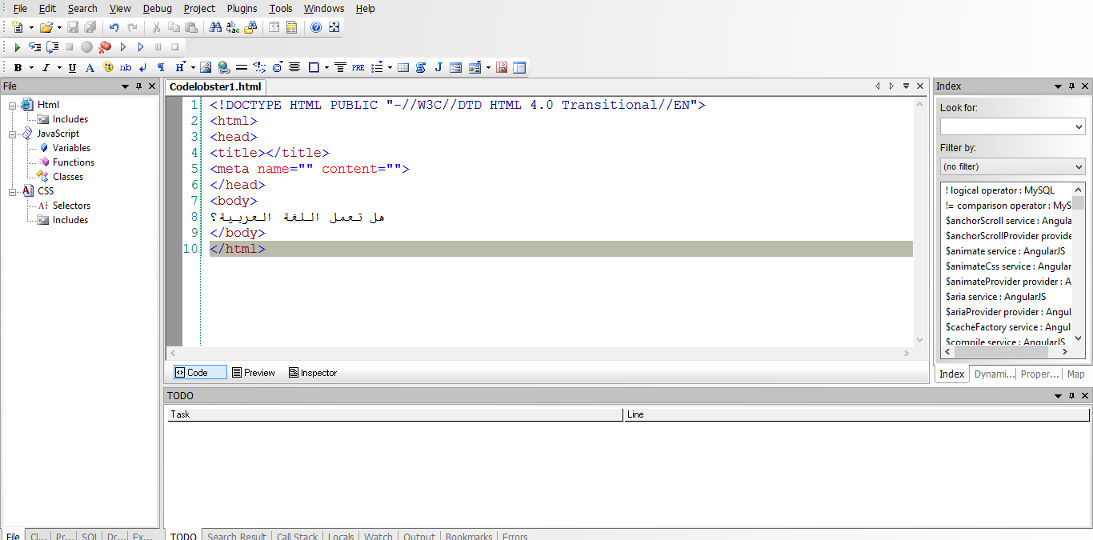


Arabic language working on the code pane


Arabic language working on the preview pane


Arabic language working on the inspector pane

For a complete list of features and bug fixes on version 5.8 click here.

Many Arab developers like this IDE and they are interested in purchasing a license, the only thing stopping them is that CodeLobsterPHP Edition doesn’t support Arabic. Starting of version 5.8 that’s a thing of the past!

I listed in my review of CodeLobsterPHP Edition that it has a friendly and responsive community, check the request I posted asking for Arabic language support, they are as good as I said they were!

So here you have it!  It supports Arabic now!
As an Arab developer, is having Arabic support in the tools a problem? How do you feel when Arabic is supported on such an amazing IDE? Would you try it? It has a free version you know 😉
Let me here what you have to say, and expect an Arabic post about CodeLobsterPHP Edition soon!
 

Windows 8.1 losing free space [FIXED]

After installing Windows 8.1 and doing all the updates. I was getting ready to create an image (in case anything happens) so I did the usual steps of cleaning and optimizing. Shortly after creating the image I noticed 12 GB of free space occupied!
Where did my free space go?

I had just finished cleaning it! Didn’t install a thing! Where did the space go?


I decided to use a handy tool called foldersize to determine where the largest folders were, and I wasn’t surprised when Windows was the biggest.
I went in and there was a folder called WinSxS which had 16 GB of size! That’s your culprit right there!

So what is WinSxS? And how does it work?

As it turns out Windows uses this folder to save backups and images alongside backup files (citation needed). There was no need to worry, as there is a monthly cleaning task scheduled that should take care of it.

But what if I want to clean it now?

Doing a disk clean (even enabling system files won’t get you those extra files you are looking for) you need to use the command line.

Run cmd as an administrator and type in:

Dism.exe /online /Cleanup-Image /AnalyzeComponentStore
To see how much space you have, only then you can get to clean by typing:

Dism.exe /online /cleanup-image /StartComponentCleanup 

Finally type in: 

Dism.exe /online /Cleanup-Image /StartComponentCleanup /ResetBase
Important notes:

  • These commands will take some time working, up to an hour, so take your time with the cleanup!
  • This might not work right away. I had to do it a couple of times with a restart. Then it cleaned it.


Warning: NEVER EVER TRY TO DELETE FILES MANUALLY. IT COULD RUIN YOUR COMPUTER AND MAKE IT UNUSABLE..

Any other space hogs?

Another place to look is the page file, if you want to set the size manually (or disable it all together) then that’s a good start!
Last thing to check is the hibernate file (which can go anywhere from 4-7 GB) and is completely useless if you don’t use the hibernation option. Check this tutorial to disable it.
We looked at three ways to taking back space that Windows occupied. I hope you find it useful!

Finally

How much did Windows take, was it more than 12 GB, share the space and let see who has the most loss!
If you liked this post share it with your friends, sharing is caring 🙂

The death of the laptop

I tend to follow the tech news, and lately laptop sales are dropping and companies are losing money, isn’t that something!

It struck me! Who uses a laptop anymore? When was the last time you used your laptop to do your daily tasks? I am writing this on my phone!

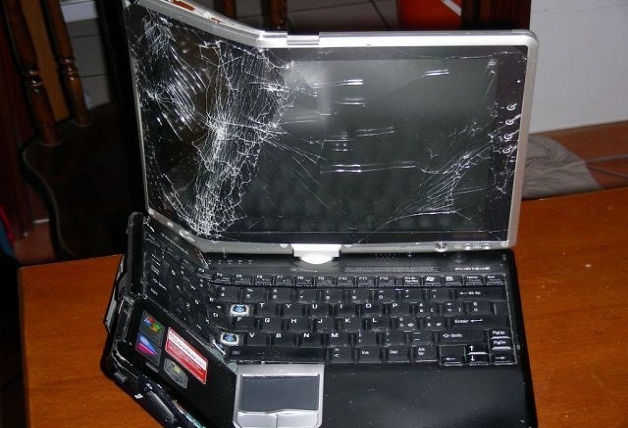
Dead laptop!

Alternatives 

Many people find smartphones and tablets to be more comfortable to use. And the manufactures make devices bigger and better, better than some computers. Check the specs of the latest smartphones and compare it to your computer 😉

What’s wrong with laptops?

Laptops are heavy and consume much more power compared to smartphones. And can do most of the daily tasks laptops (and PCs before it) did like browsing the web and sending / receiving e-mails, even gaming is becoming very popular on smartphones. There are some sites that need a smartphone to register and participate, Instagram for one requires users to sign-up using an app, then use the same app to post and interact. Does that mean you should throw your laptop in the trash? Absolutely not!

When the “smart” ones fail!

Laptops are best suited for business purposes like word processing and web development. Tasks that would be difficult to perform on smartphone or a tablet. In my humble opinion smartphones are a great PC companion. And haven’t matured yet to fully replace it. But if your computer use is for social media and chat it’s best you pick a smartphone.

Do you use your laptop more often? Or are you a smartphone type of person, let me know what you think in the comments section below.

Installing Windows 10 insider on Lumia 630 Dual

I decided since the Windows 10 update was rolling in “waves” that I want to try Windows 10 early on my Nokia Lumia. I installed Windows Insider on the phone and choose the fast ring.

As soon I did so there was a Lumia Cyan update installed. And after the usual steps I began to install the insider build 166 (was out on July 13th 2015)

I left it installing because the download took a long time, after it finally downloaded and installed many things stopped working! I was given some error codes but doing some research did me nothing! (CV: irVVS0fyS0ifo9wW
0x80072f05)


    Office was gone!

    OneNote stopped working!

    All the updates that were pending stopped working as well.

    There were some nice improvements. I can’t deny! The already great typing experience has become even easier with the added cursor and several UI improvements that made it consistent with the desktop version.

    I had to install the 512 build that came out on the 12th/08/2015.

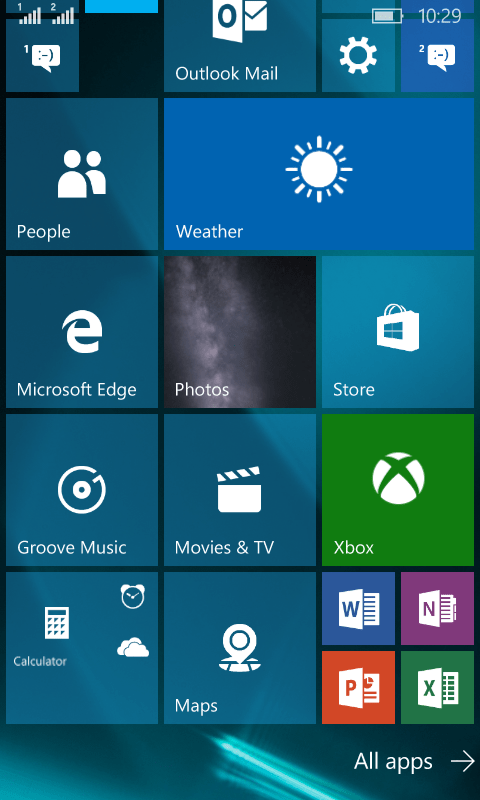
    After a while the 512 build finished installing. It looks good so far. Office is broken down to three apps: Word preview, Excel preview and Powerpoint preview. (Which needed to be purchased then installed from the store).
    The store worked fine after the upgrade, and the errors aren’t displayed anymore!

    The phone became slower and hotter. So a reset was due. It worked better. But the office applications requires an office 365 license to work. And Onenote became so hard to manage! (I needed to scroll so much to get to anything).
    The phone lags a little bit and Cortana became less responsive. So I decided to rollback to 8.1
    As confirmed by Microsoft upgrade adviser, Windows 10 won’t be available for Lumia 630 / 630 Dual. So this is the only way to get Windows 10 on your Lumia phone.

    « Older posts Newer posts »