Category: Windows (Page 10 of 22)

Telegram instant messaging application review, channel update

We have looked into several chat apps in this blog such as Whatsapp and Viber. Telegram focuses more on privacy and security more than these apps.

Telegram’s popularity exploded when Facebook announced it’s acquisition of Whatsapp in early 2014 raising security concerns among users, peaking 50 million downloads that day alone. Telegram is free and open source and has no advertisement what so ever!

Let’s take a look at the reasons to abandon whatever you become addicted to and switch to Telegram.

Who can you chat with in Telegram?

Much like Whatsapp and Viber, your contacts are your phone book contacts, and you can look users by user name as well.

You can talk to a single person or be a part of a group, and you can chat people using the secret chat feature.

Telegram features

Free and open source

When Whatsapp has been recently changed to become free, Telegram is free for life and has no ads what so ever (almost too good to be true!), while Viber has the sticker market which always wants you to buy the stickers.

Private

Telegram messages are heavily encrypted and can self-destruct, which is great for privacy (unless you are the parent of a teenager!) the most secure form of chatting you can have is provided by Telegram.

If the other person tries to take a screenshot of the secret chat, you will be notified! That’s amazing 🙂

Fast

Telegram delivers messages faster than any other application ( I still need to put this feature to the test), it tends to delay on SIM data but in general it’s fast!

Secure

Telegram keeps your messages safe from hacker attacks.

Powerful

Telegram has no limits on the size of your media and chats, while Viber and Whatsapp limit you to media files, you can send anything with Telegram! (Zip .MP3 .Doc) as big as you like!!

Cross platform / Cloud based

All of the popular platforms are supported, Windows, Linux, iOS, Android, and in case that wasn’t enough, there is a web version. And you can access your chats from an unlimited number of devices you have, and the web version is independent, you don’t have to prove to be online to chat on your PC!

Download

Click on the platform you have and it will take you to the official app in the store (you don’t want to download an unofficial app).

Download for Android

Download for iOS

Download for Windows Phone

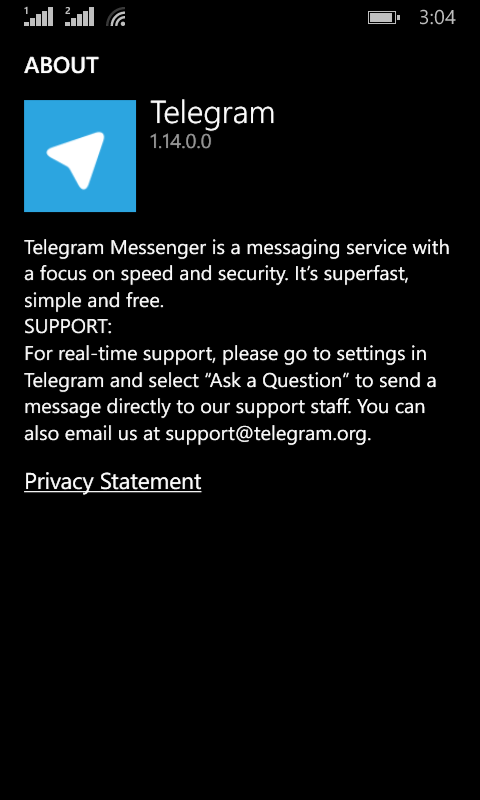
Telegram Screenshot

After we looked at the awesome features, lets take a look at some things Telegram has:

As of August 2014 Telegram delivers 10 BILLION telegrams each day!

You can create a bot to do whatever you want (if you have the skills to do so) and this bot will fetch your email, check the weather or even play chess! Read more about it here.
You can enjoy strong and private chats with your friends and co-workers, create groups to chat more efficiently or even subscribe to channels.


Channels

This is the latest features added on September the 22th 2015

Channels are the latest way to deliver messages to an unlimited number of subscribers, where they can catch up to the latest messages and read all the message history, each channel has a view count and a members count. and for a better understanding of it subscribe to Telegram’s channel, and you can create your own channels right away as the new Android / iOS version will have this feature with the latest update, others are coming soon.
And before you ask, no it doesn’t support voice/video calls!

It’s not a VOIP application, it’s not a video chat application. It’s a chat application that does! They might add the VOIP option later, I don’t think it’s going to be free. So enjoy the incredible feature set.

Conclusion

I am happy to find a chat app that Facebook hasn’t got it’s claws on yet! Those guys are all over the place! Telegram is safe, secure. Totally free and completely awesome!

The possibilities are endless, and the development is ongoing!

Do you use Telegram to chat with friends and family? Please tell me your experience with it in the comments section below.

CodeLobsterPHP Edition review

Today I’m writing my review for CodeLobster PHP edition by CodeLobster.com as the first entry to my featured section, It’s a multipurpose IDE (Integrated Development Environment) which can handle many web technologies such as HTML, CSS, JavaScript, and PHP of course. This review was done on the Professional version and some features require purchasing a license. For the Arabic review click here.

The latest version of CodeLobsterPHP Edition 5.6 brings many bugfixes such as the MySQL connection loss and incorrect behavior with MySQL tables. And new features that include updating Angular JS, Joomla, WordPress, Durpal, CakePHP, andCodeIgniter plug-ins to the latest versions ( You need a Pro license to use the plug-ins).

CodeLobsterPHP Edition runs on Windows only, and supports many versions of Windows such as: Windows NT, Windows 2000, Windows XP, Windows Vista, Windows 7, and I have personally tested it on Windows 8.1 and Windows 10 and it worked perfectly! And The interface comes in many languages such as English, Russian, German, Spanish, French, Portuguese, help is also provided for these languages as well.

CodeLobsterPHP Edition provides a FREE version that has all the standard features like:
PHP/HTML/CSS/JavaScript highlighting.

Main selling points

  • Advanced PHP/HTML/CSS/JavaScript autocomplete.
  • A powerful PHP debugger.
  • Context and dynamic Help.
  • Code validator.
  • An SQL manage.
  • You need to register the FREE version, which is really easy and totally FREE!
  • After learning about CodeLobsterPHP Edition let’s take a look at the program’s interface.

The Interface

The interface is intuitive and has several skins that you can change to your likeness, and it’s divided to four main sections:

The CodeLobsterPHP Edition interface divided into sections for easier description

1. Top Section

The top section is the menu bar, a three row toolbar which is jam packed with tools that will make your job easier, among the tools there are form control tools, div/span and image maps.

2. Left section

The left section is tabbed and you can alternate between your selections to make the best use of space, you can choose from the menu View Windows.

3.Center

The center section has the code editor, which contains three sub tabs below it: Code, preview and inspector. This is an excellent feature if you are coding and constantly jumping to your Internet browser to see how the code turned out. The inspector lets you look at your code in depth and follow brackets.

4. Right section

IS a really handy one. It displays functions from all supported languages and enables you to look them on-line via double click. You can filter them by language or name! This cheat sheet is an excellent feature for programmers and can be very useful when learning new languages. It follows the tabbed program design which makes the best use of screen space.

5. Bottom section

Is tabbed and you can alternate between your selections to make the best use of space, you can choose from the menu View Windows.

You can open many files at once as the tabbed design is paramount, you can edit many files at once and compare the changes too.

Features

Let’s take a look at the features that makes CodeLobsterPHP Edition stand out from the rest of the IDE crowd

  • Code highlights: Each code is highlighted in a separate color and mixed codes in the same file are supported, you can choose color schemes even from other IDEs!
  • Powerful Auto complete for HTML, PHP, CSS and JavaScript, HTML5 and CSS3 are also supported, The full structure of the PHP project is fully recognized and all the methods falls into place.
  • HTML/CSS inspector on the type of Firebug, which allows to correlate the selected elements of page with a code and proper style easily.
  • Context help on all supported languages. By pressing F1 key the page with detailed description for current tag, attribute or function will be opened.
  • PHP debugger. PHP debugger allows to execute PHP scripts incrementally, watching the values of all variables in every line.
  • SQL manager allows to produce all necessary actions with a database. Add, delete, edit a structure and records in tables, export data, execute SQL queries. Highlighting and autocompletion works for SQL files also.
  • Support of FTP allows to work straight with a remote server and to do all necessary changes with files;
  • The portable option allows to use editor without the preliminary installation.

Other useful utilities

 pair highlighting, possibility of blocks selection, collapsing, tooltips, navigation on descriptions of functions and included files at withholding of the key of CTRL, viewing of structure of files and project, preview in a browser, book-marks, and all other standard possibilities for work with a code.
Learning curve

Like any new program it takes a little time to get used to, but if you used any IDE before you should be able to jump right in. In all cases I recommend checking out the detailed context help while take grasp of CodeLobsterPHP Edition.

Performance

CodeLobsterPHP Edition has a medium memory foot print compared to text editors (around 70 MB when open up to 200 MB when handling large files, the download size is ideal, and the install size is perfect.

It loads fast (under 10 seconds) and runs like it should, I did my usual test, testing it with small, medium and large source files. All which handled perfectly and with no glitches, all the files were displayed properly, with syntax highlighting almost instantly. Even the larger files (16.8 MB to be exact) had a warning that the file was too long and might take a while loading (I’ve seen this on almost every text editor I worked with) loaded instantly and with no problems. All the files were opened as tabs at the same time and it passed my test with flying colors. Some of the files were as big as 13.000 lines and the biggest was 123,420 lines long! Opened it in under 10 seconds.

Licensing and purchase

There are three license options to obtain of CodeLobsterPHP Edition:

1. CodeLobsterPHP Edition Free Version (Shareware)

CodeLobsterPHP Edition comes free and provides a standard set of features absolutely free of charge! You will need a code to register which can be done in two minutes totally free of charge!

2. CodeLobsterPHP Edition Lite Version (commercial)

There are paid versions if you need more functionality and to support the developer company. The lite version provides in addition to the standard set the following features: SQL manager, Version Control Systems, Code validator, Code snippets, Code formatting, SASS and LESS, sorting and converting!

You can convert HTML code to PHP and vice-verse! All that for 39.95$ And you can try it for free for 30 days before making the purchase.

3. CodeLobsterPHP Edition Professional Version (commercial)

The CodeLobsterPHP Edition Professional version is a fully featured suit that combines all the functionality of the previous versions with the addition of plug ins. 12 popular plugins at the tip of your fingers for 99.5$ And you can try it for free for 30 days before making the purchase.

You can also upgrade from CodeLobsterPHP Edition Lite to CodeLobsterPHP Edition Pro with a simple step.

All versions include FREE LIFETIME UPGRADE!

Buy once and enjoy the updates of this powerful IDE forever! (Very few companies offer this kind of support!)

You can sign up to the forum and suggest features, report bugs or chat with fellow developers and the CodeLobsterPHP Edition team, you can submit wishes and suggest features for the coming versions too. Reading the forum and the social media pages I read that a Linux version is in the works!

Now I’ll come to the pros and cons I found using CodeLobsterPHP Edition

Pros

Doesn’t require any libraries or run times to work.

Can work Portable.

Has built-in indexed help (a feature many programs lack these days).

Fixable and suitable for many developer needs.

Super fast loading and opening.

Handles large files with ease.

Life time upgrades on both free and commercial license.

Friendly and responsive forum where you can discuss all you need to know about

Cons

Currently it supports Windows only. But checking the company’s Facebook page they said that a Linux version is in the works. As of this writing the PHP version doesn’t have a Linux binary but the newer version is cross-platform.

I couldn’t make it support Bi-Directional page layout for Arabic language. I’ve contacted the CodeLobsterPHP Edition support and they assured me that this is a feature that they will work on very soon.

Edit: It’s now supported in 5.8 (Edited on 17/12/2015).

Verdict

CodeLobsterPHP Edition is one of the best IDEs I tried so far, it beats many tools by the sheer speed and the great arsenal of tools and plug-ins.

My rating is 4.5/5 and I encourage you to get it!
Top 3 common issues faced when dualbooting

Dual booting can bring many perks if done properly. It’s like having two computers working together. And a really good idea in case one of the systems fails, you will have a configured running system and your work flow won’t be affected by the fail. As I had to fresh install Windows 10 from scratch (because the rollback failed).

There are some minor disturbances to take care of first. And those are mostly caused by Windows.

1. Ruins the dual boot.

I have a complete post about this topic! No matter what you do. Installing Windows will erase any grub boot data and you won’t be able to access your other system (in my case it was Xubuntu) I made a whole post dedicated to this as a part of the dual boot saga. So please checkout the post for the fix.

2. Time is always wrong

As you use Windows you will notice your time settings are forgotten every time you shutdown.

  • This is quite easy to fix as you just need to edit a registry key to set the time once and for all. From run open regedit.exe and navigate to :
    HKEY_LOCAL_MACHINE>SYSTEM>CurrentControlSet>Control>TimeZoneInformation
  • Create a dword32 key and name it “RealTimeIsUniversal” And set the value to 1 by double clicking on it.
  • Lastly reboot to Ubuntu and then to Windows and your issue will be fixed.

3. Error mounting drives

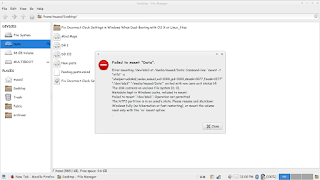
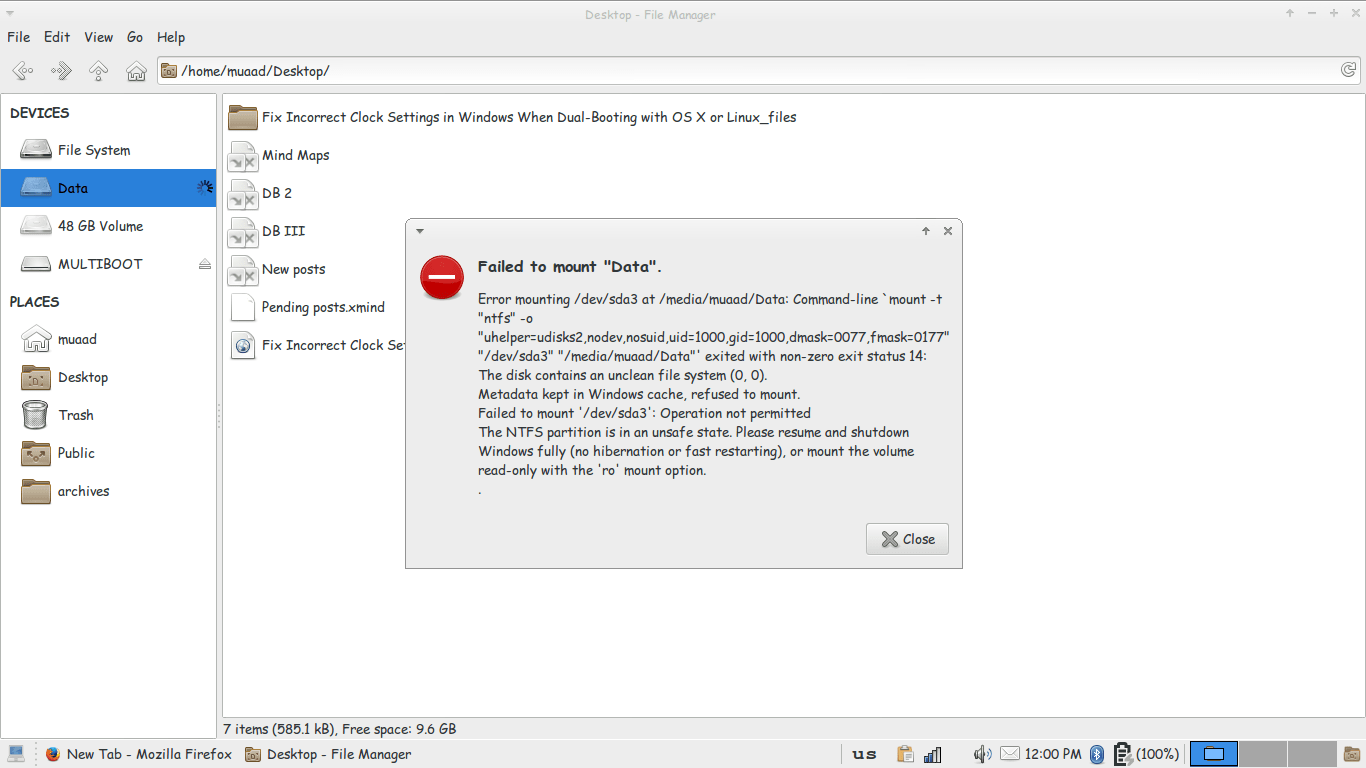
3. I couldn’t mount the data drive because Windows is still not totally shutdown, the drives are being used to “fast boot” in order to be able to use the drive without error, we need to disable fast boot. The screenshot shows an error caused by fast boot on Windows.

Error mounting drive in Ubuntu
Since it’s caused by Windows, we go and disable it from Windows.
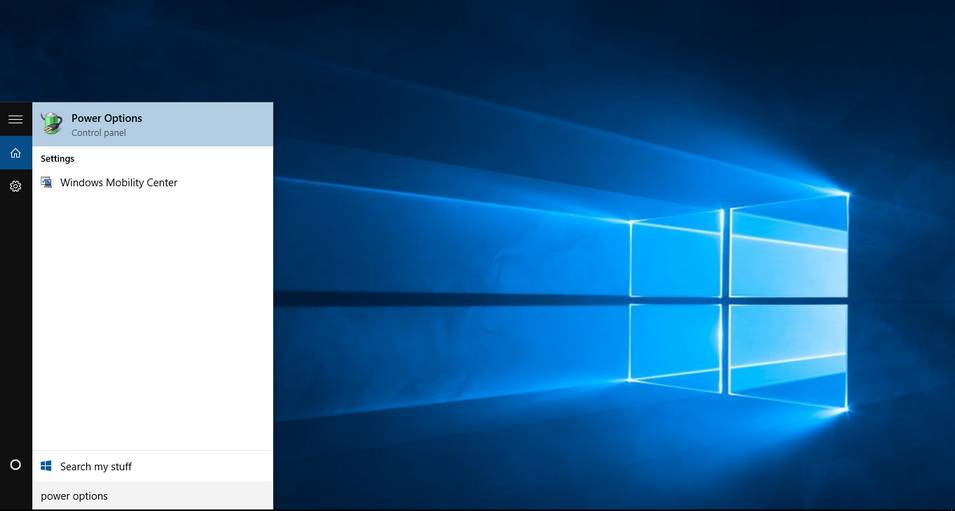
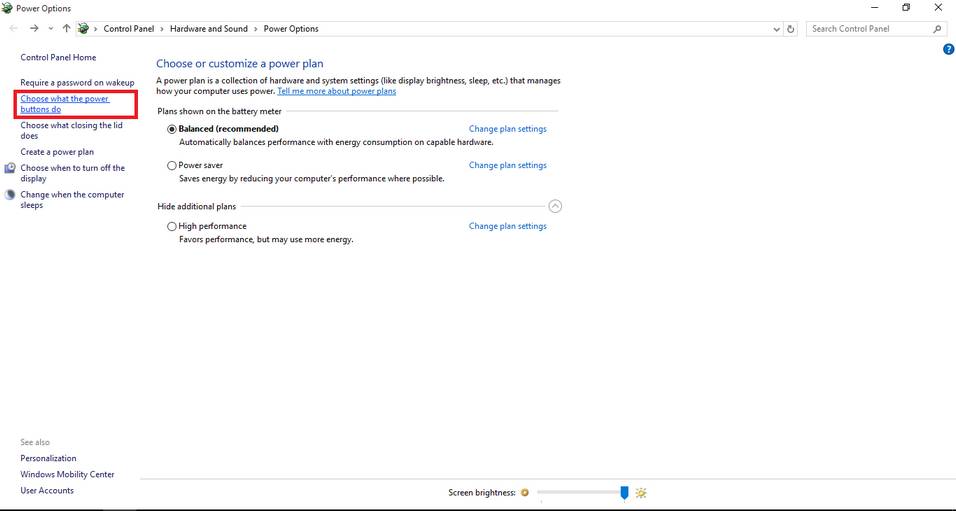
Go to Start menu and type: Power Options and click on the choice.
Type in power options in the search bar
From there click on choose what the power buttons do.
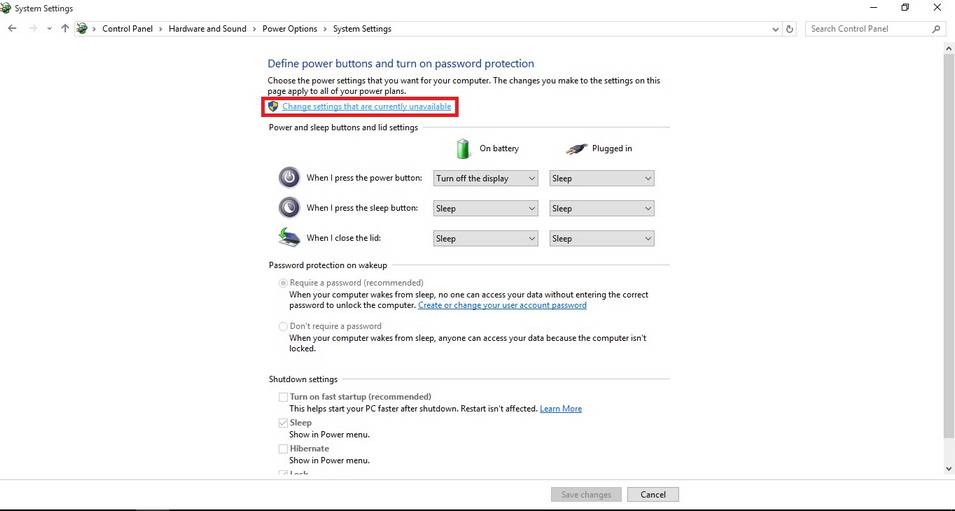
Click change settings that are currently unavailable to unlock the greyed options.
change settings that are currently unavailable
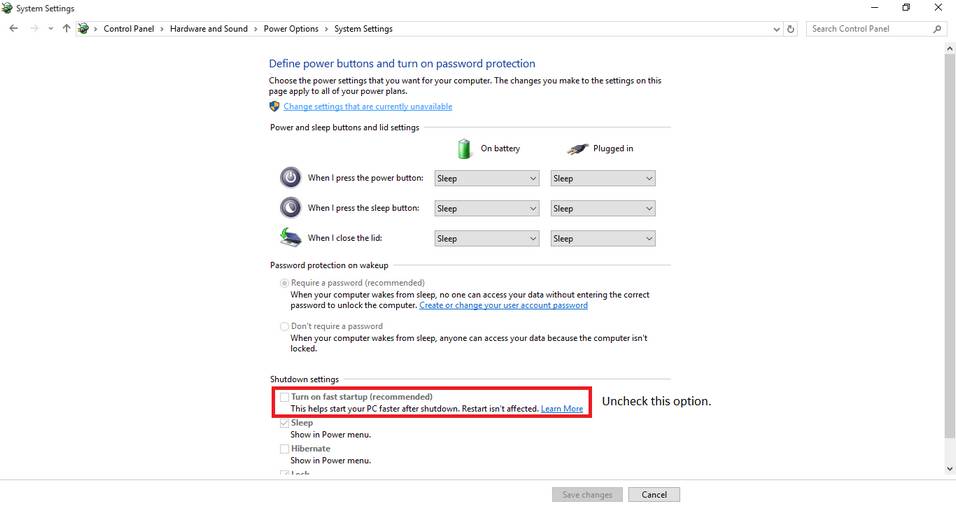
Then uncheck turn on fast startup. And close the window.
Uncheck turn on fast startup
Once the fast boot is disabled you will be able to access all the drives from Ubuntu without a problem.
Here I tried to list my experience on dual booting to help with these three bugs I faced twice. I hope you find it useful 🙂

Fresh install Windows 10

After I was absolutely certain that Windows was unrecoverable. So I began the process to fresh install Windows 10. I really felt stuck but what can we do?

When I installed Windows 10 in July the promise was if you don’t like it you can rollback within a month of install. I didn’t like it since the first days and I had a long list of problems with it. I’ll post that later. But when attempting to rollback I couldn’t and I learned that the whole thing is just a sham!

I was in a hurry installing so I didn’t take any pictures. It’s exactly like installing Windows 7, 8 or 8.1 when it comes to choosing the partition to install on it.

Windows 10 Logo

I used the same disk I used for upgrade, but instead of running it from Windows, I booted to it by F12 then choosing the disk from the boot menu.

The only different part can be found in the Windows 10 upgrade post

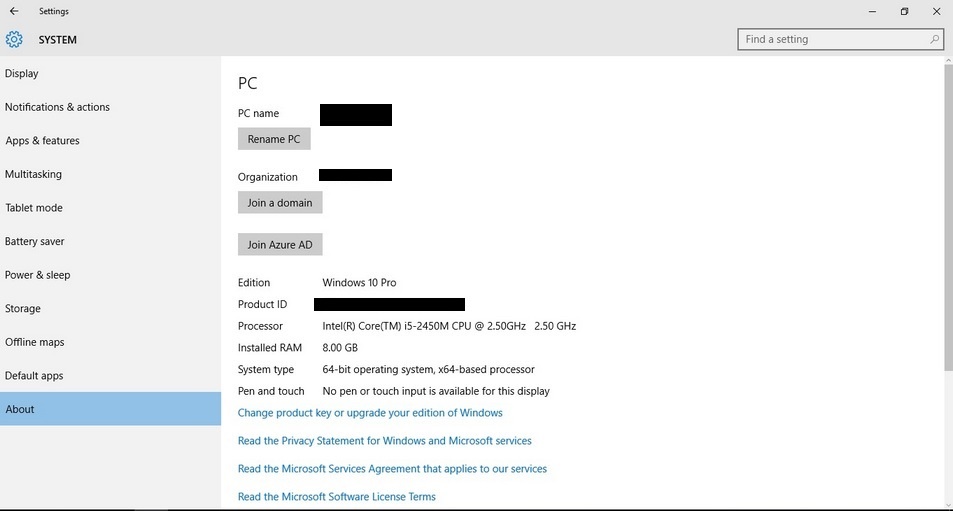
When installing Windows 10 for the second time after the upgrade ignore all and any prompt to enter your password. You can activate as soon as you get your desktop from System About. As long as you can see a Product ID you are good to go. You can find more info about clean install in Windows 10 FAQ.
Activate Windows 10

My notes on the installation process are

  • It was much faster than the upgrade process. Probably one of the fastest ever as I had Windows 7 and Windows 8 fresh installed on this computer.
  • The wireless driver wasn’t installed right away. And I had to do the update fix.
  • The Bluetooth wasn’t recognized properly and I had to uninstall it and reinstall it for it to work.
  • Many people said they had problems connecting the computer to a TV. I had them too, my fix was connecting it after boot so the system won’t “hang”. Well. For better or worse, I’m stuck with Windows 10..

Have a nice day 🙂

« Older posts Newer posts »