Category: English Post (Page 42 of 97)

Ubuntu 16.04 Beta 1 download

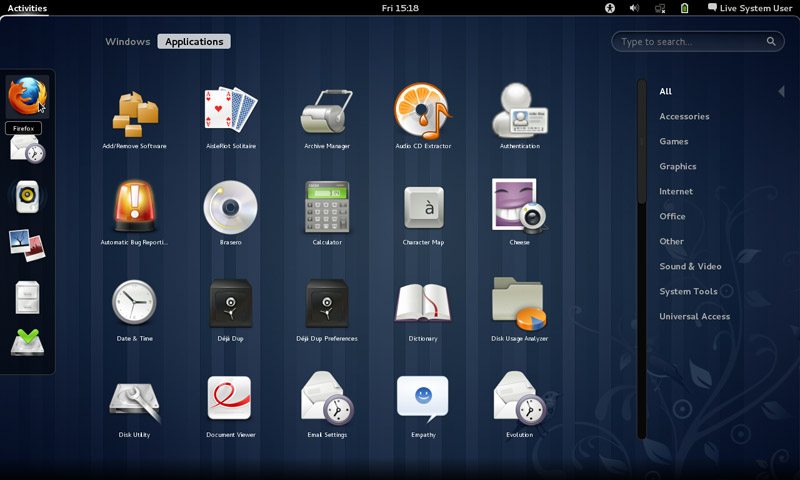
Today Ubuntu 16.04 Beta 1 is ready for download on all flavors of Ubuntu, that includes Lubuntu, Ubuntu Gnome, and Xubuntu. 

 

This is the first major milestone for many flavors as Alpha wasn’t available to many of them, while this version is far from complete, it gives you a clear idea on how will Ubuntu 16.04 will look and behave.

Now every flavor has it’s changes and improvements, but since I’m with Ubuntu Gnome now, here is a list of update and known bugs (Source):

Software Updates

  • GNOME Shell 3.18
  • Most of GNOME 3.18
  • GNOME Software has replaced Ubuntu Software Center
  • GNOME Calendar and GNOME Logs are installed by default
  • GNOME Builder (IDE) is now available in the archives
  • gnome-control-center sharing panel has been fixed
  • Experimental wayland session is now available. Install gnome-session-wayland and then select “GNOME on wayland” from login screen (Only works with OSS GPU drivers).

Known Problems

  • The prompt asking for media removal is not shown at the end of the installation (966480)
  • Shutdown/Restart of live session guest does not work in Virtualbox, and VMWare (1447038)
  • No auto login in Ubuntu GNOME Xenial (1547297)
  • Ubuntu installer says: The creation of swap space in partition failed (990744)
  • Ubuntu GNOME Xenial live image boots to tty1 (1548864)
  • It only shows installed apps, not available ones (1548933)

    The beta version isn’t ready for everyday use, but if you can and have a decent Internet connection, downloaded and give it a try even on a VM.
    I seriously can’t wait for Ubuntu 16.04. It’s going to be awesome!!

    Are you excited as I am? Let me know what you think in the comments section below?
After installing Gnome on Xubuntu 14.04: Reflection!

To end this series on my blog, I choose Gnome as interface, and went through some steps and issues to make it work properly. Now these are some notes and changes I made.


Gnome interface


I tried to use native apps as much as I could, with some exceptions of course!

That meant dropping Docky and Kupfer for the sake of the native launchers in Gnome.
I also merged the use of some apps and discarded some others to save space and for the sake of minimalism:
I added a clipboard extension manager and dropped Diodin.
Added a weather widget because it seemed convenient!
Merged the note keeping with the journal, that means rednotebook took the boot (Which really is really sad to me, but I need to move on!).

Had to replace RSSowl which I used for over 4 years on daily basis for QuiteRss to save space.

Uget replaced XDM downloader, that’s until FDM lands on Ubuntu!
I replaced Ubuntu tweak with Bleachbit.
Gnome Clocks , and pompodro timer does what Instant boss does exactly! Totally proved it’s worth as a timer app with great functionality!
uGet is better than XDM in terms of interface and development, as for video download the feature is missing some features like grabbing the name, so having Clipgrab is a good idea.
Gedit is by far the best editor I’ve seen in a very long time!! Better than atom and sublime (let’s not forget it’s native with Gnome).
I’m using Evolution for e-mail and calendar (task management), in place of the great (and huge) Thunderbird, and Tasque.

There were some native apps that I had to replace
Nothing is better than VLC to display media and stream, period!

Tomboy isn’t the best personal wiki, and it still can’t import and export notes properly, so my verdict with Zim desktop wiki stands! I found some bigtemp files in the /Root/Desktop folder (had to access as root to clean them), which won me back 4GB of free space! Here is a fair warning: If you are using Ubuntu 14.04, then the latest supported version of Gnome is 3.12.2 and don’t ever EVER try to update it, you will windup with a system that won’t boot. Also, don’t try it on Unity, it won’t work no matter what you try.

If you like the Gnome interface and would like to have the latest version, consider downloading distros that use it like Fedora or OpenSuse, if you want Ubuntu, there is a flavor called UbuntuGnome which supports the interface natively.

Fixes to bugs encounterd after moving to Gnome 3.12 on Xubuntu 14.04

I just moved to Gnome and noticed several bugs! First of all I didn’t know how to go to sleep mode!

That was very easy, click on the right corner and hold ALT and the power off button will change to sleep. That’s great! But now that I can go to sleep mode, the computer won’t wake up!


It doesn’t show up anything! Just a laminated dark screen and I have to power it off to be able to use the computer!

I looked up dozens of pages without finding a single clue, many people assumed it was a video driver issue or something. It wasn’t the video driver!
The answer was right under my nose!
Coming to gnome I noticed that it still used the “ugly” login manager LightDM-GTK-Greeter. So I used the command to change the login manager to GDM, Gnome’s default login manager, that’s where the problem started!
As soon as I chose LightDM-GTK-Greeter and rebooted, I’ve been able to sleep and wake at will! No problem at all!
So that’s the fix! Install LightDM-GTK-Greeter.
First of all add it to the repositories via this command:
Then install it via this command:
Finally: Use this command to make it the default login manager.
sudo dpkg-reconfigure lightdm
My problem wasn’t “fixed” 100%. I was feeling bitter-sweet!
I fixed the sleep issue, and now the extensions remain after reboot too! But the login manager is hideous! Isn’t there a way to make it pretty?
Why is it hideous you ask? It was a part of the XCFE interface and when I removed it, it lost the visual elements it had and went back to defaults. And that’s not pretty at all!
Ubutu Tweak couldn’t customize it, and the Tweak utility provided by Gnome had no options for it.
The question remained: How to customize LightDM-GTK-Greeter?
It’s very simple actually! There is a package called: LightDM-GTK-Greeter-Settings. All you have to do is to install it. And use it to customize LightDM-GTK-Greeter to look better!
I began by adding it to the repositories via this command:
Then install it via this command:
sudo apt-get install lightdm-webkit-greeter
From the menu I ran it and it needs administrator rights so I had to enter my password to start it.
I had several options to choose from like theme and position and what tabs to be displayed. It looks so much better now and it gets the job done.
Not as pretty as GDM of course, but at least it works!

In addition to the sleep and wake bug fix, and the extensions staying enabled after reboot, the Gnome classic mode loads an interface rather than just a background with a mouse cursor, but it looks the same as Gnome. I’m yet to figure that out!

My fix to that was very simple, Installing Ubuntu Gnome 14.04.4 a fresh install.

Continue reading

Bugs faced after moving to Gnome 3.12 on Xubuntu 14.04

One of the major issues I felt in Gnome was the extensions installed get disabled after restart (since I can’t go to sleep anyway). The fix suggested was to use the “System default”.


 It didn’t fix other issues like the sleep mode not waking up and the classic mode not showing any elements, but I am tackling issues one at the time.

Message tray pop ups

Message tray, it looked big and annoying ( it responds to every mouse gesture no matter how small)

Size

It’s also very big in size, it took 5GB more than XFCE took, even with cleaners like Bleachbit, I was running low on space.

No sleep

I didn’t even know how to go into sleep mode, turns out you need to press and hold ALT while the menu is popped out to go to sleep menu.

Doesn’t wake up from sleep

I couldn’t find an explanation for this bug! The computer displays a black screen whenever waking from standby and stays that way until I turn it off manually!

No classic mode (just a background)

It only loads a mouse cursor and a background with no visual elements until I turn it off manually! No easy fix or workaround for it (yet).

Extensions won’t install

I wasn’t able to install extensions from the extension site, extensions.gnome.org even after enabling the addon in my browser and adding the site to trust list. It was resolved on it’s on.

After install won’t stay enabled after reboot

Even the extension that is supposed to make it less sensitive resets on reboot. The fix was to choose the “System default” from the login which (worked for me like many other people). It wasn’t convenient but it was an easy fix.

I’ll post that has a fix for most of these issues very soon 🙂

« Older posts Newer posts »