Category: free space

Wiping free space to make the phone run faster

After updating a Samsung I9082 (Grand) from 4.1.2 to 4.2.2 it became much slower and restarted often. A factory reset was due. Even after the reset the phone was incredibly slow.
It remained slow and buggy for a while, until I needed to wipe some files for security. I noticed it became much faster after wiping the free space!


What is wiping free space?

Wiping free space is deleting the deleted files that could be restored by recovery software. It’s used to keep privacy and ensures data doesn’t fall in the wrong hands in case the phone is lost, stolen or even in the case of selling it.

What tools to use?

There are several tools available in the Google store to wipe the free space.

Andro shredder is one of them, it deletes files permanently and wipes free space too.
Sceure Wipe is another popular tool.
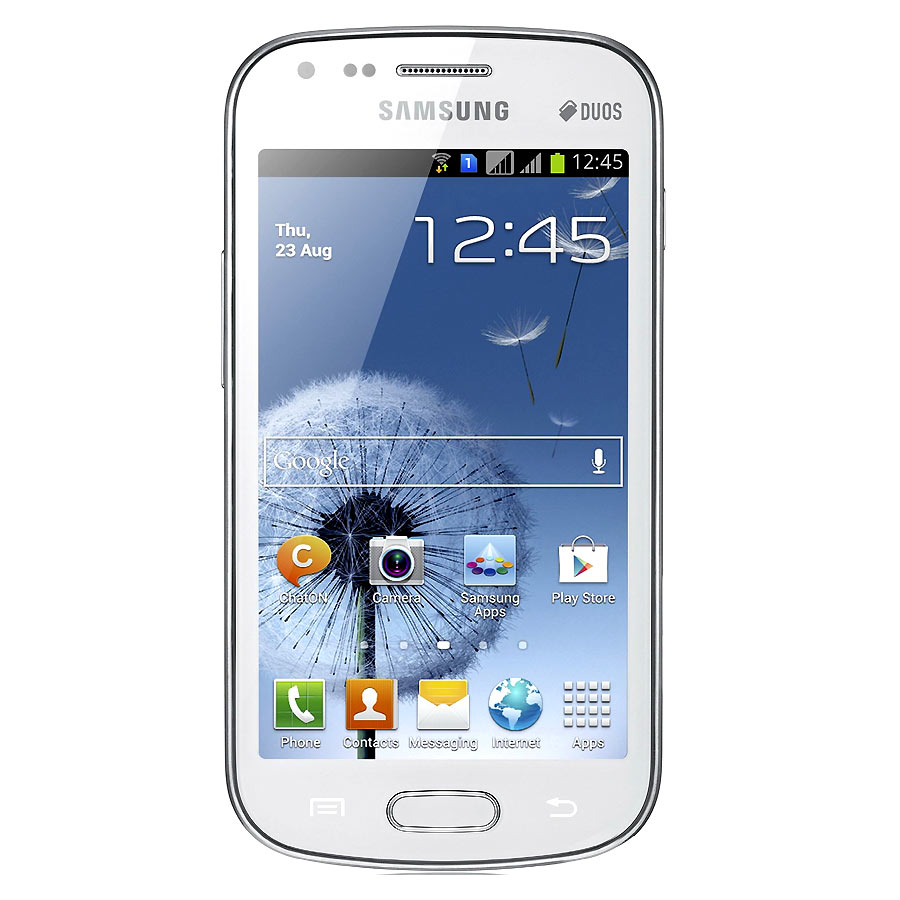
Wiping free space doesn’t cause data loss and it securely deletes data.

Did this fix work for you? Did you test it on other models? Please let me know what you think in the comments section below.
Windows 8.1 losing free space [FIXED]

After installing Windows 8.1 and doing all the updates. I was getting ready to create an image (in case anything happens) so I did the usual steps of cleaning and optimizing. Shortly after creating the image I noticed 12 GB of free space occupied!
Where did my free space go?

I had just finished cleaning it! Didn’t install a thing! Where did the space go?


I decided to use a handy tool called foldersize to determine where the largest folders were, and I wasn’t surprised when Windows was the biggest.
I went in and there was a folder called WinSxS which had 16 GB of size! That’s your culprit right there!

So what is WinSxS? And how does it work?

As it turns out Windows uses this folder to save backups and images alongside backup files (citation needed). There was no need to worry, as there is a monthly cleaning task scheduled that should take care of it.

But what if I want to clean it now?

Doing a disk clean (even enabling system files won’t get you those extra files you are looking for) you need to use the command line.

Run cmd as an administrator and type in:

Dism.exe /online /Cleanup-Image /AnalyzeComponentStore
To see how much space you have, only then you can get to clean by typing:

Dism.exe /online /cleanup-image /StartComponentCleanup 

Finally type in: 

Dism.exe /online /Cleanup-Image /StartComponentCleanup /ResetBase
Important notes:

  • These commands will take some time working, up to an hour, so take your time with the cleanup!
  • This might not work right away. I had to do it a couple of times with a restart. Then it cleaned it.


Warning: NEVER EVER TRY TO DELETE FILES MANUALLY. IT COULD RUIN YOUR COMPUTER AND MAKE IT UNUSABLE..

Any other space hogs?

Another place to look is the page file, if you want to set the size manually (or disable it all together) then that’s a good start!
Last thing to check is the hibernate file (which can go anywhere from 4-7 GB) and is completely useless if you don’t use the hibernation option. Check this tutorial to disable it.
We looked at three ways to taking back space that Windows occupied. I hope you find it useful!

Finally

How much did Windows take, was it more than 12 GB, share the space and let see who has the most loss!
If you liked this post share it with your friends, sharing is caring 🙂