Category: How to (Page 16 of 20)

Fresh install Windows 10

After I was absolutely certain that Windows was unrecoverable. So I began the process to fresh install Windows 10. I really felt stuck but what can we do?

When I installed Windows 10 in July the promise was if you don’t like it you can rollback within a month of install. I didn’t like it since the first days and I had a long list of problems with it. I’ll post that later. But when attempting to rollback I couldn’t and I learned that the whole thing is just a sham!

I was in a hurry installing so I didn’t take any pictures. It’s exactly like installing Windows 7, 8 or 8.1 when it comes to choosing the partition to install on it.

Windows 10 Logo

I used the same disk I used for upgrade, but instead of running it from Windows, I booted to it by F12 then choosing the disk from the boot menu.

The only different part can be found in the Windows 10 upgrade post

When installing Windows 10 for the second time after the upgrade ignore all and any prompt to enter your password. You can activate as soon as you get your desktop from System About. As long as you can see a Product ID you are good to go. You can find more info about clean install in Windows 10 FAQ.
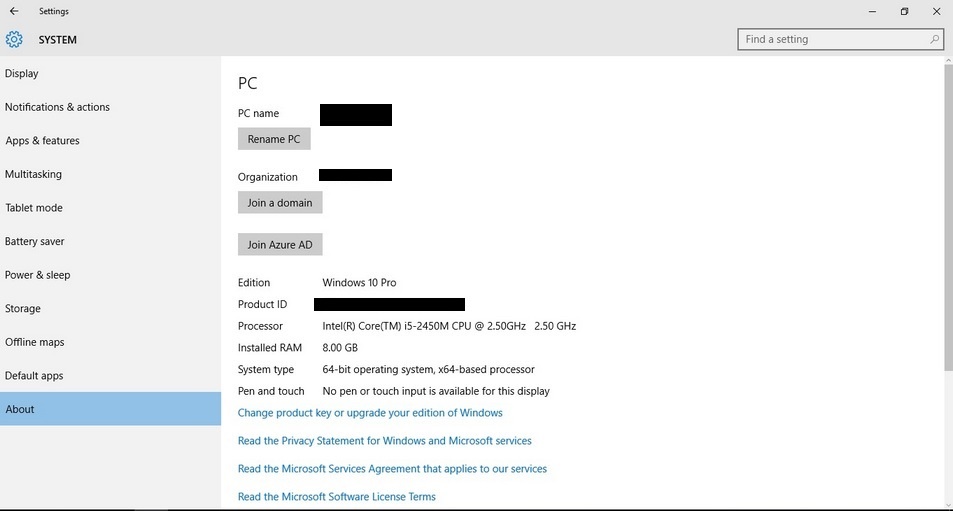
Activate Windows 10

My notes on the installation process are

  • It was much faster than the upgrade process. Probably one of the fastest ever as I had Windows 7 and Windows 8 fresh installed on this computer.
  • The wireless driver wasn’t installed right away. And I had to do the update fix.
  • The Bluetooth wasn’t recognized properly and I had to uninstall it and reinstall it for it to work.
  • Many people said they had problems connecting the computer to a TV. I had them too, my fix was connecting it after boot so the system won’t “hang”. Well. For better or worse, I’m stuck with Windows 10..

Have a nice day 🙂
Windows 8 Installation and Activation (Dual Boot Saga)

I freshly installed Windows 8 Pro on an old friend’s laptop that soon collapsed. So I had to do something so I don’t lose the Pro license!
That laptop has been acting off for quite some time.

It was time to replace the 4+  year old laptop with a new one. (The old one came with Windows 7 so I got it a new HDD and installed Windows 7 on it.)  But what will happen with the original Windows 8 pro that was installed on it? I decided not to let that code go to waste! I had Linux running on my computer and I decided to dual boot (I don’t like having two laptops).

The step process was pretty straight forward and there was nothing to write home about.

Creating the partition table

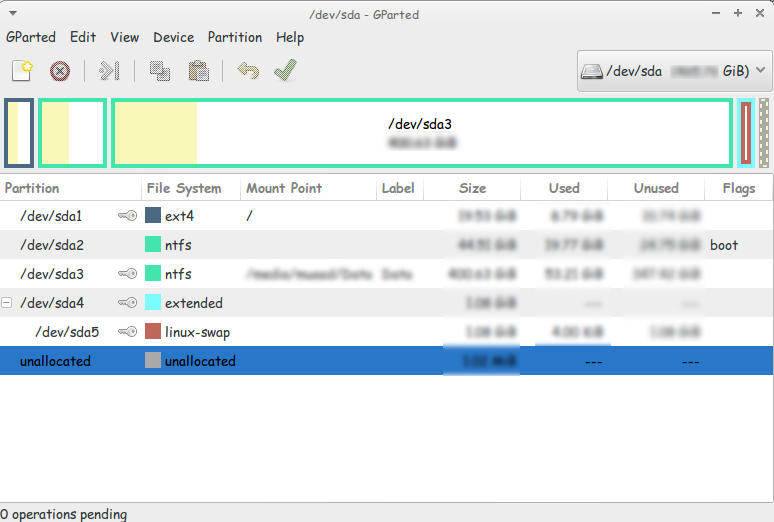
I used Gparted to create a new partition on my computer (after I backed up all the data of course!).
This is the drive after I used Gparted to create a Partition to install Windows
You must use Gparted with care. This link doesn’t show the exact steps but it’s very close!
I used this tutorial to put a Windows 8 Pro ISO on a USB drive.  It’s faster to install from a USB. So I went for it.

Then I entered my install media USB chose the newly created partition and installed Windows, This is a link from Microsoft showing how to “clean install” Windows.

Now we come to the Activation part

Upon activation I couldn’t activate the key I had! It won’t activate!
It took the key but didn’t activate..

A quick Googlesearch and I was good to go!

Check the link for the steps.

I was glad at this point. I installed Windows and activated it. but at this point I had two major problems!

These major problems were:

  1. Installing Windows 8 ruined the boot settings! I can’t see Linux anymore!
  2. I needed to transfer the Windows from the old laptop to mine.

There were some minor things I solved right away!

  • There was a minor nuisance of Incorrect Clock Settings in Windows when dual booting. I fixed easily following this tutorial
  • I wanted to Enable .Net Framework 3.5 without downloading it. it was an easy fix and you can check it out from here.
  • Windows 8 has the Fast boot feature that makes the disk unaccessible from Linux if Windows 8 was shutdown unexpectedly. This is why you need to disable it. And this is how!

I’ll be getting to those major problems in the second and third part of our saga! Stay tuned!!

Make sure to leave your comments and suggestions in the comments section below.

Customize LibreOffice with these awesome native themes

With LibreOffice 5.0 just around the corner, I thought I should share this awesome tutorial with you to make LibreOffice look better and enhance your productivity!
LibreOffice’s killer looks is just one of the many features it sports. Today I’ll be showing you how to change the default look to enjoy the awesome themes it has!

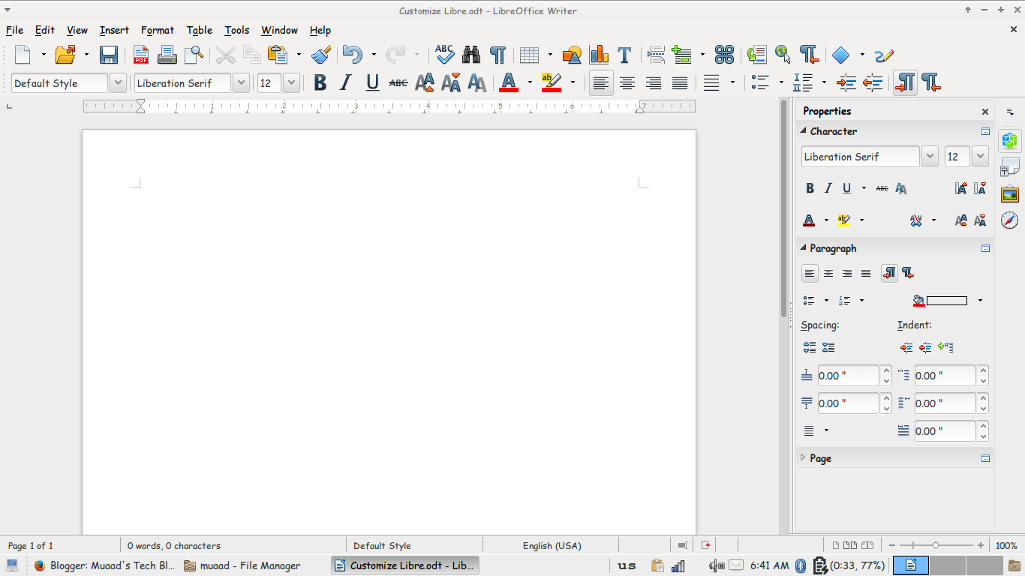
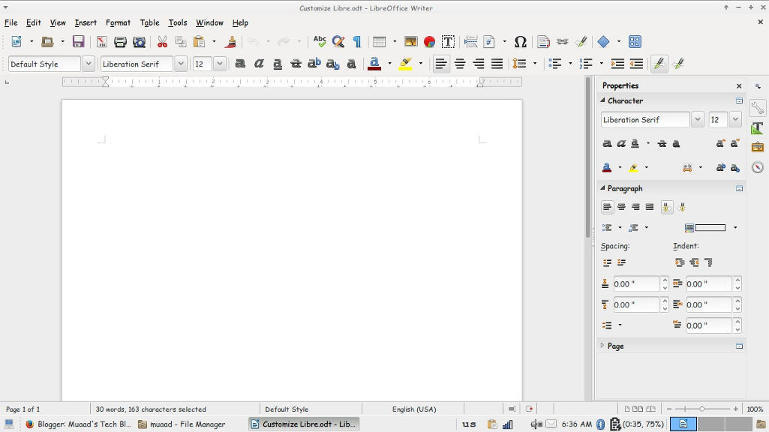
At first, let’s take a look at the default theme:

Not bad! It looks fresh and modern, especially if you are coming from “another” productivity suit, this one is called Tango and it’s the default theme. Now the question is: How to change the theme?
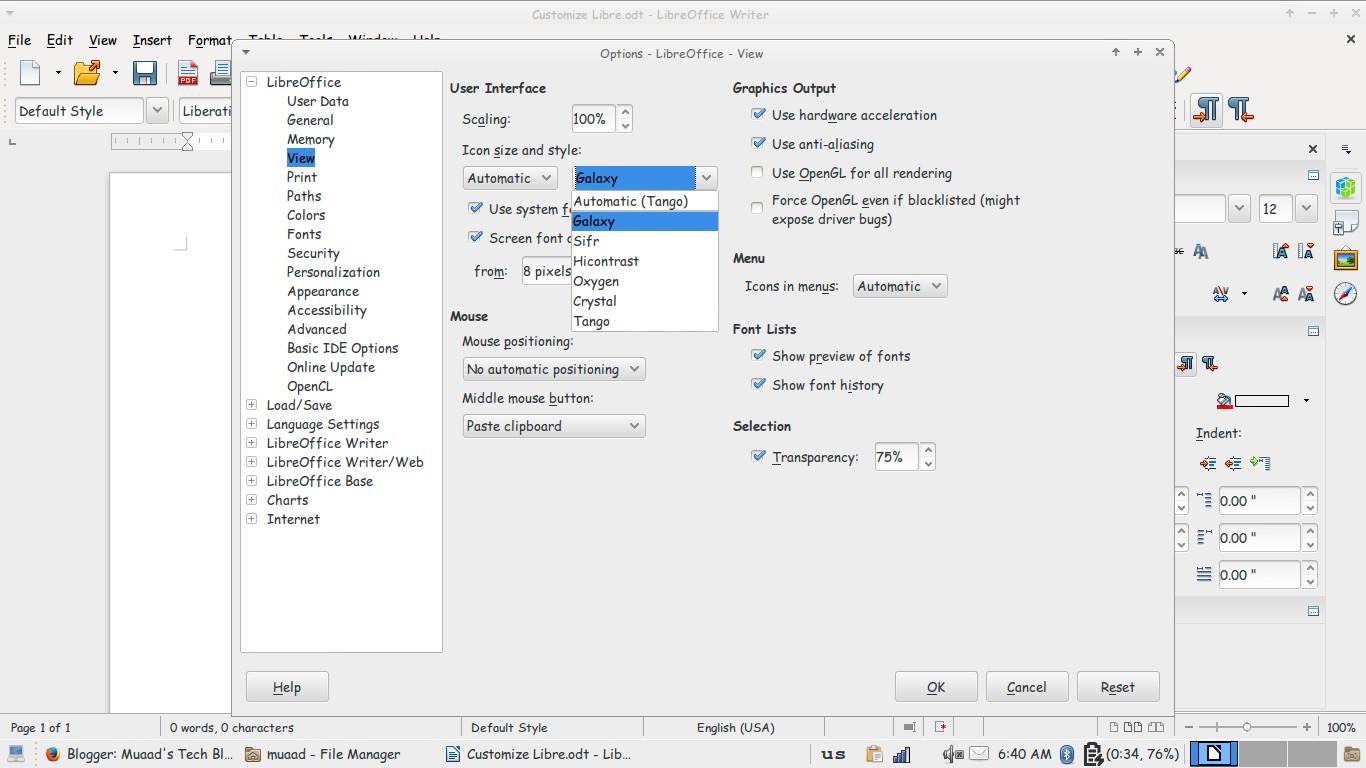
Navigate to: Tools Options View and choose the theme you like from: User interface Icon size and style.

Options menu

There is a total of six themes available (Tango included) and we are going to take a look at all of them! Then I’m going to say which is the best one!

Tango
Tango (Default theme)
Crystal
Crystal


High Contrast
 High contrast


Oxygen
Oxygen  


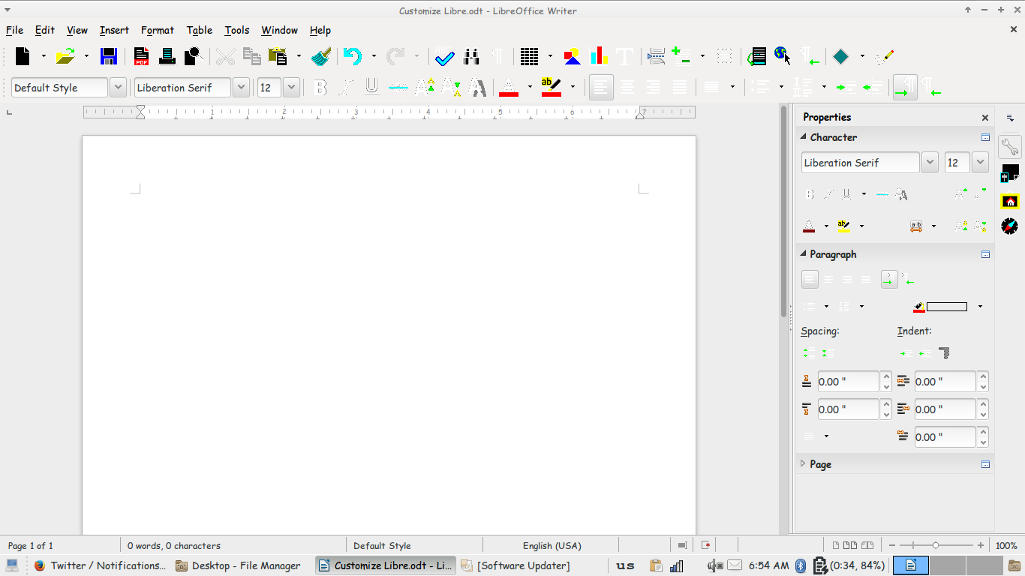
Sifr
Sifr
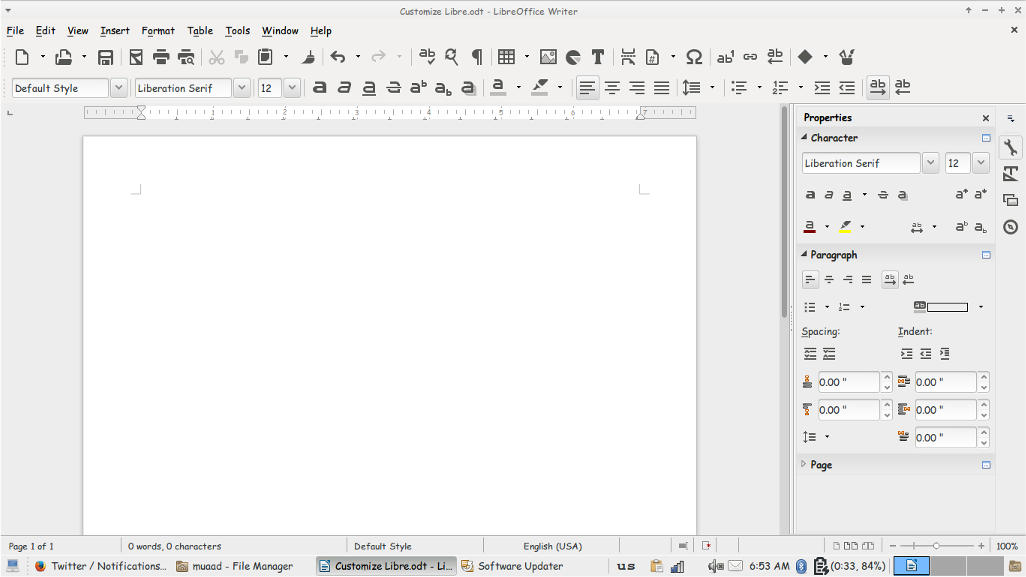
Galaxy
weight: normal;”>Galaxy
Pretty sweet, don’t you think? 

And I’m willing to tell you the best one!

The best theme is the one you like the most and allows you to be most productive!
Which one is the one for you? Let me know in the comments section below! 
I like Sifr btw 😉

Batch install downloaded DEB packages on Ubuntu

Today’s post is a re-write of “How to add downloaded packages to Synaptic Package Manager in Ubuntu 13.04” because I had to install packages Offline when I was fixing my brother’s computer. And something wasn’t right!

In that particular case I installed Ubuntu 14.04 twice in the same week so using the same packages to update was probably the right thing to do to save time and data plan.

Anyway based on my recent experience it will be much more clear. And I added pictures too! Synaptic is a GTK+-based graphical user interface for Advanced Packaging Tool (APT)—the Package management system used by Debian and its derivatives. Synaptic is usually used on systems based on deb packages but can also be used on systems based on RPM packages. (Source)

We are using it today to batch install software on Ubuntu, and you must take note that it’s a powerful tool and can potentially harm your system. So take care. You are going to need admin permission to access Synaptic.

Also don’t install anything you don’t trust! Be careful because now the program has admin permission to change your system!


After we took a look at the warnings, let’s take a look at the scenarios:
You are an Ubuntu admin and you have 10+ computers. And you need to install the same software on all 10 computers. So instead of Connecting them all to the Internet and downloading the same software. Connect one of them and download the required software. Then install it on the rest.

You just installed Ubuntu on a machine and begun to download software. But the Internet is really slow! (Third world problems) so you take the programs on a USB from another computer and get to work!
You have a limited data plan and you are trying to save!

No matter what was the situation. It’s a handy trick and you will comeback to this tutorial over and over to read it!

First of all. Let’s prepare the software.

You can either use the software center cache. Or any random .deb packages you have. (Or both)

If you want to copy the software center cache then go to the directory:

“Computer/var/cache/apt/archives” where “computer” is your system partition.

This is a system folder so you can’t cut or delete any of these packages. And if you copy the .lock file or the partial it will result in copy error.

Remember where you put the packages and the folder name as we are going to need that later.

Open Synaptic and enter your password. If you don’t have Synaptic you have to install it. Say from the Ubuntu Software Center.


Once you opened it you have to confirm that you are online. I can’t stress this enough. And it won’t work if you aren’t connected to the Internet.

You can confirm that by reloading package information. If it downloads package information without problem. Then you are good to go!


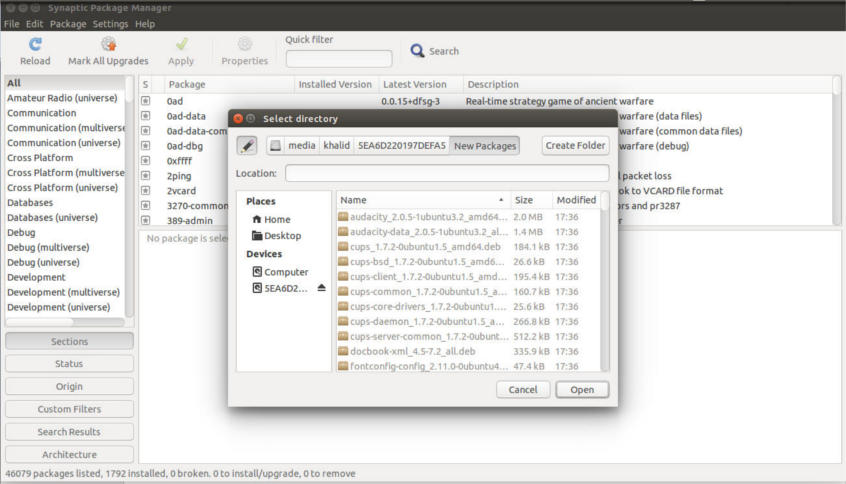
Paste all the packages in that directory, in this tutorial it’s called “New Packages”.

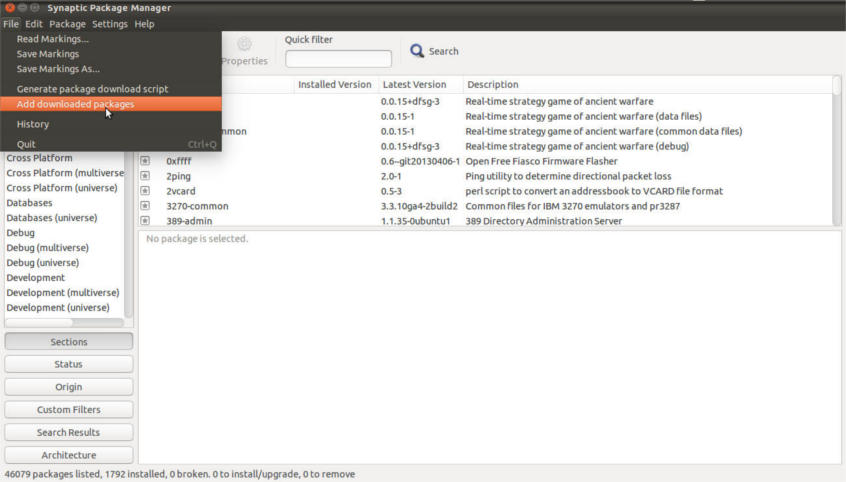
Click file Add downloaded packages.


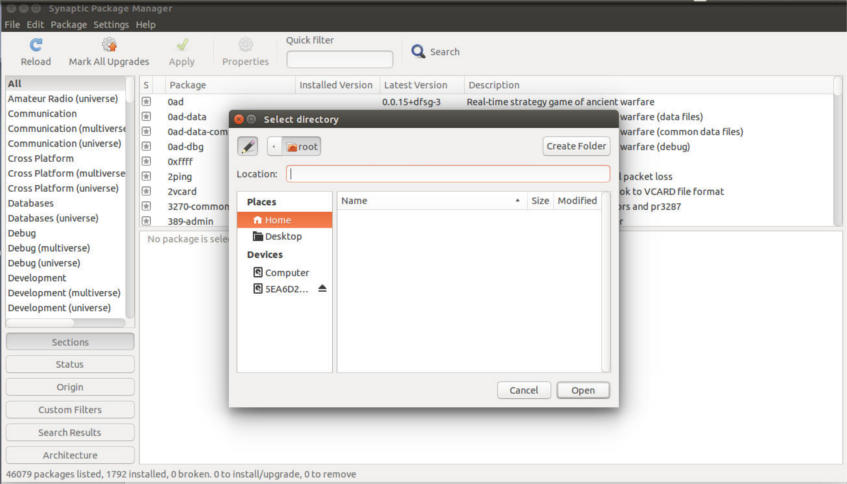
You will see a browse dialog., use it to navigate to your folder.

once there click open.


Wait a moment for the packages to add. It can take several minutes when adding a lot of packages.

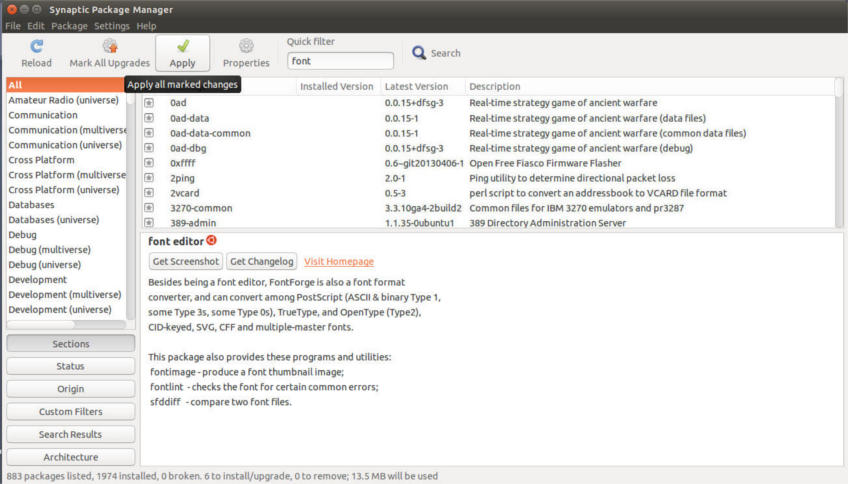
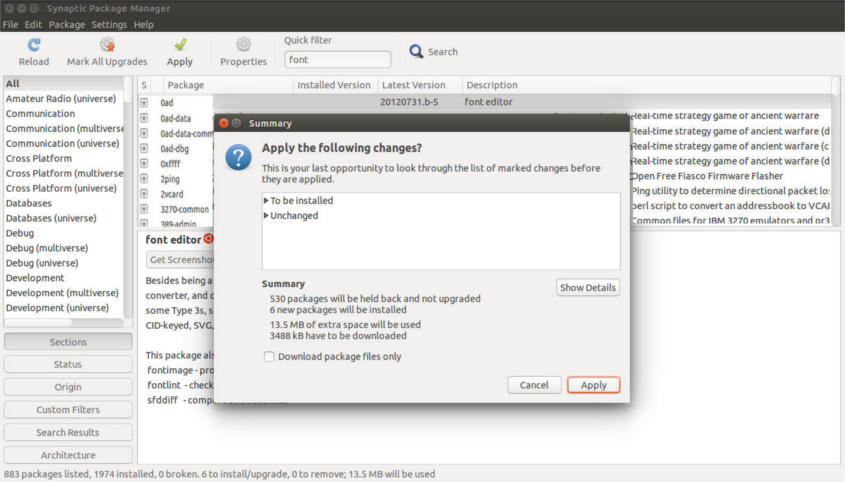
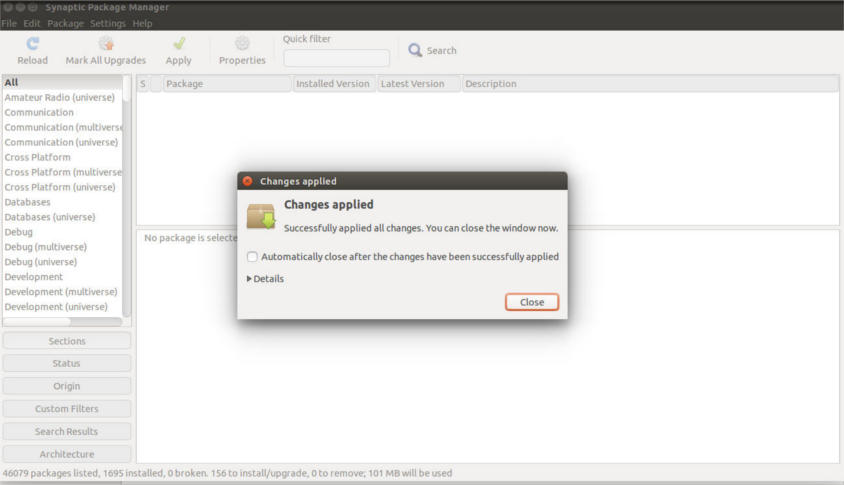
Click Apply and Synaptic will tell you how much packages will be installed. The size of install and how much it will download.

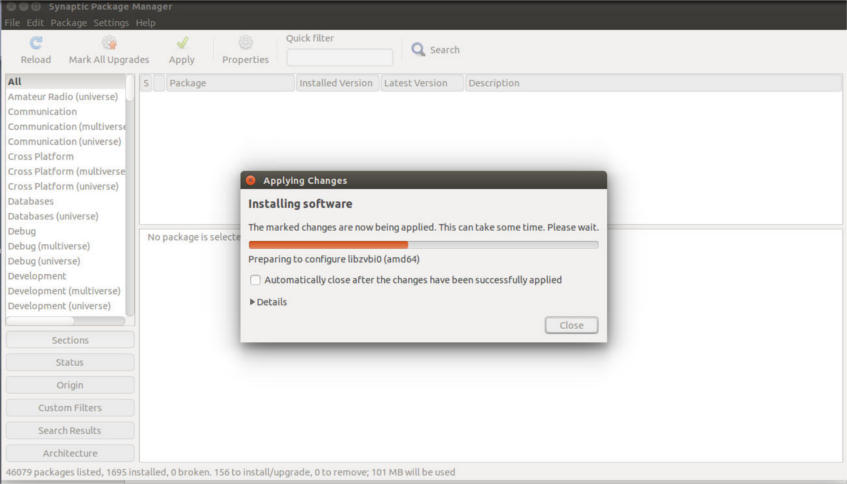
Wait for the progress bar to end.


Then click close to finish installing the software.

This way we installed a batch of software as we would install a single one. Without re-downloading them again!

Pretty handy isn’t it?

« Older posts Newer posts »