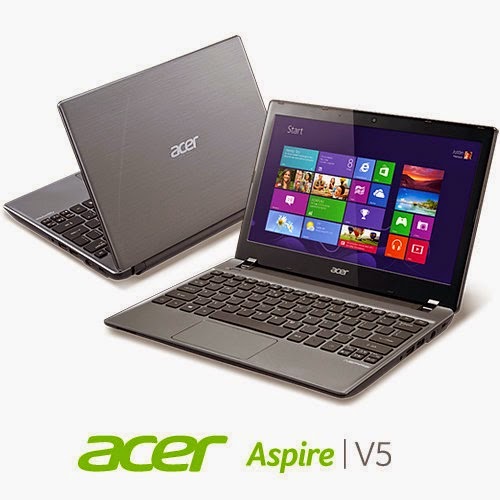
I’m happy to report I was able to fix the Acer Aspire V5-P122 boot problem!
I must emphasis that this tutorial is at your own risk and I can’t be held responsible for any damages that occur from it! I’m not even sure this is 100% legal and that it doesn’t void Acer warranty! In this case we don’t have an Acer service in our country (It was imported) and therefor I had to take action (To save the OEM license) ..
After the long introduction, let’s get down to business:
As you remember in this post we managed to make the Acer boot under Linux by changing the boot settings. And we could access the hard drive after accessing the repair mode under windows and writing some commands. For the full steps go to this post.
At this point we have our data at hand (since we booted under Windows for repair. Then under Linux for data recovery), we could easily backup the data to an external hard drive, but can we restore Windows?
Sadly I couldn’t manage to use any of the options to make the laptop work again!
- I couldn’t refresh the system.
- I couldn’t use the repair utility from the setup.
- I didn’t have an image ( and I doubt that would have done anything ).
- It won’t restore to a previous restore point.
Well a mistake happened with us and it totally wiped the hard drive! What happened was instead of booting Linux into live mode I installed Linux on the whole drive! Wiping the data and partitions completely !! ( Deleting the system partition, data partition, the recovery partition. And all of Acer’s bloatware!)
A fresh start
With nothing at hand, I knew that I needed to format! My main concern was the Windows license! Now I have to go shopping for another Windows version! But I just got this laptop! And it has OEM Windows already on it! Isn’t there a way to keep the license?
Well .. There is 😀
Luckily the new Windows license is stored in the BIOS. Meaning it won’t be lost even if the hard drive was replaced!
Next step
The only thing left now was to install windows again, it’s pretty basic. Checkout the detailed method in this post I made sometime ago 🙂
Again I was stressing, will the license be picked by the setup?
I couldn’t find that version of Windows to install with anywhere! All I could find was the Pro version! Does that mean I have to buy it again? Or I should transfer the license from my other laptop and use it here. Keeping that device a Linux machine?
Anyway I begun the installation via USB ( The Acer doesn’t have a DVD-Rom).
After the setup was complete it noted that windows wasn’t activated, but it was reading the license file!
Viewing the License
I knew that because I downloaded the Nirsoft license viewer tool and tested it on my other device, 100% accurate!
It showed when I used it on the Acer Netbook that indeed the OEM bios has a license. It was yet to be activated.
Powerful command
I used this command and restarted the computer. After the restart I clicked Activate Windows
Windows was activated (With the O.E.M license!!). And it was downgraded to Windows 8 ( The setup was 8 Pro)!!
It was a total success!
I postponed creating a system image until upgrading to 8.1 (it’s equal to a format).
And that was it!
Maybe you need to call Microsoft after the format! And if you have an Acer reseller. Go to them! ( As I said, we have no means of support. I tried to make this as legal as possible. I hope it doesn’t violate any laws)
Final words
To sum the whole post in a paragraph: I reinstalled Windows 8 Pro and activated windows via the O.E.M bios, downgrading it to Windows 8.
Of course I lost all the Acer tools, guides, drivers and even bloatware!
Again I must insist to resort to this as a final solution knowing it may void your warranty!
I hope you find this post useful. Please tell me what occurs with you!
Have a nice day 🙂
Make sure to follow my blog and join my mail-list NEW