Category: How to (Page 19 of 20)

How to create bootable USB for Linux?

Hey guys, how are you doing today?

Today we are putting Linux on a USB! Really easy and very important!

As we said in the Acer Netbook repair post  that we will post about making bootable USB for Windows and Linux. We are using the same method we used to put Windows on a USB. Only this time, it’s much easier!
That’s because most Linux distributions are downloaded off the internet as .ISO files, no need to use Infrarecorder to change them!

I have to admit! I based this article on a previous post. Only because it’s THE EXACT SAME WAY.
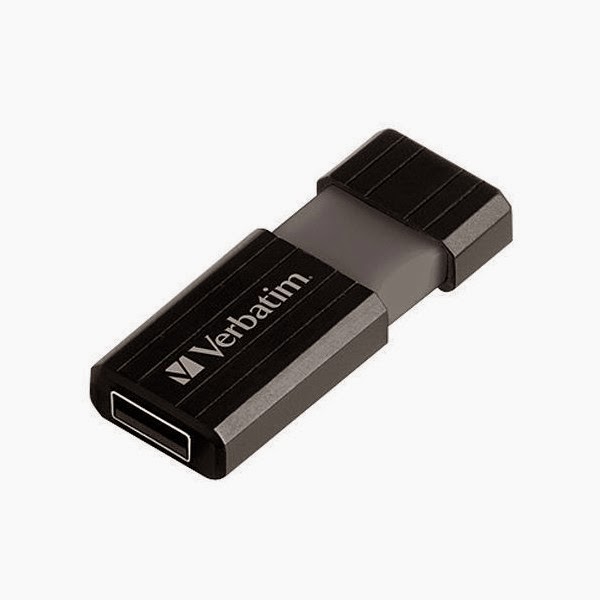
Steps to make the bootable USB:
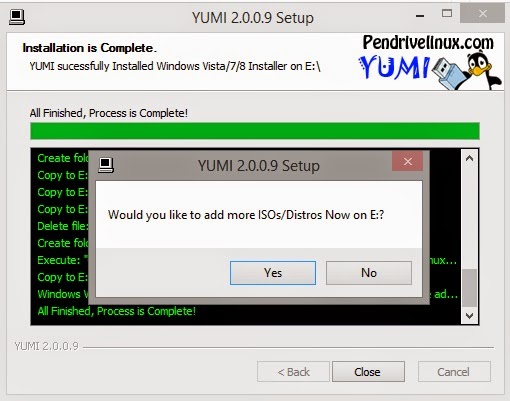
For this step we are going to need a software called YUMI. (Your Universal Multiboot Installer ) Also free and can be downloaded from Here.. I found this to be the easiest way around when it comes to burning ISOs on a USB. And it can add many ISOs on one flash! So it’s efficient and easy!

1. After the download run the setup and click agree.
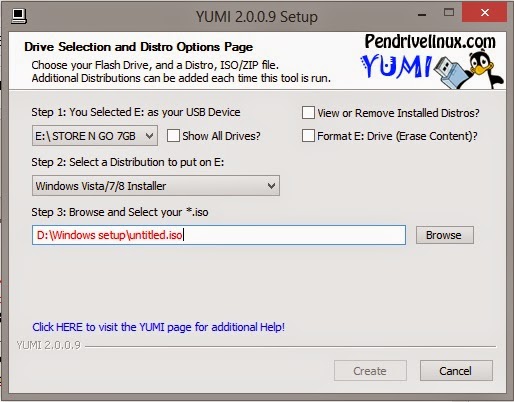
2. From this window select the USB drive you are going to use.

A. Select  from the drop-down list. It has many Linux distributions and many live CDs too. Scroll down to find the distribution you chose, for example: Ubuntu
B. Browse for the ISO we downloaded, note that the name of the ISO will be the name in the boot menu.
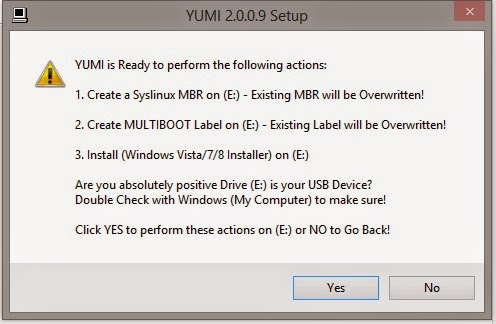
3. On the warning menu choose yes (will format the USB so double check)
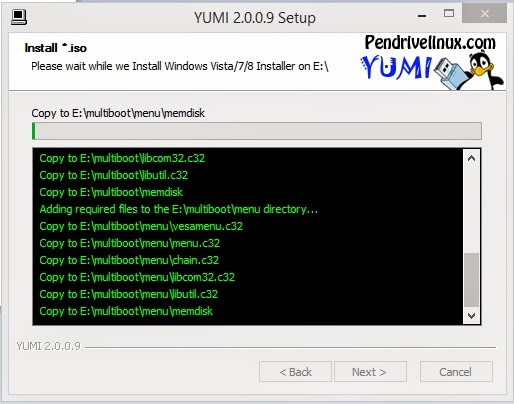
4. You will see the progress windows copying all the files to the USB.
 

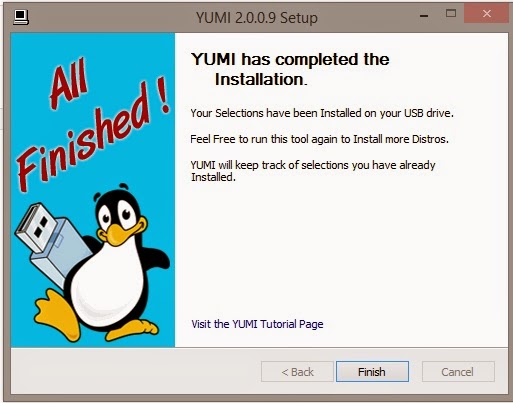
5. Wait for a few minutes and you are done!
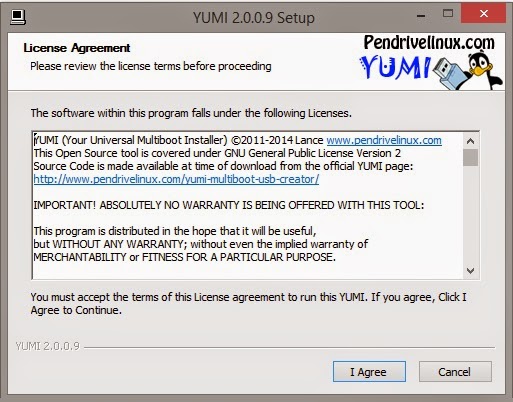
You can add other ISOs using the same steps, or remove them if you like!

6. Yes will reopen the selection window while no ends the program .
7. After you are done, make sure to back up the data on the target computer. Reboot it and select from the boot selection menu ( Usually accessed by F12, can vary depending on the bios ). And continue form there 😀 .

That was it! Pretty easy isn’t it? I hope you enjoyed it as much as I enjoy making it 😀
Please feel free to leave your feedback.
This post will be mentioned in my next post! Stay tuned!
Have a nice day 😀
A couple more things to try before announcing the HDD dead!

Hey there guys! What’s up?

It happens to all of us! Suddenly a HDD fails and wont boot or run. Is all that data gone?

Well, maybe not

Assuming you have a backup of your data. physical or via a cloud server. Because loss can happen anytime!

There are some things to try before throwing that HDD away!

Depending on the HDD type you can connect it to another computer. If it’s an external then you need a special connection.

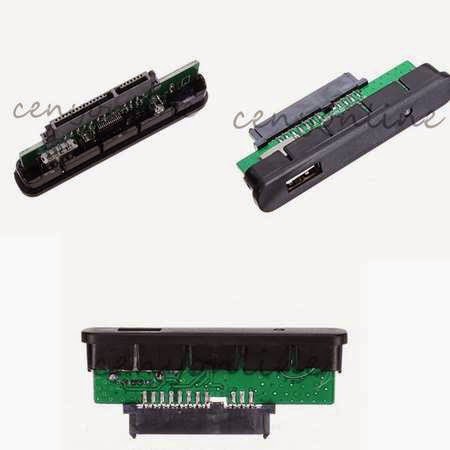
The fault might be in the adapter of the HDD and changing it would resolve the problem!

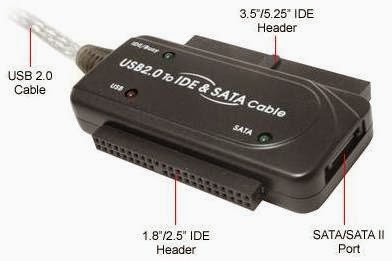
This is an adapter that connects to the HDD

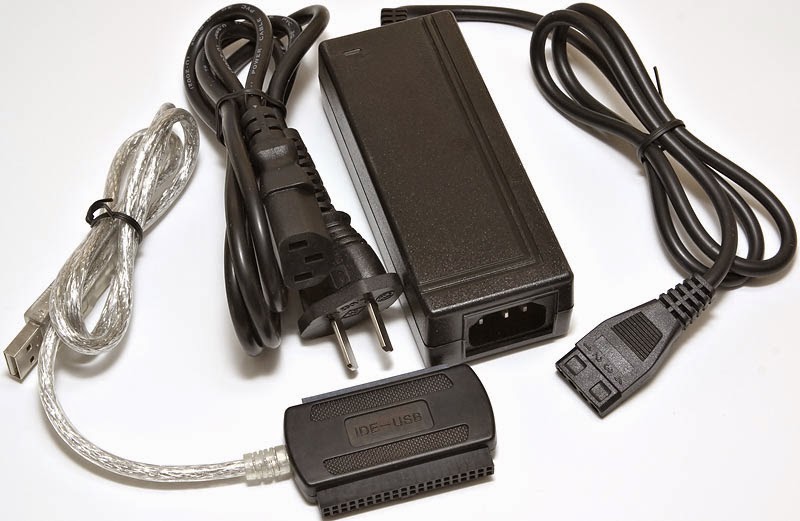
If it’s an old IDE HDD you need an IDE cable and of course a case computer to try it on. If you don’t have one or simply don’t feel like taking a dusty case apart then I recommend one of these:

these connections can connect the SATA / IDE to a USB interface. No need for a case computer there!


You have to be very careful when connecting these connections

connecting the wrong cable would burn the HDD. Even if it was running!

Happened with me and it was not pretty at all :'(

so to sum up. Try this trick when facing a HDD problem. And remember to always backup!

See you guys in a new post!

Please interact with my post! It keeps me going ..

Get the max out of your battery with these simple tips and make it live longer

Hi, welcome to another techtip

Whether you decide to work through a black out or you simply like to write outdoors, here are the tips that make your battery live longer.

    • Close all unused applications and track your startup programs from your task manager and close them.
    •  Turn the brightness of your monitor down and set your windows power scheme to Power saver.
    • Don’t use your laptop while plugged in, charge it to 100% then disconnect it from the power then when it reaches 10% put it back in.
    • Make sure that the fan is not working and that the laptop is on a flat surface.
    • Turn off all unnecessary hardware such as WiFi and Bluetooth. 

    please subscribe to my feeds and follow the blog itself, and comment as often as possible, you don’t even have to Login to anything, I made it possible for anonymous people to comment on my blog, you are welcome anytime. 

      FDM can continue a broken download when the server does not support that!!

      Hey guys, I feel super because I was able to continue a download from a server that does not allow you to continue the download, if your download fails for any reason you start from the beginning which is pretty bad especially when the internet connection is slow and the file size is big.

      Here is what happened

      I was downloading Apache OpenOffice 4.0.0 which is 137MB, I used FDM to download the file because it’s faster, even if the servers in filehippo didn’t support resuming downloads.

      When the download reached 99% the lights were out!! And since my modem is AC powered i lost the connection and the download.

      I went to the directory and marked the file as visible the file and did a test using 7zip, the archive was corrupt.

      When the lights were back on I tried starting the download again (Right click and then start download), that didn’t work, i was given the message: File no longer existed on server.

      So here is what I did to resume the download and save the time and Internet quota:

      • I went to FDM and right clicked the file and went to download properties, or hit the shortcut key Alt + Enter

      • Go to the second tab from the left “Mirrors” and click the button add to add the same link you used to download the file.

      • Hit OK then OK.Wait for the download to resume and Continue from where it stopped. Go to the download, check it using 7zip, you have yourself the file ..!

      Hope you liked it, please recommend me on Google+ & subscribe to my RSS feed.

      « Older posts Newer posts »