Category: Windows 8 (Page 2 of 4)

CodeLobsterPHP Edition 5.8 is out, supports Arabic!

CodeLobsterPHP Edition continues it’s active development cycle by launching version 5.8 which brings many improvements to the  IDE, most notably an improvement long anticipated by Arab developers, Arabic support.

In my review of CodeLobsterPHP IDE I listed not supporting Arabic as a con of this software, now I can proudly say that it supports Arabic, and I was asked by the company to test for Arabic support, here are the results:


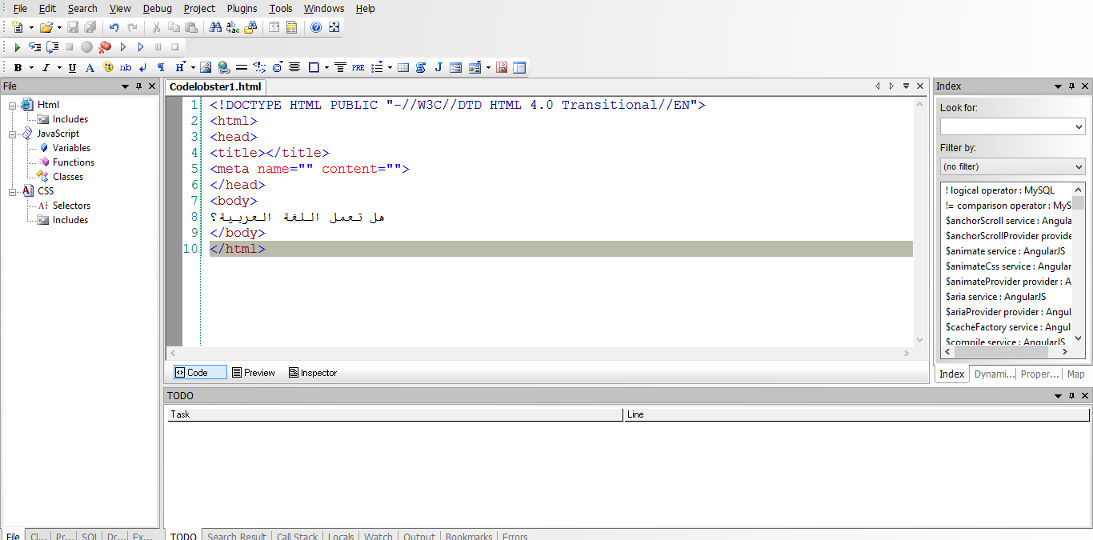
Arabic language working on the code pane


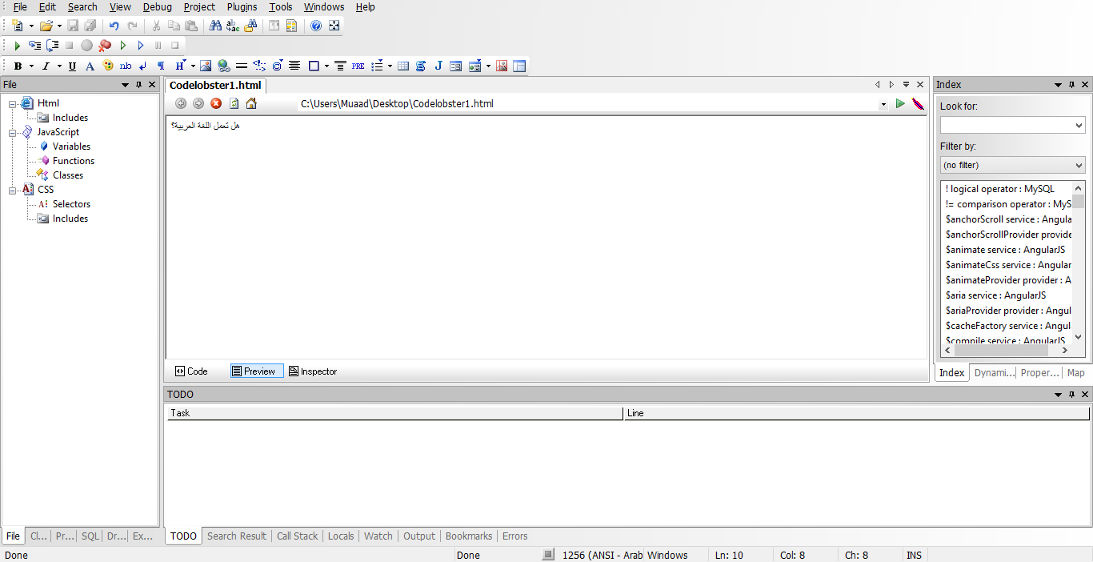
Arabic language working on the preview pane


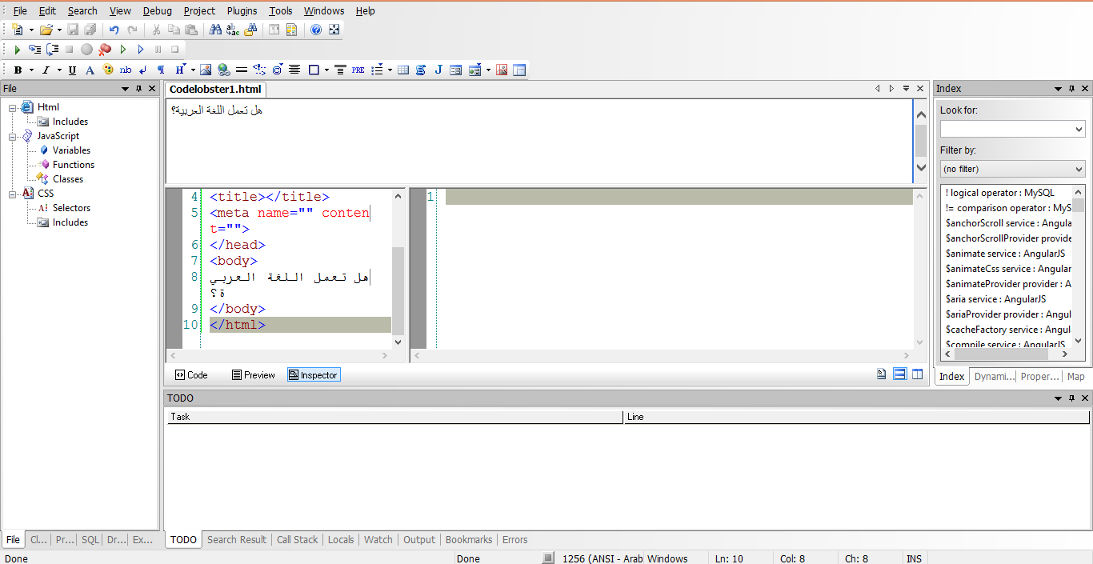
Arabic language working on the inspector pane

For a complete list of features and bug fixes on version 5.8 click here.

Many Arab developers like this IDE and they are interested in purchasing a license, the only thing stopping them is that CodeLobsterPHP Edition doesn’t support Arabic. Starting of version 5.8 that’s a thing of the past!

I listed in my review of CodeLobsterPHP Edition that it has a friendly and responsive community, check the request I posted asking for Arabic language support, they are as good as I said they were!

So here you have it!  It supports Arabic now!
As an Arab developer, is having Arabic support in the tools a problem? How do you feel when Arabic is supported on such an amazing IDE? Would you try it? It has a free version you know 😉
Let me here what you have to say, and expect an Arabic post about CodeLobsterPHP Edition soon!


Benefits of clean installs

Over time your system gets overloaded with problems and dead shortcuts, the installations and removal of software, some hidden malware you aren’t aware of. Even with cleaning solutions like Iobit advanced cleaner and Ccleaner. You still have some things you can’t clean. You will notice over time a slower boot and a general drop in performance. That’s time to consider a clean install.

What is a clean install

A clean install is the process of erasing your system and installing it again. It’s clean because all the cruft and mess will go when you format your drive (hopefully not taking away precious data) and it will return your computer’s snappy fresh performance. Much like restoring the factory settings, an option available in the late Windows versions: Windows 8, Windows 8.1 and Windows 10.

But what if your computer isn’t OEM and it doesn’t have a recovery disk? Then you have to clean install your system.

The benefits you will gain from clean installing your computer

I got rid of many unneeded Visual C++

This was somewhat of a problem to me! I had nearly 10 Visual C++ and I couldn’t find a way to remove them, even the pages I looked recommend leaving them as-is. Now all of them are gone!

Office fonts and data.

I used to have Office 2010 demo and it installed hundreds of fonts, and removing them by hand was a hassle! Not to mention the tons of registry cruft left down by MS office.

Every trial is now reset to zero.

Some of the tools I experiment with are trials, after I clean install the system all of them can be used all over again!

Registry is smaller and healthier

It’s all about the registry, as it’s where the program’s data are stored. And when removed it doesn’t gain back the size, even defragging it won’t do much good.

I installed much less software (only the necessities).

I was surprised by the amount of tools installed which of I NEVER use! I try to keep it to a minimum. And use tools that do more than one function. I don’t install Gimp and Inkscape for instance because in Windows I have Fast-stone viewer and LibreOffice draw could do the design work, if it’s more than that I have to use Inkscape.

I recovered even more space

More space as the Windows.old is gone, and other things that I don’t need and can’t clean.When I upgraded to Windows 10 there was the Windows.old folder which is supposed to take you back to Windows 8.1. I then discovered it was just a dummy and had to clean install. I saved a lot of space because of that and because of cutting down my software list.

In theory start-up time should be faster.
And it is faster! It has improved between the old 8.1, Windows 10, and reinstalling 8.1.

Solved the Swow drama I had when I was “interested in games”

I had to copy tons of DLL files to make some games work. And that was a mess! I almost ruined Windows over copying some files by mistake.

All the tricky settings you changed once and forgot how to return (and feel too lazy to return)

As I was doing some PHP work I had to Install the Xampp server on my computer, it wouldn’t work so I had to change a lot of settings to make it work, formatting meant that it went back to default on it’s own!

The first actual clean install I had in a while

Since starting the dual boot thing I haven’t clean installed! I installed Windows 8, Windows 8.1 was a store update, and Windows 10 was an upgrade. Even when I clean installed Windows 10 I was being forced. And not actually doing it to gain any benefit.

These were the benefits I found and could think of, do you have any more benefits to add?
I’m sure that the factory option is also good and will probably do the same good, but my system isn’t OEM and that doesn’t apply to me. If I could get a chance to try that option I’ll make sure to note of it.

How should often to do this reset?

That’s a tricky one! It depends on you mostly, if you have a slow changing system then it won’t be necessary for two years at most. On the other hand if you tend to install and uninstall software a lot. You might want to do that yearly (You will enjoy it!).
Have a nice day 🙂


Transfer Windows 8 licence to a new machine (Dual Boot Saga)

This is the third episode of the Dual Boot Saga. In the last two episodes we talked about installing Windows 8 and restoring the Grub menu so we can actually dual boot.
In this episode we will be covering the most important aspect of the whole saga, Transferring Windows license. 


What was the situation at the time?

I was informed that the key was installed on an another computer (Which is something I already know!) but the old HDD was “fried” and the laptop is thrown on some dusty shelve somewhere! How to let Microsoft know that? I was given an activation ID and was instructed to call my local Microsoft support number. No response.
I Googled half a dozen of local support numbers (Libyan) and none of them even replied. The last one said that the license cannot be transferred. And started giving me pricing and offers. I wasn’t going to give up just yet (Which is true if the license was OEM, mine was PRO which I got separately).


I wasn’t about to give up just yet!

I read on the Microsoft answers site that if you call the support center and provide the installation ID. (You will see it in the Activation settings when your Windows is not activated) They will give you an activation code you use to activate your Windows. I looked up the nearest support number and it was in Kuwait! And the minute prices were high! I couldn’t call them via any VoIP service  like Viber or Skype. And Windows was still not activated!

This is how the actual call went

I called a good friend of mine who worked in a call shop who said he can help me. I went to him and I was surprised he moved business. And took me to a shop across the street to a friend of his! The guy was so nice. He took the number and gave me a decent working phone (most of the phones were dirty and smashed) I called the number and it was an automated response. I navigated through the options until I reached the most important part. I entered the ID with shaking fingers on the phone. Then the machine dictated a number sequences. I entered that to the computer. And Windows was activated!! The guy won’t take a penny for a 10 minute call to Kuwait! God bless him!


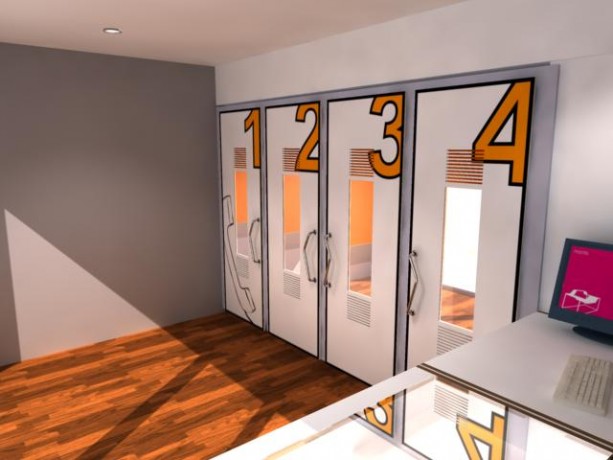
This is what a callshop looks like


Finally!!

I drove home so happy! I had activated Windows and proven the local salesmen wrong (the customer is always right? Not in Libya that is!!)
I had a good idea about the call process because I read this tutorial before going there, it would save you some time and money to do so!

Now that I had my Windows running side by side with Linux. I had one more thing to do before ending this saga, and that is to update Windows 8.1
But this will have to wait for the next episode of our Dual Boot Saga!!
How are you liking these posts so far? Let me know in the comments below!

Windows 8 Installation and Activation (Dual Boot Saga)

I freshly installed Windows 8 Pro on an old friend’s laptop that soon collapsed. So I had to do something so I don’t lose the Pro license!
That laptop has been acting off for quite some time.

It was time to replace the 4+  year old laptop with a new one. (The old one came with Windows 7 so I got it a new HDD and installed Windows 7 on it.)  But what will happen with the original Windows 8 pro that was installed on it? I decided not to let that code go to waste! I had Linux running on my computer and I decided to dual boot (I don’t like having two laptops).

The step process was pretty straight forward and there was nothing to write home about.

Creating the partition table

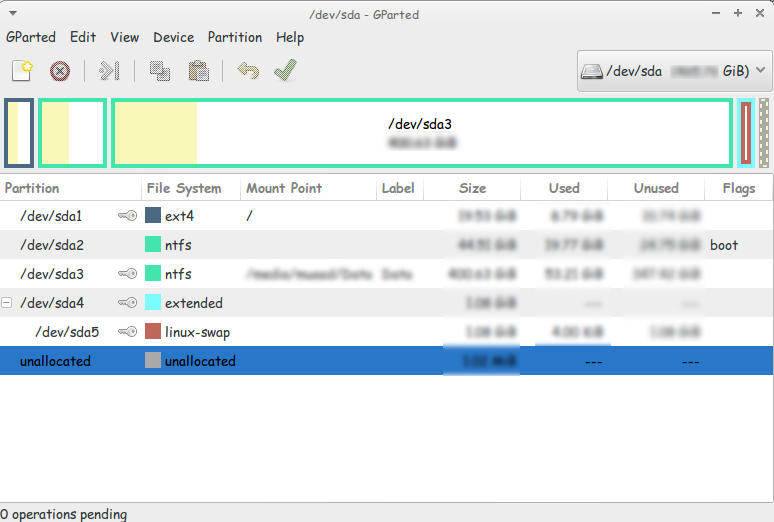
I used Gparted to create a new partition on my computer (after I backed up all the data of course!).
This is the drive after I used Gparted to create a Partition to install Windows
You must use Gparted with care. This link doesn’t show the exact steps but it’s very close!
I used this tutorial to put a Windows 8 Pro ISO on a USB drive.  It’s faster to install from a USB. So I went for it.

Then I entered my install media USB chose the newly created partition and installed Windows, This is a link from Microsoft showing how to “clean install” Windows.

Now we come to the Activation part

Upon activation I couldn’t activate the key I had! It won’t activate!
It took the key but didn’t activate..

A quick Googlesearch and I was good to go!

Check the link for the steps.

I was glad at this point. I installed Windows and activated it. but at this point I had two major problems!

These major problems were:

  1. Installing Windows 8 ruined the boot settings! I can’t see Linux anymore!
  2. I needed to transfer the Windows from the old laptop to mine.

There were some minor things I solved right away!

  • There was a minor nuisance of Incorrect Clock Settings in Windows when dual booting. I fixed easily following this tutorial
  • I wanted to Enable .Net Framework 3.5 without downloading it. it was an easy fix and you can check it out from here.
  • Windows 8 has the Fast boot feature that makes the disk unaccessible from Linux if Windows 8 was shutdown unexpectedly. This is why you need to disable it. And this is how!

I’ll be getting to those major problems in the second and third part of our saga! Stay tuned!!

Make sure to leave your comments and suggestions in the comments section below.

« Older posts Newer posts »