Category: Linux Xubuntu 14.04 LTS (Page 1 of 4)

I’ve bought a Netbook!

The first post I wrote on this blog was on a Netbook, and one of the most popular posts at the time was about a Netbook, I’ve had one, I’ve loved it like a child of mine, and regretted selling it to this day (I still do honestly, I did so much on a computer that isn’t supposed to do much!).

You never know what you had until you lose it!

Every time I went to a computer store they caught my eye, and whenever someone brings me one of them to fix, I remember the sweet old days with my Netbook, it felt personal and it felt like something I loved to use and create things on.

Browsing through open sooq I came across a Netbook that was reasonably priced, it had a minor flaw (the monitor has dead pixels on one corner, as if the Netbook took a fall), and after a bit of negotiation with the seller, I managed to strike a decent deal.

Later that day, I swapped out the HDD on the Netbook to my laptop, and used the SSD on the Netbook to make it faster, and after installing Ubuntu 14.04, I was good to go!

I tried installing Ubuntu 10.10 Netbook remix, but that lasted for like an hour, nostalgia doesn’t do much, 10.10 is not supported anymore and I couldn’t download any software on it, what a shame!
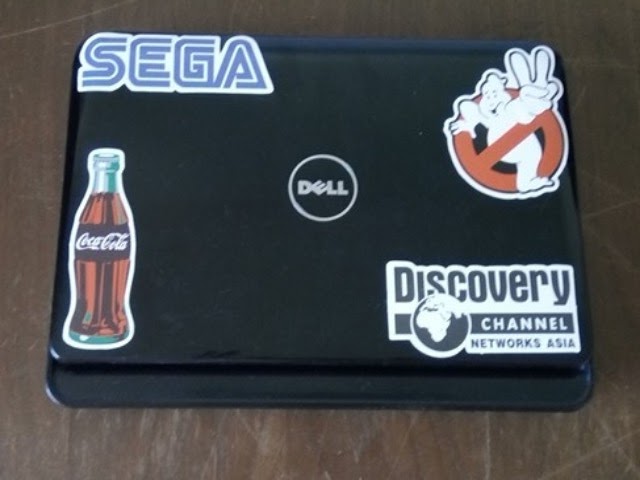
The new Netbook that I got, and some cool stickers


The typing experience is some of the best I’ve had, it’s bouncy and fast, a bit crammed together but that takes me back! And it makes my laptop feel like a monster! 5 inches make all the difference apparently!

Pros of the deal

Despite the obvious limitations, it would have cost a lot more to buy something off of Amazon and ship it to Libya (I’ll be posting about buying online / shipping soon enough in Arabic), due to the new increase in shipping prices, shipping a standard laptop would cost nearly twice as much as this Netbook! Let alone that I’ve managed to seal a deal on open sooq the day before, so it’s even cheaper in my book!

Hitting two birds with one stone

By swapping out the HDD, I have fixed the issue on my other laptop, and with buying a Netbook, I have a backup that I can take anywhere without fearing it would be lost or stolen, it’s just a device for typing stuff and getting things done,

Having two laptops

I remember posting back in the day in my “dual boot saga series”, that I hated having two laptops and I couldn’t choose between them, always favoring one over the other, this isn’t the case.

I wouldn’t sell my laptop for example and keep the Netbook as a main device, that’s silly and unrealistic, the Netbook has limited resources and can do so much, it’s just so good at what it does.

And it’s always nice to have a backup in case the laptop fails for example, or for work (it would be a lot lighter and easier on my back to carry around, also less stressful in the case of it getting lost).

What’s it like?

I don’t remember Netbooks being so small! This one is really tiny compared to the laptop I’ve been using the last six years!

Also, it’s hot, I mean really this model has no fan, it uses a heat sink of some sort to manage the heat, and it gets annoying with time (would be great in the winter tho!), I applied some thermal grease and it’s better now, also installing a light resource Linux distro helps.

It was nagging me for years, so I had to do something about it, and here I am back to using a Netbook after six years.

Trying something new

I installed FocusWriter on my Netbook for a minimalistic writing experience, it’s small and aesthetic, and exports files as ODT by default.

The big question?

Will this allow me to be more productive and write more stuff? Or will it be another failed experiment of mine? I do realize that experimenting is a big part of learning, but I hope I get this one right, for old time’s sake.

Do you have / had a Netbook? What do you think of them? Did this post inspire you to buy one of them little laptops?

Leave your thoughts in the comments section below, and I will see you soon.

P.S: This post was written on a Netbook,

P.S.S: A retrospective post was written a few months later, take a look at it!
Fixes to bugs encounterd after moving to Gnome 3.12 on Xubuntu 14.04

I just moved to Gnome and noticed several bugs! First of all I didn’t know how to go to sleep mode!

That was very easy, click on the right corner and hold ALT and the power off button will change to sleep. That’s great! But now that I can go to sleep mode, the computer won’t wake up!


It doesn’t show up anything! Just a laminated dark screen and I have to power it off to be able to use the computer!

I looked up dozens of pages without finding a single clue, many people assumed it was a video driver issue or something. It wasn’t the video driver!
The answer was right under my nose!
Coming to gnome I noticed that it still used the “ugly” login manager LightDM-GTK-Greeter. So I used the command to change the login manager to GDM, Gnome’s default login manager, that’s where the problem started!
As soon as I chose LightDM-GTK-Greeter and rebooted, I’ve been able to sleep and wake at will! No problem at all!
So that’s the fix! Install LightDM-GTK-Greeter.
First of all add it to the repositories via this command:
Then install it via this command:
Finally: Use this command to make it the default login manager.
sudo dpkg-reconfigure lightdm
My problem wasn’t “fixed” 100%. I was feeling bitter-sweet!
I fixed the sleep issue, and now the extensions remain after reboot too! But the login manager is hideous! Isn’t there a way to make it pretty?
Why is it hideous you ask? It was a part of the XCFE interface and when I removed it, it lost the visual elements it had and went back to defaults. And that’s not pretty at all!
Ubutu Tweak couldn’t customize it, and the Tweak utility provided by Gnome had no options for it.
The question remained: How to customize LightDM-GTK-Greeter?
It’s very simple actually! There is a package called: LightDM-GTK-Greeter-Settings. All you have to do is to install it. And use it to customize LightDM-GTK-Greeter to look better!
I began by adding it to the repositories via this command:
Then install it via this command:
sudo apt-get install lightdm-webkit-greeter
From the menu I ran it and it needs administrator rights so I had to enter my password to start it.
I had several options to choose from like theme and position and what tabs to be displayed. It looks so much better now and it gets the job done.
Not as pretty as GDM of course, but at least it works!

In addition to the sleep and wake bug fix, and the extensions staying enabled after reboot, the Gnome classic mode loads an interface rather than just a background with a mouse cursor, but it looks the same as Gnome. I’m yet to figure that out!

My fix to that was very simple, Installing Ubuntu Gnome 14.04.4 a fresh install.

Continue reading

Bugs faced after moving to Gnome 3.12 on Xubuntu 14.04

One of the major issues I felt in Gnome was the extensions installed get disabled after restart (since I can’t go to sleep anyway). The fix suggested was to use the “System default”.


 It didn’t fix other issues like the sleep mode not waking up and the classic mode not showing any elements, but I am tackling issues one at the time.

Message tray pop ups

Message tray, it looked big and annoying ( it responds to every mouse gesture no matter how small)

Size

It’s also very big in size, it took 5GB more than XFCE took, even with cleaners like Bleachbit, I was running low on space.

No sleep

I didn’t even know how to go into sleep mode, turns out you need to press and hold ALT while the menu is popped out to go to sleep menu.

Doesn’t wake up from sleep

I couldn’t find an explanation for this bug! The computer displays a black screen whenever waking from standby and stays that way until I turn it off manually!

No classic mode (just a background)

It only loads a mouse cursor and a background with no visual elements until I turn it off manually! No easy fix or workaround for it (yet).

Extensions won’t install

I wasn’t able to install extensions from the extension site, extensions.gnome.org even after enabling the addon in my browser and adding the site to trust list. It was resolved on it’s on.

After install won’t stay enabled after reboot

Even the extension that is supposed to make it less sensitive resets on reboot. The fix was to choose the “System default” from the login which (worked for me like many other people). It wasn’t convenient but it was an easy fix.

I’ll post that has a fix for most of these issues very soon 🙂

Installing Gnome 3.12 on Xubuntu 14.04

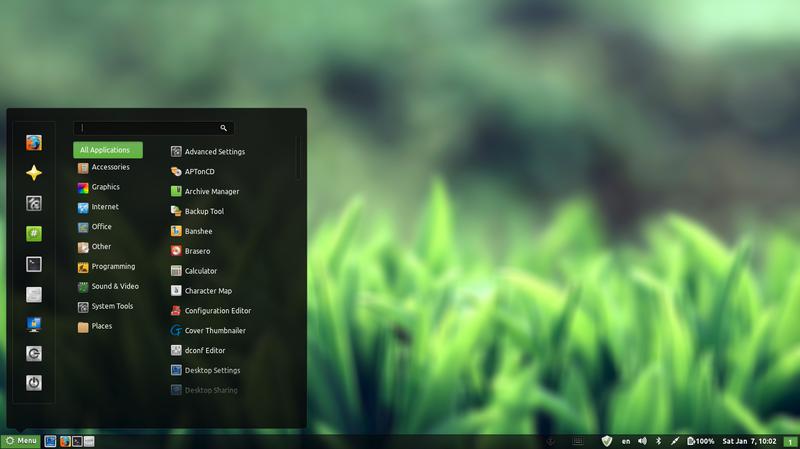
In my effort to make some change into my daily work flow, I decided to install a new interface, and then found myself hopping between interfaces, now I had Cinammon running alone on my computer but..


Cinammon interface

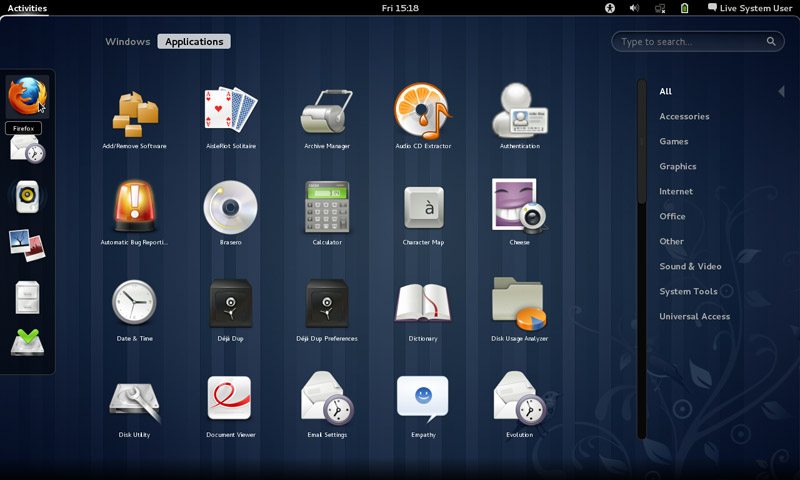
Since I had a thing for Gnome, I decided to install it on my system.

 Gnome was Ubuntu’s default interface until 2011, where it was replaces with Unity, if you go to Ubuntu.com and download it, you will be getting Unity, there is a fork of Ubuntu (alternative version) that runs the Gnome interface called Ubuntu Gnome.

Gnome has a loyal following and many people prefer it over Unity, turns out I do too! (Cinammon is built on Gnome 2).

Installing it was very easy as it was in the software center!
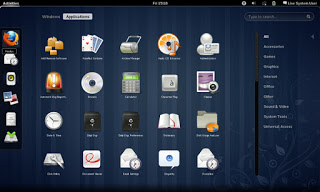
After adding the packages from the software center, I was able to login to Gnome 3.12.2 (last version supported by Ubuntu 14.04).

Visually I wasn’t disappointed at all! It was so good I dropped Docky and Kupfer to enjoy the native features it has!

So good I uninstalled Cinnamon the next day! Now I was running gnome alone on my computer, which isn’t bad at all. I noticed that Gnome classic didn’t load any interface items what so ever, but I’ll update this section as soon as I figure it out. Hopefully.

I have a ton more games now (all were added with Gnome):

  • AisleRiot Solitaire
  • Chess
  • Five or more
  • Four-in-a-Row
  • Lango
  • Klotski
  • Lights off
  • Mahjongg
  • Mines
  • Nibbles
  • Quadrpassel
  • Robots
  • Sudoku
  • Swell Foop
  • Tali
  • Tetravex
  • Xboard

The only thing I didn’t like was the message tray, it looked big and annoying ( it responds to every mouse gesture no matter how small) and even the extension that is supposed to make it less sensitive resets on reboot.

It’s also very big in size, it took 5GB more than XFCE took, even with cleaners like Bleachbit, I was running low on space. (Had a really creative fix for that one 😉

Resetting the interface could fix it. But it will erase any customizations I made.

I decided to remove cinnamon on the biases of being buggy, so I used the command:

 sudo apt-get remove cinnamon

Then ran the command:

sudo apt-get autoremove

To get rid of the unneeded packages and save some disk space.

Alternatively you can use Synaptic and search the word “Cinnamon” and remove any package installed.

I managed to clean the system from cruft using Bleachbit, over 2GB were reclaimed!!

So I had Gnome running on my computer, and you have to wait till the next post to see how I discovered it!

Let me know what you think in the commentst section below.

« Older posts