Category: Linux (Page 29 of 33)

Atom text editor review

Hey there you guys!

How are you today? I hope you are doing good

Today we are going to look at an amazing text editor. Free and open source, Atom.
GitHub presented it’s text editor and made it open source under the MIT license in mid 2014. Available for Linux and Windows. “A Hackable text editor for the 21st century!”

It’s made by GitHub. The biggest code repository online.

Lets take a look at the awesome features of Atom.

1. It looks amazing!
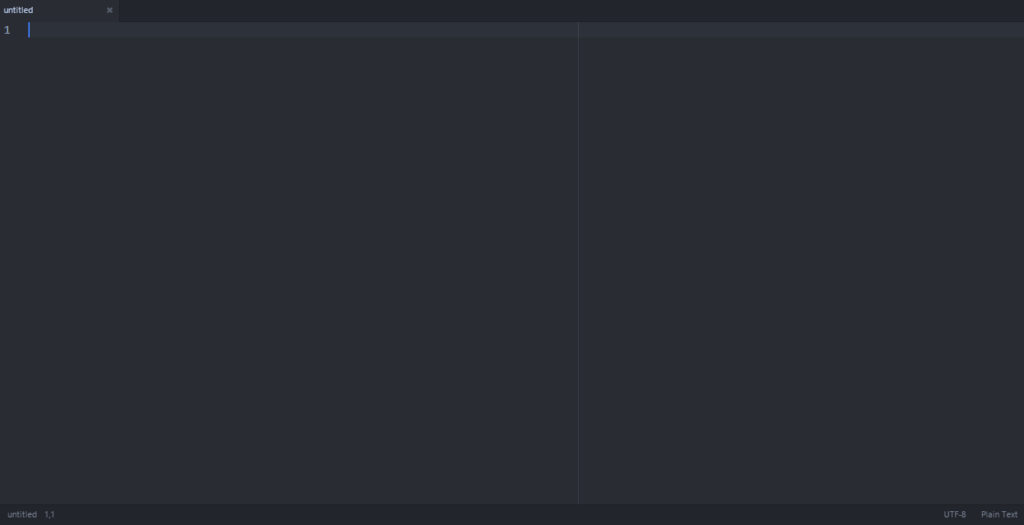
 

Atom’s main interface. Two panes

No more black text on a white background. (Unless you are into that thing. There is a white theme 😛 ) it has the look and feel that made Sublime text the favorite text editor of many developers. It’s divided into panes for ease of use.

2. It has many plug-ins for you to choose from.

It comes preloaded out of the box with many plug-ins and the syntax support of many languages, and you can add as many as you like and need!

3. Great community support

As it is being developed by GitHub you are bound to receive great support and many plug ins and themes to your liking.

4. Cross – Platform

It’s available for Linux (Ubuntu / RedHat). Windows and OS X 10.8 and later. I must note that the version for Windows and Mac checks for Auto update. While in Linux you need to check for it manually!

5. If you didn’t find it. Make it yourself!

You can customize Atoms to your liking and needs by “Hacking it”. That’s right! You can edit parts of the interface and look using your knowledge of CSS & html.

As everything else there are some draw backs to it, let’s check them out:

1. Resource consuming

It’s takes around 200 MB more less. Separated into background services and the program itself (which is 20 MB). In comparison it takes a LOT more than Sublime text.( Same load on Xubuntu)

2. It takes a long time to load

It takes around 19 seconds to load. Compared to Sublime text which takes seconds to load. While when I installed it on Linux Xubuntu. It loaded in 2-3 seconds!!

3.File size restriction of 2 Mega byte file size 

I’ve read around the web that you can’t open files larger than 2 mega bytes. I am yet to test that. I’ll update this section when possible. *Update: Crashed with a 1.5MB .js file on Windows & Linux!

Download

The download page detects your system type and gives a timely link. So go check it out from here.
Also checkout the flight manual which gives you all the information you need to know like Keybindings.

Final words

I think it’s unfair to compare Atom to industry giants like Vim and Sublime Text. Simply it wasn’t around for as long. And it has room for improvement and plenty of potential!  It’s highly customizable, has a great interface and 100% free. Totally worth a try!

How did you like this post? Did you find it useful? Please comment below and let me hear what you have in mind.

Please give Kudos! Comment and share.
Giving back to the Open Source community

Hey there you guys!

How are you doing today?

Today I’m going to talk to you about the Open Source initiative.

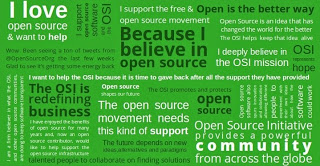
As you see in this lovely poster. We enjoy open source software. And we want to help it grow. But how?

By joining the Open Source Initiative and becoming an active member. You are able to help the movement spread open source, reach people all over the globe. And help redefine the business.

There are many ways you can help by: A donation is always welcome. And you can become a member and enjoy discounts and benefits!

I hope you enjoyed this short message! Please let me know what you think!

Backup and restore Rednotebook journal

Hey there you guys. How are you? How are you doing today?

I have reviewed Rednotebook before here on this blog. As a great journal and note taking software.
I have been using it for years now and it hasn’t failed me once!

Today we will see how to backup the journal folder (where you kept your notes) and restore it!
And how to share this awesome software across systems on the same computer (Dual Boot)

Since RedNoteBook has become an important tool of mine. I needed to backup and restore my notes in case something happened. I tried using the Zip folder but that failed badly and I lost tons of data!

Until I came up with a really easy fix!

By default the directory for rednotebook on Windows (7, 8 ,8.1) is:
“C:Users<User Name .rednotebook

And on Linux is: “/home/<User Name /.rednotebook/”.

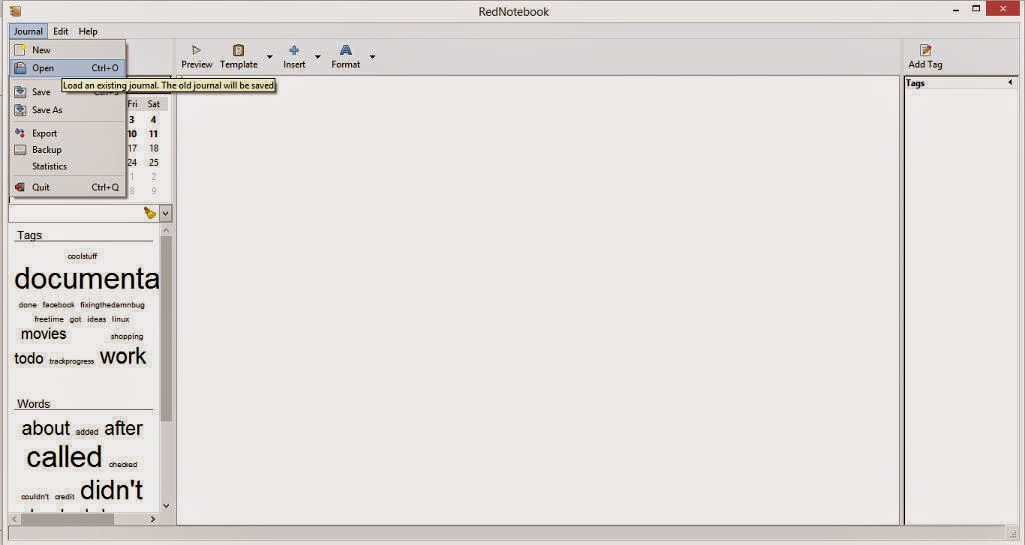
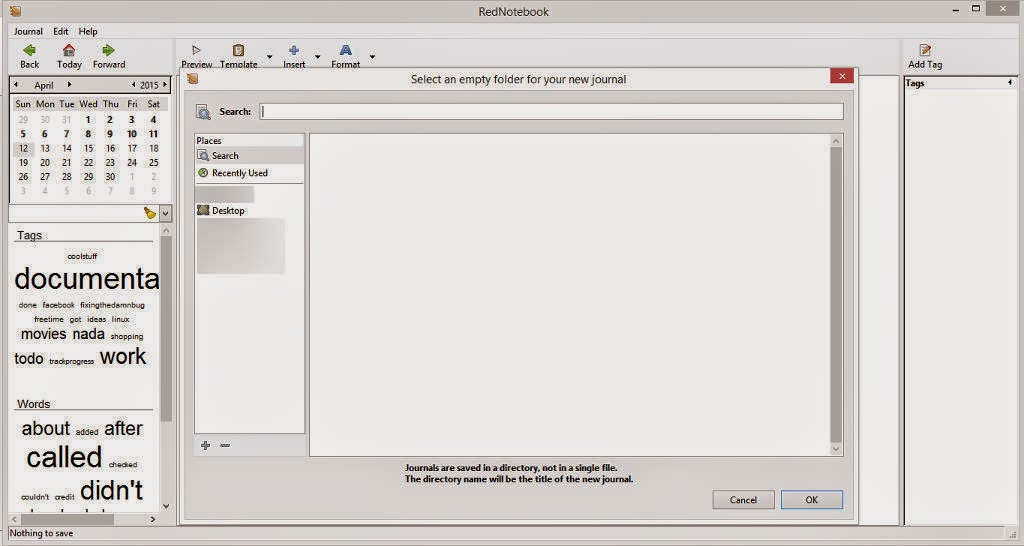
From the main interface click File Open to change the directory to the one you created

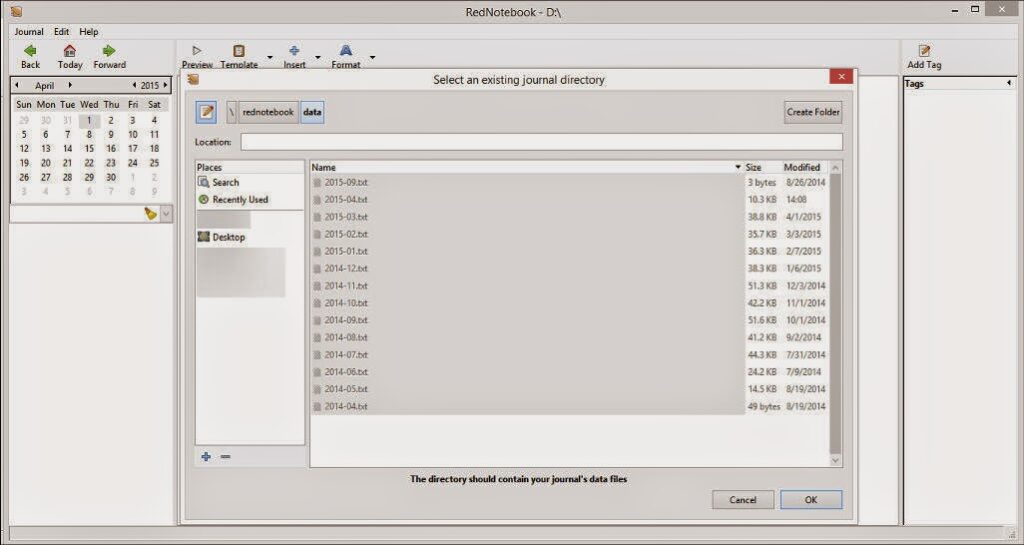
Navigate to the folder where you put the “Rednotebook” folder (Restoring notes)

Go inside the folder and choose “Data

You will find the notes you already entered.

Click OK and you are done! Make sure to do it on both systems and select the same folder for both systems. And it’s very important to choose a folder both Linux and Windows can “See”.
How did you like the post? I hope you find it useful. Please leave a comment!!

Top free Dock (for Linux and Windows)

Hey there you guys 🙂

How are you doing today? How are things?Today we are going to take a look at some great dock software. These docks are great to customize your desktop and make you more productive and your desktop much more organized!
Some of these are so great, I need to dedicate a whole blog post for it! !!First of all: We have to mention what a dock is, For people who don’t know what it is. Then we list our top docks :)A taskbar or dock is a bar displayed on an edge of a GUI desktop that is used to launch and monitor running applications. Source

It’s used to minimize the clutter on your desktop. As you use it to collect shortcuts to software and tools. And you can hide it or set it to disappear after a period of time.


This is the Mac OS X bar.

The first to launch the dock we know today was Apple. Most docks are inspired by the design, take rocket dock for example. It’s made after the Mac OS X dock.

Now lets look at the top docks:

1. Cairo Dock

Cairo-Dock is a desktop interface that takes the shape of docks, desklets, panel, etc

It’s a real eye candy but takes a bit to get used to it. Especially if you migrated from another dock.

My rating 3.5/5


This is Cairo dock

Platform: Linux only. Website


2. Docky

Another dock just for Linux is Docky. The finest dock money can’t buy! And it’s up to it’s proclaimed status! It’s lean and powerful. You won’t even know it’s there! It’s simplicity is purely awesome!

My rating 4.5/5

This is Docky

Platform: Linux only. Website

3. Rocket Dock


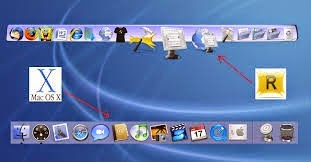
RocketDock is an awesome dock for windows. Developed by two hardcore Mac lovers who wanted to bring a piece of Mac to windows!

This is RocketDock compared to the Mac OS X bar

You can put almost anything on it. Customize it in anyway you like, plus it’s super fast and

doesn’t affect the performance at all, let alone the boot 😀 (This is a sneak peak to my next post :D)
My rating 5/5

Platform: Windows only. Website


4. Nexus Dock

It’s made by Winstep and it’s a freeware. There is a paid versions for upgrade too.

It has many skins and widgets. And it’s pretty stable.

This is Winstep Nexus Dock

It has a medium memory print, and requires more minimum requirements. (This is a sneak peak to a future post :D)

Nexus dock has a larger installation size compared to other docks (30 MB roughly ).

There is a paid version with many more features. Check it out!

My rating 4/5

Platform: Windows only. Website

So there we have it. 4 awesome docks. Two for each OS.

Which one are you using? And if you aren’t using docks. Which one of these will you choose?

Can’t wait to hear your feedback. And remember the next posts will be dedicated to two of these docks. Read again and try to figure which ones I’ll be writing about.

Have a nice day 🙂

« Older posts Newer posts »