I always wanted to post on being more productive when working on the computer, I listed a few ideas that should help you achieve the right balance of productivity without exhausting yourself, being productive and consistent gives you more credibility and it means you will meet your deadlines rather than running breathless and sleepless trying to finish before the clock strikes midnight! I also listed a set of handy tools you can add to your arsenal and help you become a productivity guru.
List the tasks you have to do
You can’t just browse causally and do random things and hope these random activities will get you anything done!
IF you don’t know what to do, how will you achieve anything?
 |
| Some people still enjoy good old pen and paper |
Know what needs to be done, and how much time does it need before getting down to business, and don’t forget to prioritize your tools as well!
The best way to keep ahead is to write a to-do list or use a software that arranges that for you, I reviewed a great task management suit from here for Windows, and for GNU/Linux I have my trusty Zim-Wiki to do the trick.
Prepare everything up ahead
Have everything you need by your side so you minimize those “ mini trips” just to look at things or to do trivial tasks, these little pauses damage your focus and makes it harder for you to start working again. Instead use the breaks to do the minor things.
While keeping yourself hydrated always leave the water and other drinks away from the computer or power source, I can’t stress that enough!
Handle distractions
Probably is the hardest part when working, how to disengage from the world and getting into the zone! Here are some suggestions.

| No Wi-Fi could fix your procrastination issues! |
Turning off the Wi-Fi is too extreme, especially when most of the tools used to work are on line! I suggest a site blocker for your browser, this sets a blacklist of sites you shouldn’t be wasting your time on, and leaves the rest for you to work, if you found yourself fiddling with the extension to get on line then turn off the Wi-Fi!
Again the breaks are your best friend, use those breaks to check on the people you care for, don’t shut your family and friends off to work! That’s never a good idea!
A little tip goes all the way, I set my wifi not to connect automatically anymore! So I have to connect it manually when I need something!
Have a working goal
Say to yourself: I’m not having that treat until I finish writing 5 pages today, or I’m not going to watch my favorite show until I finish the post I started, that way you work for a goal or a reward, and you will find out yourself that the sense of achievement is more rewarding than any treat!
Set a timer
It’s a good idea to use a timer to enhance your productivity, as recent studies show that the brain needs frequent breaks to maintain focus, sadly it’s very easy to forget taking frequent breaks while working.
Regular stretches can prevent RSI and help you rest from long work sessions, hence the need for a good timer!
 |
| Ready? Set. Go! |
I’ve blogged about several timers here on this blog, feel free to check Instant boss for Windows, and Pomodro timer for Linux, as I rate those the highest.
While Instant boss is more “aggressive” and I would totally recommend it to anyone wanting to get the job done while having procrastination issues, it’s not cross platform, but I spoke to the developer on Twitter and said she might port it to Linux if she had the time, and Pomodro timer is the best timer I came across on Linux, and the post was very well received by the readers of my blog!
The right tools for the job
Use a software package that helps you to do more and focus on the job at hand, I’d recommend LibreOffice as I believe it packs a ton of potential!
You will need a spell checker also, so make sure that the dictionaries for your language are installed in LibreOffice.
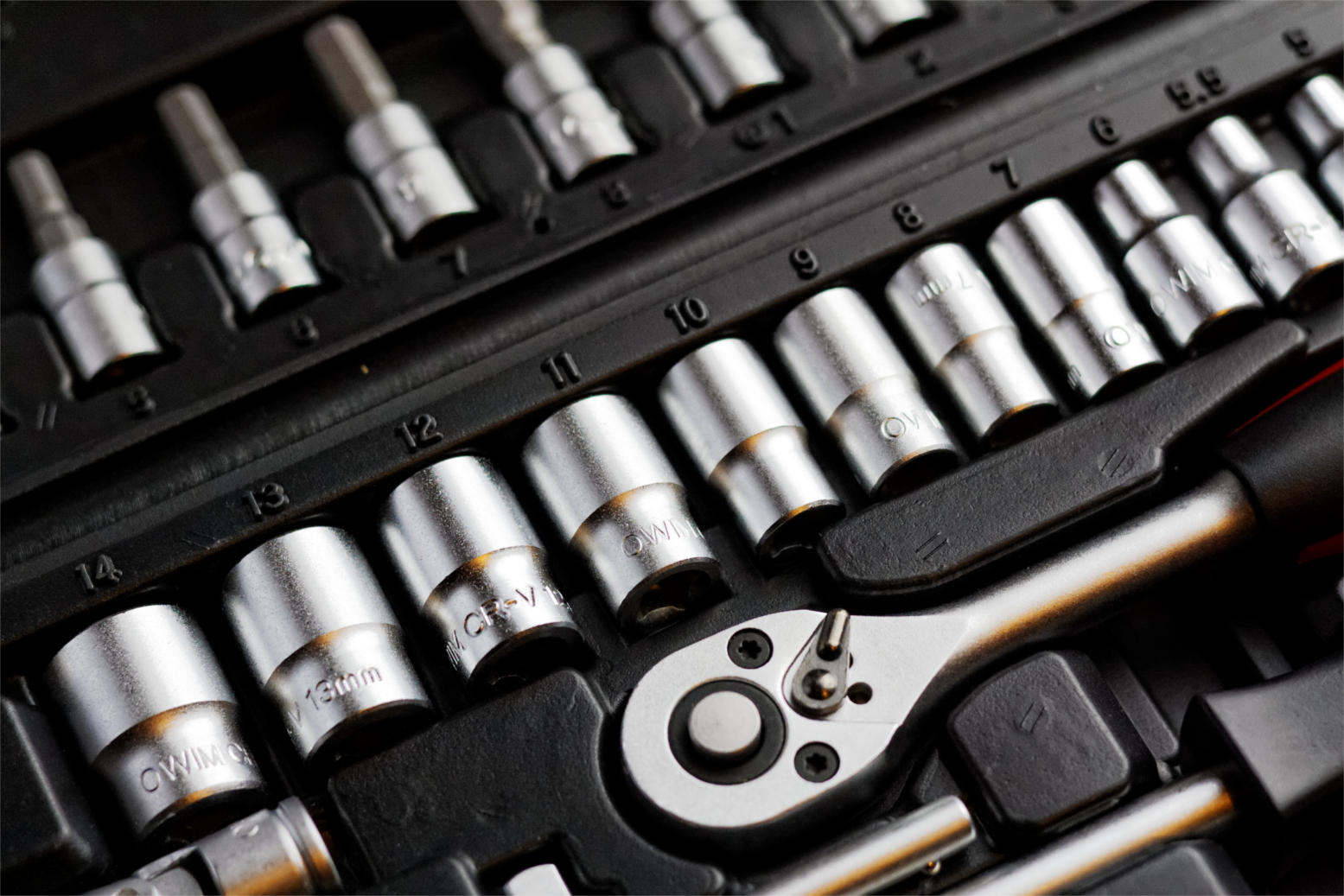 |
| Without the right tools, you will suffer! |
You might want to add a clipboard manager and a screenshot tool as well if needed. It will help you be more productive, that’s the office worker starter pack!
All of these tools mentioned in this point come preloaded with Ubuntu (so much for GNU/Linux failing on the desktop) so maybe I should list Ubuntu as one of the right tools for the job?
For many purposes (other than document creating) I tend to use Zim-Wiki and do believe that it’s highly underrated! It can do the work of many tools at once, I use it to make and follow to do lists and keep notes, journals, and all sorts of information, you might want to check it out!
Using better software means making your work easier without putting too much load on your computer, which takes us to the next step.
Your computer
Assuming you work from a laptop / desktop computer -as I find the smaller devices running Android impossible to do any real work with- there is nothing worse than a slow unresponsive computer that hangs all the time.
 |
| It looks cute doesn’t it? :3 |
Working at a specific time of the day
Some writers swear that writing on a specific time of day helps them get the best out of them, why not you? I think we can take this advice forward and apply it on general working and not just writing, you have everything in place and all the tools set up and ready to work.
Building a consistent routine will help you be more productive and will make starting work very easy and more of a habit than a chore.
General health tips
There are more common sense tips that I’ll list very quickly like getting enough sleep and eating healthy, these are often overlooked and that can cause some serious health issues, I’m no doctor but you need to sleep at night, drink enough water and eat your vegetables!
 |
| Never underestimate the importance of a good diet |
How did you like this post? What are your productivity secrets? Do you use any special tricks or tools I didn’t mention here? Please let me know in the comments section below.
And share this with your social media circles and keep the productivity going.