Category: Windows (Page 16 of 22)

What’s registry defrag and how often do you need to do it?

Hey there you guys, how are you today?

Today we are going to talk about registry defragging. And what benefits it may bring you?
It’s very similar to normal defragging. Instead of working with files and folders. It works inside the registry
Over a long period of time the registry becomes clustered with useless keys and unused values. Which affects the overall system performance.


It’s pretty safe to do with the right tool. Ainvo Registry Defrag is an easy to use tool and really effective. It’s free for non-commercial use. So make sure to check the license before getting to work! It’s compatible with Windows XP, Vista and 7. Useless on Windows 8 / 8.1 (Trust me. I tried it several times).

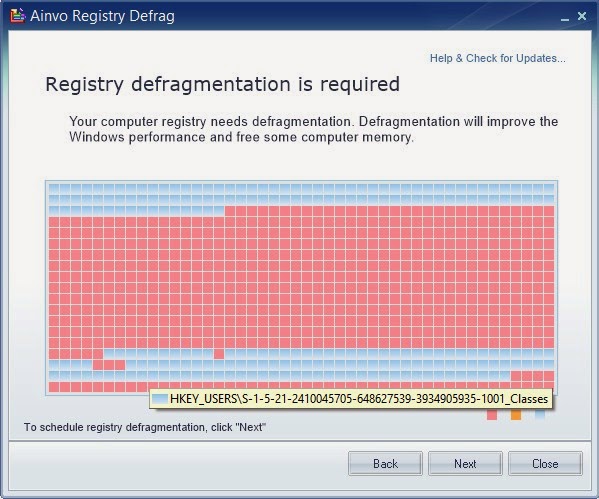
The tool itself is pretty straight forward. It’s a wizard that calculates the registry defragment. If you don’t need defragment it will tell you so.At first it will run an analysis of the system to determine how fragmented is the registry. As you can see here it’s pretty fragmented!

You need to reboot for it to work. When you reboot a black screen will appear (Don’t be scared!!) and you will see the progress. Then you have to reboot again to the system.
The reason is: It cannot work on the system files while they are in use. It works outside of windows (Pre-boot).

Then after the second reboot you are shown the defrag results in your default browser.
The detailed results show where the tweaks were made and the sizes before and after.
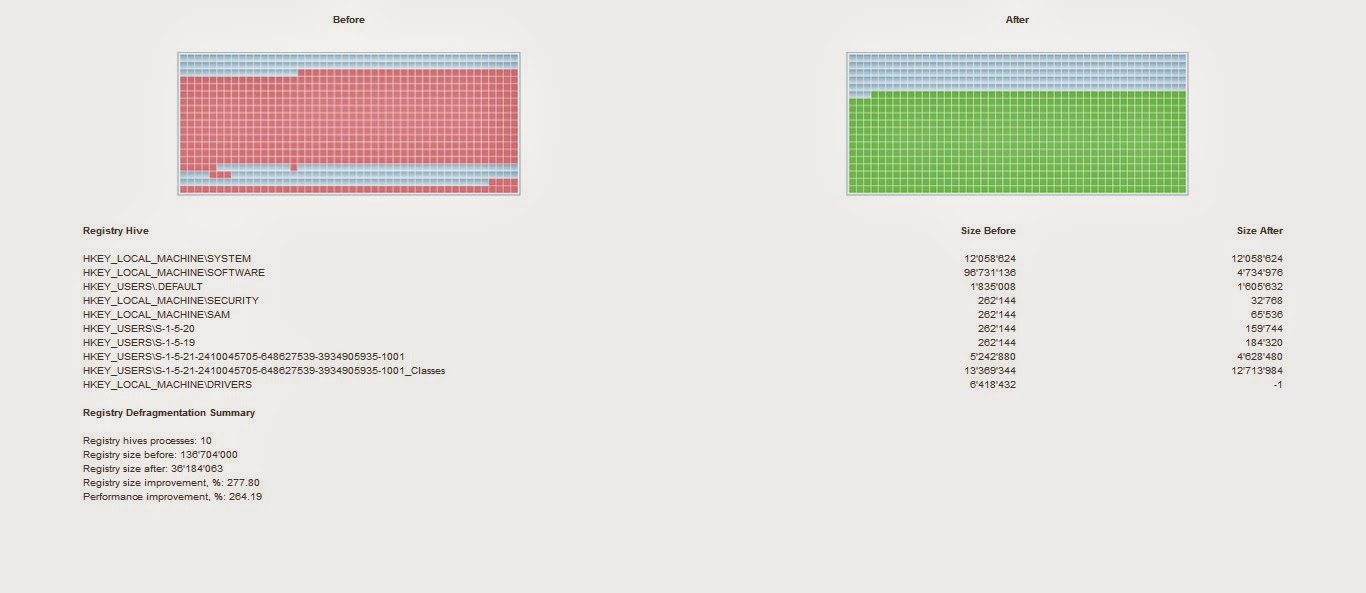
 

Feel free to check it out and give your system an overhaul.
Now I must warn you: Don’t attempt to do anything to the registry on your own, unless you know exactly what you are doing, it can cause some serious damage to your system.
I hope you enjoyed this post and found it useful. Feel free to comment below!
Also join my blog and subscribe to mailing list so you don’t miss a post!

Doesn’t work on Windows 10.

RocketDock is my new favorite Dock and here is why!

Hey you guys 🙂

How are you today? I hope you are doing great! Here is a post on my new favorite dock. RocketDock!
RocketDock is an awesome dock for windows. Developed by two hardcore Mac lovers who wanted to bring a piece of Mac to windows!
You can put almost anything on it. Customize it in anyway you like, plus it’s super fast and doesn’t affect the performance at all, let alone the boot 😀

RocketDock Icon

Pros

  1. It’s easy to use!
  2. Free of charge! (Provided under the Creative Commons license ).
  3. Light on the system (My memory print was 8.7 MB)
  4. Works great with lower end computers! I tested it on Windows 7, Windows 8, Windows 8 pro, Windows 8.1 and it works fine!

It’s also expandable via a great number of skins and add-ons and docklets! (Available from the download website).


 RocketDock compared to Mac dock

I’ve tried it to replace my old favorite Nexus, who was a huge impact on the startup despite my utter love for that dock. I love a speedy boot more! xD
There are also tutorials on-line on how to develop your own skins. And the one I found was using Gimp! I really need to check that one out 😉

I have been using it for a month now! Works great! I don’t even miss nexus that much anymore ..
And yet .. Nothing is perfect! I’ve had some “issues” with it in general.

Cons

  • It has been version 1.3.5 for so long! Dare to say it’s dead now?
  • It doesn’t start up with the system right away. You need to set it from the settings! ( I don’t know if this counts as a con or not .. )
  • It doesn’t pin opened software automatically like Nexus does!

 Personal tweaks

I have been tweaking the settings and these are my top must have settings I’m going to share with you to maximize the use of RocketDock:

  • General Run at Startup
  • Position Layering – Always on bottom
  • Style Theme – Choose your favorite theme from there 😉
  • Open running application instance. Which minimizes and maximizes the open windows into the dock.

License

The license is “Free for non-commercial use” and to a free lancer like me this is a real bummer!(Just to clarify RocketDock’s license, you can absolutely use it in a work environment. You just can’t sell it. 🙂
The developer of Rocketdock reached out to me and corrected that statement! She is awesome!

Do you have any favorite settings to share with us? Any remarks to add? Possibly a better dock to share with us? Please let us know!
Make sure to follow my blog and join my mail-list NEW

Top free Dock (for Linux and Windows)

Hey there you guys 🙂

How are you doing today? How are things?Today we are going to take a look at some great dock software. These docks are great to customize your desktop and make you more productive and your desktop much more organized!
Some of these are so great, I need to dedicate a whole blog post for it! !!First of all: We have to mention what a dock is, For people who don’t know what it is. Then we list our top docks :)A taskbar or dock is a bar displayed on an edge of a GUI desktop that is used to launch and monitor running applications. Source

It’s used to minimize the clutter on your desktop. As you use it to collect shortcuts to software and tools. And you can hide it or set it to disappear after a period of time.


This is the Mac OS X bar.

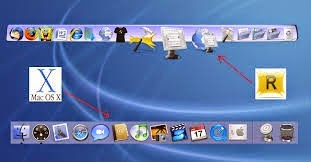
The first to launch the dock we know today was Apple. Most docks are inspired by the design, take rocket dock for example. It’s made after the Mac OS X dock.

Now lets look at the top docks:

1. Cairo Dock

Cairo-Dock is a desktop interface that takes the shape of docks, desklets, panel, etc

It’s a real eye candy but takes a bit to get used to it. Especially if you migrated from another dock.

My rating 3.5/5


This is Cairo dock

Platform: Linux only. Website


2. Docky

Another dock just for Linux is Docky. The finest dock money can’t buy! And it’s up to it’s proclaimed status! It’s lean and powerful. You won’t even know it’s there! It’s simplicity is purely awesome!

My rating 4.5/5

This is Docky

Platform: Linux only. Website

3. Rocket Dock


RocketDock is an awesome dock for windows. Developed by two hardcore Mac lovers who wanted to bring a piece of Mac to windows!

This is RocketDock compared to the Mac OS X bar

You can put almost anything on it. Customize it in anyway you like, plus it’s super fast and

doesn’t affect the performance at all, let alone the boot 😀 (This is a sneak peak to my next post :D)
My rating 5/5

Platform: Windows only. Website


4. Nexus Dock

It’s made by Winstep and it’s a freeware. There is a paid versions for upgrade too.

It has many skins and widgets. And it’s pretty stable.

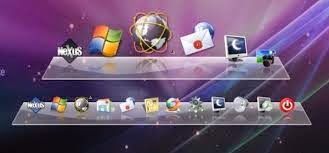
This is Winstep Nexus Dock

It has a medium memory print, and requires more minimum requirements. (This is a sneak peak to a future post :D)

Nexus dock has a larger installation size compared to other docks (30 MB roughly ).

There is a paid version with many more features. Check it out!

My rating 4/5

Platform: Windows only. Website

So there we have it. 4 awesome docks. Two for each OS.

Which one are you using? And if you aren’t using docks. Which one of these will you choose?

Can’t wait to hear your feedback. And remember the next posts will be dedicated to two of these docks. Read again and try to figure which ones I’ll be writing about.

Have a nice day 🙂

Acer Aspire V5-P122 boot problem FIX !! OEM saved!!

Hey there you guys 🙂
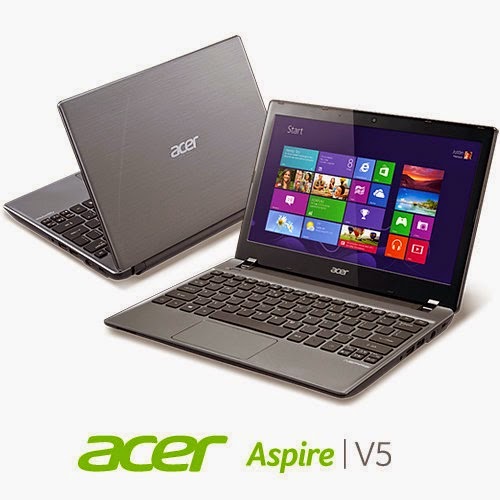
I’m happy to report I was able to fix the Acer Aspire V5-P122 boot problem!

I must emphasis that this tutorial is at your own risk and I can’t be held  responsible for any damages that occur from it! I’m not even sure this is 100% legal and that it doesn’t void Acer warranty! In this case we don’t have an Acer service in our country (It was imported) and therefor I had to take action (To save the OEM license) ..

After the long introduction, let’s get down to business:
As you remember in this post we managed to make the Acer boot under Linux by changing the boot settings. And we could access the hard drive after accessing the repair mode under windows and writing some commands. For the full steps go to this post.
At this point we have our data at hand (since we booted under Windows for repair. Then under Linux for data recovery), we could easily backup the data to an external hard drive, but can we restore Windows?

Sadly I couldn’t manage to use any of the options to make the laptop work again!

  • I couldn’t refresh the system.
  • I couldn’t use the repair utility from the setup.
  • I didn’t have an image ( and I doubt that would have done anything ).
  • It won’t restore to a previous restore point.

Well a mistake happened with us and it totally wiped the hard drive! What happened was instead of booting Linux into live mode I installed Linux on the whole drive! Wiping the data and partitions completely !! ( Deleting the system partition, data partition, the recovery partition. And all of Acer’s bloatware!)

A fresh start

With nothing at hand, I knew that I needed to format! My main concern was the Windows license!  Now I have to go shopping for another Windows version! But I just got this laptop! And it has OEM Windows already on it! Isn’t there a way to keep the license?
Well .. There is 😀
Luckily the new Windows license is stored in the BIOS. Meaning it won’t be lost even if the hard drive was replaced!

Next step

The only thing left now was to install windows again, it’s pretty basic. Checkout the detailed method in this post I made sometime ago 🙂
Again I was stressing, will the license be picked by the setup?
I couldn’t find that version of Windows to install with anywhere! All I could find was the Pro version! Does that mean I have to buy it again? Or I should transfer the license from my other laptop and use it here. Keeping that device a Linux machine?
Anyway I begun the installation via USB ( The Acer doesn’t have a DVD-Rom).
After the setup was complete it noted that windows wasn’t activated, but it was reading the license file!

Viewing the License

I knew that because I downloaded the Nirsoft license viewer tool and tested it on my other device, 100% accurate!
It showed when I used it on the Acer Netbook that indeed the OEM bios has a license. It was yet to be activated.

Powerful command

I used this command and restarted the computer. After the restart I clicked Activate Windows
Windows was activated (With the O.E.M license!!). And it was downgraded to Windows 8 ( The setup was 8 Pro)!!
It was a total success!
I postponed creating a system image until upgrading to 8.1 (it’s equal to a format).
And that was it!
Maybe you need to call Microsoft after the format! And if you have an Acer reseller. Go to them! ( As I said, we have no means of support. I tried to make this as legal as possible. I hope it doesn’t violate any laws)

Final words

To sum the whole post in a paragraph: I reinstalled Windows 8 Pro and activated windows via the O.E.M bios, downgrading it to Windows 8.
Of course I lost all the Acer tools, guides, drivers and even bloatware!
Again I must insist to resort to this as a final solution knowing it may void your warranty!
I hope you find this post useful. Please tell me what occurs with you!
Have a nice day 🙂
Make sure to follow my blog and join my mail-list NEW

« Older posts Newer posts »