Category: Open source (Page 15 of 20)

LibreOffice 4.4.5 is out. LibreOffice 5.0 is around the corner

Hey fellas!
Thank god that craze was over, now let me return to what I really love, open source!

LibreOffice’s next milestone is just around the corner, it should be there on  Wednesday the 5th of August. but let’s talk about the latest version first!
LibreOffice 4.4.5 is the fifth minor release of the LibreOffice 4.4 family bringing 80 fixes over the previous version.
It’s also replacing 4.3.7 as the stable branch of development (means it’s stable)!
Feel free to download it from this link.

Now that we covered 4.4.5 let’s talk in detail about the much awaited 5.0 milestone.
To make things more clear the document foundation has made a chart highlighting the development milestones of LibreOffice since it took over Apache Open Office in 2011.
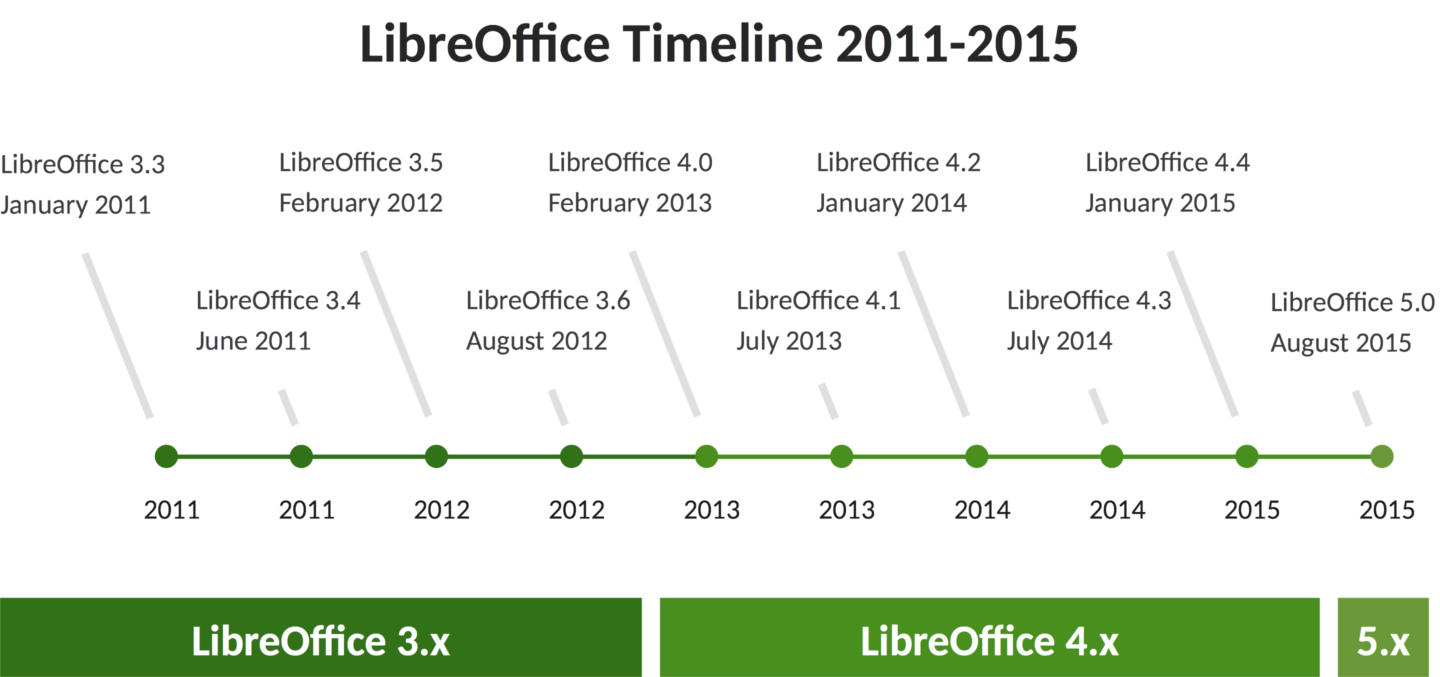
LibreOffice development milestones

Among the features it’s having a 64x version for Linux, Mac, And Windows alongside the 32x version.
And will be Windows 10 compatible (I am running 4.4.3 with no issue on 10 btw).

Are you excited? I know I am and I have been waiting all summer for this release! It’s so good to see an open source project take off with confidence and make global impact!
Will you download it?

سبعة أمور لم تكن تعرفها عن لينكس

السلام عليكم

في هذه التدوينة سنناقش معا سبع حقائق ونصحح بعض المفاهيم الخاطئة في أذهان البعض منا عن اللينكس والمصادر الحرة.


  1. لدى لينكس واجهات رسومية مذهلة، لم تعد بحاجة الى شاشة الطرفية السوداء والبيضاء لأداء مهامك اليومية.
  2. بإمكانك التعديل في أي برنامج بالحصول على شفرته المصدرية، مع الالتزام بالتراخيص طبعاً.
  3. لست مضطرا للإتصال باﻷنترنت 24 ساعة للحصول على البرامج، يوجد طرق سهلة ومبسطة لفعل ذلك.
  4. لم يعد خاليا تماما من اﻷلعاب ذات المستوى العالي، مع دعم منصة STEAM الشهيرة وظهور Steam Machine المبني على اللينكس (سأخصص تدوينة كاملة لهذا الموضوع) ..
  5. من الممكن تشغيل معظم برامج ويندوز عليه بإستخدام برنامج Wine لذا لن تضطر للتخلص من برامجك المفضلة (مع العلم أن كل برنامج له بديل على اللينكس).
  6. أكثر أمانا بكثير من الويندوز، لن تحتاج إلى مضاد فيروسات، وإختراقه أصعب بكثير من اﻷنظمة العادية.
  7. الكثير من البرامج المفضلة لديك مفتوحة المصدر ومجانية مثل VLC الرائع و المتصفح الشهير Firefox وبعضها يأتي مضمنا مع كثير من التوزيعات مثل Ubuntu

كانت هذه حقائق عن لينوكس، شكرا لك لقرائتها، هل لديك المزيد لتضيفه؟ أرحب بذلك في التعليقات

شكرا لقرائتك تدوينتي


How to add LibreOffice to PPA in Ubuntu, Latest version install

I once advocated Apache OpenOffice in favor of LibreOffice, I even had this tutorial where you can remove LibreOffice all together and install Apache OpenOffice to your computer. If you like doing so, that’s a personal choice.


I had to study both softwares and make a decision that will affect me for a very long time. I chose brains over heart and here we are with LibreOffice 4.4.4 waiting for the 5.0 milestone, again not saying that Apache OpenOffice is bad, read more about my choice from here.
Now we come to an important part, Adding LibreOffice to Ubuntu again

Since we used the command purge to remove LibreOffice, we have to install it all over again adding PPAs ( Personal Package Archives) to the system.

We can simply do that by opening a terminal window Ctrl + Alt + T and entering the following command

sudo add-apt-repository ppa:libreoffice/libreoffice-4-4

Update

And there is the GUI way for users who don’t feel comfortable around the terminal!

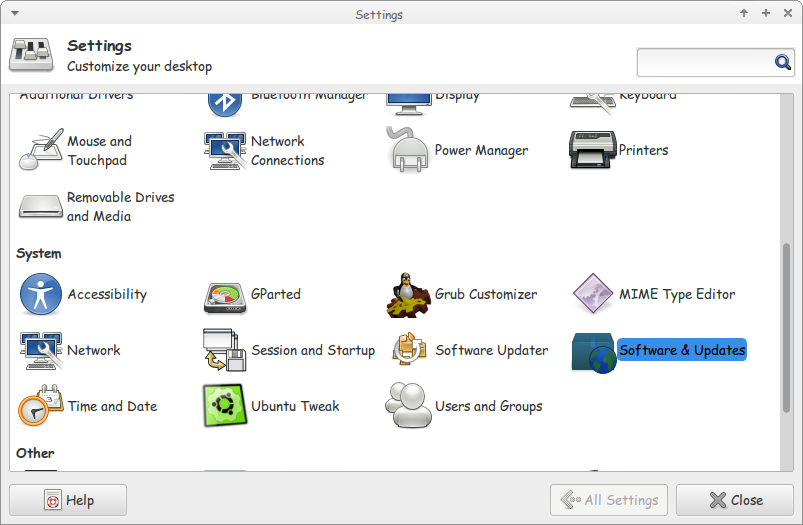
Go to Settings Software and Updates


Settings menu

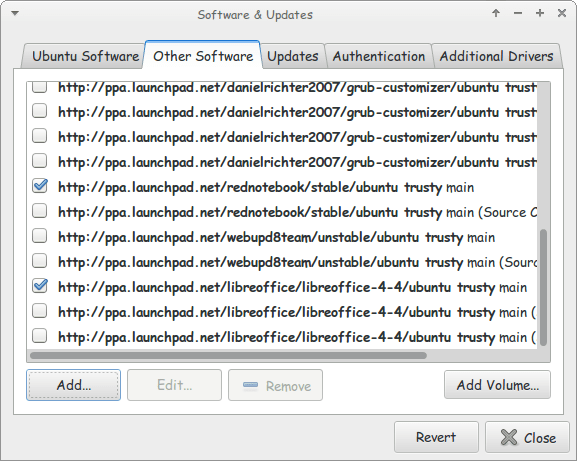
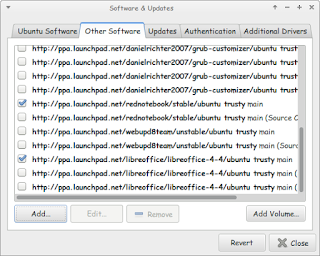
Go to Other Software and click add


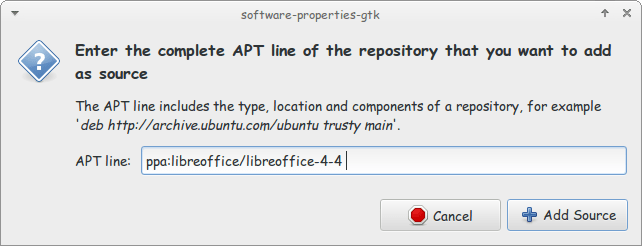
Enter the PPA name in the field and click add source (Copy and paste)

Adding the PPA

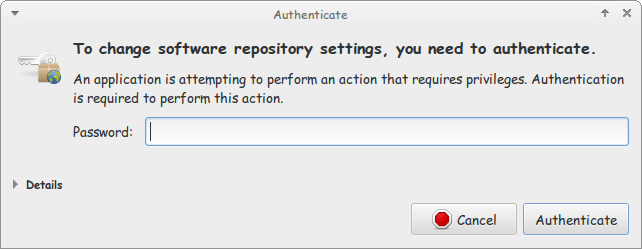
Enter password to confirm

You need the password to confirm

You will see that the source is added (In my case I took both screenshots after adding).


The PPA has been added!

This way we added the LibreOffice PPA to the software sources so the system can fetch automatic updates (we don’t have to update manually every time)

After we added LibreOffice PPA, Let’s install the latest version!

Use the command sudo apt-get purge libreoffice-* and confirm with y to remove the current version (if it’s really old).

Now we continue by downloading LibreOffice from the site and extracting it to the desktop, please note that the tar.gz file is just an archive and doesn’t need any compiling, just extract with your default archive manager!

Extract the folder DEBS to your desktop

In terminal enter cd Desktop

Then write cd DEBS (Hint: If you have the option Right click and choose Open Terminal Here).

Write the command sudo dpkg -i *.deb to install all the debs in the folder (Batch install).

After it’s done. You have LibreOffice fully running!

Finally

The first step I’m not really sure it’s necessary. I’ll have to wait till the next update to confirm that installing a new one removes the old (Can anyone confirm this to me?).

That was how to add LibreOffice PPA and install it to keep it always updated. Have a good one!

« Older posts Newer posts »