Category: Recovery

النسخ الاحتياطي للبيانات، ماذا تفعل عندما تحدث الكارثة؟

يقول المثل الليبي: بعد ما أتخذ دار بندقة. ويعني أن الشخص تجهز وتسلح بعد أن فات الأوان لفعل ذلك. اليوم سأروي قصة “اتخاذي” و “بندقتي” مع السادة القراء. لأخذ العظة والعبرة. وأيضا كدرس لي لا أنساه.

كل من قرأ مدونتي في الفترة الأخيرة يعلم أنني مررت بظرف قاهر أدى لترك البيت وما فيه. ومن ضمن ما فقدت كان عددا من البيانات الغالية والتي لا يمكن استبدالها بأي حال من الأحوال .. كيف حصل هذا؟ وكيف قمت بإصلاحه؟ وما هي البندقة التي اتخذتها؟

البداية

لظروف العمل تخليت عن نظام أبونتو الحبيب واستبدلت جهازي بأخر يعمل على ويندوز 10. عند نقل الملفات وبسبب اختلاف طريقة التسمية بين النظامين أنفي الذكر تم تصنيف عدد من المجلدات القادمة من أبونتو على أنها متضررة، وقام ويندوز بوضعها في مجلد الموجودات .found ثم قام بحذفها.

احتمال ضعيف جدًا

كنت مشغولا بالعمل فلم أنتبه لما فقد مني. لم أستيقظ حتى فات الأوان. لم أنتبه لضياع البيانات حتى نزحنا من البيت وتركت العمل. ويالها من خسارة. حاولت عدة مرات استعادة الملفات المفقودة من كل الأقراص التي كانت بحوزتي، دون جدوى! ظل الاحتمال الأخير الذي لا يزيد عن 1%. قرص قديم كنت أستعمله وأجريت له إعادة تهيئة بعد نقل ملفاتي منه!

عودة بغصّة

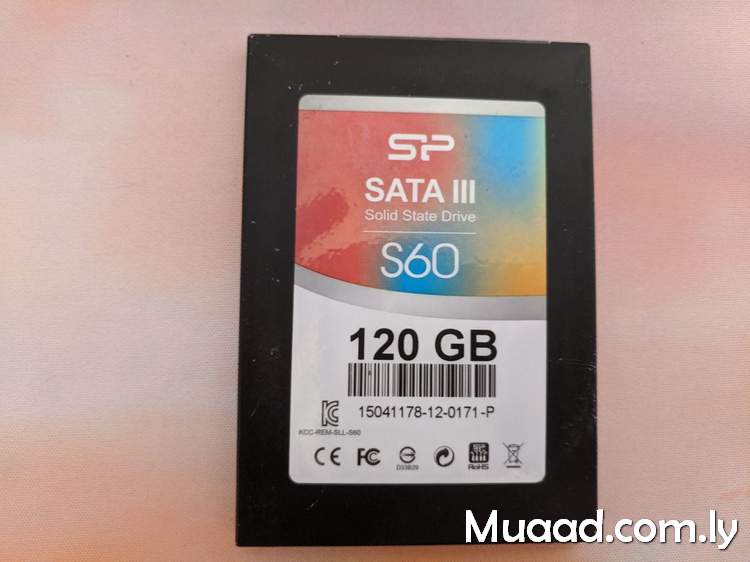
مرت الأشهر وعدت لزيارة البيت لأول مرة لأجده على الحال الذي وجدته فيها والله المستعان. وعثرت وسط أغراضي المبعثرة على قرص SSD كنت أستعمله وتركته خلفي في عجالة. وضعته مع أغراضي ولم أفكر به كثيرًا.
عندما حصلت على بعض وقت الفراغ قمت بتشغيله ولسعادتي فقد عمل فورًا مخالفًا توقعاتي! وعملية استرداد بيانات بسيطة كانت كل ما أحتاج إليه لاسترداد ما ظننت أنه ضاع للأبد. هذه قصة – من وجهة نظري الخاصة – تنتمي لكتاب القاضي التنوخي (الفرج بعد الشدة) والذي أورد فيه أخبار أناس كثر تعرضوا للشدائد وشهدوا فضل الله تعالى بإخراجهم منها. وهذا من لطفه وكرمه سبحانه الذي يحيط بنا في كل حال.
حسنا، أين “البندقة”

بعد أن استعدت البيانات الهامة التي ظننت أنها ضاعت للأبد قمت بعمل استراتيجية للبيانات.

1. قمت بدعم كل البيانات (مشفرة) على حسابي على دروب بوكس.
2. تنصيب برنامج AOMEI Backup Standard وعمل نسخ احتياطي محلي على القرص الصلب الخارجي.
3. تنصيب Backup and Sync from Google لمزامنة الملفات فور تعديلها (مع التشفير) على حساب قوقل.

هذه هي البندقة.

ختاما

تعامل مع فقد البيانات على أنه حتمية، وليس احتمالا إحصائيا ضعيف الحدوث. قم بتطوير استراتيجية لدعم بياناتك التي لا يمكن تعويضها.

يمكن عمل صورة كاملة لنظام التشغيل أبونتو من هنا.

هل حصل لك ظرف قاهر مشابه؟ كيف تتعافى من حدوث خسارة مثل هذه؟ هل لديك نصائح تضيفها لإستراتيجية (البندقة)؟ شاركني بملاحظاتك في قسم التعليقات.
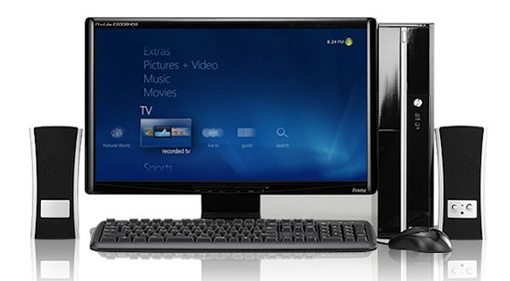
Benefits of clean installs

Over time your system gets overloaded with problems and dead shortcuts, the installations and removal of software, some hidden malware you aren’t aware of. Even with cleaning solutions like Iobit advanced cleaner and Ccleaner. You still have some things you can’t clean. You will notice over time a slower boot and a general drop in performance. That’s time to consider a clean install.

What is a clean install

A clean install is the process of erasing your system and installing it again. It’s clean because all the cruft and mess will go when you format your drive (hopefully not taking away precious data) and it will return your computer’s snappy fresh performance. Much like restoring the factory settings, an option available in the late Windows versions: Windows 8, Windows 8.1 and Windows 10.

But what if your computer isn’t OEM and it doesn’t have a recovery disk? Then you have to clean install your system.

The benefits you will gain from clean installing your computer

I got rid of many unneeded Visual C++

This was somewhat of a problem to me! I had nearly 10 Visual C++ and I couldn’t find a way to remove them, even the pages I looked recommend leaving them as-is. Now all of them are gone!

Office fonts and data.

I used to have Office 2010 demo and it installed hundreds of fonts, and removing them by hand was a hassle! Not to mention the tons of registry cruft left down by MS office.

Every trial is now reset to zero.

Some of the tools I experiment with are trials, after I clean install the system all of them can be used all over again!

Registry is smaller and healthier

It’s all about the registry, as it’s where the program’s data are stored. And when removed it doesn’t gain back the size, even defragging it won’t do much good.

I installed much less software (only the necessities).

I was surprised by the amount of tools installed which of I NEVER use! I try to keep it to a minimum. And use tools that do more than one function. I don’t install Gimp and Inkscape for instance because in Windows I have Fast-stone viewer and LibreOffice draw could do the design work, if it’s more than that I have to use Inkscape.

I recovered even more space

More space as the Windows.old is gone, and other things that I don’t need and can’t clean.When I upgraded to Windows 10 there was the Windows.old folder which is supposed to take you back to Windows 8.1. I then discovered it was just a dummy and had to clean install. I saved a lot of space because of that and because of cutting down my software list.

In theory start-up time should be faster.
And it is faster! It has improved between the old 8.1, Windows 10, and reinstalling 8.1.

Solved the Swow drama I had when I was “interested in games”

I had to copy tons of DLL files to make some games work. And that was a mess! I almost ruined Windows over copying some files by mistake.

All the tricky settings you changed once and forgot how to return (and feel too lazy to return)

As I was doing some PHP work I had to Install the Xampp server on my computer, it wouldn’t work so I had to change a lot of settings to make it work, formatting meant that it went back to default on it’s own!

The first actual clean install I had in a while

Since starting the dual boot thing I haven’t clean installed! I installed Windows 8, Windows 8.1 was a store update, and Windows 10 was an upgrade. Even when I clean installed Windows 10 I was being forced. And not actually doing it to gain any benefit.

These were the benefits I found and could think of, do you have any more benefits to add?
I’m sure that the factory option is also good and will probably do the same good, but my system isn’t OEM and that doesn’t apply to me. If I could get a chance to try that option I’ll make sure to note of it.

How should often to do this reset?

That’s a tricky one! It depends on you mostly, if you have a slow changing system then it won’t be necessary for two years at most. On the other hand if you tend to install and uninstall software a lot. You might want to do that yearly (You will enjoy it!).
Have a nice day 🙂

Get Windows 10?! Not again Microsoft!

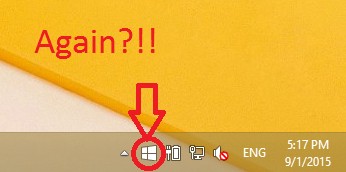
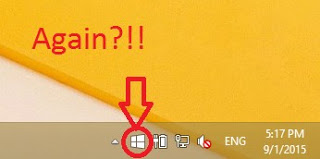
As I was updating my newly installed Windows 8.1 Pro. I came across a familiar icon! It was the Get Windows 10 icon sitting on my taskbar! I wouldn’t have thought that I’m eligible for another download after I downloaded Windows 10, upgraded to it, clean installed it , and finally remove it and get back to Windows 8.1 !!

You can see the date and time to know it’s today!

Well that was a rich reading material wasn’t it?!

I took my time experimenting with Windows 10 on my personal computer, installing and uninstalling again and again, I didn’t even use a virtual machine. NOOOO! I used my everyday computer to do these experiments!

For obvious reasons I’m not falling for that upgrade offer once again! And I have some other reasons to add to that list. So checkout that post!

I think I’ve had enough install/uninstall action for the rest of my life! Let alone the countless updates, the time wasted and the data charges I’m paying for all of this mess.
I’m finishing my updates and that’s that. No more upgrades on this device for me. And I don’t recommend anyone to upgrade to Windows 10!

How to fix the boot failure in windows 7

 Hey there 🙂 And welcome to a new post 🙂

 A huge part of being a geek is being the first to go to / call when computers fail! I don’t know why!
This time it’s not related to Linux, not directly at least!
For this particular issue this laptop was an e-machines running windows 7 home edition. It was a bit old and the battery was depleted. The same laptop from this post actually!

What’s wrong with it?

It had to be connected all the time or it would power off attempting to save the session, if it failed doing so it would refuse to power up again! When I press the power button after connecting it to power it shows the boot logo then it powers off right away!!
Many people would assume that the system is gone! And they need to reinstall it.
The first thing to do is to check the drive using a Linux CD or a Bootable USB. You will see that the system drive is intact. Then what is the problem?
The repeated power failures ruin the boot files located in the hidden boot partition, and the only way to fix them is by repairing the boot!

The fix is pretty simple!

1. Enter the windows installation disk or USB installer, it has to be the same version as the windows installed!: e.g Professional, home premium etc. In this case we need home premium. (Fell free to test with another version and tell me what you got 😉 )
2. At the install Windows window , choose the language and keyboard (As your system settings ).
3. Select advanced options ( You will find it below the installation options to the left of the screen)
4. From there you will find four options, pick repair boot (First option) and hit OK.
After a reboot your computer will be OK!
As simple as that! Sorry I have no pictures. It’s because the setup menu has no print-screen functions (AFAIK).

P.S: I have made this fix a couple times! I noticed at some extreme cases the boot screen won’t even show! Go to bios menu and make sure the F12 menu is enabled. Then boot from boot disk or USB 😉