
Category: Ubuntu 16.04 (Page 1 of 3)

FDM (Free Download Manager) for Linux is finally here!

After what seemed like an eternity, the popular free download manager has finally made a version for Linux! The development team finally came around after refusing to release a Linux version for years!

It all began in mid 2016 when the developers posted a poll asking what features did the users want to have in FDM, a version for Linux was on of the features suggested.

The Linux community help

I reached out to a very popular Linux blog: Itsfoss, and posted a guest post talking about FDM and asking for the help of the Linux community to change the voting results. The support was overwhelming and Linux is the first featured voted by a margin.  You can view the results of the poll from here.

A support issue

Over the years FDM was no longer open source, it turned into a freeware with the old branch 3.9.x remaining open source. So the source wasn’t going to be posted where people could collaborate on it. 
Also I’ve received information from the developers saying that it would have to be written from scratch in order to support Linux properly. 

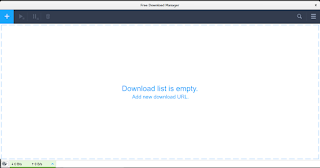
FDM Alpha running on Ubuntu Linux
A screenshot of FDM running natively on Linux

FDM 6.1 supports Linux!

At last the long wait is over! A version of FDM finally supports Linux! This “Alpha” was released in October of 2018, and the stable version is yet to be released.  It’s a huge step from being a promise, a concept and an option on a poll..

You can download this version for Linux Ubuntu from this link.
It’s still in the very early stages of release and missing a lot of features as stated on the download page, with more functionality expected later this year; including features from the 3.9.x series of FDM.
Also Ubuntu is the only distribution of Linux currently supported and any other distros that support .deb files.

Final words

It’s wonderful seeing that something I’ve worked hard towards achieving is finally paying off. I’ve been rallying and pressuring the support team for over 3 years now for a Linux version. 
My happiness will be complete when a stable version of FDM 6.1 is released and Linux is one of the supported systems. 

Do you use FDM? How do you feel about a Linux version of FDM after all these years? Please let me know in the comments section blow.
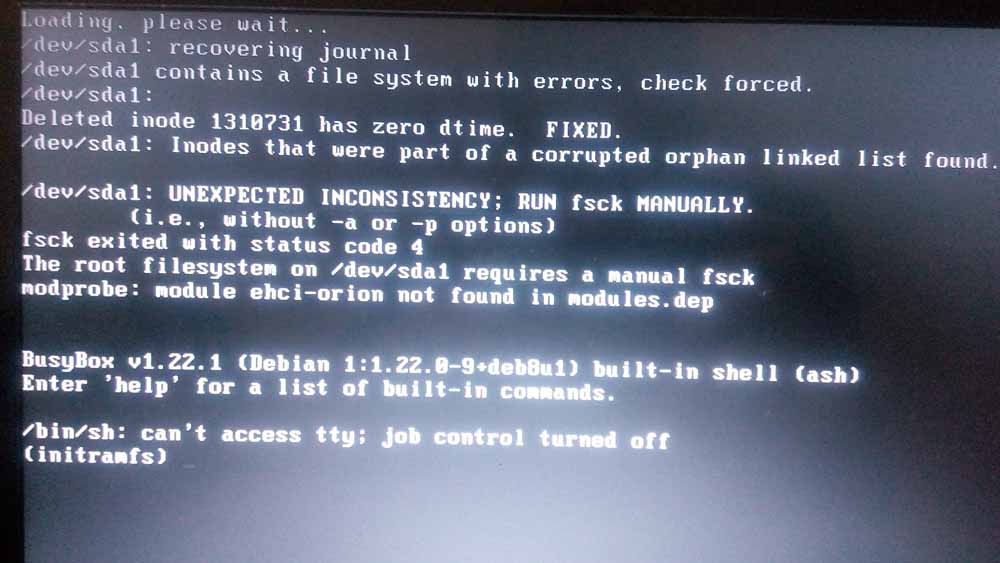
How to fix and prevent the /dev/sda1: recovering journal On Ubuntu 16.04 Gnome

As I was booting my computer up one morning I saw this awful error message rather than the Ubuntu Gnome boot logo, it turned out to be a common error and can be fixed easily, let’s get to the details!

/dev/sda1: recovering journal

Cause of the issue

The problem occurs when the computer isn’t shut off properly or when electrical failure happens, some data on the SSD

isn’t stored properly and the boot process is halted.

In my case it’s the power issues that ruined my laptop battery and is making it’s way to my data stored on the SSD. 

How to fix it

The screen itself suggests a terminal command to fix the drive which was useless in my case, my easy fix was using a live Linux installation from a USB -I used Linux mint- and used Gparted to fix the damaged drive (please note that using Gparted can be very risky and cause data loss). 

Using Gparted from a live distro

We are using Gparted to fix the partition, it depends on how you did your disk but it’s the same way.
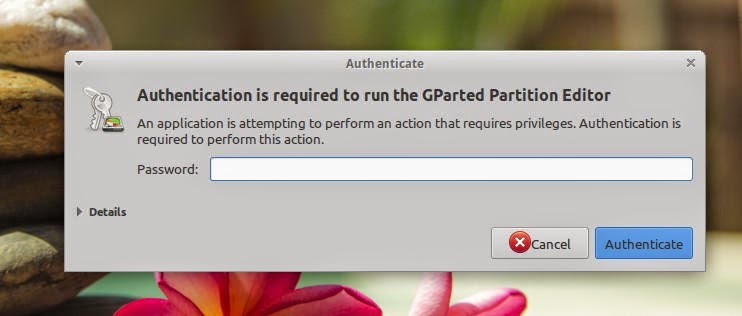
Entering the password to run Gparted.
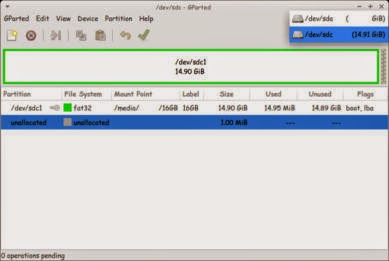
Opening Gparted


  Viewing a list of disks on your computer.

View disks with Gparted


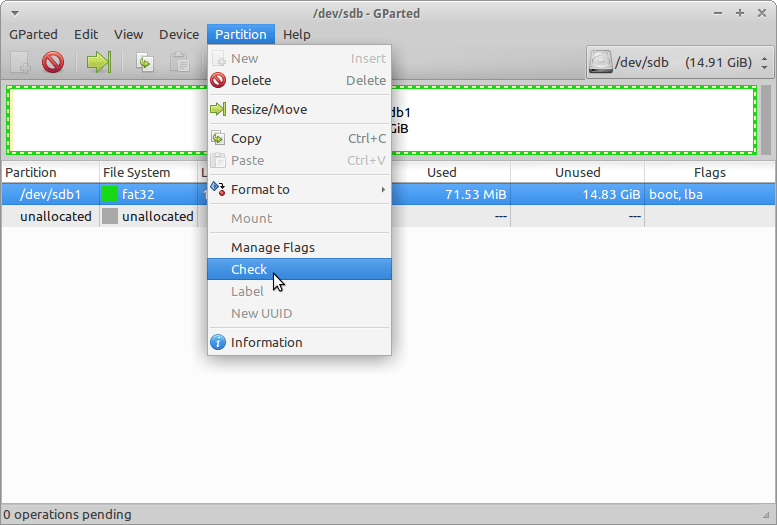
 Checking the drive for errors with the right click menu.

Checking the disk for errors using Gparted

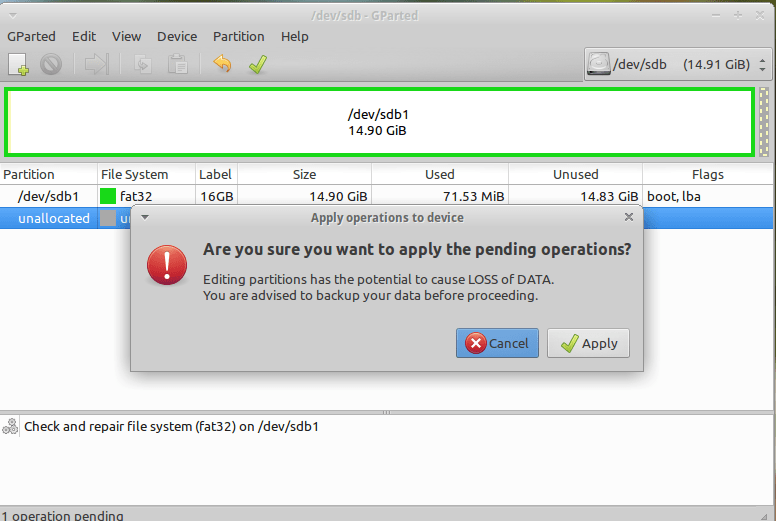
We now click Apply changes.

Applying changes using Gparted
After applying changes we can safely reboot, the fix is done!

Making sure damage didn’t happen

ِAfter rebooting the computer will open as usual, but we want to make sure that the drive wasn’t damaged, to do that we will install a small command line tool called Smartmontools 6.5 and it can be downloaded from this link.

Installing Smartmintools-6.5

Samrtmontools is a terminal utility
to check and monitor disk performance. 

To install Smartmontools we need to un-compress the tarball and we do this from the terminal

  tar zxvf smartmontools-6.5.tar.gz

The previous step created a directory called smartmontools-6.5 containing the code. Then we go to that directory, build, and install:

 cd smartmontools-6.5

  ./configure
  make
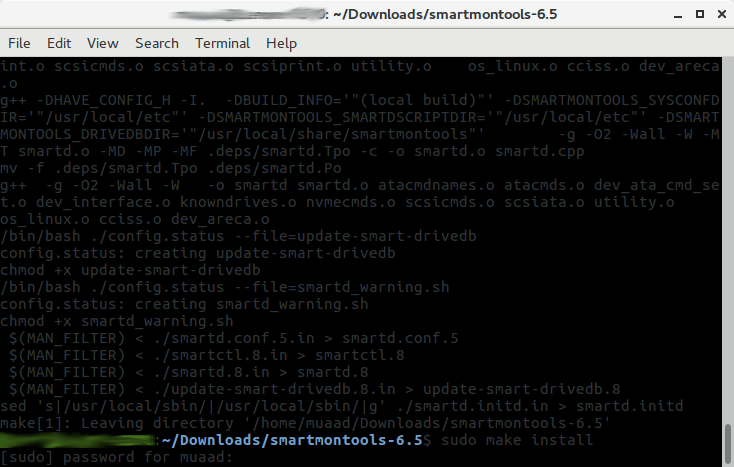
  sudo make install

After running these steps we managed to install Smartmintools-6.5 tarball from the terminal.

Running Smartmintools-6.5

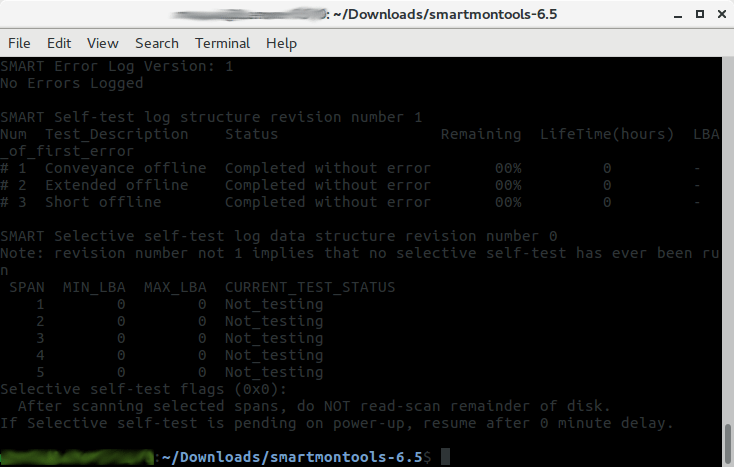
Run the command:  sudo smartctl -a /dev/sda. And if the results are like the the screenshot your drive is safe, as it says clearly: No errors logged.


How to make the fix automatic on every boot

Instead of performing the fix every time the issue happens, it’s easier to set the config autofsck to run at every boot. 


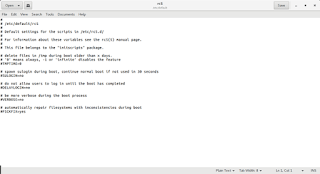
Edit the file etc/default/rcS and change the FSCKFIX from no to yes by using this terminal command:


gksu gedit /etc/default/rcS
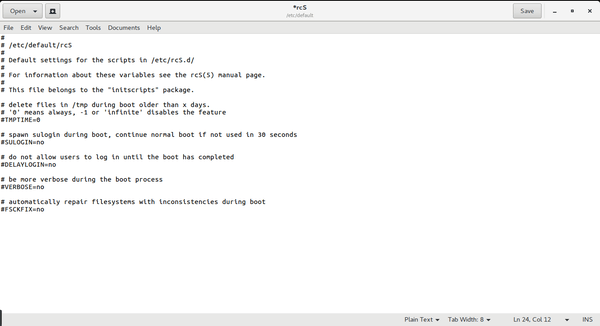
Here it opens a gedit windows, navigate to the last line.

Editing /etc/default/rcS

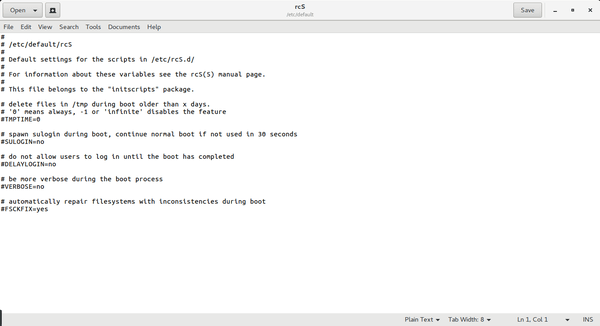
Change the FSCKFIX from no to Yes and save to finish.

Editing /etc/default/rcS

This way every time the issue occurs the system will automatically fix it and continue booting normally. 

This is how to fix and prevent the /dev/sda1: recovering journal on Linux Ubuntu Gnome 16.04 and similar distros, it’s really easy to fix but it can be scary and ruin a day for you if you don’t know what to do.
And I highly advise you to backup whenever possible

My review of Ubuntu Gnome 16.04

It’s been a couple of weeks since Ubuntu 16.04 was out! I decided to take my time and give the new distribution some time before making a review, I think two weeks are enough time, so let’s take a look at Ubuntu Gnome 16.04!!


Ubuntu Gnome 16.04 new logo

The distribution

Ubuntu Gnome 16.04 became an official Ubuntu flavor, making use of the Gnome interface, unlike the official Ubuntu that uses Unity as interface, it comes with Gnome software and isn’t a clone of Ubuntu, there are some minor differences in apps, Basero is  the default disk burn utility for example, and gnome software is at 3.20 out of the box.


Ubuntu Gnome 16.04 Screenshot

Please note that some of the tools in the screenshot aren’t installed natively, such as Zim-wiki and Sublime text.

Download and Install

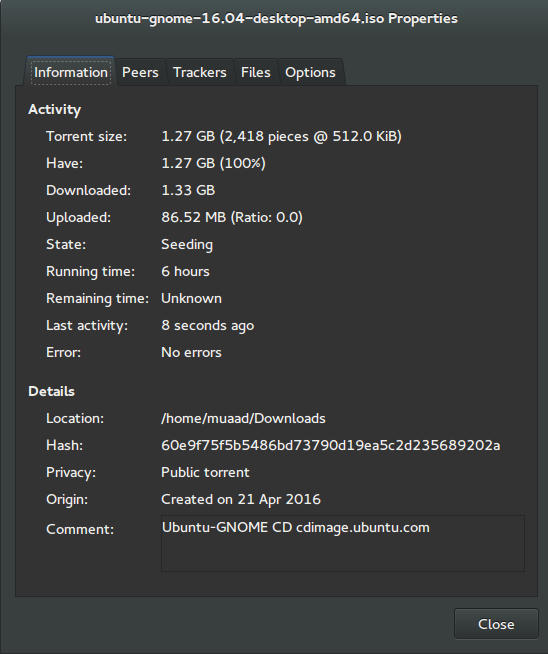
I’ve downloaded Ubuntu Gnome via torrent because I read it’s better for the servers, and come to think of it since the electricity goes out very often here, it’s better to download Ubuntu via torrent to save myself the trouble of downloading it all over again! It was downloaded eventually after 6 hours.
Checkout the download link from here.


It took 6 hours to download!
Torrent download information

I put it on a USB and began installing, pretty much the same since Ubuntu 10.10.
This version has 3 years of LTS support, why not five years? I’m not sure.


Steps to take after installing Ubuntu Gnome 16.04

Most of these steps are on my blog, but it won’t hurt to collect them all together in one neat list, would it?
  • Configuring wireless and Bluetooth, which is really easy to do but very important.
  • Installing the extras, the restricted extras needed to view media files and flash, and some fonts.
  • Installing my softwares, the usual package of stuff: VLC, Inkscape, GimpXmind and Zimwiki
  • Installing extensions: Clipboard indicator and OpenWeather.
  • Editing input sources to make it change between languages by pressing alt + shift, you can find how to do it from this link.
  • Restore the bookmarks and data (notes), Firefox is pretty easy to restore, and so is Zimwiki! All you have to do is to put the note folder in Home.
  • Customize LibreOffice. To make it more compatible with Arabic.
  • Disable apport, more details in the defects section.
  • Installing powertop for more power save and CPU Frequency to reduce fan noise!
  • Pomodro timer works beautifully with Ubuntu Gnome 16.04 and you have to install it, it’s the best timer app for Ubuntu to date! Read my review about it from here.
  • Disable tracker-store as shown in this askubuntu link. 
  • Disable evolution safely without uninstalling it. Saving nearly 170 MB of RAM.
  • I also decided to skip the Grub menu since I only use Ubuntu 16.04, to do that you need to download and install Grub Customizer with these commands:

    sudo add-apt-repository ppa:danielrichter2007/grub-customizer
    sudo apt-get update && sudo apt-get install grub-customizer

    After that go to Grub customizer and enter your password, go to settings and uncheck: show menu and look for other operating systems. This way you will get rid of Grub and boot to Ubuntu right away, don’t do this if you dual boot!!< red;”


Features and improvements

  • I do appreciate the Gnome 3.18 interface! A huge jump from the 3.10 that Ubuntu 14.04.4 ships with, as it has many improvements and tweaks and fixes for annoying bugs in Gnome 3.10 (LTS to LTS upgraders will relate!).
  • The notifications style has changed completely, it’s now displayed in a drop-down menu under the clock.
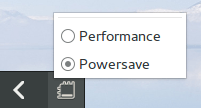
  • The annoying bottom bar was removed completely, a feature I will never miss! It’s replaced with a neat arrow that’s docked on the bottom left corner of the screen.
    Notification dock in Ubuntu Gnome 16.04
  • The new boot logo is so much better than the old one! That looks like a foot! This is more sleek and streamlined, reminds me of SEGA’s logo somehow!


Ubuntu Gnome’s new logo


Issues and defects

  • So far the performance is OK and there are few crashes, pretty much the same as Ubuntu 14.04.4 which is pretty stable by the way.
  • I’ve noticed that the network icon sometimes disappears, hopefully an update will fix this, my only fix is to reboot.
  • I would recommend that you disable apport as it will bring up a message every time you reboot.
  • Software isn’t as clear as it should, I can’t tell how big are the softwares and updates, so I use Synaptic on a daily basis to get things done!
  • When disconnecting the wireless network with the hardware key it’s not recognized anymore until several reboots, it’s a known bug but with no fix afaik! The only info I could find was this terminal command: sudo service network-manager restart This command will restart the network manager and allow it to connect without the need to restart several times.
  • The fan noise was too much at times, even when the computer was idle, I thought upgrading from Ubuntu Gnome 14.04.4 to Ubuntu Gnome 16.04 would fix this but it didn’t, until I installed CPU Frequency!
  • Nautilus 3.14 could use an update and we don’t have to wait till 16.10 to get one! I managed to follow a rather risky tutorial to update it to 3.20 and it’s so much better!
  • If you are using an SSD you might want to look at this post to avoid the /dev/sd1 :Recovering Journal issue.
  • Starting up without a user interface at times, and my only cure was to restart the computer, I found a fix that suggests to clear the packages config from Synaptic.
  • Sometimes shutdown can be slow, I found the steps in here worked like a charm!

“Software”

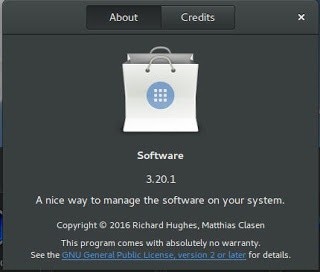
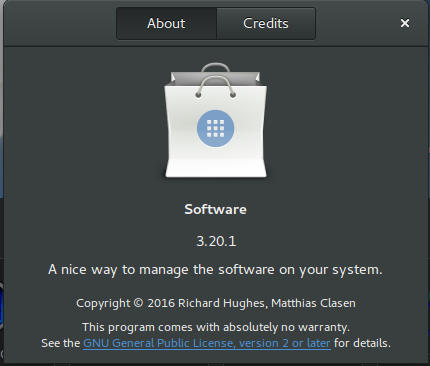
Ubuntu Gnome 16.04 ships with Gnome software 3.20. Which is the software that is supposed to replace Ubuntu Software center, I find them both buggy and unusable, as I use Synaptic to do my package work.


Softwares 3.20 on Ubuntu 16.04

I do believe it needs more work to become a reliable software center, it stays in the background and behaves oddly, it doesn’t show the download progress on software being downloaded too, which seems odd!

I winded up un-installing software and reinstalling the good’ol Ubuntu software center!

Final words

Ubuntu Gnome is a great choice for anyone who wants to enjoy Gnome  without having to leave the Ubuntu universe to Fedora or OpenSuse, it provides the purist Gnome experience possible for Ubuntu, and it preformed better than regular Ubuntu installed on older machines (with proper tweaking mentioned here).

The more I use it the more I could tell that this is the distro for me, great job indeed by the team, and I rate it as a must have!

I hope you enjoyed this post, please let me know what you think in the comments section below, and remember: Sharing is caring!!

Ubuntu 16.04 is finally out!

Finally! The much anticipated Ubuntu 16.04 is out! I’ve been waiting for months for this new release! Thank god it’s finally out!

The wait is FINALLY over!!

So what makes this release very special?

  New features in Ubuntu 16.04


  • Introduces “snaps” for new robust, secure app format
  • Introduces LXD pure-container hypervisor with OpenStack Mitaka
  • Supports IBM Z and LinuxONE systems with flat pricing
  • Steps towards converged Ubuntu across IOT, Phone, Desktop and Server
  • Introduces ZFS and CephFS for large-scale cloud storage .
  • New Linux Kernel 4.4

New installation media!

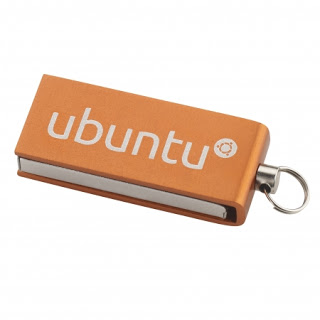
For the first time, Ubuntu will be shipped on USB Installation Disk rather than the usual CD/DVD that has been used since the beginning, and will cost around 6.5$ per disk (shipping not included), credit for this goes to omgubuntu.
If you cant buy it or won’t, here is my tutorial on making your own Ubuntu USB disk, but I’d love to have one of those to be honest!!


Ubuntu 16.04 installation disk

Other flavors of Ubuntu are out today as well! So feel free to check your flavor’s website! Most get 3 years updates unless you crave Kubuntu!
Now we come to my personal favorite part, downloading Ubuntu!

Download

To download the ISO image click here, 1.5 GB.
There is also a torrent link for Ubuntu, which is better for the servers (not sure how!)
I’m personally downloading Ubuntu Gnome, so here is a link for that.
Sadly it comes with 3 years support only, but I’m sure it will be enough!
After you download the image, you are going to need to burn it on a DVD or use the much faster USB method, see my tutorial on putting Linux on a flash (Don’t worry if 16.04 isn’t listed in YUMI’s list, it will work!).


« Older posts