Category: Design (Page 2 of 3)

مقدمة الى التصميم

توجد عدة طرق خاطئة لتصميم المواقع والجرافيكس. ستضمن لك الإحباط وضياع الجهد والوقت !

لا تخطط

نصب آخر نسخة من الفوتوشوب، وقم بفتحها مباشرة ودون تأخير!

لاتحترم التراخيص

تأكد من تحميل أخر كراك وقم بتفعيل البرنامج مباشرة، ولا تهتم لسرقة بياناتك الشخصية أو تدمير حاسوبك!

لا تتعلم

لا تحضر دورة تدريبية أو تطلع على اليوتيوب أو كتاب جيد، فقط اغطس في البرنامج مباشرة!

استسلم للإحباط

اقفل الفوتوشوب والغ تنصيبه، وانزع مصمم من الوظيفة في صفحتك على موقع التواصل الاجتماعي ذاك (الذي كان مفتوحا طيلة الوقت!!)

هل جربت هذه الطرق من قبل؟ جيد! انت مستعد لدراسة التصميم!

في البداية لنفهم جيدا معنى كلمة تصميم، التصميم هو تصور متكامل للعمل الذي نريد القيام به، يشمل كل التفاصيل، أدق التفاصيل دون ترك شئ للصدفة، فلنأخذ مثالا شهيرا:

  • عندما يقوم المهندس المعماري ببناء بيت فإن أول شي يقوم به هو رسم الخريطة، هذه الخريطة هي رسم تفصيلي لكل أركان وزوايا البيت، أي إنها تصميم!
  • لا يستطيع المهندس بناء بيت عشوائيا دون مراعاة المساحة وحدود الأرض وكميات المواد الخام وعدد الغرف والميزانية، إلخ..

الأمر ذاته ينطبق على التصميم بالحاسوب!

لذا إن أردت تصميما جيدا فعليك ترك “الفوتوشوب” لوقت لاحق!

في البداية وقبل كل شئ يجب أن نقوم بمعرفة التصميم، ثم نضع الخطوط العريضة للتصميم، ثم ندخل في التفاصيل.

هذه الأمور تحددها متطلبات التصميم، سواء كان لك أم لزبون فيجب التقيد بالموضوع (Theme).

في النهاية بعد أن نتحصل على فكرة متكاملة من حيث الشكل واللون ونوع وحجم الخطوط، نبدأ في العمل على الحاسوب.


Xara Xtreme. Another Linux design tool

I’ve reviewed Inkscape on this blog before and gave it a thumbs up. It’s a little resource extensive so if you are looking for a free alternative. Then Xara Xtreme has you covered!

Xara Xtreme has provided a version of its designer free for Linux (and Linux only ) so if you are looking to do some design on your Linux machine then lets get going! So the Linux desktop doesn’t lack a design software (according the the developer website).

About Xara Xtreme

The current stable version is 0.7 made in 2014 and there is a less stable build. You can download it from the software center. After installing, double click to run the program.

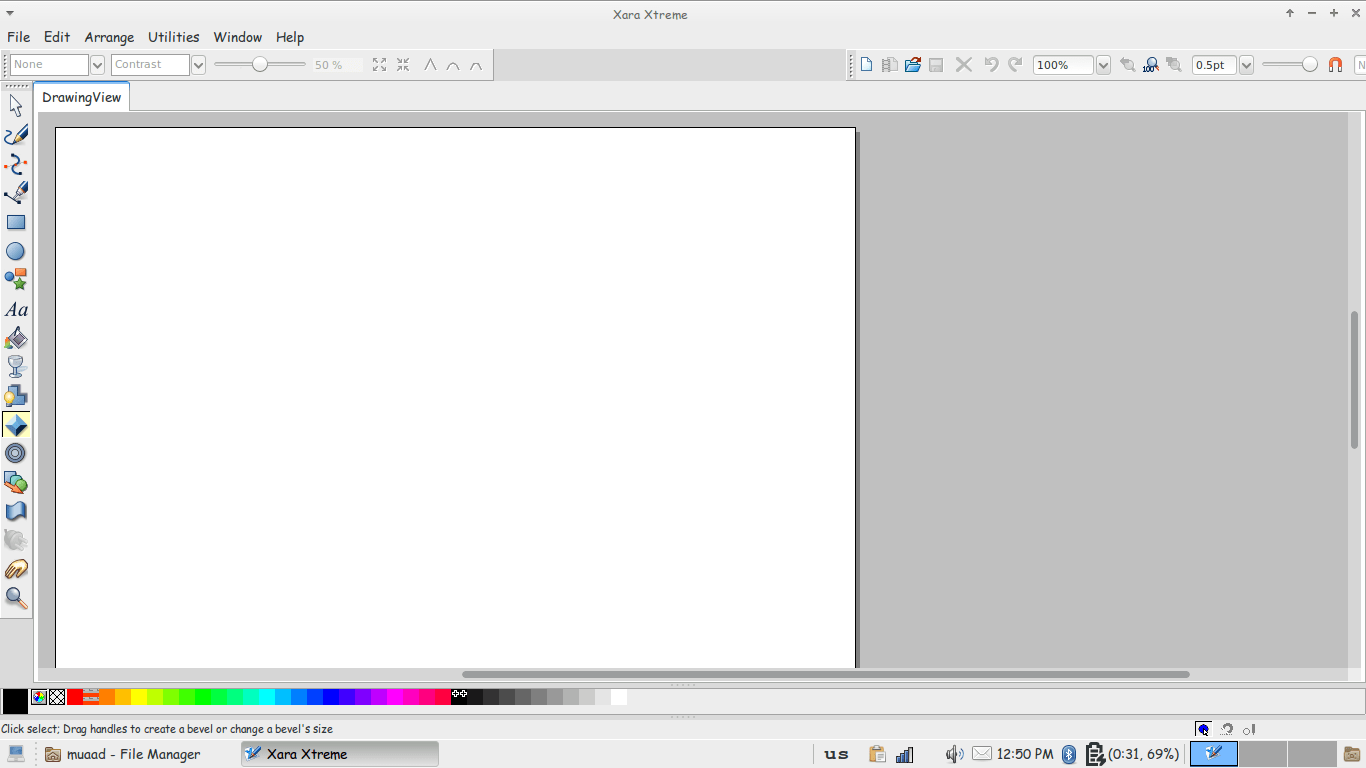
Xara main interface

The interface is really simple, especially if you used Inkscape before. With many tools similar here and there. You can see the path tool, pencil and eraser. Typical stuff. You can also open and edit image files in Xara Xtreme.

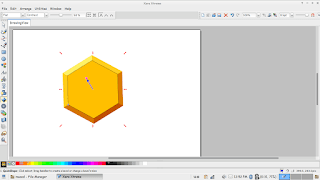
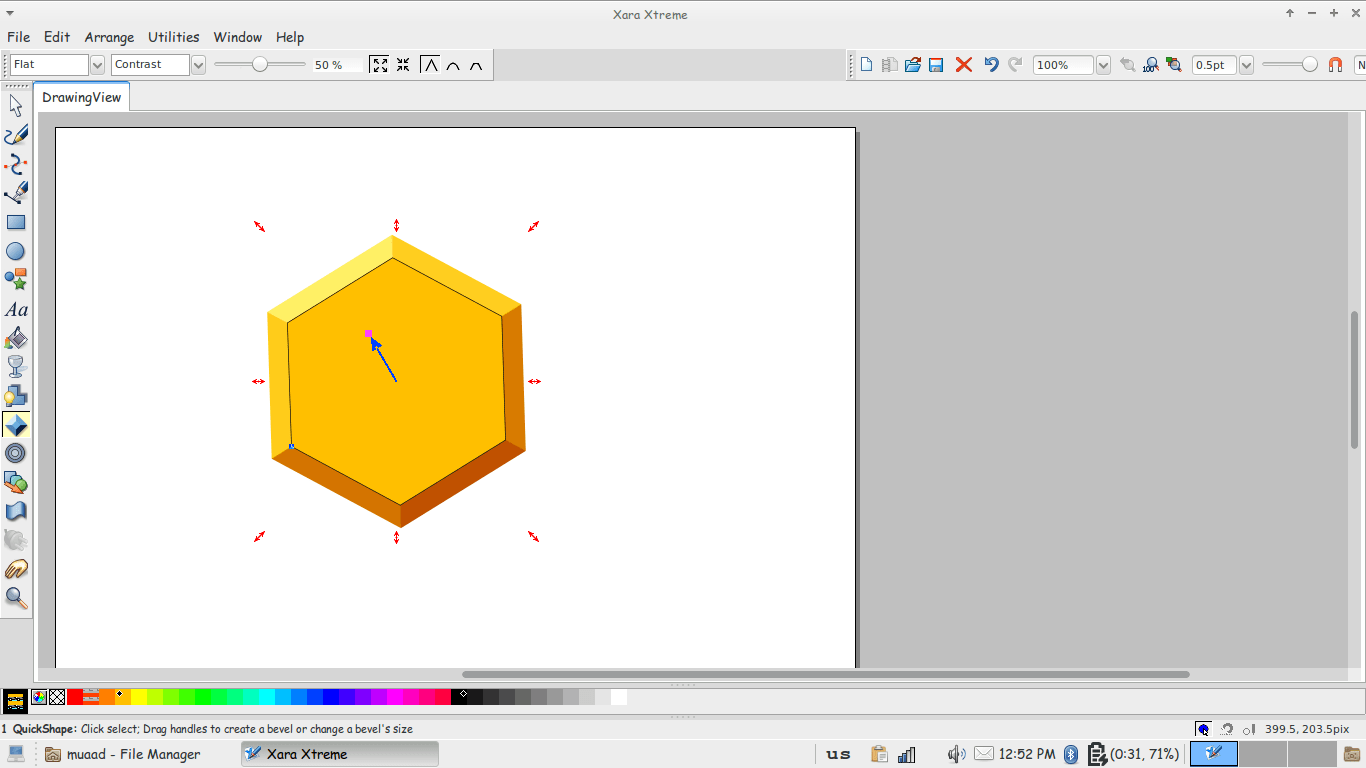
Modeling in Xara Xtreme

Pros

  • Small and light weight. 
  • Simpler to use.
  • Free and open source. 

Cons

  • Crashes often. 
  • Not as good as Inkscape
  • Not cross platform, as it’s Linux only.
  •  Discontinued!

This was a review of Xara Xtreme … I wouldn’t compare it to Inkscape as it’s widely used and more mature. But it’s a good start to anyone who would like a lite suit for design. Especially netbook users.

I hope you liked this tutorial. Leave your comments below

Open source design

Anyone how decides to pursue a career in graphic design is faced with an obstacle! Many courses don’t teach graphic design! They teach adobe products!

They don’t teach you how to design a logo, they teach you In design. Or how to edit a picture, they teach you PhotoShop!

You become an Adobe customer

Over time you are used to the adobe Eco-system and so consumed into it you can’t stand seeing anything else, or worse! Anything not done the “adobe way”!

The tools need to be sorted like this, the monitor must flicker in that pattern. And the worst in my opinion are mac designers as they don’t accept change at all!

I’m not running from door to door trying to convert people to open source! I just want to do my daily job (Using open source please!) The problem is that the designers don’t accept to tolerate anything done differently! And open source is different!

It’s not like PhotoShop! No one said that! Gimp is a separate package that does the same things differently and possibly better!

Gimp Logo

Inkscape is not like Indesign and it shouldn’t be. It’s a different software doing the same task.

Inkscape Logo

Why do they care if the output is the right size and format? Ready for printing without a glitch?

What gets on my nerves is that most of these judgmental people O have to deal with use cracked software! I don’t think they saw an Adobe Photoshop label before or ever saw across the registry process being done!

Imagine someone working for 10-15 years with a cracked software without guilt or remorse, then without a spec of shame looks down on open source software!

Respect FOSS please!!

9 Unique uses for LibreOffice

Hey there you guys! How are you doing today? I hope you are great!
Here I have some unique ways to make maximum use of LibreOffice. You don’t need to install external tools with this suit on your PC! Here are the ones I came up with while experimenting:

1. Draw and design software

I used (Draw) to design the blog icon, it has amazing features and it’s super easy to use.
It can be used to design logos and banners! It reminded me of Inkscape so much!
 

2. Database management

Base can be used to create and mange databases, anywhere from your book collection to an entire school or your small business! Why blow money on a full scale database when all your needs can be met by your user friendly office suit?
It can be buggy on report wizard in Windows.
*Update: Fixed on 4.4.2.2 😀 


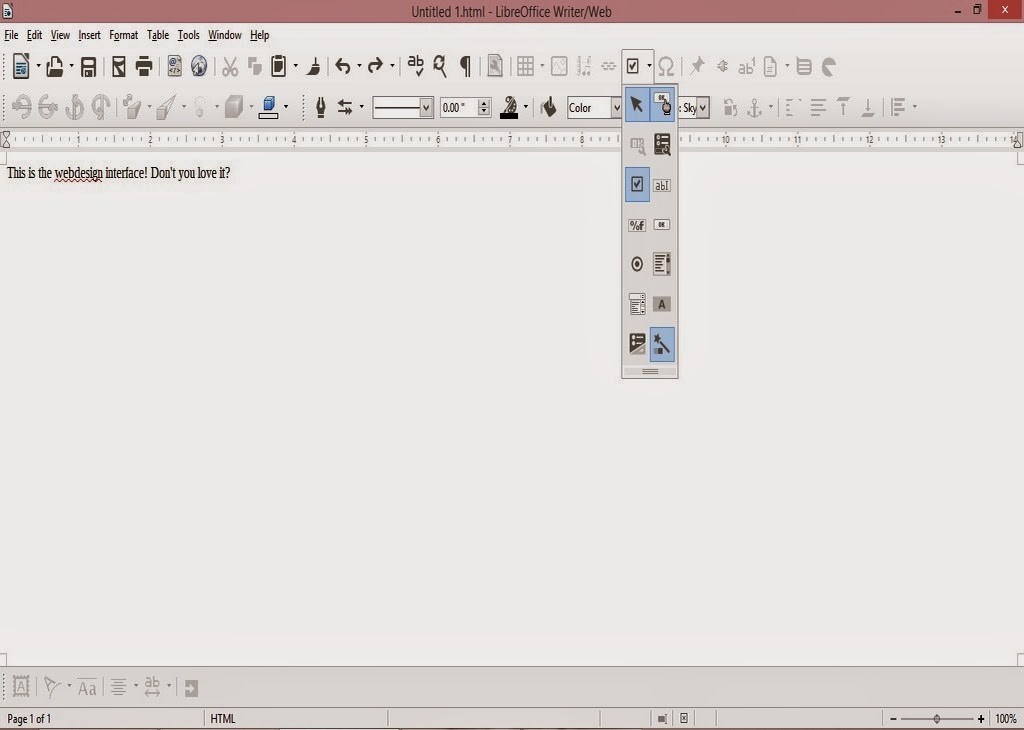
3. Basic HTML and XHTML Editor

You can access it from File New HTML Document / XHTML Document

It provides a WYSIWYG (What you see is what you get) editor for working with webpages
It has many of the standard features you would expect from an HTML editor. I was amazed when I saw the capabilities this tool had! (Better than most of the free bunch!!).

  • You can toggle between source and WYSIWUG view.
  • Open the document in your default browser (One button click).
  • Has many page controls
  • Image controls: image map etc ..

If you follow the wizard your design will be much much better!
As for XHTML well. I don’t know how to use it so 😛 xD

4. Web publisher

It can publish your website to a local folder, a zip file or even an FTP site!
Sadly it crashes. See the bug details. Works fine in Linux!
*Update (Works great in 4.4.4).

5. Batch convert documents!

If you have some documents in Microsoft office format that you want to convert to LibreOffice format, then all you have to do is to go to File Wizards Document converter.
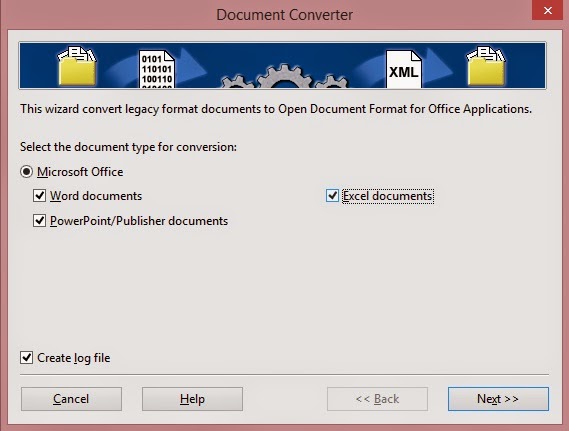
Determine the document types you want to convert

Then set the source folder and destination folder. Note the sub-folder option. It can take a while if you choose many files!
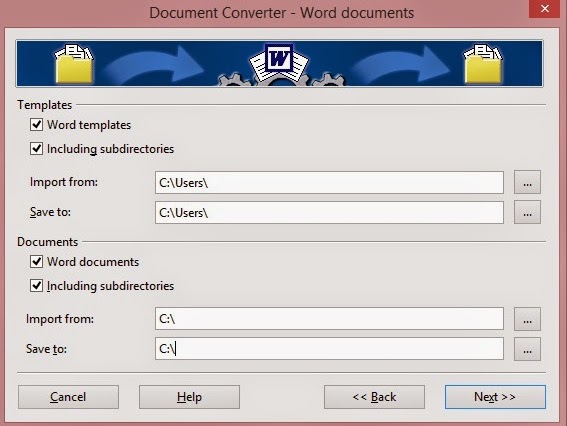
After it’s done a log file is generated with the conversion details!


6. Create labels and business cards!

You can use it to design labels and business cards right out of a database you have!

 You can access it from File New Label
You can access it from File New Business Card

7. Create awesome agendas for work and home 

You can create professional looking agendas for work and home. And to keep it as a template for creating future agendas!

8.Write books!

Yes that’s right! You can use LibreOfficeto write books! I’ve made an entire post about it that you can checkout from here, it has a fair share of tools and tips to turn LibreOffice into the book writing software you always fancied!

9. Mind maps!

You read correctly!You can use LibreOffice draw to make awesome mind maps, just download this template and start mapping!

10. Tons of extensions to increase usability

You can increase the usability by adding one of the thousands of extensions ready for download, from dictionaries to Templates.

What’s the hidden feature you came across? How much can you name? Please let me know. I’ll add it right away! Hope you like it. Drop a line below and let me know!
Join my blog and subscribe to my mailing list so you don’t miss a post! NEW!!


« Older posts Newer posts »